Select your country to view prices and course dates.

x

Recent Searches
Category

Microsoft Copilot Courses

Category

Microsoft Power BI

Category

AI for Business

Category

Microsoft Excel

Category

Professional Development

Category

Microsoft Office 365

Category

Excel Specialist

Category

Microsoft Project

Category

R Programming

Category

Python

Category

SQL

Category

Power Apps

Category

SharePoint

Category

Power Automate

Category

Microsoft Teams

Category

Microsoft Visio

Category

Microsoft PowerPoint

Category

Microsoft Word

Category

Microsoft Outlook

Category

Adobe InDesign Courses

Category

Adobe Photoshop Courses

Category

Adobe Illustrator Courses

Category

Adobe Premiere Pro Training

Category

Adobe After Effects Training

Category

Adobe Acrobat Courses

Category

Adobe Captivate Training

Category

Adobe Animate Training

Category

HTML Courses

Category

WordPress

Category

Canva Courses

Category

Microsoft Access

Category

Webinars

Course

Copilot for M365

Course

Power BI Beginner

Course

ChatGPT Beginner

Course

Excel Beginner

Course

Achieving Leadership & Success

Course

Microsoft 365 Beginner

Course

Financial Modelling

Course

Project Beginner

Course

R Programming Beginner

Course

Python Beginner

Course

SQL Beginner

Course

Power Apps Beginner

Course

SharePoint Beginner

Course

Teams Essentials

Course

Visio Essentials

Course

PowerPoint Level 1

Course

Word Beginner

Course

Microsoft Outlook Beginner

Course

InDesign Lite

Course

Photoshop Training Intro

Course

Illustrator Training Intro

Course

Premiere Training Intro

Course

After Effects Training Intro

Course

Acrobat Essentials

Course

Captivate Training

Course

Animate Training Intro

Course

HTML Training Intro

Course

WordPress Essentials

Course

Canva Beginners

Course

Microsoft Access Essentials

Course

Copilot for Word

Course

Power BI Intermediate

Course

Excel Intermediate

Course

Microsoft 365 Intermediate

Course

Analysis and Dashboards

Course

Project Intermediate

Course

R Programming Intermediate

Course

Python Intermediate

Course

SQL Intermediate

Course

Power Apps Intermediate

Course

SharePoint Intermediate

Course

PowerPoint Level 2

Course

Word Intermediate

Course

InDesign Training Intro

Course

Photoshop Lite

Course

Illustrator Training Advanced

Course

Premiere Basics Training

Course

Acrobat Forms

Course

Canva Intermediate

Course

Microsoft Access Advanced

Course

Copilot for Excel

Course

Power BI Advanced

Course

Excel Advanced

Course

Microsoft 365 Advanced

Course

Excel VBA

Course

Project Advanced

Course

R Programming Advanced

Course

Python Advanced

Course

SQL Advanced

Course

Power Apps Advanced

Course

SharePoint Advanced (Site Owner)

Course

Word Advanced

Course

InDesign Training Advanced

Course

Photoshop Training Advanced

Course

Advanced Premiere Training

Course

Advanced After Effects Training

Course

Canva Advanced

Course

Copilot for PowerPoint

Course

Power BI DAX

Course

Excel Expert

Course

Machine Learning in R

Course

SharePoint Advanced (Document Governance)

Course

InDesign Interactivity Training

Course

Copilot for Outlook and Teams

Course

InDesign Accessibility Training

Course

Power Automate Beginner

Course

Power Automate Intermediate

Course

Microsoft Outlook Advanced

Course

AI Prompting Fundamentals

Course

Power Automate Advanced

Course

Excel Tables and Pivot Tables

Course

Data Transformation with Power Query

Course

Excel Macro Mastery

Course

Power BI Desktop Advanced Reporting

Course

AI for Business Leaders and Managers

Course

Data Visualisation with Power BI Desktop

Course

Anger Management & Negotiation Skills

Course

Assertiveness & Confidence

Course

Building Resilience

Course

Coaching and Mentoring

Course

Communications

Course

Communications & Quality Client Service Training

Course

Critical Thinking and Problem Solving

Course

Cultural Diversity in the Workplace

Course

Embracing Change

Course

Growing Emotional Intelligence

Course

Minute Taking

Course

Persuasion and Negotiation Skills

Course

Presentation Skills and Public Speaking

Course

Practical Project Management

Course

Respect, Equity and Diversity (RED)

Course

Resumé Writing and Interview Skills

Course

Stress Management

Course

Team Leadership, Management and Development

Course

Time Management Intensive

Course

Train the Trainer

Course

Write Effective Business Documents

Course

Dealing with Difficult People

Course

Managing Difficult Conversations

Course

Managing the Virtual Workplace

Power Automate Outlook Flow: Handy tips and tricks!

Hannah Pearson | Sep 15, 2022
person holding phone with email graphic coming from phone

Power Automate is a powerful tool that can be used to simplify everyday tasks and make your life easier. Part of the appeal of Office365 is how the apps seamlessly integrate with one another, and Power Automate is no exception. The app connects to almost 600 services, including Twitter and some google services.

You can create a flow from existing templates that are published by selected members of the Microsoft community or you can also start from a ‘connector’, a tool developed by Microsoft that ‘speaks’ to the applications used to make the flow work. Connectors are applications that you may want to use in your flows.

When selecting a template, it is important to pay attention to which connectors are being used. There is a difference between outlook.com and Office 365 Outlook (something I figured out the hard way). The outlook.com connector is for the web version of Outlook, generally used for personal accounts. If you are going through your business email in outlook, make sure to use the Office 365 Outlook connector, otherwise, your login will fail. Likewise, there is a One Drive and a One Drive for business connector.

Since Power Automate was first created, Microsoft has updated the way the connectors 'speak' to one another. As a result, some templates are becoming outdated. Once you have experimented with a few templates, try creating your own flow to ensure it is up to date.

A good flow should simplify a task and be an efficient solution. Microsoft has many organizational tools, so ensure the flow you're creating serves a legitimate purpose and won't eventually make more work for you down the track. The flow we are creating today is best for people who use Microsoft planner to organize their 'to-dos'. 

This blog will teach you how to create a simple flow that turns flagged emails into tasks in Microsoft planner.

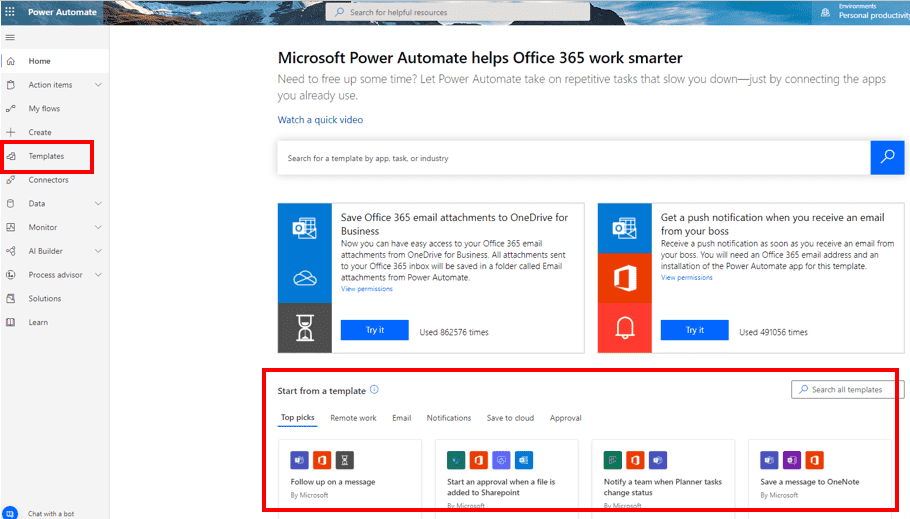
When you first open Power Automate, there will be several templates across the bottom of the screen.
power automate outlook planner

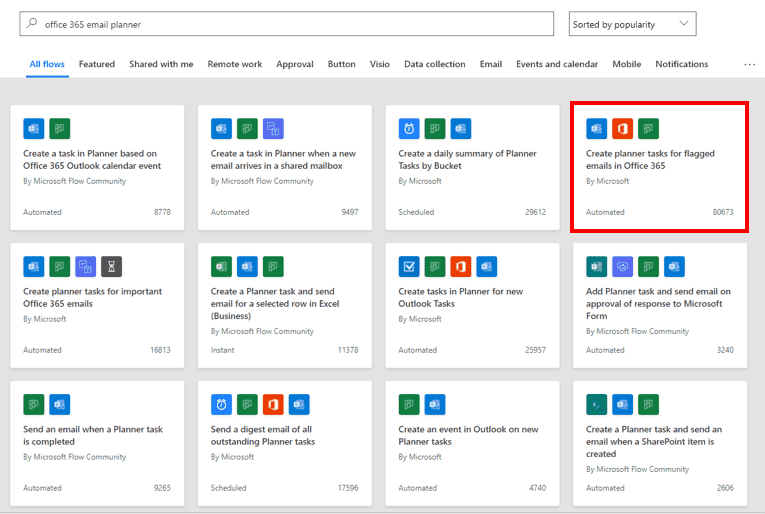
You can browse a limited selection there or access every template through the template ribbon on the left-hand menu. Use keywords in the search bar at the top of the template page to refine your search. I used 'Office 365 email planner'. Today, we will be utilizing the ‘Create planner tasks for flagged emails in Office 365’ template. If you don’t know how to use planner, see our guide to starting out here.
power automate outlook planner

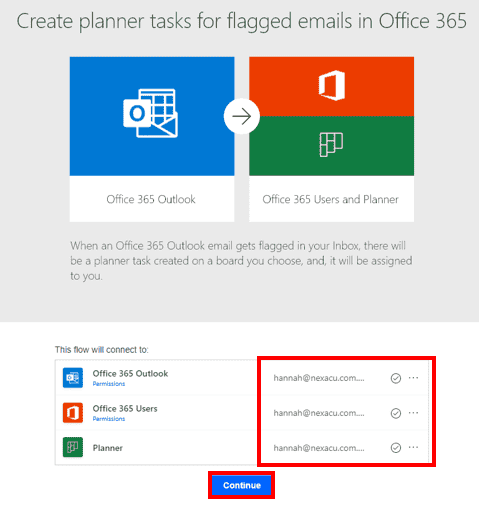
You then need to log in to the services underneath the icons. This is where you will run into trouble if you have selected the wrong template, as you will be unable to log in. Ensure you have the relevant licenses and permissions for the connectors you wish to use.
power automate outlook planner

Once you are logged in, click on continue. Power Automate will prepopulate some of the fields based on your login information.
power automate outlook planner

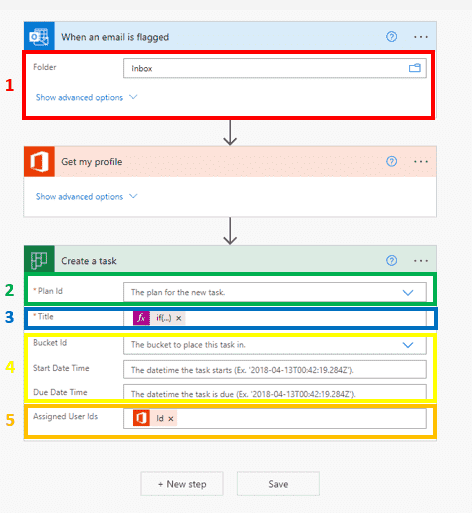
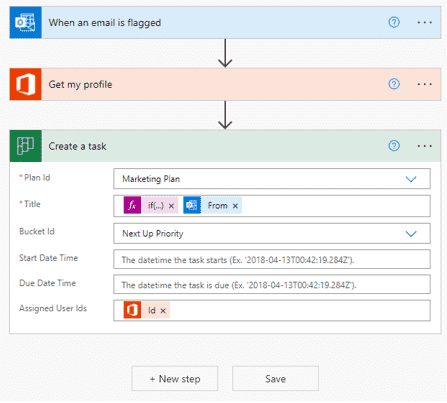
  1. Under the outlook tab, select the mailbox with the flagged emails that you want Power Automate to draw from. The default is inbox.
  2. Under the planner tab, the plan ID is the planner you want the new task to fall under.
  3. The title is what you want the new task to be called. The pre-populated if(…) automatically puts the subject of the email at the start of the name. You can choose from multiple things that change based on the email that you receive. A relevant title could be the subject of the email and who it is from, chosen by selecting ‘from’ from under the outlook section within title. Place a space between the if(...) operator and the 'from' operator to have a space between the subject and sender when the task is named in the planner.
  4. Bucket ID is the bucket you wish the new task to be placed under. This, as well as the Start and Due date time are optional fields.
  5. Assigned User Ids will automatically prepopulate with your Microsoft ID

Once you click save, given that there are no errors, you will see a green banner at the top of your screen stating that your flow is ready to go.
power automate outlook planner

Microsoft recommends you test your flow, so click on ‘test’ in the top right-hand corner. Once you test, you will be told by power automate whether your flow was successful or not. When I originally tested my flow, I made an error in ‘title’. The pre-populated if(…) automatically put the subject of the email at the start of the name, and I didn’t place a space between the two aspects of the title. The new title worked right away, and my flow was done!

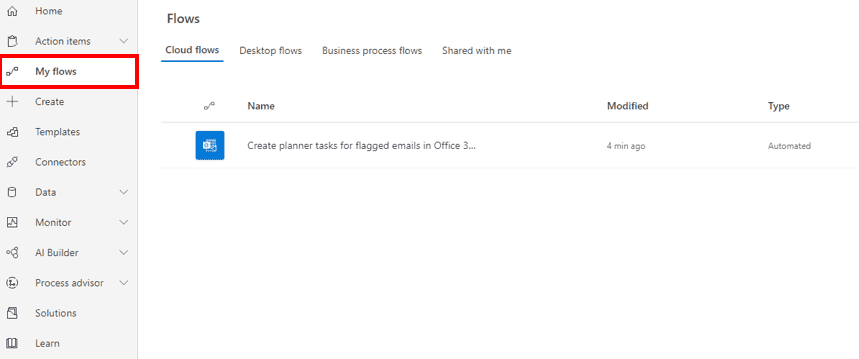
I edited the flow by going through My Flows on the left-hand side menu. You can either go into the flow, click edit in the top right corner, and again click edit in the top right-hand corner ad edit your flow from there. More simply if you hover your mouse over the flow under My Flows and click the pencil icon that will take you directly into the editing screen.
power automate outlook planner

This is a very simple flow, especially since it was made from a template. Templates are an easy way to get started with become Power Automate but can become outdated. It is helpful to know how to build flows from scratch. We cover all areas of Power Automate in our beginner, intermediate and advanced Power Automate courses.


Trusted Globally by Leading Organisations

At Nexacu, we are proud to be the trusted training partner for hundreds of leading organisations across Australia, New Zealand, and around the world. From government agencies to multinational corporations, we help teams build practical skills and achieve real outcomes through expert-led training.

  • 400+ companies rely on Nexacu for workforce development
  • Trusted by government agencies at all levels
  • Delivering training across 9 countries and growing

Why Nexacu? 

step by step courseware

Step by Step Courseware

Custom workbook included with a step by step exercises

Facility Image 2
Facility Image 3
Facility Image 1

Interactive real time training

Interactive, Real-Time Training

Learn with expert instructors, wherever you are

Trusted by Business

Trusted by Business

Procured by Government

Procured by Goverment

Reviews Not Found

Valued by Individuals