Select your country to view prices and course dates.

x

Recent Searches
Category

Microsoft Copilot Courses

Category

Microsoft Power BI

Category

AI for Business

Category

Microsoft Excel

Category

Professional Development

Category

Microsoft Office 365

Category

Excel Specialist

Category

Microsoft Project

Category

R Programming

Category

Python

Category

SQL

Category

Power Apps

Category

SharePoint

Category

Power Automate

Category

Microsoft Teams

Category

Microsoft Visio

Category

Microsoft PowerPoint

Category

Microsoft Word

Category

Microsoft Outlook

Category

Adobe InDesign Courses

Category

Adobe Photoshop Courses

Category

Adobe Illustrator Courses

Category

Adobe Premiere Pro Training

Category

Adobe After Effects Training

Category

Adobe Acrobat Courses

Category

Adobe Captivate Training

Category

Adobe Animate Training

Category

HTML Courses

Category

WordPress

Category

Canva Courses

Category

Microsoft Access

Category

Webinars

Course

Copilot for M365

Course

Power BI Beginner

Course

ChatGPT Beginner

Course

Excel Beginner

Course

Achieving Leadership & Success

Course

Microsoft 365 Beginner

Course

Financial Modelling

Course

Project Beginner

Course

R Programming Beginner

Course

Python Beginner

Course

SQL Beginner

Course

Power Apps Beginner

Course

SharePoint Beginner

Course

Teams Essentials

Course

Visio Essentials

Course

PowerPoint Level 1

Course

Word Beginner

Course

Microsoft Outlook Beginner

Course

InDesign Lite

Course

Photoshop Training Intro

Course

Illustrator Training Intro

Course

Premiere Training Intro

Course

After Effects Training Intro

Course

Acrobat Essentials

Course

Captivate Training

Course

Animate Training Intro

Course

HTML Training Intro

Course

WordPress Essentials

Course

Canva Beginners

Course

Microsoft Access Essentials

Course

Copilot for Word

Course

Power BI Intermediate

Course

Excel Intermediate

Course

Microsoft 365 Intermediate

Course

Analysis and Dashboards

Course

Project Intermediate

Course

R Programming Intermediate

Course

Python Intermediate

Course

SQL Intermediate

Course

Power Apps Intermediate

Course

SharePoint Intermediate

Course

PowerPoint Level 2

Course

Word Intermediate

Course

InDesign Training Intro

Course

Photoshop Lite

Course

Illustrator Training Advanced

Course

Premiere Basics Training

Course

Acrobat Forms

Course

Canva Intermediate

Course

Microsoft Access Advanced

Course

Copilot for Excel

Course

Power BI Advanced

Course

Excel Advanced

Course

Microsoft 365 Advanced

Course

Excel VBA

Course

Project Advanced

Course

R Programming Advanced

Course

Python Advanced

Course

SQL Advanced

Course

Power Apps Advanced

Course

SharePoint Advanced (Site Owner)

Course

Word Advanced

Course

InDesign Training Advanced

Course

Photoshop Training Advanced

Course

Advanced Premiere Training

Course

Advanced After Effects Training

Course

Canva Advanced

Course

Copilot for PowerPoint

Course

Power BI DAX

Course

Excel Expert

Course

Machine Learning in R

Course

SharePoint Advanced (Document Governance)

Course

InDesign Interactivity Training

Course

Copilot for Outlook and Teams

Course

InDesign Accessibility Training

Course

Power Automate Beginner

Course

Power Automate Intermediate

Course

Microsoft Outlook Advanced

Course

AI Prompting Fundamentals

Course

Power Automate Advanced

Course

Excel Tables and Pivot Tables

Course

Data Transformation with Power Query

Course

Excel Macro Mastery

Course

Power BI Desktop Advanced Reporting

Course

AI for Business Leaders and Managers

Course

Data Visualisation with Power BI Desktop

Course

Anger Management & Negotiation Skills

Course

Assertiveness & Confidence

Course

Building Resilience

Course

Coaching and Mentoring

Course

Communications

Course

Communications & Quality Client Service Training

Course

Critical Thinking and Problem Solving

Course

Cultural Diversity in the Workplace

Course

Embracing Change

Course

Growing Emotional Intelligence

Course

Minute Taking

Course

Persuasion and Negotiation Skills

Course

Presentation Skills and Public Speaking

Course

Practical Project Management

Course

Respect, Equity and Diversity (RED)

Course

Resumé Writing and Interview Skills

Course

Stress Management

Course

Team Leadership, Management and Development

Course

Time Management Intensive

Course

Train the Trainer

Course

Write Effective Business Documents

Course

Dealing with Difficult People

Course

Managing Difficult Conversations

Course

Managing the Virtual Workplace

Build an app in 5 minutes with PowerApps

Eleanor Isdale | Apr 17, 2019

Power Apps enables users to build business-centric apps incredibly easily. Users can streamline business tasks and make their work more efficient.  The program allows users to build their own web-based apps and mobile apps, which can be also used within other Microsoft programs.

Today we're going to look at the basics of Power Apps, and go through how to build a basic app using our own dataset.

Getting Started with Power Apps

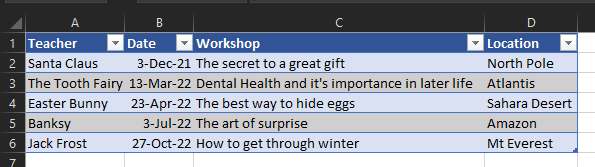
For this example, let’s say we want to make an app to show which teacher is delivering certain workshops where and when.

First, make your spreadsheet of data in Excel, and make sure you format your data as a table.

Now we’re going to put this data into Power Apps, which will do all the hard work for us and turn our data into an easy-to-use application.

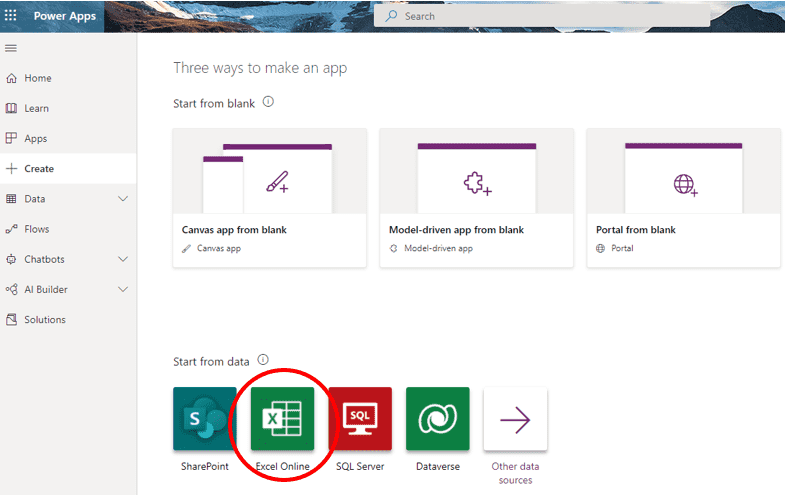
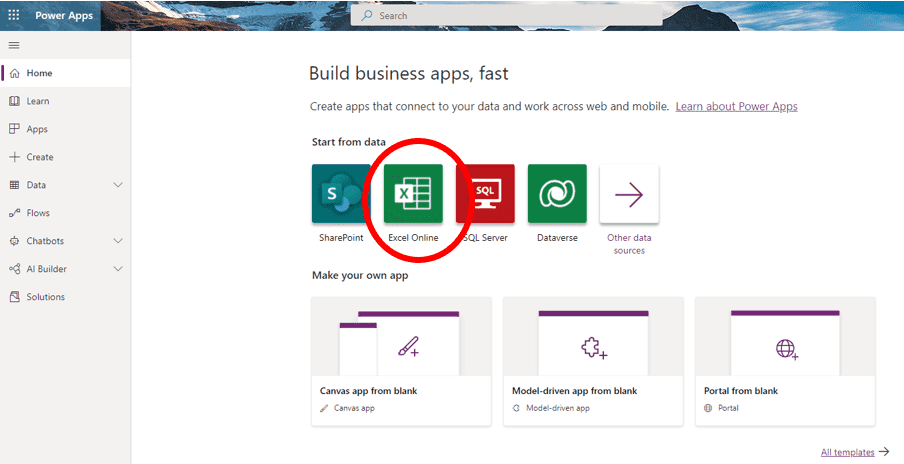
Open up Power Apps, and click on ‘Start from data’, so we can use the dataset we've just made in Excel. This can be done from multiple points within the app. 
Power Apps easy starting

Power Apps easy starting

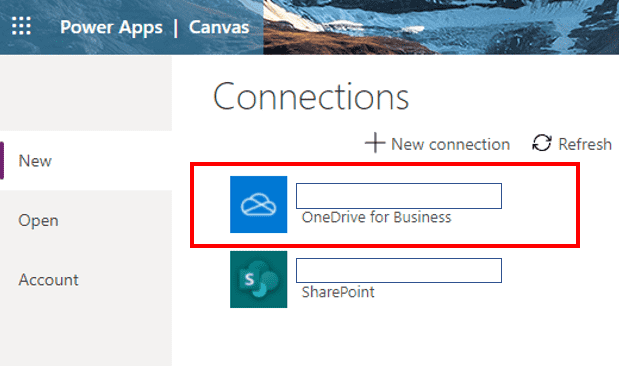
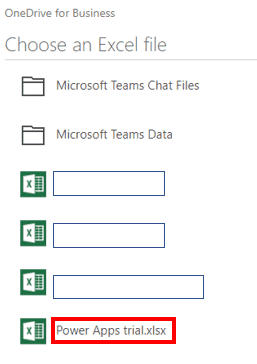
Next we’re going to select our data source, which in this case has been automatically saved into OneDrive. If you haven't done so already connect the data source where you saved your excel file. Click ‘Phone layout’ under the 'OneDrive for Business' option.
Power Apps easy starting

Power Apps easy starting

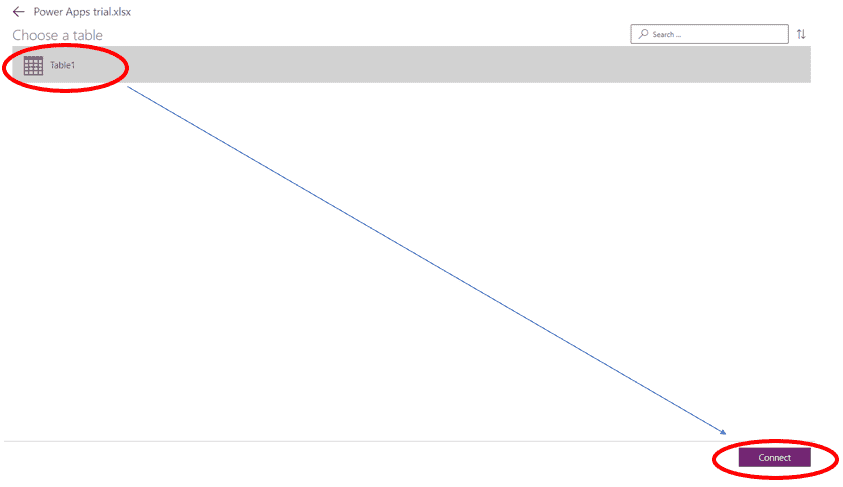
Select ‘Workshop Delivery Dates’,  which is the dataset we've just made in Excel, then select your formatted table, probably called 'Table 1', and click 'Connect'.
Power Apps easy starting

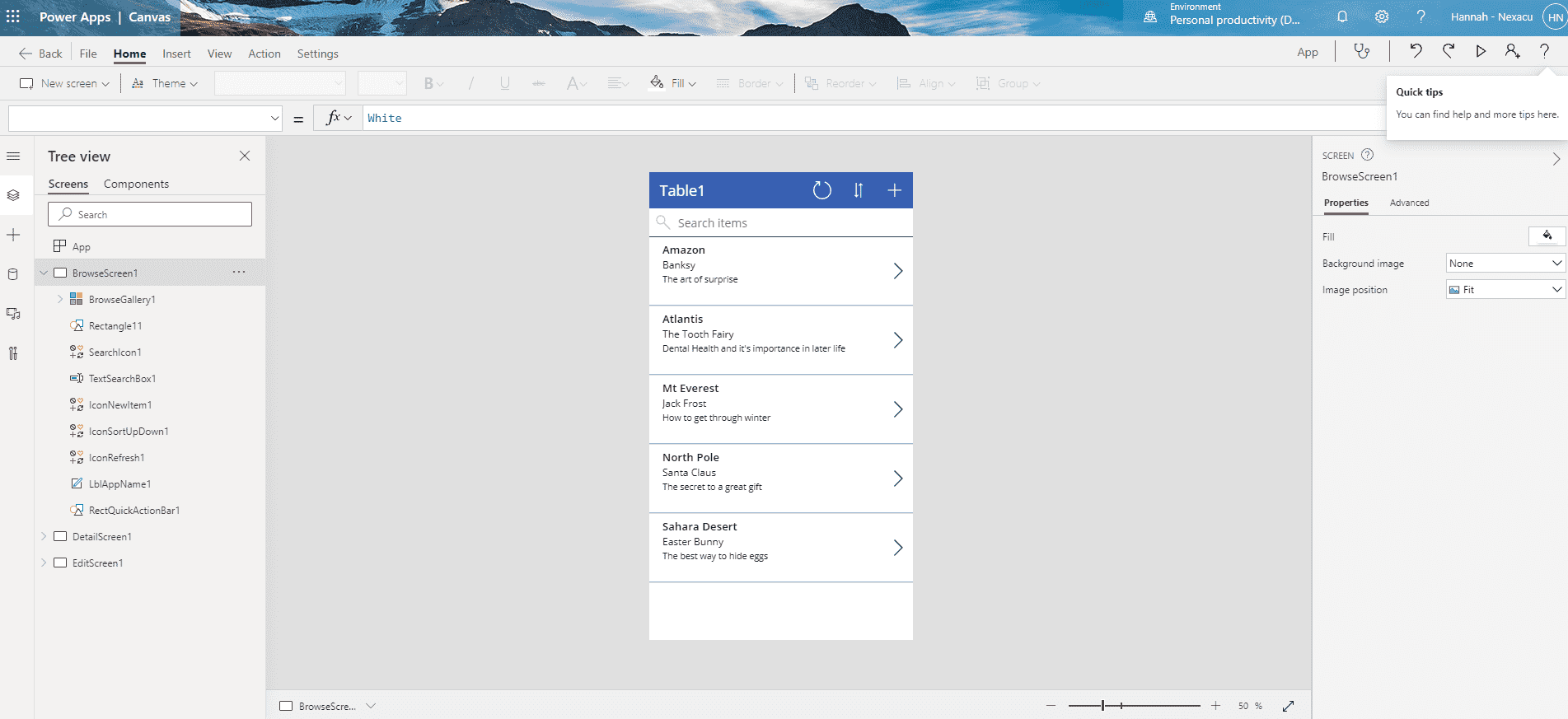
Now Power Apps will start working its magic and start building your basic app from the ground up.

Tip:  If for some reason your app shows up as blank after Power Apps processes your data, it could be because you have your Excel file still open.  Close Excel and refresh Power Apps, and then your data should show up.

So here is our brand new app!
Power Apps easy starting

To preview our working application so far, hit the play button in the top right-hand corner.  Here you can take a closer look at your data, edit and sort it, and add in new data.  The search function is also handy – in this case, if we had a long list of employees and we wanted to find who is presenting which workshop, we can simply type in the employee's name in the search bar of the app to find their details.

Formatting Your Power App

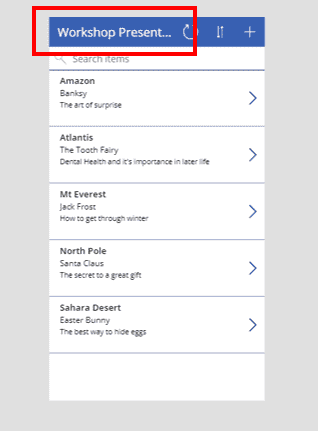
Now let’s change a few things to make the app a bit more functional.  For instance, we can change the name of our data from 'Table 1' to ‘Workshop Presentations’ by simply double-clicking and typing in the text field.
Power Apps easy starting

Next we can change the order of the data categories, such as the employee name, workshop topic, location and date.

First, click ‘BrowseGallery1’ to the left of the screen.  On the right-hand side, click edit under the ‘Fields’ category.  Here we can rearrange our data categories using the drop-down menus.  In this example, we want to display the workshop date rather than the location.
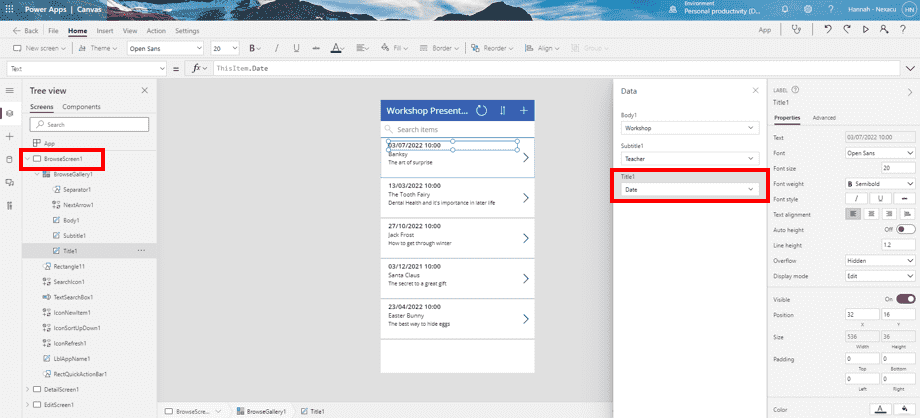
Power Apps easy starting

Next we can change the way our data is sorted in the app.  In this example, let’s change it so our data is sorted by the workshop date, instead of by the alphabetical order of employee names.  Click 'BrowseGallery1' again, and then change where it says ‘Employee’ in the data source/function bar (as seen in the above image), and write in ‘Date’ to match this data category.
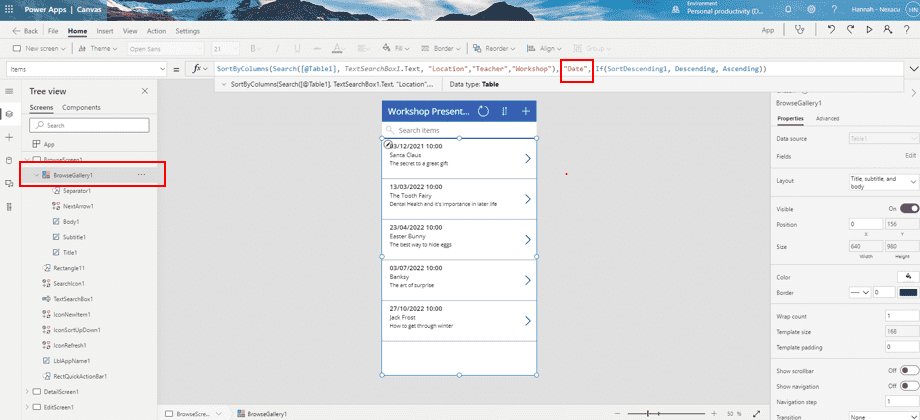
Power Apps easy starting

Now the data in our app is sorted in order of when workshops are due to be delivered by each employee.  Try clicking the play button again in the top right-hand corner to preview our brand new, reorganised app.

Stay tuned for our next blog where we will talk about how to publish and share an app made in Power Apps.

If you're interested in learning more about Power Apps and how to best use it to benefit your work and business, check out our Power Apps courses!


Trusted Globally by Leading Organisations

At Nexacu, we are proud to be the trusted training partner for hundreds of leading organisations across Australia, New Zealand, and around the world. From government agencies to multinational corporations, we help teams build practical skills and achieve real outcomes through expert-led training.

  • 400+ companies rely on Nexacu for workforce development
  • Trusted by government agencies at all levels
  • Delivering training across 9 countries and growing

Why Nexacu? 

step by step courseware

Step by Step Courseware

Custom workbook included with a step by step exercises

Facility Image 2
Facility Image 3
Facility Image 1

Interactive real time training

Interactive, Real-Time Training

Learn with expert instructors, wherever you are

Trusted by Business

Trusted by Business

Procured by Government

Procured by Goverment

Reviews Not Found

Valued by Individuals