Australia
 New Zealand
 Singapore
 Hong Kong
 Malaysia
 Philippines
 Thailand
 Indonesia

Since the inception of Microsoft, the company has been continuously striving to transform and catalyse revolutionary changes in the professional world. From MS Word to MS PowerPoint, professionals are using Microsoft programs to their advantage to streamline workflows and manage their business-related data.
MS Excel has played a key role in making things a lot easier for professionals. It has some incredible features and formulas that aid in the seamless organization of the data.
One great advantage Excel offers is its capability to sort data by date and time. The formulas related to Date and time in Excel help users to keep everything in order and allow them to access values according to their needs.
But how do we put these formulas to effective use?
Keep reading to learn how to use the Date and Time Excel functions in the best possible way.
A Brief Overview of Excel Date and Time
Excel is known for storing dates and times in a specific serial order. In simple terms, when you look at a date in your Excel sheet it is a regular number formatted by the functions in a standard date and time format. You will also see the underlying date serial number after changing the cell format to ‘General’.
The integer portion of the date serial number is supposed to represent the day and the decimal portion represents time.
What are Excel Dates?
The functions and formulas in Excel are designed to give each date a numeric value that by default starts with 1st January 1900. The software recognizes 1st January 1900 as the 1st numeric value called ‘date serial numbers’, further using them in formulas.
What is Excel Time?
In Excel, the values that represent time also use a serial number, representing them as decimal fractions.
What is Excel Date and Time?
Excel sheets allow you to store values that represent date and time together.
How to Enter the Dates in Excel
While preparing your Excel Sheets, you can simply type various date configurations and the software will automatically recognize them and convert them to a specific serial number.
For dates in Excel, you can try typing or copy-pasting desired dates into an empty cell. Use the standard date formats such as dd/mm/yy for better results.
How to Enter Time in Excel
While entering Time in Excel, it is important to follow the set format of hh:mm:ss. For times in Excel, type AM or PM into the cell if you don’t want the values to appear as military time.
How to Enter Dates and Times Together in Excel
Once you’ve learned how to add a date and time to the sheet, entering the values together and making a perfect date-and-time Excel sheet becomes a piece of cake. All you need to do is enter the values representing the date and time in the same cell.
A Few Hacks That Can Help You Store Values Quickly and Easily
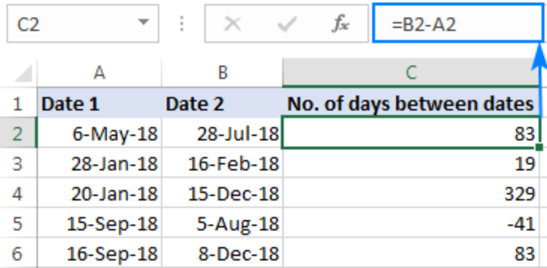
How to Find the Number of Days Between Two Dates
With Excel dates, you need to keep in mind that the values are represented as sequential numbers. Thus, if you want to figure out the number of days between the two dates, then subtract the newer date and the older date. Using this formula can help: =B2-A2.
How to Format Dates According to Your Choice
If you want to make the date values look the way you want, you will have to play a little bit with cell formatting.
For this, all you need to do is select the cell with the date and press ctrl+1. Look for the “Number” tab and select “Custom”. Once you’ve done that, select the desired date formats.
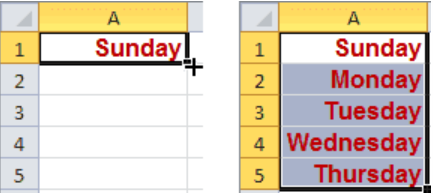
How to Auto-Fill Only on Weekdays
For this, you can simply use the Autofill option and select “weekdays only”. This way, the values will only show the weekdays in the sheet. You can also add the name of a day to the list and select the cells you want to autofill.
How to Use a Given Date to Find Out the Day of the Week
While making project plans or resource allocation sheets you might have to find out whether the date falls on a weekend or a weekday. By using the weekday () function, you can simply find out the day of the week from the given date.
For instance, use =weekday(06/28/2021). The result would be 3 which indicates Tuesday. This is if the week starts on Sunday.
If you want to start the week on Monday, you will have to use the formula =weekday (06/28/2021,2).
How to Use Conditional Formatting to Highlight the Weekends
Highlighting weekends while preparing reports can help you organize data in a much more attractive and simple way.
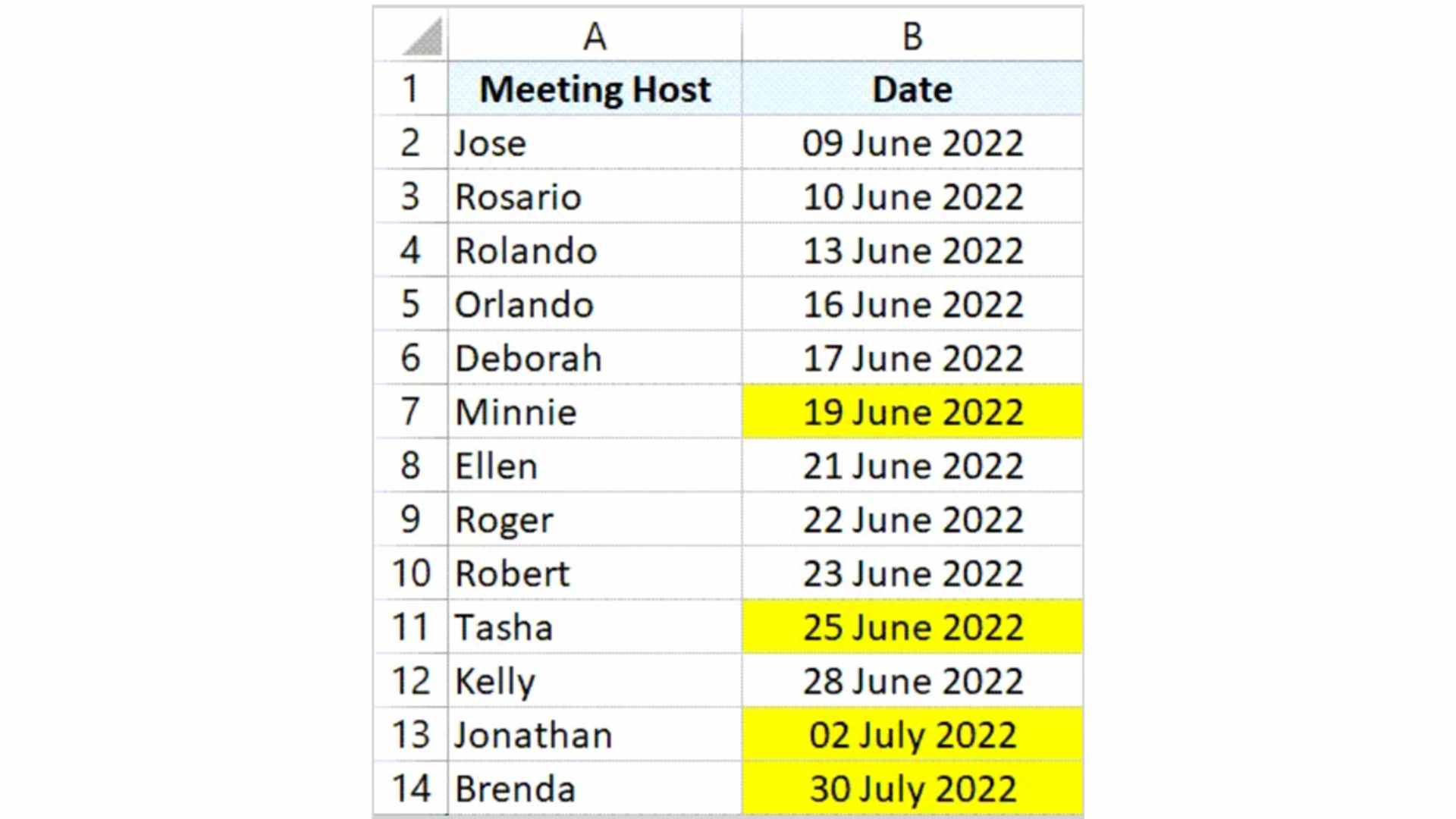
After defining a named range beforehand, all you need to do is use the formula, =WEEKDAY(this_date,2)>5 as weekday() which returns 6 and 7 for Saturday and Sunday. Use different colours to highlight the cells so that you know what days are the weekends.
To highlight all the dates that occur on a weekend (Saturday or Sunday), you can take the following steps.
- Select the cells that contain the dates.
- Click the Home tab.
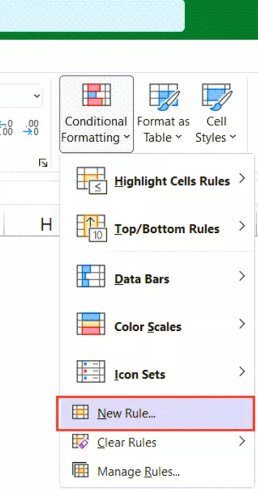
- Click on the Conditional Formatting icon, in the Styles group.
- Choose the ‘New Rule’ option.
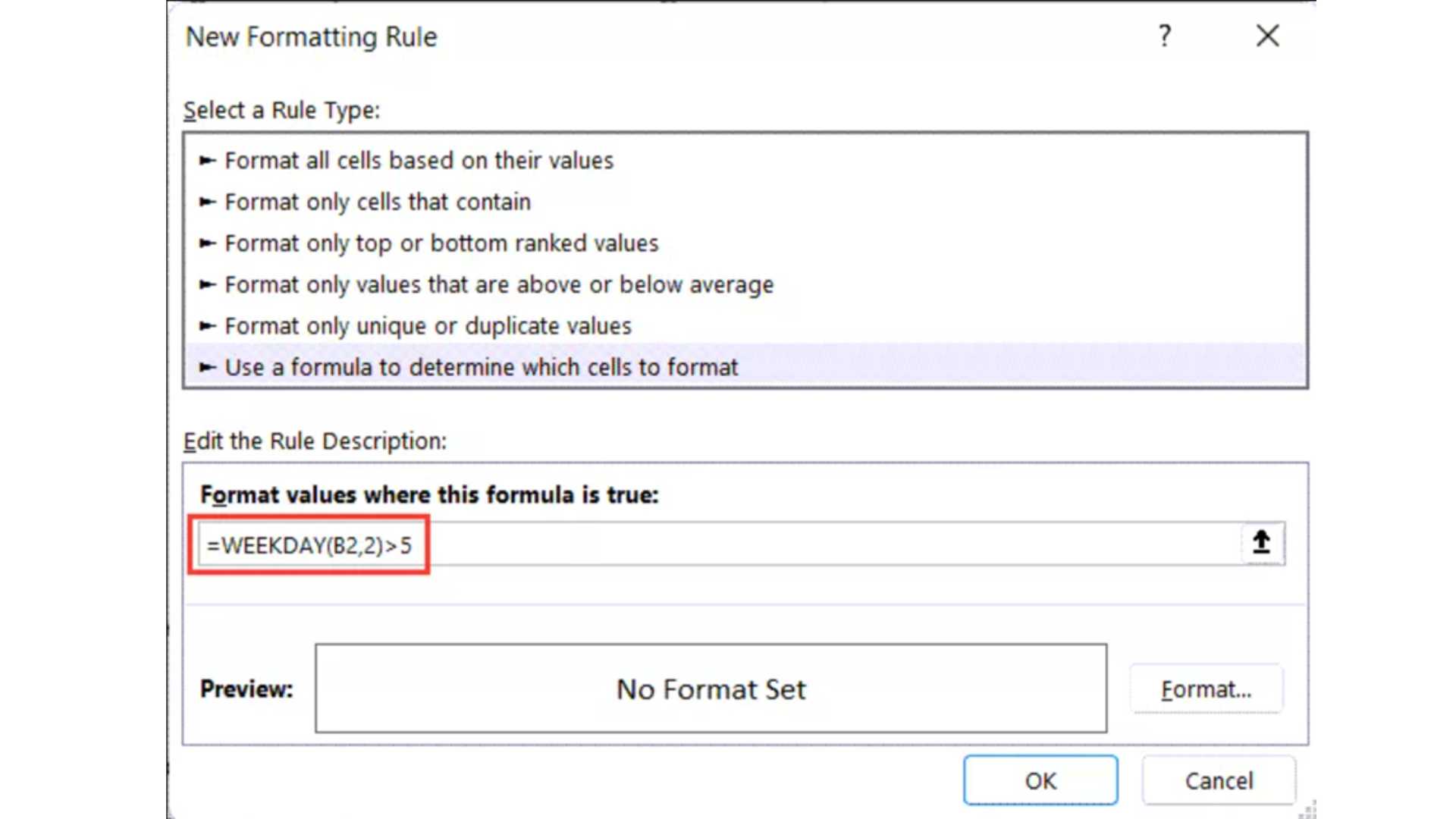
- Click on ‘Use a formula to determine which cells to format’ listed in the ‘New Formatting Rule’ dialog box.
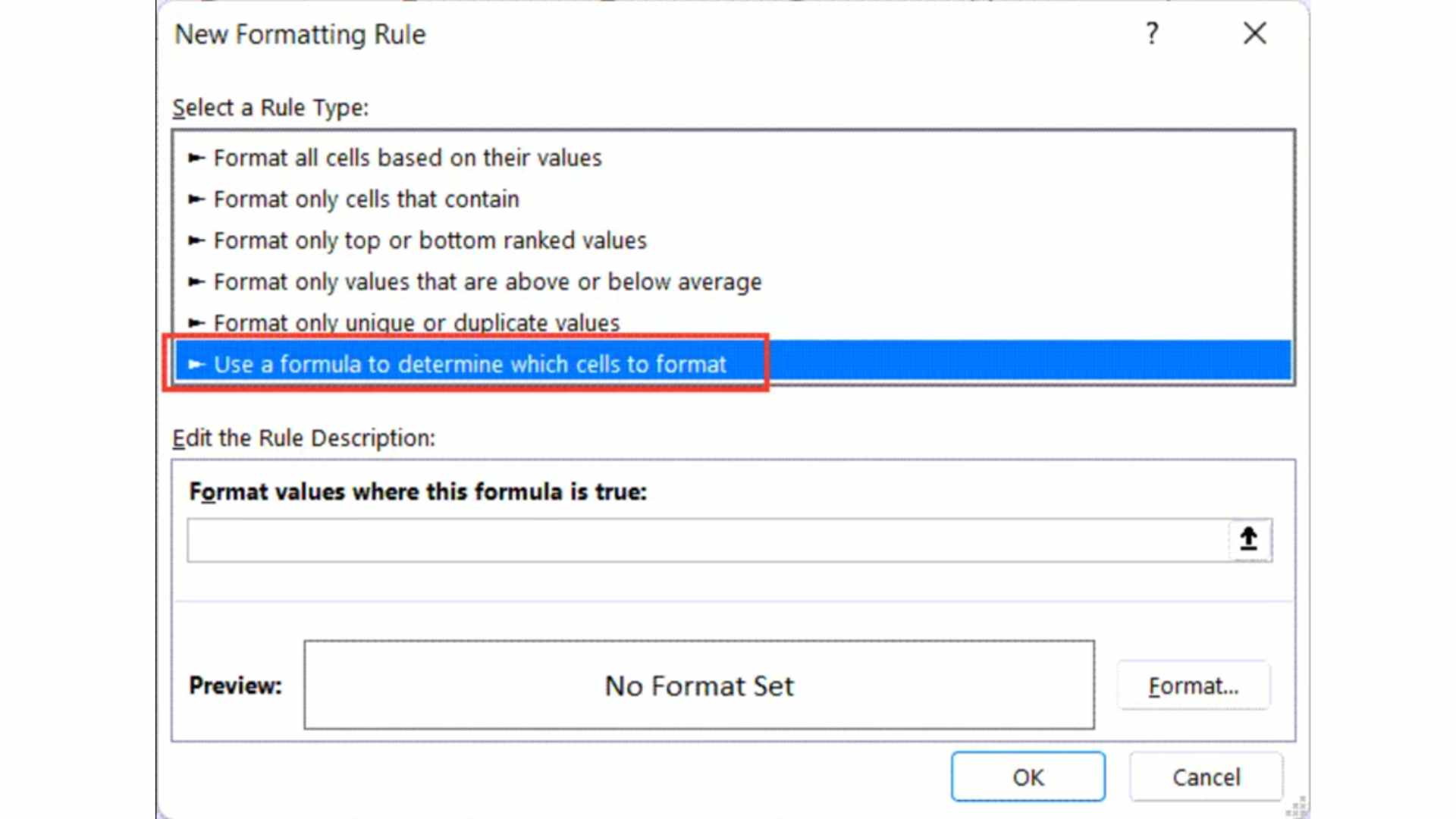
- In the formula field, enter the formula: =WEEKDAY(B2,2)>5 and then click the format button.
- Choose the colour for highlighting and then click OK.
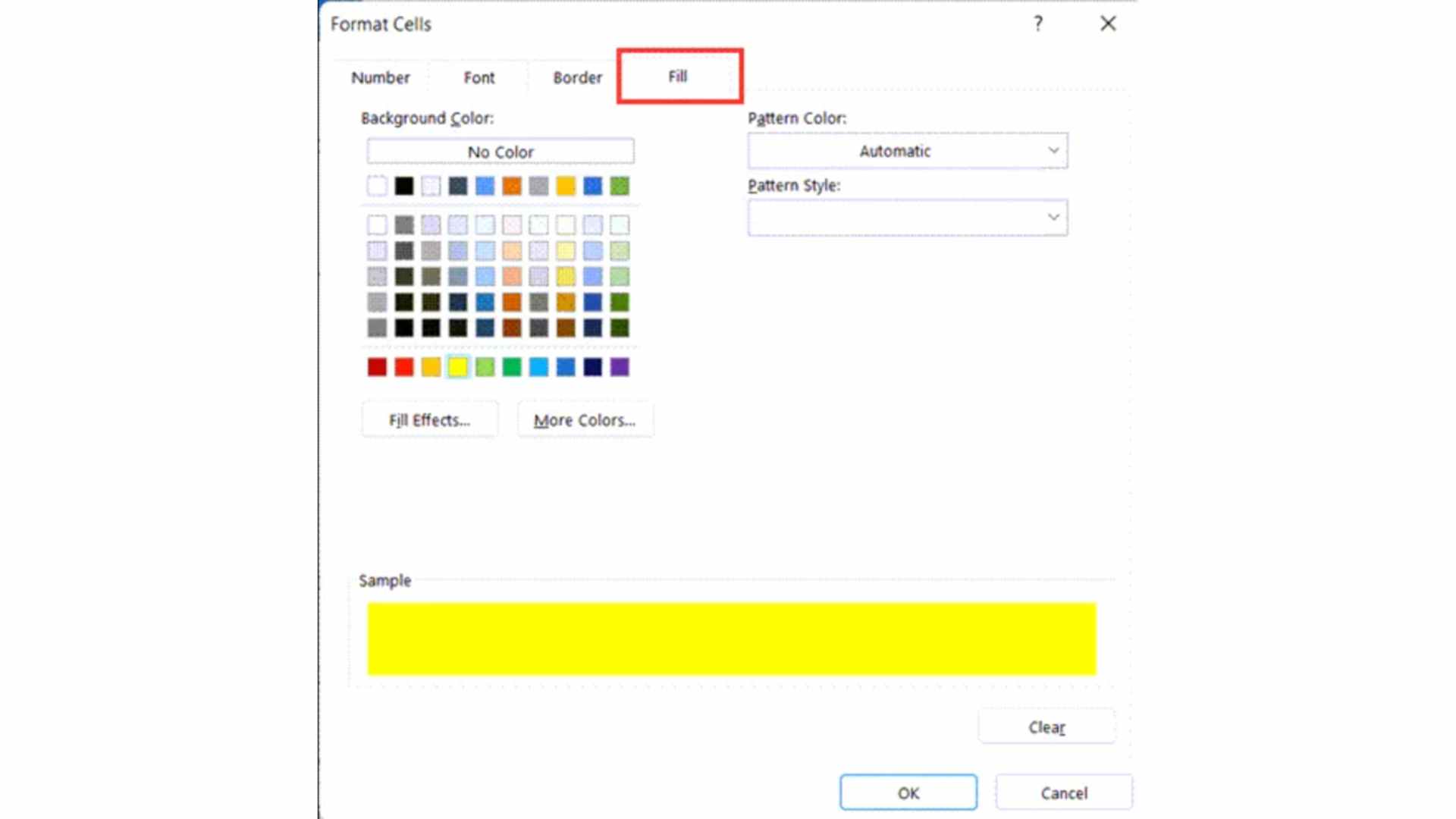
Once highlighted the final results that you will get are:
How Can You Add and Subtract Dates?
Know that Excel dates are just numbers. This means that you can easily find the difference between the given dates using simple subtraction logic.
For instance,=DATE(2021,7,26)-DATE(2021,7,25) will return 1.
How Can You Add 1 Year to a Date in Excel?
To add 1 year on date Excel, you can do it similarly to adding months. By using the DATE(year, month, day) function, you can add 1 year, but just make sure to specify how many years you want to add.
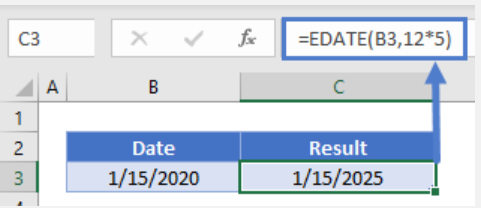
One of the best ways to add years to date is using the EDATE Function. It adds a particular number of months to a date. Adding months in multiples of 12 such as 12,24,36, etc. helps you add the required years to date.
For example, to add 1 year to a date = EDATE(B3,12)
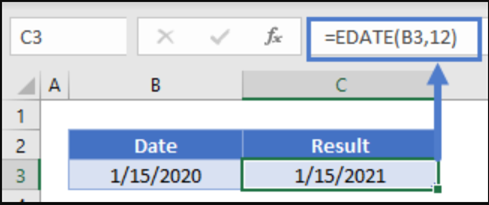
Similarly, you can also add 5 years to a Date. Example to add 5 years to a date = EDATE(B3,12*5)
Some Keyboard Shortcuts to Insert Today’s Date and the Current Time in Excel
For this, all you need to do is go to the cell where the date is to be inserted and press ctrl+;
Similarly, to add the current time in the cell, use ctrl+shift+; ( thus ctrl+: )
How to View the Current Date or Time
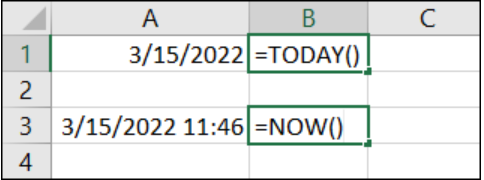
To view the current date or time you can use TODAY and NOW. The use of TODAY helps you get today’s date in Excel and NOW helps you get the current date and time. The formula you can apply:
=TODAY()
=NOW()
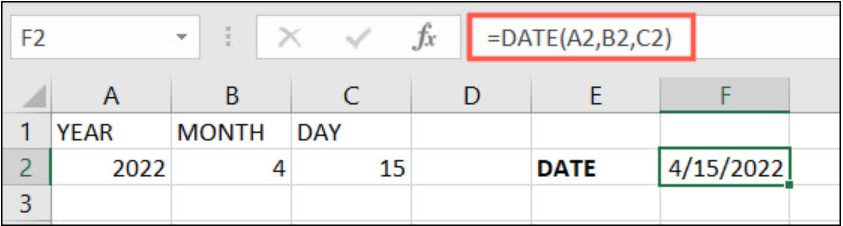
You can also create a full date with =DATE(A2,B2,C2)
Common Issues with Date and Time in Excel
Excel Displays ##### Instead of The Added Date and Time Values
There might be certain times when Excel displays ##### instead of the entered date and column. And here are some reasons for the same.
- It could be because the cell is too small to display the value. In such a case, try adjusting the width of the column.
- It may also indicate that the entered value is in a negative format that cannot be recognized by the software.
Excel Cannot Understand Your Input
Many users have found that sometimes Excel fails to understand their input while converting a cell value to a date. One of the primary reasons for this is that Excel runs on regional settings while understanding the date values.
For instance, suppose you are in the USA. In that case, the standard date format would be mm/dd/yyyy. However, in England, the standard date format would be dd/mm/yyyy.
However, there are instances where Excel will convert the values automatically to suit your system’s settings.
Make The Most of MS Excel
Excel is a whole new world. The more you dig into it, the newer things you will learn about it. Taking advantage of MS Excel training courses offered by experts like us is one of the best ways to improve your Excel skills. If you want to enhance your skills today and achieve a better career in the future, you can check our Beginner, Intermediate, Advanced, and Expert-level courses.