Select your country to view prices and course dates.

x

Recent Searches
Category

Microsoft Copilot Courses

Category

Microsoft Power BI

Category

AI for Business

Category

Microsoft Excel

Category

Professional Development

Category

Microsoft Office 365

Category

Excel Specialist

Category

Microsoft Project

Category

R Programming

Category

Python

Category

SQL

Category

Power Apps

Category

SharePoint

Category

Power Automate

Category

Microsoft Teams

Category

Microsoft Visio

Category

Microsoft PowerPoint

Category

Microsoft Word

Category

Microsoft Outlook

Category

Adobe InDesign Courses

Category

Adobe Photoshop Courses

Category

Adobe Illustrator Courses

Category

Adobe Premiere Pro Training

Category

Adobe After Effects Training

Category

Adobe Acrobat Courses

Category

Adobe Captivate Training

Category

Adobe Animate Training

Category

HTML Courses

Category

WordPress

Category

Canva Courses

Category

Microsoft Access

Category

Webinars

Course

Copilot for M365

Course

Power BI Beginner

Course

ChatGPT Beginner

Course

Excel Beginner

Course

Achieving Leadership & Success

Course

Microsoft 365 Beginner

Course

Financial Modelling

Course

Project Beginner

Course

R Programming Beginner

Course

Python Beginner

Course

SQL Beginner

Course

Power Apps Beginner

Course

SharePoint Beginner

Course

Teams Essentials

Course

Visio Essentials

Course

PowerPoint Level 1

Course

Word Beginner

Course

Microsoft Outlook Beginner

Course

InDesign Lite

Course

Photoshop Training Intro

Course

Illustrator Training Intro

Course

Premiere Training Intro

Course

After Effects Training Intro

Course

Acrobat Essentials

Course

Captivate Training

Course

Animate Training Intro

Course

HTML Training Intro

Course

WordPress Essentials

Course

Canva Beginners

Course

Microsoft Access Essentials

Course

Copilot for Word

Course

Power BI Intermediate

Course

Excel Intermediate

Course

Microsoft 365 Intermediate

Course

Analysis and Dashboards

Course

Project Intermediate

Course

R Programming Intermediate

Course

Python Intermediate

Course

SQL Intermediate

Course

Power Apps Intermediate

Course

SharePoint Intermediate

Course

PowerPoint Level 2

Course

Word Intermediate

Course

InDesign Training Intro

Course

Photoshop Lite

Course

Illustrator Training Advanced

Course

Premiere Basics Training

Course

Acrobat Forms

Course

Canva Intermediate

Course

Microsoft Access Advanced

Course

Copilot for Excel

Course

Power BI Advanced

Course

Excel Advanced

Course

Microsoft 365 Advanced

Course

Excel VBA

Course

Project Advanced

Course

R Programming Advanced

Course

Python Advanced

Course

SQL Advanced

Course

Power Apps Advanced

Course

SharePoint Advanced (Site Owner)

Course

Word Advanced

Course

InDesign Training Advanced

Course

Photoshop Training Advanced

Course

Advanced Premiere Training

Course

Advanced After Effects Training

Course

Canva Advanced

Course

Copilot for PowerPoint

Course

Power BI DAX

Course

Excel Expert

Course

Machine Learning in R

Course

SharePoint Advanced (Document Governance)

Course

InDesign Interactivity Training

Course

Copilot for Outlook and Teams

Course

InDesign Accessibility Training

Course

Power Automate Beginner

Course

Power Automate Intermediate

Course

Microsoft Outlook Advanced

Course

AI Prompting Fundamentals

Course

Power Automate Advanced

Course

Excel Tables and Pivot Tables

Course

Data Transformation with Power Query

Course

Excel Macro Mastery

Course

Power BI Desktop Advanced Reporting

Course

AI for Business Leaders and Managers

Course

Data Visualisation with Power BI Desktop

Course

Anger Management & Negotiation Skills

Course

Assertiveness & Confidence

Course

Building Resilience

Course

Coaching and Mentoring

Course

Communications

Course

Communications & Quality Client Service Training

Course

Critical Thinking and Problem Solving

Course

Cultural Diversity in the Workplace

Course

Embracing Change

Course

Growing Emotional Intelligence

Course

Minute Taking

Course

Persuasion and Negotiation Skills

Course

Presentation Skills and Public Speaking

Course

Practical Project Management

Course

Respect, Equity and Diversity (RED)

Course

Resumé Writing and Interview Skills

Course

Stress Management

Course

Team Leadership, Management and Development

Course

Time Management Intensive

Course

Train the Trainer

Course

Write Effective Business Documents

Course

Dealing with Difficult People

Course

Managing Difficult Conversations

Course

Managing the Virtual Workplace

How To Create a Power BI Dashboard from a Report

Brianna Higgins | Apr 01, 2023

What is Power BI

Microsoft Power BI is a fantastic interactive data visualisation software product used for data analytics, business intelligence, and visualisation. It is a part of the Microsoft Power Platform, and it comes with cross-platform connectivity and a multitude of services.


Power BI Dashboard vs Report

Let us first try to understand the difference between a Power BI Dashboard and Power BI Report.

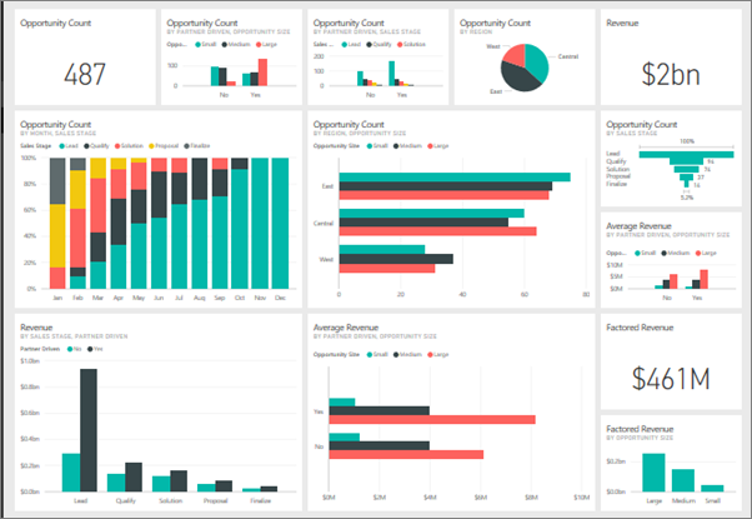
A Power BI dashboard or a canvas is a single page that tells a story with the help of visualisations. A well-designed dashboard is limited to one page, containing only the highlights of the story. You can view related reports for further details. They are available in the Power BI service, not on Power BI Desktop.
power bi dashboard

Source

A Power BI report is a multi-perspective view of a dataset with visualisations representing various findings and insights. It can have a single visualisation or pages full of them. Power BI Report Builder is a tool for authoring paginated reports to publish to the Power BI service. When we design a paginated report, we create a report definition specifying what data to retrieve, where to get it, and how to display it. 


Creating Dashboard from Reports

There are various ways to create a dashboard. For example, we can create a dashboard from a report (like pinning visuals and images from reports), from scratch, from a dataset, or by duplicating an existing dashboard. Here is a step-by-step procedure on how to use integrated data from report to Dashboard in Power BI:


1. Import a Dataset with a Report

Import one of the Power BI sample datasets to create the new dashboard. The sample used is an Excel workbook with two Power View sheets. Power BI adds a dataset and a report to the workspace when we import the workbook. The report is automatically created from the Power View sheets. 

1. Download the Procurement Analysis sample ( MS Excel file).

2. Open the Power BI service on the browser (app.powerbi.com).

3. Select My Workspace and then Click New, then Dataset

4. Select Excel

5. Click Browse this device (very bottom left of the dialog).

6. Navigate to the location Procurement Analysis sample Excel file location. Select the file and Connect. Then, choose to build the report from scratch. 


How to View the Similar Report through Sample Report Online

1. Go to Learn from the navigation pane.

2. Go to Sample Reports and search for Procurement Analysis Sample. This will open a sample report. 

3. Click the File tab on the top ribbon then click Save As Report in your name.


2. Open the Report and Pin Tiles to your Dashboard

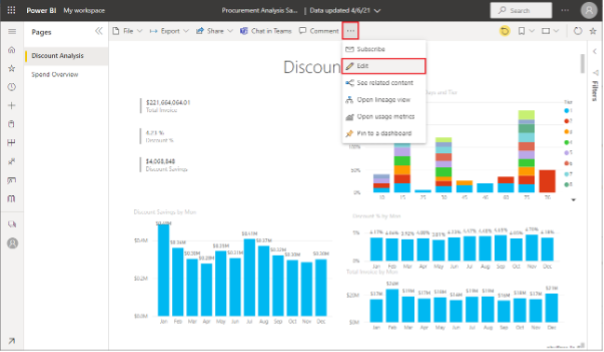
1. Within the same workspace, select Procurement Analysis Sample report and open it. The report will open in Reading view. It will have two tabs on the left i.e. Discount Analysis and Spend Overview. Each tab represents a page of the report
power bi dashboard

2. Select More Options and click Edit to open the report in the Editing view.

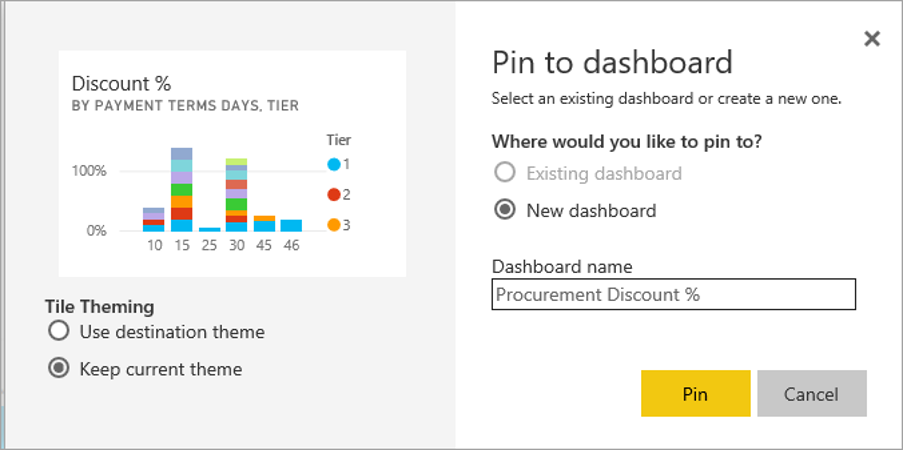
3. Hover over to the part of the visualisation to reveal the options available. Select the pin icon to add a visualisation to a dashboard
pin to dashboard power bi

4. Select the option for a new dashboard and give it a name.

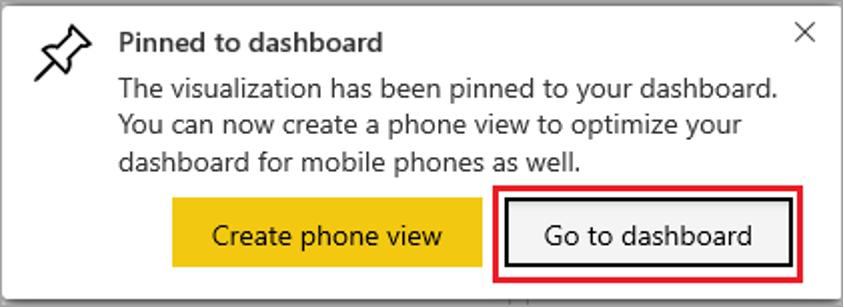
5. On selecting Pin, Power BI creates the new dashboard in the current workspace. After the Pinned to dashboard message appears, click Go to Dashboard. When prompted to save the report, click Save.
pin to dashboard power bi

6. Power BI opens the new dashboard with one tile i.e. the visualisation we pinned.
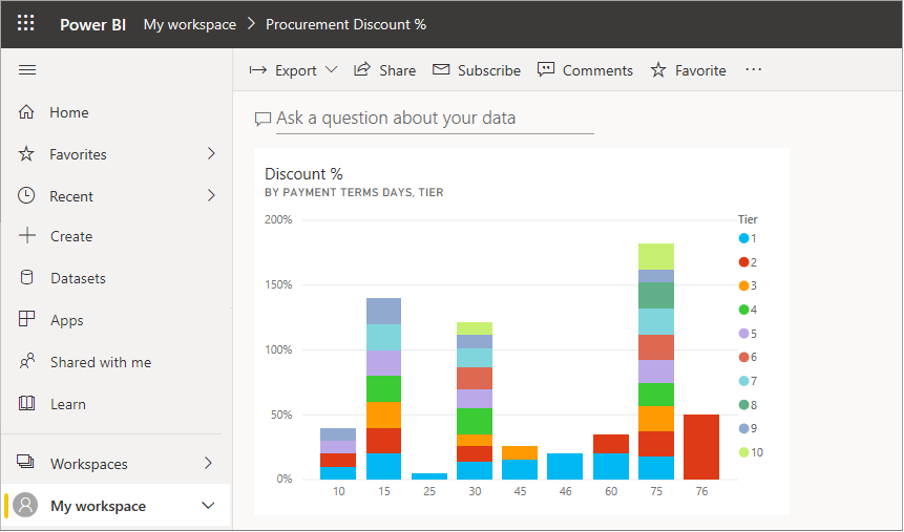
power bi dashboard

7. Select the tile to return to the report. Pin some more tiles to the new dashboard. When the Pin to dashboard window appears, click Existing dashboard.
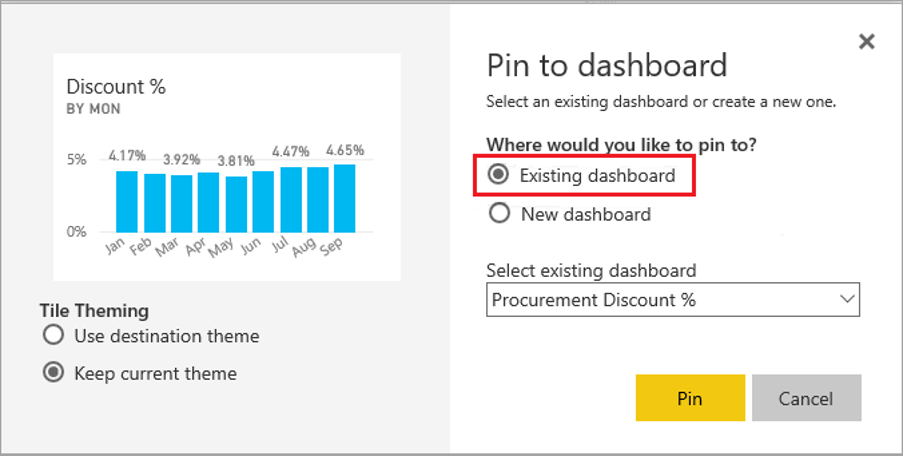
power bi pin

8. Pin an entire report page to the dashboard.

a. We can also pin an entire report page as a live tile. In the report editor, click the Spend Overview tab to open the second page of the report.

power bi live tile

b. We require all of the visuals in the report on the dashboard. On the upper-right corner of the menu, click Pin to a dashboard. On a dashboard, live page tiles will get updated when the page is refreshed.
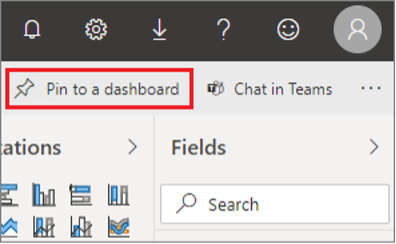
power bi live tile

c. When the Pin to dashboard window displays, click Existing Dashboard.
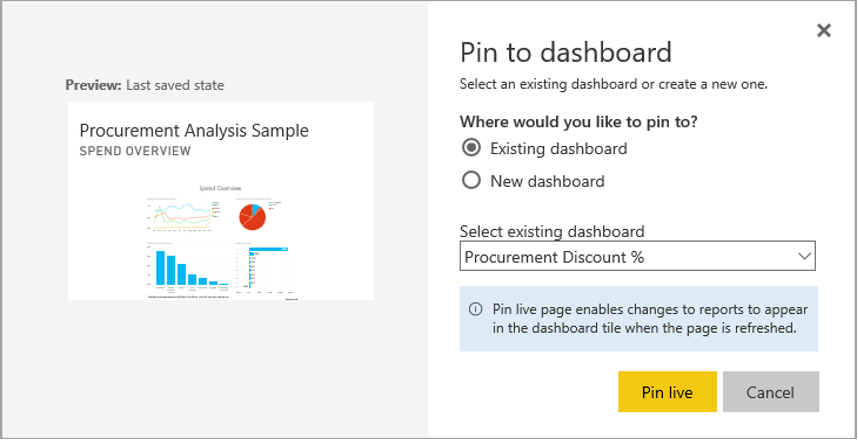
power bi live tile

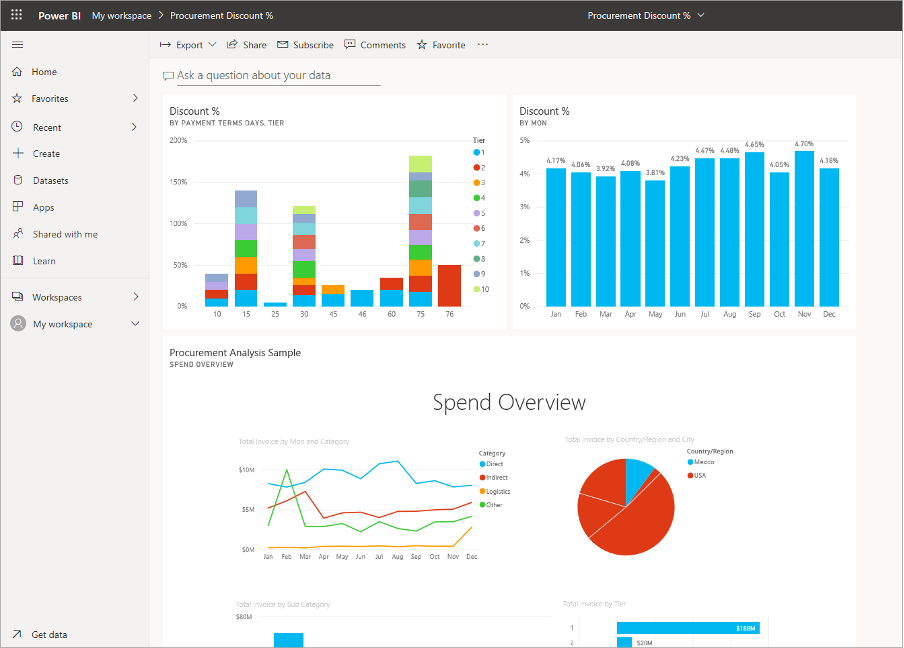
d. When the Success message appears, click Go to Dashboard. The tiles pinned from the report will be visible there. In the example figure below, two tiles from page one of the report are pinned and one live tile, which is page two of the report.
power bi dashboard

e. You can also create dashboards from multiple reports this way. 


3. Share Power BI Reports and Dashboards

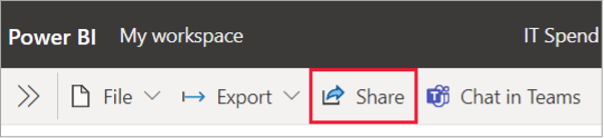
Sharing allows us to give people access to our reports and dashboards in the Power BI service. People you share it with can view it and interact with it, but cannot edit it. They see the same data in the reports and dashboards. They also get access to the entire underlying dataset, unless row-level security (RLS) is applied. They can reshare with their coworkers if we allow them to.
sharing dashboards power bi

The Power BI service allows the collaboration and distribution of reports and dashboards. Learn ways to collaborate and share in Power BI to see which way works best for various circumstances.


Conclusion

So now we know how to create PowerBI Dashboard from a report. This skill is an important asset and an integral part of your Data Science arsenal.

Feel free to check out our Power BI courses on our website, from Beginner to DAX, until the Certification stage.




Trusted Globally by Leading Organisations

At Nexacu, we are proud to be the trusted training partner for hundreds of leading organisations across Australia, New Zealand, and around the world. From government agencies to multinational corporations, we help teams build practical skills and achieve real outcomes through expert-led training.

  • 400+ companies rely on Nexacu for workforce development
  • Trusted by government agencies at all levels
  • Delivering training across 9 countries and growing

Why Nexacu? 

step by step courseware

Step by Step Courseware

Custom workbook included with a step by step exercises

Facility Image 2
Facility Image 3
Facility Image 1

Interactive real time training

Interactive, Real-Time Training

Learn with expert instructors, wherever you are

Trusted by Business

Trusted by Business

Procured by Government

Procured by Goverment

Reviews Not Found

Valued by Individuals