Select your country to view prices and course dates.

x

Recent Searches
Category

Microsoft Copilot Courses

Category

Microsoft Power BI

Category

AI for Business

Category

Microsoft Excel

Category

Professional Development

Category

Microsoft Office 365

Category

Excel Specialist

Category

Microsoft Project

Category

R Programming

Category

Python

Category

SQL

Category

Power Apps

Category

SharePoint

Category

Power Automate

Category

Microsoft Teams

Category

Microsoft Visio

Category

Microsoft PowerPoint

Category

Microsoft Word

Category

Microsoft Outlook

Category

Adobe InDesign Courses

Category

Adobe Photoshop Courses

Category

Adobe Illustrator Courses

Category

Adobe Premiere Pro Training

Category

Adobe After Effects Training

Category

Adobe Acrobat Courses

Category

Adobe Captivate Training

Category

Adobe Animate Training

Category

HTML Courses

Category

WordPress

Category

Canva Courses

Category

Microsoft Access

Category

Webinars

Course

Copilot for M365

Course

Power BI Beginner

Course

ChatGPT Beginner

Course

Excel Beginner

Course

Achieving Leadership & Success

Course

Microsoft 365 Beginner

Course

Financial Modelling

Course

Project Beginner

Course

R Programming Beginner

Course

Python Beginner

Course

SQL Beginner

Course

Power Apps Beginner

Course

SharePoint Beginner

Course

Teams Essentials

Course

Visio Essentials

Course

PowerPoint Level 1

Course

Word Beginner

Course

Microsoft Outlook Beginner

Course

InDesign Lite

Course

Photoshop Training Intro

Course

Illustrator Training Intro

Course

Premiere Training Intro

Course

After Effects Training Intro

Course

Acrobat Essentials

Course

Captivate Training

Course

Animate Training Intro

Course

HTML Training Intro

Course

WordPress Essentials

Course

Canva Beginners

Course

Microsoft Access Essentials

Course

Copilot for Word

Course

Power BI Intermediate

Course

Excel Intermediate

Course

Microsoft 365 Intermediate

Course

Analysis and Dashboards

Course

Project Intermediate

Course

R Programming Intermediate

Course

Python Intermediate

Course

SQL Intermediate

Course

Power Apps Intermediate

Course

SharePoint Intermediate

Course

PowerPoint Level 2

Course

Word Intermediate

Course

InDesign Training Intro

Course

Photoshop Lite

Course

Illustrator Training Advanced

Course

Premiere Basics Training

Course

Acrobat Forms

Course

Canva Intermediate

Course

Microsoft Access Advanced

Course

Copilot for Excel

Course

Power BI Advanced

Course

Excel Advanced

Course

Microsoft 365 Advanced

Course

Excel VBA

Course

Project Advanced

Course

R Programming Advanced

Course

Python Advanced

Course

SQL Advanced

Course

Power Apps Advanced

Course

SharePoint Advanced (Site Owner)

Course

Word Advanced

Course

InDesign Training Advanced

Course

Photoshop Training Advanced

Course

Advanced Premiere Training

Course

Advanced After Effects Training

Course

Canva Advanced

Course

Copilot for PowerPoint

Course

Power BI DAX

Course

Excel Expert

Course

Machine Learning in R

Course

SharePoint Advanced (Document Governance)

Course

InDesign Interactivity Training

Course

Copilot for Outlook and Teams

Course

InDesign Accessibility Training

Course

Power Automate Beginner

Course

Power Automate Intermediate

Course

Microsoft Outlook Advanced

Course

AI Prompting Fundamentals

Course

Power Automate Advanced

Course

Excel Tables and Pivot Tables

Course

Data Transformation with Power Query

Course

Excel Macro Mastery

Course

Power BI Desktop Advanced Reporting

Course

AI for Business Leaders and Managers

Course

Data Visualisation with Power BI Desktop

Course

Anger Management & Negotiation Skills

Course

Assertiveness & Confidence

Course

Building Resilience

Course

Coaching and Mentoring

Course

Communications

Course

Communications & Quality Client Service Training

Course

Critical Thinking and Problem Solving

Course

Cultural Diversity in the Workplace

Course

Embracing Change

Course

Growing Emotional Intelligence

Course

Minute Taking

Course

Persuasion and Negotiation Skills

Course

Presentation Skills and Public Speaking

Course

Practical Project Management

Course

Respect, Equity and Diversity (RED)

Course

Resumé Writing and Interview Skills

Course

Stress Management

Course

Team Leadership, Management and Development

Course

Time Management Intensive

Course

Train the Trainer

Course

Write Effective Business Documents

Course

Dealing with Difficult People

Course

Managing Difficult Conversations

Course

Managing the Virtual Workplace

Power BI Creation Series - Episode 2

Matt Burr | Aug 09, 2018
Power BI Creation Series - Episode 2

Episode 2

Following on from last week's tutorial on how to create the above Power BI dashboard, we come with our second post in the group series. Our trainer Matt has created an interactive dashboard showcasing our upcoming courses and allowing anyone to filter the results based upon courses, locations and dates. We have received lots of questions about how we created the dashboard and this article will describe some key elements of the dashboard and how we created them.

The above dashboard is made up of several elements and below we will continue to explain each one:

4. More shapes (Formatting multiple visuals as a group)

Each visualisation can be formatted individually with their own title, etc. But with the location slicer and map visualisation we wanted to create a grouped look with one heading. This really brought the interactive dashboard to life.

We did this by adding a shape (a rectangle) and in the formatting pane, we turned on the Title and formatted the Title Background colour to match our logo colour. We then made the rectangle as small as possible – so we could only see the title bar.

The city slicer and map visualisation were then formatted (Titles off, Borders on) and positioned to align with the new ‘group’ title.
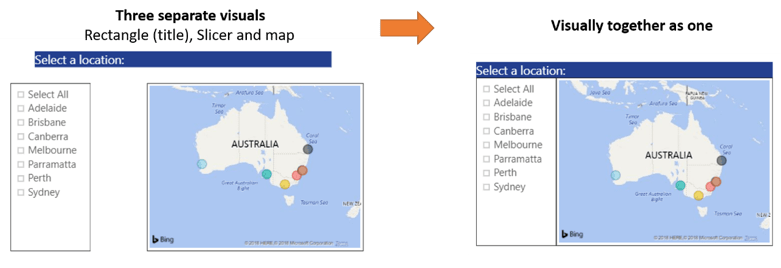
 

data visual


5.Displaying images in a Table visualisation (Traffic lights)

On our home page you will notice that our courses have a traffic light status system to show students the availability of our courses (i.e. Courses open for enrolment, limited seats, or at capacity).

We wanted to recreate that same look and feel in Power BI.

Each course has a status and associated to each of the four statuses we have a URL address. For each of the traffic light images (the URLs point to our public website).

We first inserted a Table visualisation and in that we included the fields Date, Location, Course Name, Status and an additional field that shows the text version of the status (to see the effect of this put your mouse over the top of the three dots at the end of each row – after a second the text will appear).
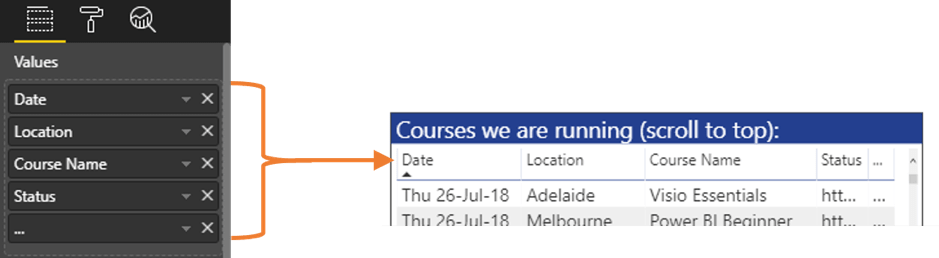
 

data fields


You might notice that in the Table visualisation above the Status column is showing the URL of the image (http://....). What we need to do is categorise that data field so that Power BI knows we want to display an image not just the text (or a link to the image).

Select the relevant data field in the Fields Pane, click on the Modelling Tab and in the Properties Group click on the Data Category dropdown box and select Image URL.

Magic! Power BI now displays the image properly.


Because we were undertaking some data modelling we are only able to complete the above steps in Power BI Desktop.

Tip: After Power BI starts displaying the images in the Table you may need to format the size of your images (otherwise the table rows will be very high). Under the Grid formatting options, scroll to the bottom and adjust the Image Height value to suit.


6.Bookmarks (an option to clear a reports filters)

Power BI is great for filtering data based on a user selecting different parts of multiple visualisations. Click on a city in the map, select a course category from the chiclet slicer. The data will filter accordingly. That’s great, but how do we reset all those filters?


Bookmarks!

Bookmarks have been created to solve this (and are useful for so much more)!

When we create a ‘view’ in Power BI, we can Bookmark that view. Think of a view as a page or chapter in our data presentation story. For instance using filters you create a view of a particularly useful insight to show to your manager (hopefully they give you a raise for spotting an unknown risk or opportunity!)

 
In our case our view is when all the filters are unselected – like an initial view of the report. Click on the Reset arrow and you are taken back to step one.


Bookmarks can be created, managed and inserted in both Power BI desktop and Power BI service. Simply go to the View tab (for desktop) or the View menu (for service) and turn on the Bookmarks Pane. This will give you the option to create a new bookmark or view an existing one. If you click on the three dots to the right of a bookmark you can also update the bookmark’s view or rename it, there are also options for what the bookmark does.

 
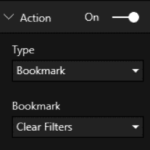
Once you have created a Bookmark you then need to assign it to something. Bookmarks can be assigned as an Action to shapes, buttons or images. After inserting a suitable item in the Format pane under the Action format item you can select the type of action (Bookmark) and then in the second dropdown select the name of the Bookmark you want to assign.


Tip: There is a known issue with Table/Matrix visualisations. After a filter has been applied or cleared the table/matrix doesn’t always return to the top left. Like many things with Power BI there are constant updates and improvements. So we would expect this issue to disappear soon.

 
Learning more about how to use Power BI will not only boost your employability but also your efficiency and understanding of data. Enrol in one of our popular Power BI courses to begin your learning journey.


Trusted Globally by Leading Organisations

At Nexacu, we are proud to be the trusted training partner for hundreds of leading organisations across Australia, New Zealand, and around the world. From government agencies to multinational corporations, we help teams build practical skills and achieve real outcomes through expert-led training.

  • 400+ companies rely on Nexacu for workforce development
  • Trusted by government agencies at all levels
  • Delivering training across 9 countries and growing

Why Nexacu? 

step by step courseware

Step by Step Courseware

Custom workbook included with a step by step exercises

Facility Image 2
Facility Image 3
Facility Image 1

Interactive real time training

Interactive, Real-Time Training

Learn with expert instructors, wherever you are

Trusted by Business

Trusted by Business

Procured by Government

Procured by Goverment

Reviews Not Found

Valued by Individuals