Select your country to view prices and course dates.

x

Recent Searches
Category

Microsoft Copilot Courses

Category

Microsoft Power BI

Category

AI for Business

Category

Microsoft Excel

Category

Professional Development

Category

Microsoft Office 365

Category

Excel Specialist

Category

Microsoft Project

Category

R Programming

Category

Python

Category

SQL

Category

Power Apps

Category

SharePoint

Category

Power Automate

Category

Microsoft Teams

Category

Microsoft Visio

Category

Microsoft PowerPoint

Category

Microsoft Word

Category

Microsoft Outlook

Category

Adobe InDesign Courses

Category

Adobe Photoshop Courses

Category

Adobe Illustrator Courses

Category

Adobe Premiere Pro Training

Category

Adobe After Effects Training

Category

Adobe Acrobat Courses

Category

Adobe Captivate Training

Category

Adobe Animate Training

Category

HTML Courses

Category

WordPress

Category

Canva Courses

Category

Microsoft Access

Category

Webinars

Course

Copilot for M365

Course

Power BI Beginner

Course

ChatGPT Beginner

Course

Excel Beginner

Course

Achieving Leadership & Success

Course

Microsoft 365 Beginner

Course

Financial Modelling

Course

Project Beginner

Course

R Programming Beginner

Course

Python Beginner

Course

SQL Beginner

Course

Power Apps Beginner

Course

SharePoint Beginner

Course

Teams Essentials

Course

Visio Essentials

Course

PowerPoint Level 1

Course

Word Beginner

Course

Microsoft Outlook Beginner

Course

InDesign Lite

Course

Photoshop Training Intro

Course

Illustrator Training Intro

Course

Premiere Training Intro

Course

After Effects Training Intro

Course

Acrobat Essentials

Course

Captivate Training

Course

Animate Training Intro

Course

HTML Training Intro

Course

WordPress Essentials

Course

Canva Beginners

Course

Microsoft Access Essentials

Course

Copilot for Word

Course

Power BI Intermediate

Course

Excel Intermediate

Course

Microsoft 365 Intermediate

Course

Analysis and Dashboards

Course

Project Intermediate

Course

R Programming Intermediate

Course

Python Intermediate

Course

SQL Intermediate

Course

Power Apps Intermediate

Course

SharePoint Intermediate

Course

PowerPoint Level 2

Course

Word Intermediate

Course

InDesign Training Intro

Course

Photoshop Lite

Course

Illustrator Training Advanced

Course

Premiere Basics Training

Course

Acrobat Forms

Course

Canva Intermediate

Course

Microsoft Access Advanced

Course

Copilot for Excel

Course

Power BI Advanced

Course

Excel Advanced

Course

Microsoft 365 Advanced

Course

Excel VBA

Course

Project Advanced

Course

R Programming Advanced

Course

Python Advanced

Course

SQL Advanced

Course

Power Apps Advanced

Course

SharePoint Advanced (Site Owner)

Course

Word Advanced

Course

InDesign Training Advanced

Course

Photoshop Training Advanced

Course

Advanced Premiere Training

Course

Advanced After Effects Training

Course

Canva Advanced

Course

Copilot for PowerPoint

Course

Power BI DAX

Course

Excel Expert

Course

Machine Learning in R

Course

SharePoint Advanced (Document Governance)

Course

InDesign Interactivity Training

Course

Copilot for Outlook and Teams

Course

InDesign Accessibility Training

Course

Power Automate Beginner

Course

Power Automate Intermediate

Course

Microsoft Outlook Advanced

Course

AI Prompting Fundamentals

Course

Power Automate Advanced

Course

Excel Tables and Pivot Tables

Course

Data Transformation with Power Query

Course

Excel Macro Mastery

Course

Power BI Desktop Advanced Reporting

Course

AI for Business Leaders and Managers

Course

Data Visualisation with Power BI Desktop

Course

Anger Management & Negotiation Skills

Course

Assertiveness & Confidence

Course

Building Resilience

Course

Coaching and Mentoring

Course

Communications

Course

Communications & Quality Client Service Training

Course

Critical Thinking and Problem Solving

Course

Cultural Diversity in the Workplace

Course

Embracing Change

Course

Growing Emotional Intelligence

Course

Minute Taking

Course

Persuasion and Negotiation Skills

Course

Presentation Skills and Public Speaking

Course

Practical Project Management

Course

Respect, Equity and Diversity (RED)

Course

Resumé Writing and Interview Skills

Course

Stress Management

Course

Team Leadership, Management and Development

Course

Time Management Intensive

Course

Train the Trainer

Course

Write Effective Business Documents

Course

Dealing with Difficult People

Course

Managing Difficult Conversations

Course

Managing the Virtual Workplace

Animations in PowerPoint

Kristine Castillo | May 02, 2023
corporate lady presenting work presentation to audience

Nothing adds more flair to a simple Microsoft Presentation than animation. These animations are eye-catching tools you can use to encourage audience engagement and trigger focus. However, there is a thin line between using it at appropriate amounts and overdoing it. 

No one likes a tacky presentation. The audience needs a visually appealing and professional one to grab their attention. And you can only do that with the right strategies for incorporating PowerPoint animation into your work.  

Learn how to create the best PowerPoint presentation and make the most of its available effects by reading this article.  


Types of PowerPoint Animations 

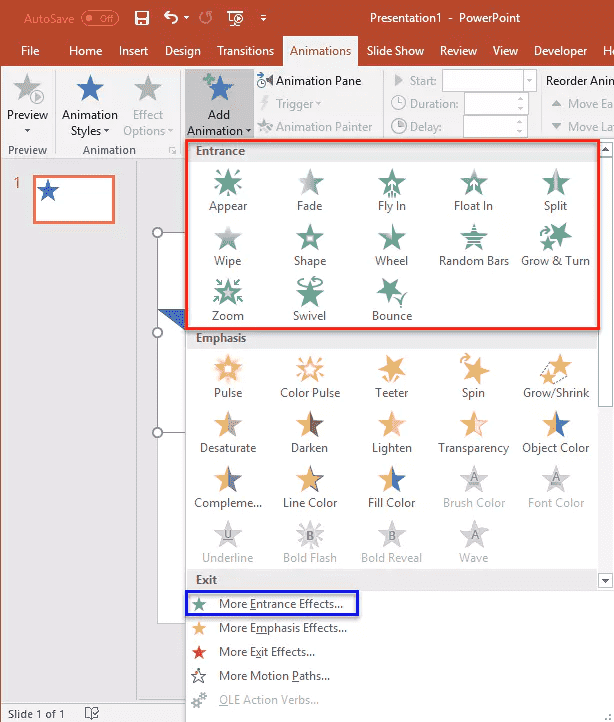
Below are the animations in PowerPoint you can find under the Animations tab. 


Entrance 

The Entrance effects, as its name suggests, control the way elements enter your slide. Make your presentation pop and stand out by letting lines of text Appear or Fly In from the side, left or right. You may also choose a more dramatic feature such as letting your texts Float In or choose a simpler PowerPoint animation such as Zoom 

Animation in PowerPoint

Emphasis 

Some elements or objects require highlighting based on their significance in the topics being presented. This is where the Emphasis effects prove to be useful. You can effortlessly direct the eyes of the audience by selecting the appropriate effect, such as Darken, Grow/Shrink, or Color Pulse 

Remember to use these effects sparingly as they may become unpleasant to the eyes when overdone.  


Motion Paths  

Motion Paths are excellent tools for explaining a process or narrating a story. They are also great for walking the audience through complex concepts. If you’re aspiring for flexibility to tweak your presentations to your own liking, this animation effect works for that purpose too.  

You can move the elements up and down, or perhaps allow them to move in a particular shape and pattern such as Arcs or Turns.   

Exit  

The Exit is just as important as the Entrance. You can let the elements leave your slide by choosing an Exit effect such as Fade, Fly Out, or Split 

Most presenters use these effects to minimize the elements of their slide to the end of the presentation and pull the attention of their audience towards the elements left in the slide.


How to Incorporate Sleek PowerPoint Animation to Your Presentation 

A presenter knows that one cannot simply incorporate random animation effects into a presentation. Below are some tips that may come in handy when using PowerPoint animations. 


Use at an Appropriate Amount 

Simplicity is key to creating superb presentations with the right animation. For instance, not all elements require an effect. You don’t have to add animation to every single object in your slide.  

Instead, you can simply use subtle effects for objects you’d want to draw attention to. This is highly recommended in an academic or business presentation. You wouldn’t want to lessen your credibility by adding too many animation effects without purpose.  


Apply Logic to Your PowerPoint Animation 

Speaking of purpose, do not add animation to your presentation just because you feel like it. Every effect must have a logical order and reason for it. For instance, you chose the right Fly In effect because it aligns with the design of your template, or perhaps it resonates with the content of the slide.  

Also, ensure that the elements of your slide coincide with each other along with the animation. Otherwise, your presentation will not make much sense to the audience.  


Check the Speed of Your Animation in PowerPoint  

Choose the right animation speed that matches your speech while going over the slides. Considering this will lengthen the attention span of your audience and help them absorb the material more thoroughly. You can go to the Animation tab, then Animation Pane, and finally click Timing to adjust the speed to your liking.  


FAQs 

How do I make my PowerPoint look clean?  

The key to creating a clean PowerPoint presentation is to avoid incorporating too many elements in one slide. Add what’s necessary and remove anything that clutters your presentation.  

How do I make custom transitions in PowerPoint?  

First, you have to select an object you've applied an animation to. Then, click the Animations tab, then the Effect Options button.  

What is the best transition for a PowerPoint presentation?   

The best transition for your presentation depends on the topic to be presented and the audience to present it for. However, the most common animations that presenters use are Fade, Push, and Cut. These belong to the subtler kinds of transitions widely used in formal and professional settings.  

What are 4 types of animation on PowerPoint?  

The four types of animation in PowerPoint are Entrance, Exit, Emphasis, and Motion Paths.  


Improve Your Presentation Skills with Practice and Dedication 

While Microsoft PowerPoint is relatively easy to use, there is more to it than its basic features and interface. Once you explore this powerful tool, you’ll realize that there’s so much to learn – and it’s never too late to start.  

Check our Microsoft PowerPoint training courses starting with Level 1 then Level 2, and witness your career take flight as you learn this essential skill for the workplace.   

Trusted Globally by Leading Organisations

At Nexacu, we are proud to be the trusted training partner for hundreds of leading organisations across Australia, New Zealand, and around the world. From government agencies to multinational corporations, we help teams build practical skills and achieve real outcomes through expert-led training.

  • 400+ companies rely on Nexacu for workforce development
  • Trusted by government agencies at all levels
  • Delivering training across 9 countries and growing

Why Nexacu? 

step by step courseware

Step by Step Courseware

Custom workbook included with a step by step exercises

Facility Image 2
Facility Image 3
Facility Image 1

Interactive real time training

Interactive, Real-Time Training

Learn with expert instructors, wherever you are

Trusted by Business

Trusted by Business

Procured by Government

Procured by Goverment

Reviews Not Found

Valued by Individuals