Select your country to view prices and course dates.

x

Recent Searches
Category

Microsoft Copilot Courses

Category

Microsoft Power BI

Category

AI for Business

Category

Microsoft Excel

Category

Professional Development

Category

Microsoft Office 365

Category

Excel Specialist

Category

Microsoft Project

Category

R Programming

Category

Python

Category

SQL

Category

Power Apps

Category

SharePoint

Category

Power Automate

Category

Microsoft Teams

Category

Microsoft Visio

Category

Microsoft PowerPoint

Category

Microsoft Word

Category

Microsoft Outlook

Category

Adobe InDesign Courses

Category

Adobe Photoshop Courses

Category

Adobe Illustrator Courses

Category

Adobe Premiere Pro Training

Category

Adobe After Effects Training

Category

Adobe Acrobat Courses

Category

Adobe Captivate Training

Category

Adobe Animate Training

Category

HTML Courses

Category

WordPress

Category

Canva Courses

Category

Microsoft Access

Category

Webinars

Course

Copilot for M365

Course

Power BI Beginner

Course

ChatGPT Beginner

Course

Excel Beginner

Course

Achieving Leadership & Success

Course

Microsoft 365 Beginner

Course

Financial Modelling

Course

Project Beginner

Course

R Programming Beginner

Course

Python Beginner

Course

SQL Beginner

Course

Power Apps Beginner

Course

SharePoint Beginner

Course

Teams Essentials

Course

Visio Essentials

Course

PowerPoint Level 1

Course

Word Beginner

Course

Microsoft Outlook Beginner

Course

InDesign Lite

Course

Photoshop Training Intro

Course

Illustrator Training Intro

Course

Premiere Training Intro

Course

After Effects Training Intro

Course

Acrobat Essentials

Course

Captivate Training

Course

Animate Training Intro

Course

HTML Training Intro

Course

WordPress Essentials

Course

Canva Beginners

Course

Microsoft Access Essentials

Course

Copilot for Word

Course

Power BI Intermediate

Course

Excel Intermediate

Course

Microsoft 365 Intermediate

Course

Analysis and Dashboards

Course

Project Intermediate

Course

R Programming Intermediate

Course

Python Intermediate

Course

SQL Intermediate

Course

Power Apps Intermediate

Course

SharePoint Intermediate

Course

PowerPoint Level 2

Course

Word Intermediate

Course

InDesign Training Intro

Course

Photoshop Lite

Course

Illustrator Training Advanced

Course

Premiere Basics Training

Course

Acrobat Forms

Course

Canva Intermediate

Course

Microsoft Access Advanced

Course

Copilot for Excel

Course

Power BI Advanced

Course

Excel Advanced

Course

Microsoft 365 Advanced

Course

Excel VBA

Course

Project Advanced

Course

R Programming Advanced

Course

Python Advanced

Course

SQL Advanced

Course

Power Apps Advanced

Course

SharePoint Advanced (Site Owner)

Course

Word Advanced

Course

InDesign Training Advanced

Course

Photoshop Training Advanced

Course

Advanced Premiere Training

Course

Advanced After Effects Training

Course

Canva Advanced

Course

Copilot for PowerPoint

Course

Power BI DAX

Course

Excel Expert

Course

Machine Learning in R

Course

SharePoint Advanced (Document Governance)

Course

InDesign Interactivity Training

Course

Copilot for Outlook and Teams

Course

InDesign Accessibility Training

Course

Power Automate Beginner

Course

Power Automate Intermediate

Course

Microsoft Outlook Advanced

Course

AI Prompting Fundamentals

Course

Power Automate Advanced

Course

Excel Tables and Pivot Tables

Course

Data Transformation with Power Query

Course

Excel Macro Mastery

Course

Power BI Desktop Advanced Reporting

Course

AI for Business Leaders and Managers

Course

Data Visualisation with Power BI Desktop

Course

Anger Management & Negotiation Skills

Course

Assertiveness & Confidence

Course

Building Resilience

Course

Coaching and Mentoring

Course

Communications

Course

Communications & Quality Client Service Training

Course

Critical Thinking and Problem Solving

Course

Cultural Diversity in the Workplace

Course

Embracing Change

Course

Growing Emotional Intelligence

Course

Minute Taking

Course

Persuasion and Negotiation Skills

Course

Presentation Skills and Public Speaking

Course

Practical Project Management

Course

Respect, Equity and Diversity (RED)

Course

Resumé Writing and Interview Skills

Course

Stress Management

Course

Team Leadership, Management and Development

Course

Time Management Intensive

Course

Train the Trainer

Course

Write Effective Business Documents

Course

Dealing with Difficult People

Course

Managing Difficult Conversations

Course

Managing the Virtual Workplace

How To Publish a Power BI Report

| May 23, 2022
How To Publish A Report Power BI

Power BI is a set of software services, applications, and interfaces that work together to transform disparate data sources into logical, visually immersive, and engaging insights. The data used coudl be in the form of an Excel spreadsheet or a combination of hybrid cloud-based and on-premises database systems.  

Power BI makes it simple to connect to your data, analyse and understand the most cirtical components, and share reports. In this article, we'll explain how to publish Power BI reports.  


What Does It Mean to Publish to Power BI Report Service? 

Ideally, Power BI is comprised of multiple components that all operate collectively, including:  

  • The Windows desktop application, better known as the Power BI Desktop App. 
  • An online Software as a Service (SaaS), referred to as Power BI service. 
  • Mobile applications for Power BI, such as those for Windows, iOS, and Android devices. 

To publish a report is to transfer the dataset and any associated report created in the Power BI Desktop App to the Power BI Service, or from the Service to a webpage or Teams. This is done to create Dashboards  and collaborate with colleagues by sharing Reports, Dashboards and datasets. 
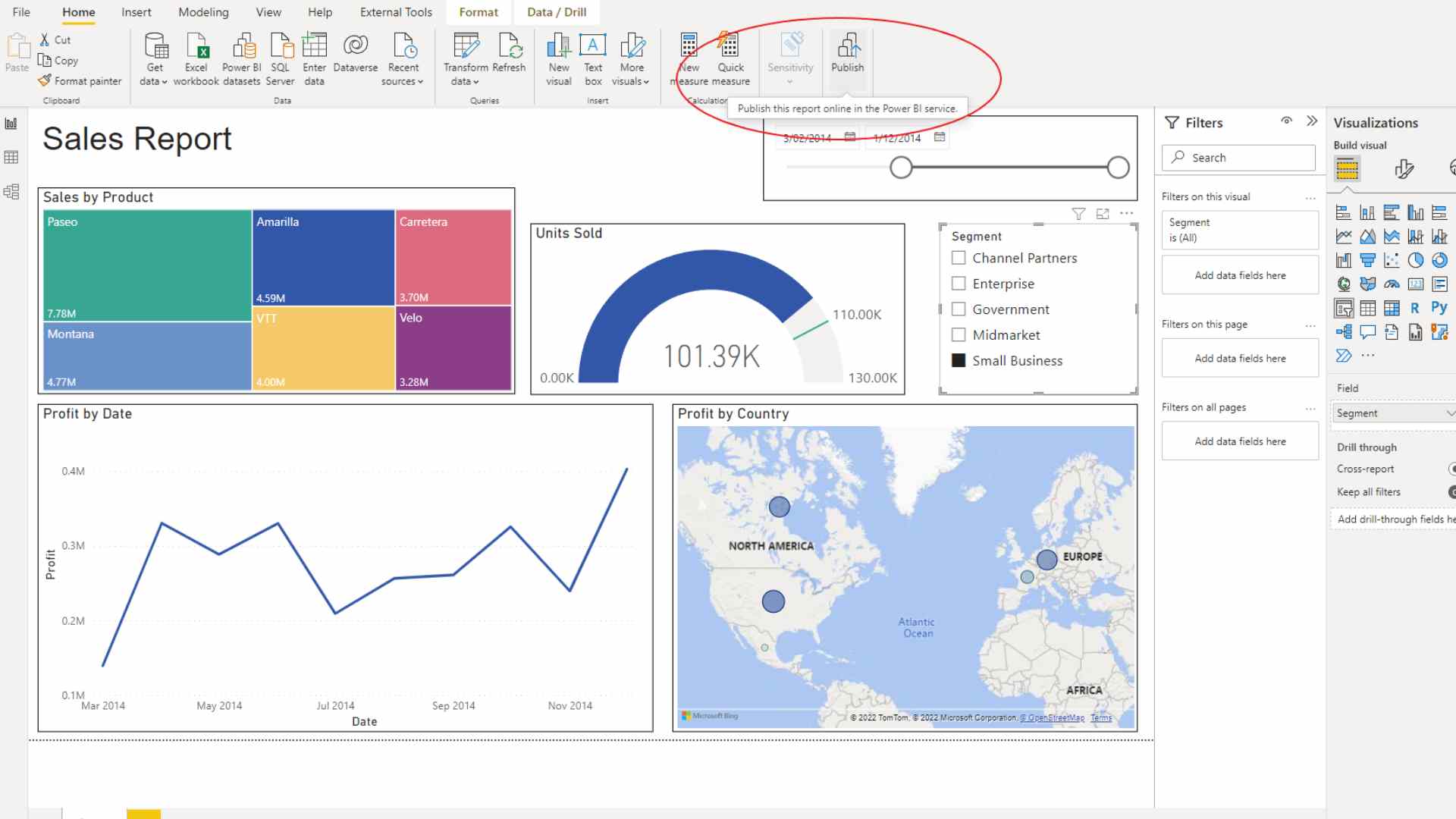
Power BI Publish Report

What Are the Different Platforms that you can publish a Publish Power BI Report to? 

Most Popular Places to Publish Power BI Reports

  • You may publish reports to the web, which will provide you with a URL that you can share with anybody. This should only be reserved for publicly available data and insights as the URL would be viewable to anyone who accessed it.  
  • You may also embed Power BI report on SharePoint or any other portal that supports embedding. 

Other Places to Publish Reports

  • You may share the report from the workspace:
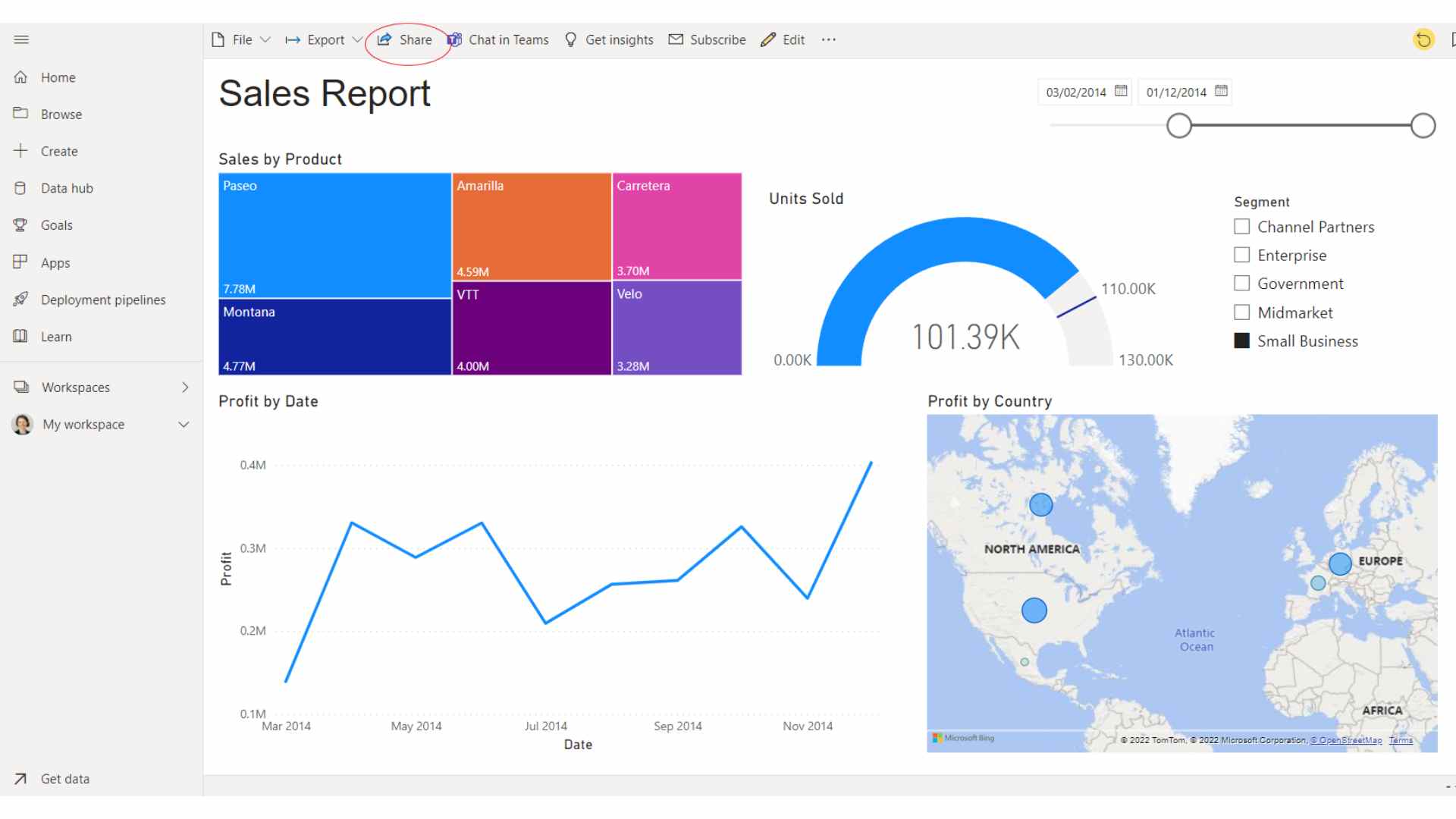
Power BI Desktop Report

  • You can activate an email subscription, which allows the user to receive a snapshot of your report as well as a link to the report URL. 
  • Even if your users do not have a Power BI license, you can still share your reports with them by embedding your Power BI reports.


How To Publish Power BI Report to Web? 

You can simply incorporate interactive Power BI content in blog posts, websites, emails, or social media with the Power BI Publish to web option. You can also simply modify, update, renew, or discontinue sharing your published visuals when required.  


Generate Embed Codes Using Publish Report to Web 

  1. Open a report in a workspace that you can update, and then choose File > Embed report > Publish to web (public). 
  2. If your Power BI administrator has not permitted you to create embed codes, you may need to contact them to alter your permissions. 
  3. Check the dialog content and then click Create embed code. 
  4. Examine the warning and verify that the data is suitable for publishing on a public website. If so, click Publish. 
  5. You may get a preview of the report in the Success dialog. Choose the Size and Default page options. 
  6. If you previously established an embed code for a report and chose 'Publish to web', the dialog in steps 2-4 will not appear. Instead, you're presented with the Embed code dialog. 

Each report can only have one embed code. 


Things to Take into Consideration When Using Publish to Web 

Publish to web is available for reports that you may update in your personal and group workspaces. It is not available for reports that have been shared with you or for reports that rely on row-level security to safeguard data. Publish to web does not yet support or provide access to the following types of reports: 

  • Reports generated using any Live Connection data source, including on-premises Analysis Services Tabular, Multidimensional Analysis Services, and Azure Analysis Services. 
  • Reports that use a shared dataset that is stored in a workspace separate from the report. 
  • Datasets that are shared and certified. 
  • Reports shared to you directly or contained in an app. 
  • Q&A for Power BI visuals.  


How To Refresh Data That Has Already Been Published?  

When you share your Publish to web embed code, the report is updated with any modifications you make. The embed code link becomes active instantly. Anyone who clicks on the link will be able to see it. From the moment it is retrieved, data is stored for one hour. As different visuals generally are created from different queries, it would be pertinent to have different data sources on different refresh schedules and stage updates to the data sources and published visuals during times when the embed code is less likely to be accessed, such as overnight. 

Select "don't refresh" on the schedule for the dataset that the report uses to deactivate automatic refresh. 


How To Check Your Published Report?  

Once you've created a publish report to web embed code, you can check and manage it in Power BI's Settings menu. Managing embed codes includes the ability to delete the destination visual or report for a code (making the embed code useless), as well as acquiring the embed code. 


For more Power BI tutorials, check out our Power BI courses. Courses vary from Beginner to DAX.

Trusted Globally by Leading Organisations

At Nexacu, we are proud to be the trusted training partner for hundreds of leading organisations across Australia, New Zealand, and around the world. From government agencies to multinational corporations, we help teams build practical skills and achieve real outcomes through expert-led training.

  • 400+ companies rely on Nexacu for workforce development
  • Trusted by government agencies at all levels
  • Delivering training across 9 countries and growing

Why Nexacu? 

step by step courseware

Step by Step Courseware

Custom workbook included with a step by step exercises

Facility Image 2
Facility Image 3
Facility Image 1

Interactive real time training

Interactive, Real-Time Training

Learn with expert instructors, wherever you are

Trusted by Business

Trusted by Business

Procured by Government

Procured by Goverment

Reviews Not Found

Valued by Individuals