Select your country to view prices and course dates.

x

Recent Searches
Category

Microsoft Copilot Courses

Category

Microsoft Power BI

Category

AI for Business

Category

Microsoft Excel

Category

Professional Development

Category

Microsoft Office 365

Category

Excel Specialist

Category

Microsoft Project

Category

R Programming

Category

Python

Category

SQL

Category

Power Apps

Category

SharePoint

Category

Power Automate

Category

Microsoft Teams

Category

Microsoft Visio

Category

Microsoft PowerPoint

Category

Microsoft Word

Category

Microsoft Outlook

Category

Adobe InDesign Courses

Category

Adobe Photoshop Courses

Category

Adobe Illustrator Courses

Category

Adobe Premiere Pro Training

Category

Adobe After Effects Training

Category

Adobe Acrobat Courses

Category

Adobe Captivate Training

Category

Adobe Animate Training

Category

HTML Courses

Category

WordPress

Category

Canva Courses

Category

Microsoft Access

Category

Webinars

Course

Copilot for M365

Course

Power BI Beginner

Course

ChatGPT Beginner

Course

Excel Beginner

Course

Achieving Leadership & Success

Course

Microsoft 365 Beginner

Course

Financial Modelling

Course

Project Beginner

Course

R Programming Beginner

Course

Python Beginner

Course

SQL Beginner

Course

Power Apps Beginner

Course

SharePoint Beginner

Course

Teams Essentials

Course

Visio Essentials

Course

PowerPoint Level 1

Course

Word Beginner

Course

Microsoft Outlook Beginner

Course

InDesign Lite

Course

Photoshop Training Intro

Course

Illustrator Training Intro

Course

Premiere Training Intro

Course

After Effects Training Intro

Course

Acrobat Essentials

Course

Captivate Training

Course

Animate Training Intro

Course

HTML Training Intro

Course

WordPress Essentials

Course

Canva Beginners

Course

Microsoft Access Essentials

Course

Copilot for Word

Course

Power BI Intermediate

Course

Excel Intermediate

Course

Microsoft 365 Intermediate

Course

Analysis and Dashboards

Course

Project Intermediate

Course

R Programming Intermediate

Course

Python Intermediate

Course

SQL Intermediate

Course

Power Apps Intermediate

Course

SharePoint Intermediate

Course

PowerPoint Level 2

Course

Word Intermediate

Course

InDesign Training Intro

Course

Photoshop Lite

Course

Illustrator Training Advanced

Course

Premiere Basics Training

Course

Acrobat Forms

Course

Canva Intermediate

Course

Microsoft Access Advanced

Course

Copilot for Excel

Course

Power BI Advanced

Course

Excel Advanced

Course

Microsoft 365 Advanced

Course

Excel VBA

Course

Project Advanced

Course

R Programming Advanced

Course

Python Advanced

Course

SQL Advanced

Course

Power Apps Advanced

Course

SharePoint Advanced (Site Owner)

Course

Word Advanced

Course

InDesign Training Advanced

Course

Photoshop Training Advanced

Course

Advanced Premiere Training

Course

Advanced After Effects Training

Course

Canva Advanced

Course

Copilot for PowerPoint

Course

Power BI DAX

Course

Excel Expert

Course

Machine Learning in R

Course

SharePoint Advanced (Document Governance)

Course

InDesign Interactivity Training

Course

Copilot for Outlook and Teams

Course

InDesign Accessibility Training

Course

Power Automate Beginner

Course

Power Automate Intermediate

Course

Microsoft Outlook Advanced

Course

AI Prompting Fundamentals

Course

Power Automate Advanced

Course

Excel Tables and Pivot Tables

Course

Data Transformation with Power Query

Course

Excel Macro Mastery

Course

Power BI Desktop Advanced Reporting

Course

AI for Business Leaders and Managers

Course

Data Visualisation with Power BI Desktop

Course

Anger Management & Negotiation Skills

Course

Assertiveness & Confidence

Course

Building Resilience

Course

Coaching and Mentoring

Course

Communications

Course

Communications & Quality Client Service Training

Course

Critical Thinking and Problem Solving

Course

Cultural Diversity in the Workplace

Course

Embracing Change

Course

Growing Emotional Intelligence

Course

Minute Taking

Course

Persuasion and Negotiation Skills

Course

Presentation Skills and Public Speaking

Course

Practical Project Management

Course

Respect, Equity and Diversity (RED)

Course

Resumé Writing and Interview Skills

Course

Stress Management

Course

Team Leadership, Management and Development

Course

Time Management Intensive

Course

Train the Trainer

Course

Write Effective Business Documents

Course

Dealing with Difficult People

Course

Managing Difficult Conversations

Course

Managing the Virtual Workplace

What is Visualize the list in SharePoint?

Matt Burr | May 14, 2021
Sharepoint Banner Image

Power BI and SharePoint integrated together

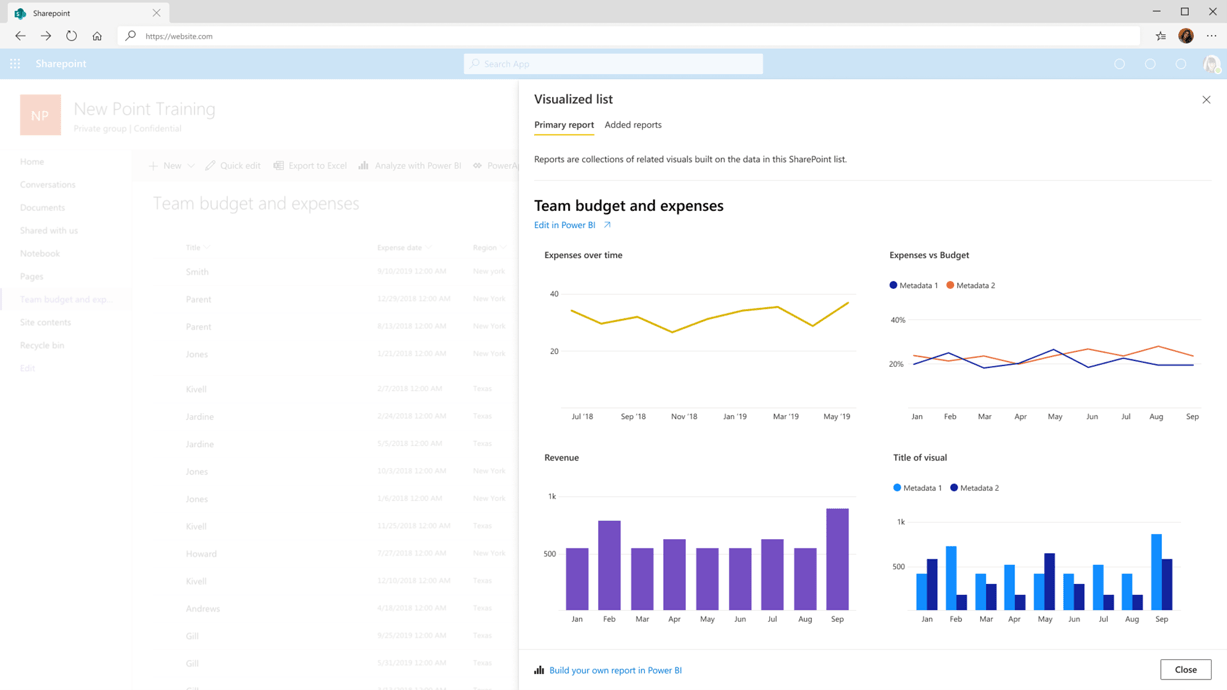
Last year as part of the Microsoft Power Platform: 2020 release wave 2, Microsoft quietly announced a new feature where users can create a Power BI report of the data contained in a SharePoint List (also known as a Microsoft List).

At the time not much information was shared, except for this image: 
Preview of the new Visualize the List feature


Preview of the new Visualize the List feature


We had a lot of questions: how is this going to work? can we edit the report? do users need licenses?

So, how does it work?

Now after months of waiting, we now have more information about what it looks like and how it will work.

The ability to create this will be available through the soon to be released Integrate menu button and then selecting Visualize the list. Microsoft currently have these features listed for release in April/May 2021 - so keep an eye out for it as it may have already landed for you.
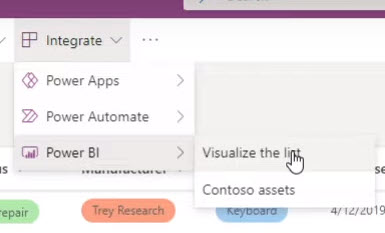
Menu option to create Power BI report

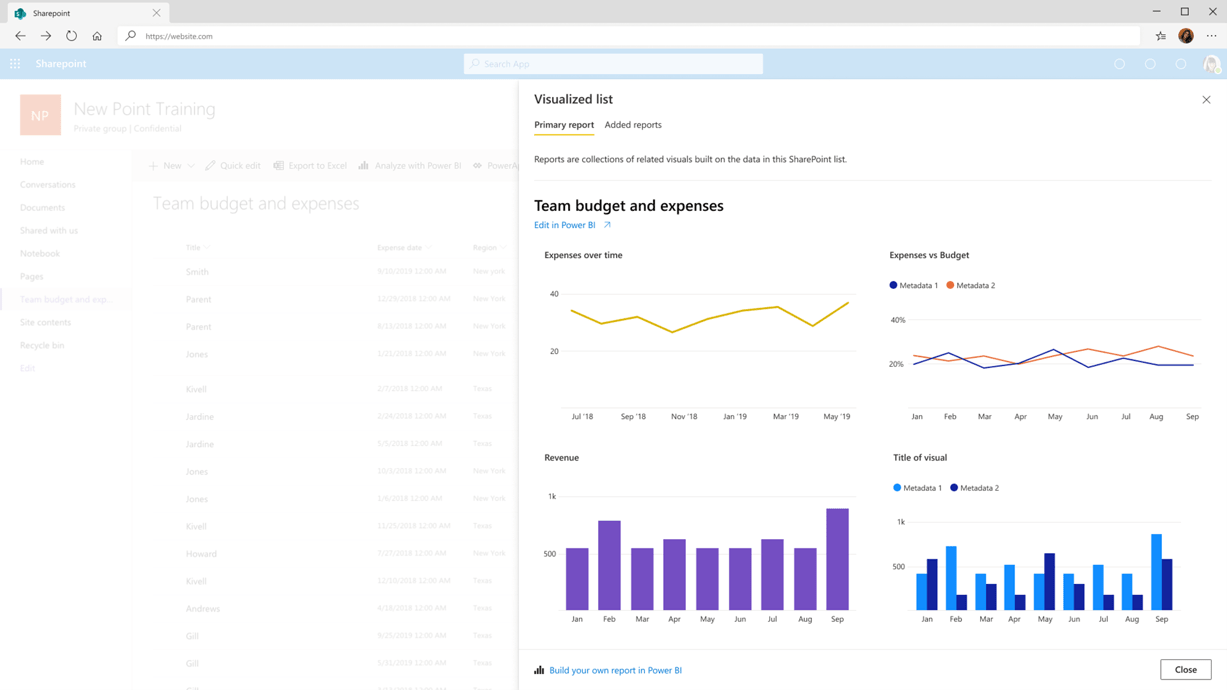
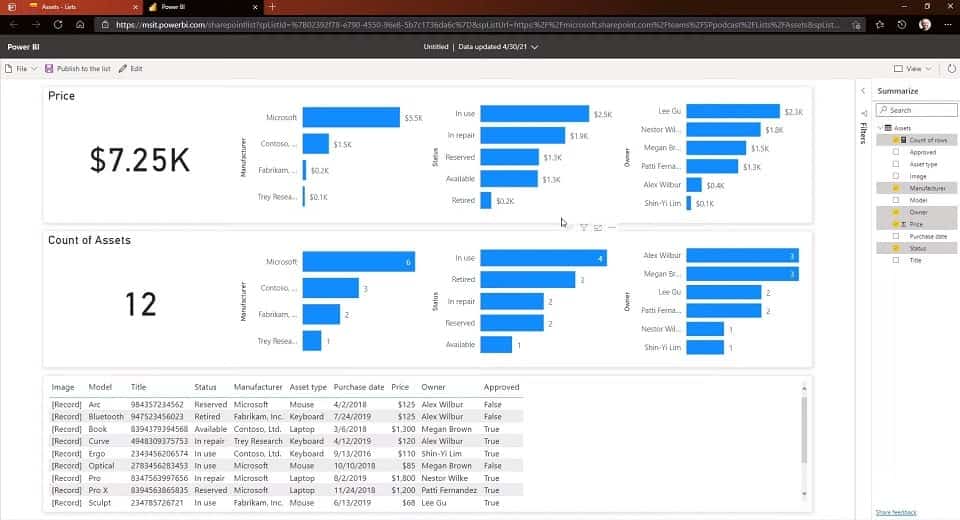
When ANY user clicks on Visualize the list a new window will open with an automatically populated report containing the data from the list (below is the default report that is generated):
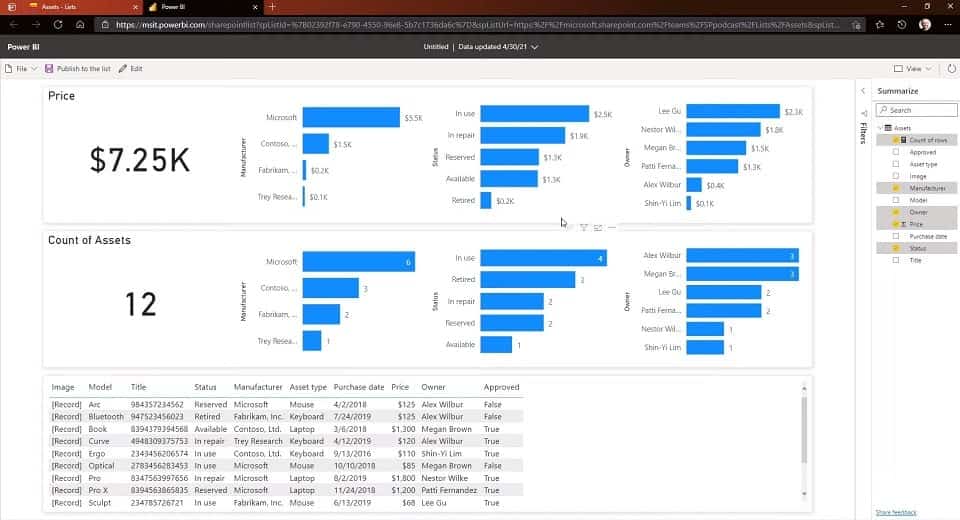
Power BI report created from SharePoint List


Power BI report created from SharePoint List


Users have the ability to customise what columns are visualised through a Summarize pane on the right. On the top left menu we can choose between File, Publish to the list and Edit.

You might notice that this report isn't displayed in the Power BI service (i.e. app.powerbi.com) but in a separate minimalist version which only shows the report.

Do I need a Power BI subscription to Visualize the list?

Anyone is able to click Visualize the list and see the default report (as shown above).

If you want to edit the list you will need a Power BI Pro subscription. User who don't have a subscription will be asked if they would like to sign-up to a free 60-day trial - more about this below.

Once you click Edit, you are shown the familiar editing view, with the visualisations and fields panes available. Again you aren't taken to the Power BI service to do this - it's all through a minimalist version (everything you need and no filler around the edges).

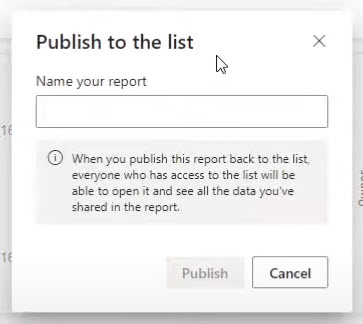
Once Edited, you can then Publish the report to the list:
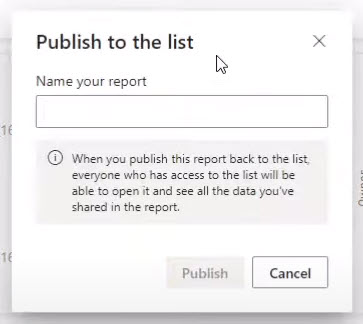
Dialog box for Publishing report to the list


Dialog box for Publishing report to the list


This will then allow other users to see the custom report through the Integrate>Power BI menu option. Note: only users with Power BI Pro subscription will be able to view the customised reports.

User without a Power BI Pro subscription will be able to view the default report (through the Visualize the list option) and they'll be able to see that custom reports are available. Clicking a custom report will prompt a sign-up for a free trial.

What should you do to prepare?

Consider your Power BI self-service sign-up and purchasing options if you don't want your users claiming a free trial. More information can be found here: Enable or disable self-service sign-up and purchasing 
 

What do we think about the new feature?

It's another exciting way that users are going to be introduced to Power BI as a tool to visualise their data. The simple-to-use integration with Microsoft SharePoint Lists quickly demonstrates how visualisations help us understand our data, spot opportunities and share insights throughout our organisation and with customers.

We especially like that users without a Power BI Pro subscription can view the standard report and we like that they are offered the free trial.

For more experienced Power BI users, they will already know that connecting to a SharePoint Online List is a simple process using the free Power BI desktop application. However, for new users this will be a great introduction. 

To Learn More, check out our Power BI Training Courses; available Australia wide.

Trusted Globally by Leading Organisations

At Nexacu, we are proud to be the trusted training partner for hundreds of leading organisations across Australia, New Zealand, and around the world. From government agencies to multinational corporations, we help teams build practical skills and achieve real outcomes through expert-led training.

  • 400+ companies rely on Nexacu for workforce development
  • Trusted by government agencies at all levels
  • Delivering training across 9 countries and growing

Why Nexacu? 

step by step courseware

Step by Step Courseware

Custom workbook included with a step by step exercises

Facility Image 2
Facility Image 3
Facility Image 1

Interactive real time training

Interactive, Real-Time Training

Learn with expert instructors, wherever you are

Trusted by Business

Trusted by Business

Procured by Government

Procured by Goverment

Reviews Not Found

Valued by Individuals