
Adobe Acrobat: How to Create Fillable PDF Forms for Your Workplace
For many teams, fillable PDFs are still one of the most practical ways to collect consistent information without introducing a whole new system. They are useful for onboarding packs, leave requests, approvals, registrations, client intake documents, incident reports, and internal checklists where the layout needs to stay controlled and professional.
How to build a fillable PDF, choose the right field types, test the form, and improve usability for workplace use.
Better forms reduce manual follow-up, improve consistency, and create a more polished experience for staff and clients.
Teams, administrators, coordinators, HR, operations, and anyone creating reusable PDF forms for business processes.
TL;DR: A good fillable PDF starts with a clear source document, uses the right field types, follows a logical tab order, and is tested properly before distribution. The real value is not just making a PDF editable, but making it easier for people to complete correctly the first time.
What is a fillable PDF form?
A fillable PDF form is an interactive PDF that lets users enter information on screen instead of printing the document and writing on it by hand. That means someone can click into fields, type answers, tick checkboxes, select dropdown options, and sometimes add a signature while keeping the layout of the original document intact.
This is different from a flat PDF, which may still be viewed or annotated but does not contain true interactive form fields. If you want cleaner data entry, easier reuse, and a more professional experience, an interactive form is usually the better option.

Why workplaces use fillable PDF forms
Workplaces often choose fillable PDFs because they sit in a practical middle ground. They look more polished than ad hoc Word documents, they are easier to complete than scanned paper forms, and they are often simpler to distribute than a full online form platform when the process is internal or document-based.
- a form that preserves layout and branding
- consistent answers across teams or departments
- documents that can be emailed, downloaded, or stored on shared drives
- signature or acknowledgement sections
- data that can later be reviewed or exported
When to use a fillable PDF instead of an online form
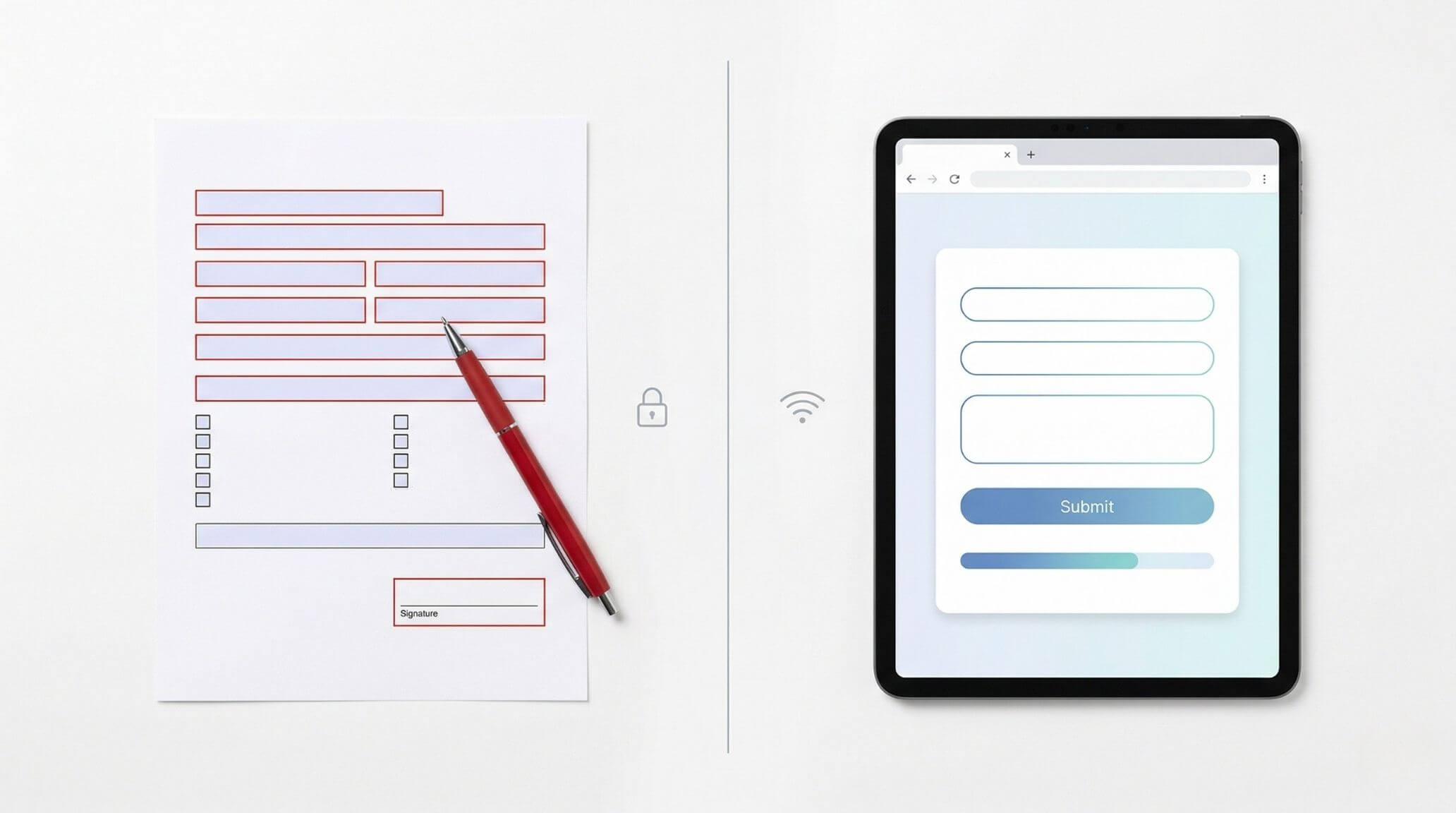
A fillable PDF is often the better choice when the document needs to look like an official form, when it must be saved as part of a document workflow, or when people need to complete it offline and return it later. This is common for approval documents, onboarding paperwork, declarations, and structured forms that may need to be archived as documents.
| Use case | Fillable PDF is a strong fit when… | Online form may be better when… |
|---|---|---|
| Internal approvals | You need a formal document that can be saved, emailed, signed, or archived | You need automated routing and integrations |
| Client forms | You want a polished document that mirrors an existing form layout | You want live submission into a CRM or portal |
| Offline use | Users may complete the form without constant internet access | Everything is browser-based and always connected |
How to create a fillable PDF form in Adobe Acrobat
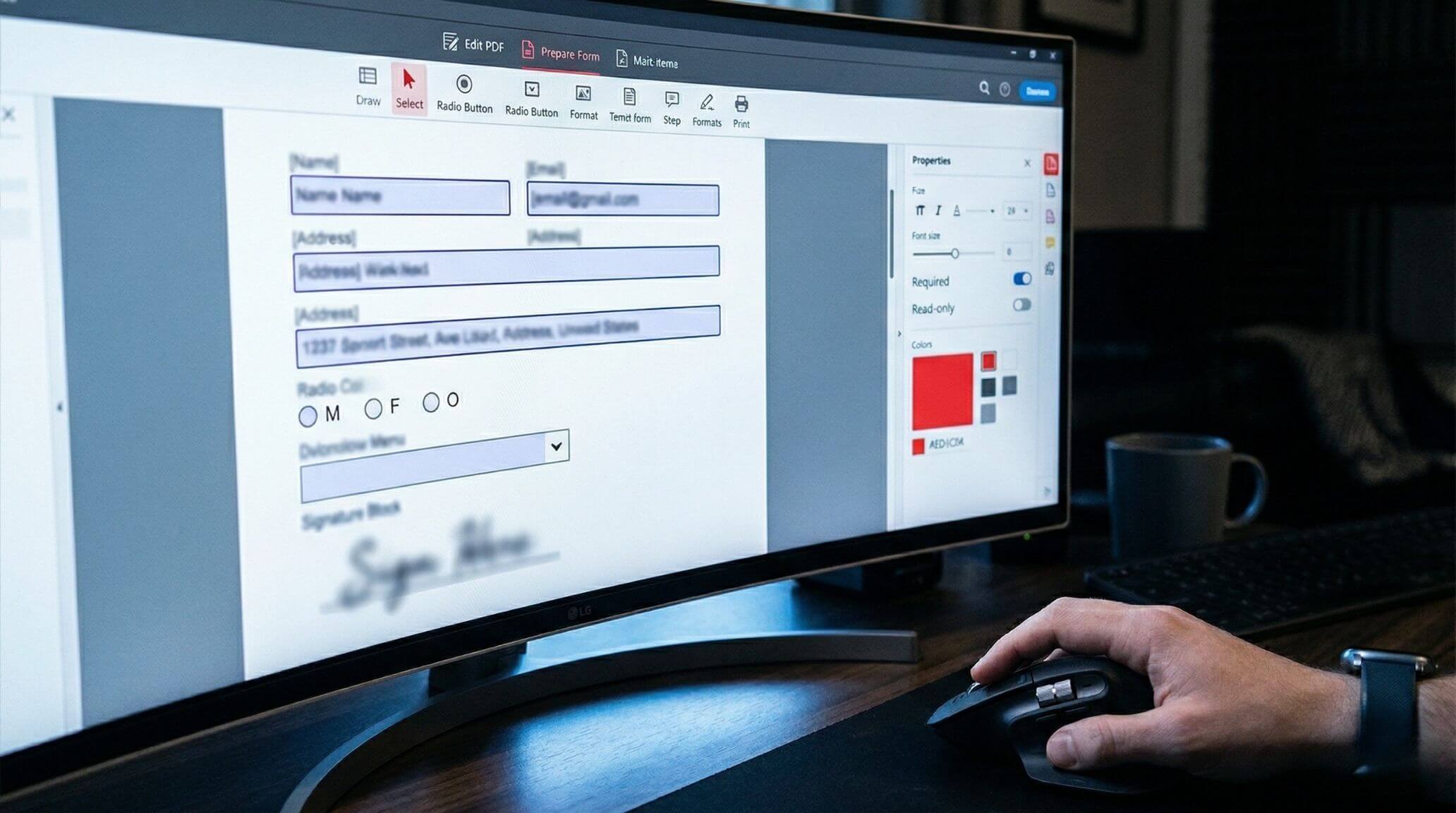
In Acrobat, go to All tools > Prepare a form. This is the main starting point for converting an existing document or creating a form from scratch.
Select the file you want to convert, upload a scan of a paper form, or start from a blank page if you want more design control.
Acrobat will often identify labels, lines, and boxes that look like form areas, then convert them into editable fields automatically.
Check every field for size, placement, alignment, and label clarity. Delete anything unnecessary and make sure the form still reads naturally.
Use text fields for freeform answers, checkboxes when more than one option is allowed, radio buttons for single-choice selections, dropdowns for standardised answers, and signature fields for approvals.
Name fields logically, mark essential ones as required, and use consistent formatting for dates, numbers, and email addresses so the form is easier to manage later.
For more advanced forms, you can add buttons, calculations, or guided behaviour for things like expense claims, quote requests, or booking forms.
Make sure users can move through the form in a logical order using the keyboard. Then test the form with a real user before rollout.
Once the form is working properly, save a clean master version so you can reuse it later without overwriting your working template.
Practical workplace examples
A leave request form might need employee details, leave type, date fields, a comment area, and a manager signature. A client onboarding form might need dropdowns for service types, checkboxes for preferences, and a declaration section. An incident report might need multiline text fields, date and time fields, a severity dropdown, and room for follow-up actions.
Best practices for better PDF forms
- Use plain language and avoid overly technical instructions.
- Keep field labels short, clear, and specific.
- Use dropdowns when answers should be standardised.
- Group related fields together under clear headings.
- Only make fields required when they truly need to be completed.
- Leave enough white space so the page does not feel crowded.
Common mistakes to avoid
One of the most common mistakes is creating a PDF that looks like a form but is actually flat. Another is relying too heavily on auto-detected fields without reviewing the result properly. It is also easy to create confusing forms by mixing inconsistent labels, poor alignment, too many free-text fields, or a tab order that jumps around the page.
Learn Acrobat forms properly with Nexacu
Nexacu’s Acrobat PDF Forms course covers interactive fields, calculations, usability, accessibility, and workplace-ready form design in a hands-on one-day format.
Frequently asked questions
Can Adobe Acrobat create a fillable PDF from Word?
Yes. Starting from a Word document is a common workflow. Acrobat can use the existing layout as a base, then help turn likely form areas into interactive fields.
Can I create a fillable PDF from a scanned paper form?
Yes. If you have an existing paper form, you can scan it and use Acrobat to turn it into an interactive PDF.
Can I build a PDF form from scratch?
Yes. You can start from a blank page, add headings and field labels, then build the form with the components you need.
Which course is best if I want to learn this properly?
If your main goal is building interactive business forms, Acrobat PDF Forms is the best fit. If you also need broader PDF editing skills, Acrobat Essentials is a strong option.
































