
Mastering Adobe Illustrator depends on understanding individual learning styles, whether through self-taught methods, structured courses, or a combination of videos, tutorials, and projects for a well-rounded foundation.
This comprehensive guide is your roadmap to navigating the complexities of Adobe Illustrator with ease and confidence. As you progress through each chapter, you'll uncover vector graphics and Bezier curves, and learn how to wield the powerful tools that Illustrator provides. So buckle up and prepare for an enlightening journey through the art of vector design, as we transform you from an Illustrator novice to a vector virtuoso.
Exploring Your Learning Style
Everyone’s learning journey is unique. Some of us thrive on self-learning, enjoying the flexibility to learn at our own pace. Others benefit from the structure of a guided course that provides a clear learning path, personalised feedback, and interactive elements.
What’s your learning style? Are you looking to upgrade your current skills or venture into a new creative realm? Do you prefer learning through videos, text tutorials, or hands-on projects? Identifying your learning needs and style is the first step towards mastering Adobe Illustrator.
Remember, a well-structured course can offer immense benefits, from accelerating your learning to providing a solid foundation for your new skills.
Exploring the Adobe Illustrator Workspace
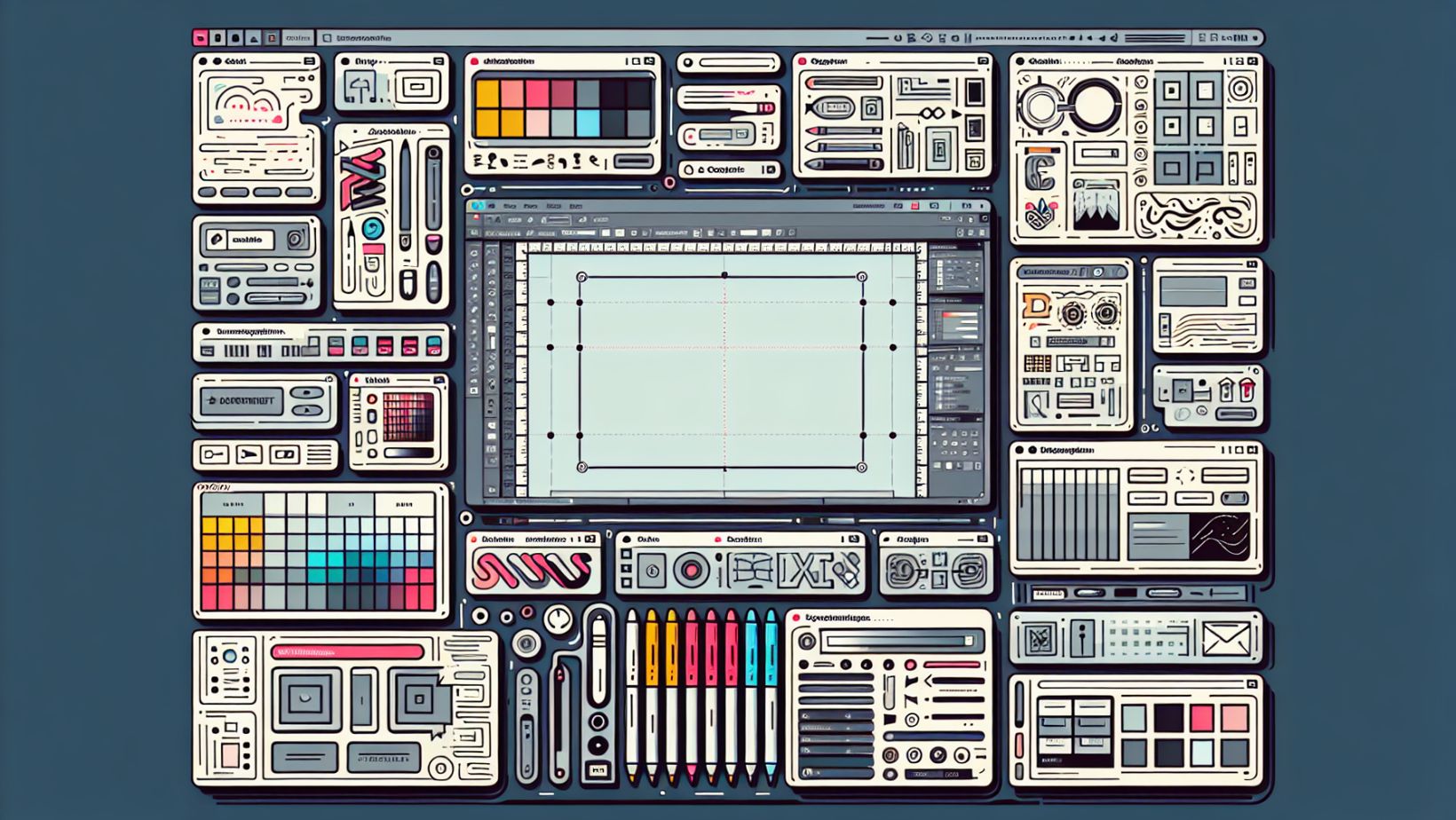
The Adobe Illustrator workspace is a designer’s playground, offering a myriad of tools and features tailored for crafting stunning artwork. It’s like a digital art studio, complete with panels, bars, and tools to create vector graphics for print, web, and mobile devices. As you step into this digital studio, you can customise your workspace to match your preferences and enhance your workflow.
But how can you make the most of these features? Let’s dive deeper into the intricacies of the Adobe Illustrator workspace.
Understanding the Tools Panel
The Tools panel in Illustrator is your toolbox, housing essential tools for selecting and manipulating objects. Imagine it as a painter’s palette, armed with brushes of all sizes and shapes. The Tools panel equips you with a vast array of tools to bring your creative ideas to life, from the Pen tool for creating precise vector paths to the Shape Builder tool for crafting complex shapes.
Mastering these tools is akin to a painter mastering their brush strokes, it’s a vital step in your journey to become an Adobe Illustrator expert.
Mastering Layers and Colors
Colours breathe life into your illustrations, while layers bring order to your creative chaos. Picture layers as transparent sheets stacked upon each other, each containing different parts of your artwork. The Layers panel in Illustrator is your command centre to manage, organise, and edit these layers independently. You can add new layers, reposition them, or even hide and lock layers to streamline your workflow.
Similarly, mastering colours entails understanding the Colour panel and the Swatches panel, enabling you to create, save, and apply colours to your artwork. Remember, a well-organised workspace is key to efficient design creation.
Working with Swatches and Gradients
Have you ever been mesmerised by a sunset sky transitioning from a warm orange to a deep purple? That’s the power of gradients. In Illustrator, the Gradient Tool lets you recreate this magic in your designs, allowing you to:
-
Create linear gradient effects that can be applied to text and shapes
-
Add a layer of depth and personality to your artwork
-
Make your designs more visually appealing.
So next time you’re working on a logo or a wordmark, don’t forget to experiment with gradients to give it a unique touch.
Creating Vector Graphics from Scratch

Creating vector graphics from scratch in Illustrator is an exciting journey, akin to a sculptor moulding a masterpiece from a block of stone. It begins with setting up a document tailored to your project’s requirements, followed by:
-
Drawing vector paths and shapes using the Pen and Pencil tools
-
Adding colour and gradients to your artwork
-
Applying effects and styles to enhance your design
-
Organising and arranging your artwork using layers
-
Exporting your final design in various file formats
But that’s just the beginning of our face-to-face journey.
Advanced vector techniques like Pathfinder and Align tools take your graphics to the next level, allowing manipulation of shapes and precise positioning. Let’s dig deeper into these steps and learn how to create stunning vector graphics.
Setting Up Your Document
Setting up your document in Illustrator is like setting the stage before a grand performance. This involves defining the size, colour mode, and resolution of your document. The process is straightforward, start by selecting a document category (Print, Mobile, or Web) that pre-sets certain parameters suitable for your output. Following this, customise specific settings like dimensions, measurement units, and page orientation. Remember, even after setting up, you can edit your artboard properties or make global changes through the Document Setup option.
Setting up your document correctly is the first step towards creating a masterpiece.
Drawing Basics with Pen and Pencil Tools
Drawing in Illustrator gives the same experience as sketching on a canvas, with the Pen and Pencil tools as your brushes. The Pen tool is your precision instrument, ideal for crafting complex shapes and detailed curves. The Pencil tool, on the other hand, allows you to embrace your creativity and draw more freeform designs.
Advanced Vector Techniques
Advanced vector techniques add the wow factor to your designs. The Pathfinder tool allows you to combine shapes in unique ways to create complex shapes and designs. Meanwhile, the Align tool is the precision ruler that enables you to align objects along a common axis or distribute them evenly.
Expanding vector objects finalises your complex graphics, making them ready for output. Mastering these advanced techniques will set you apart from beginner Illustrator users and put you on the path to becoming an expert.
Enhancing Illustrations with Typography and Effects
Typography and special effects in Illustrator can thoroughly enhance your designs. These include using the Type on a Path Tool to flow text along a path and applying attractive gradients.
Typography Tools and Techniques
Typography is an art in itself, and Illustrator provides a host of tools and techniques to master it. Here are some options at your disposal:
-
Flowing text along a path with the Type on a Path tool
-
Adjusting kerning and tracking via the Character Panel
-
Manipulating the structure of individual letters using the Direct Selection Tool or the Touch Type Tool
These tools provide a high level of control over your typography.
Remember, well-executed typography can significantly enhance the visual appeal of your designs.
Applying Special Effects
Special effects in Illustrator can transform all ordinary designs into masterpieces. You can apply both vector and raster effects to your artwork, adding shadows, glows, or even distorting shapes to create unique designs. These effects can be managed in the Appearance panel, which gives you control over their application and customisation.
Are you looking to add a drop shadow to your text or an outer glow to your shapes? Illustrator’s special effects have got you covered.
Streamlining Workflows with Adobe Illustrator Features

Just as a well-organised workspace can enhance productivity, Illustrator’s features can streamline your workflows, making your design process more efficient. For instance, you can record and automate repetitive tasks with Actions, and populate template designs with data using graphics.
Using Templates and Symbols
Templates and symbols in Illustrator can save you time and effort. Think of templates as pre-designed canvases that you can customise to your needs, and symbols as reusable elements that you can use across your designs. These features not only streamline your workflow but also ensure consistency in your designs.
Integrating with Photoshop and InDesign
As a member of the Adobe family, Illustrator plays well with its siblings, Photoshop and InDesign. You can seamlessly import images from Photoshop and Illustrator into InDesign without flattening layers, making your design process smoother. Moreover, Illustrator files can be inserted into other InDesign files, aiding in the consistent use of repetitive elements.
Integration with other Adobe software not only enhances your design capabilities but also streamlines your workflow, making Illustrator a powerful ally in your design journey.
Finalising and Exporting Your Artwork
Once you’ve crafted your masterpiece in Illustrator, it’s time to prepare it for the world to see. Finalising your artwork involves ensuring that all the graphics and text in your project are ready for output. After this, you need to choose the appropriate export file format based on the artwork’s intended use.
Preparing Files for Print
Printing your artwork requires some additional steps to ensure that your designs look as good on paper as they do on screen. This involves setting the colour mode to CMYK, adding a bleed to accommodate any inaccuracies in the trimming process, and ensuring high-resolution images.
These steps are crucial to achieving high-quality print output, ensuring that your designs shine in the real world as they do in Illustrator.
Exporting for Web and Digital Use
Displaying your artwork on digital screens requires a different set of considerations. Illustrator offers different export formats such as:
-
PNG
-
JPEG
-
SVG
-
PDF
These formats cater to the varying requirements of web and digital use. The 'Export for Screens' feature optimises your artwork for different devices, allowing you to export different assets in varying sizes and formats at the same time.
Advanced User Tips: Beyond the Basics
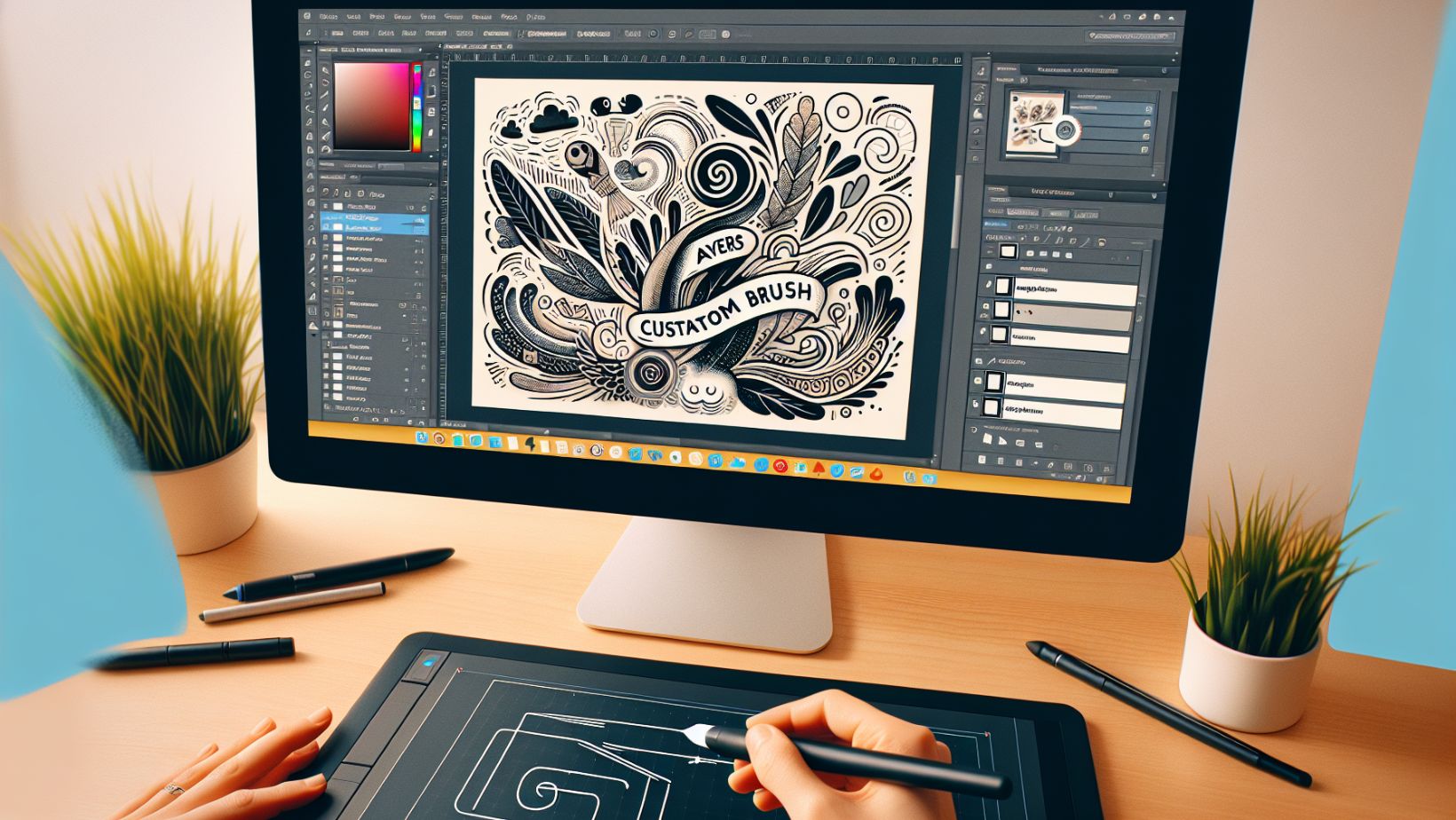
Once you’ve mastered the basics of Illustrator, it’s time to explore the advanced features and techniques that can elevate your designs to the next level. With this, you can already organise layers for complex illustration projects and create custom brushes for unique details and textures. These advanced tips can transform you from an Illustrator user to an Illustrator expert.
So, are you ready to go beyond the basics and explore the advanced realm of Illustrator in its latest version?
Mastering Logo Design
Logo design is a craft that requires a blend of creative conceptualisation and proficient use of Illustrator’s capabilities. To master logo design in Illustrator, you need to understand the full creative and brainstorming process and become adept at using Illustrator’s toolkit. Efficient logo designing can be significantly accelerated by mastering shortcuts and streamlining the design process.
Remember, a memorable logo can set a brand apart, and mastering logo design in Illustrator can set you apart as a designer.
Branding and Identity Creation
Creating a brand identity is telling a story, where your designs set the tone and mood. Illustrator allows you to align your illustration styles with a brand’s core values, personality, and target audience to create a unique brand identity. Developing a cohesive visual language involves integrating consistent design elements such as typography and colour schemes to complement your illustrations.
From logos to marketing materials, a consistent and adaptable brand identity can make a lasting impression.
Complex Illustration Projects
Managing complex illustration projects in Illustrator requires organisation, coordination, and a good eye for detail. Organised layers are critical for managing complex projects, and Illustrator’s advanced features like the Appearance panel and custom brushes can add complexity and depth to your illustrations.
Remember, each complex project is an opportunity to showcase your skills and creativity, so don’t shy away from them.
Personal Growth Path: Learning Resources and Practice
Mastering Adobe Illustrator is not just about learning – it’s about practising and growing. Here are some resources available to help you improve your skills:
-
Online courses
-
Adobe tutorials
-
Community forums
-
Creative challenges
Take advantage of these resources to use Adobe Illustrator and enhance your Illustrator skills through Adobe Illustrator training.
Engaging with the graphic design community can provide valuable benefits, such as:
-
Feedback and inspiration
-
Networking opportunities
-
Collaboration on projects
-
Access to resources and industry knowledge
Participating in creative challenges can also help improve your skills through regular practice and discipline. Remember, the path to mastery is a journey, and every step you take brings you closer to your goal.
Learning Options
There are several learning options available to help you master Illustrator, including our Adobe Illustrator courses, which offer comprehensive courses catering to beginners and advanced users. Additionally, Adobe’s official tutorials provide in-depth guidance, and platforms like Class Central can help you identify top-rated Adobe Illustrator course options.
Many of these courses integrate hands-on projects, allowing you to apply your skills and receive valuable feedback, which is crucial for skill development. Remember, the right learning resource can accelerate your journey to mastering Illustrator.
Community Engagement and Feedback
Learning is a two-way street, and engaging with the Illustrator community can enhance your learning experience. Adobe Community forums allow you to seek advice, share knowledge, and get feedback on your work. Peer feedback is a valuable aspect of these forums, as it can help you improve your skills and resolve challenges.
Practice Makes Perfect
Practice is the key to mastery, and Illustrator offers plenty of opportunities for practice. Participating in creative challenges like Draw This in Your Style (DTIYS) and Character Design Challenge (CDC) can provide structured practice to grow your skills. Taking on personal projects like redesigning album covers or illustrating idioms can also give you immersive practice and expertise development.
Beyond the Course
The journey of mastering Illustrator doesn’t end with this guide or any course – it’s a lifelong learning process. Illustrator offers vast creative possibilities, from branding and logos to illustrations and web graphics. As you continue to explore and learn, you’ll discover new techniques, develop your unique style, and create awe-inspiring art.
So why wait? Join us in our Adobe Illustrator courses, starting with the Essentials, and begin a comprehensive learning journey to master Adobe Illustrator. With our expert-led courses, you'll be able to unlock your creative potential and bring your digital art to life.
Frequently Asked Questions
How can I master Adobe Illustrator?
To master Adobe Illustrator, practise using the selection tool (V key) and holding down the option key on a Mac or the alt key on a PC while dragging to duplicate items. With practice, you can improve your skills in Adobe Illustrator.
What is the best way to learn Adobe Illustrator?
The best way to learn Adobe Illustrator is through a combination of methods, such as taking an online course, attending a live classroom session, using online tutorials, and studying training books. Private training can also be beneficial.
Is Adobe Illustrator hard to master?
Mastering Adobe Illustrator can be challenging, as it requires a good understanding of design principles and may take significant training for professional use. Knowing the basics of typography is essential to fully utilise the program.
How long does it take to master Adobe Illustrator?
Mastering Adobe Illustrator can take a few weeks to several months, depending on your prior experience and the time dedicated to learning.
How can I teach myself Illustrator?
You can teach yourself Illustrator by taking an online course, participating in classroom workshops, and using online tutorials or training books. Private training is also an option for effective learning. Try these methods to improve your Illustrator skills.
































