

Achieve digital creativity with our user guide to Adobe Photoshop courses, your gateway to mastering photo editing quickly and efficiently.
Whether you’re a budding photographer or an experienced editor, this comprehensive guide is tailored to help you easily navigate Adobe’s scaled-down toolset.
Nexacu is a leading provider of Adobe Photoshop courses, offering comprehensive options for foundational and advanced skills.
Expect to learn core functionalities, smart tips, and thoughtful techniques that cater to any skill level—all to craft the standout images you envision.
Getting Started with Photoshop Lite: A Beginner's Companion
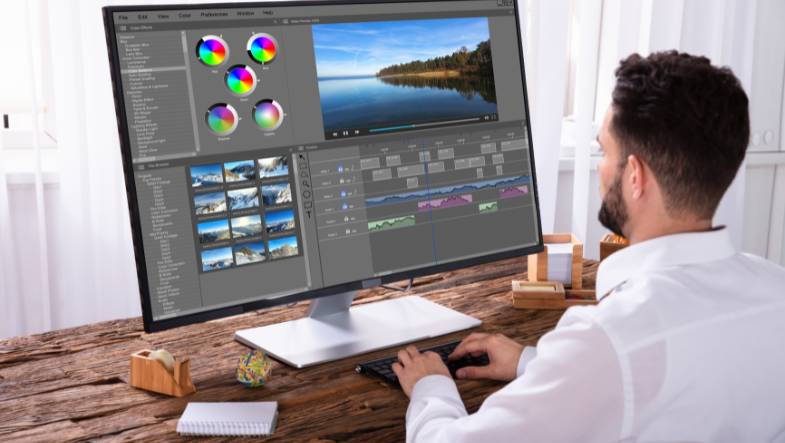
Initiating your photo editing journey with Photoshop Lite is effortless due to its user-friendly interface and easily accessible tools. Whether transitioning from other programs or starting fresh, the software’s intuitive design and pre-made templates set you up for success.
With optimization for desktop and mobile devices, Photoshop Lite guarantees a smooth creative process, regardless of your device. With a wealth of built-in tutorials, learning the ropes has never been more straightforward. Learning to crop images and resize images is also essential as part of the foundational skills in Adobe Photoshop Lite courses.
Download and Installation
Your photo editing journey commences with a mere click. For desktop users, the ‘Get Photoshop on the desktop' button guides you through a simplified download and installation procedure. Upon completion, sign in to embark on your creative journey.
iPad enthusiasts aren't left behind, as Creative Cloud subscribers can effortlessly download and log into Photoshop Lite, tapping into the world of on-the-go editing.
Setting Up Your Workspace
You can tailor the interface by moving and stacking panels, toggling between modes, and adjusting brightness levels to suit your project and environment.
If you're working on a tablet, lock your workspace to safeguard against accidental tweaks and ensure your panels stay precisely as you arranged them.
Navigating the Photoshop Interface

Navigating the Photoshop interface is the first step to mastering the software. The interface is designed to be intuitive, but understanding its layout can significantly enhance your efficiency.
Understanding the Menu Bar and Toolbar
The menu bar and toolbar are the backbone of the Photoshop interface, providing access to many tools and commands. The menu bar at the top of the screen houses various menus such as File, Edit, Image, Layer, Select, Filter, and Help. Each menu is a gateway to specific commands and options that facilitate different tasks.
The toolbar on the screen's left side offers quick access to essential tools like the Move, Marquee, Lasso, and Brush tools. Customizing the toolbar to display only the frequently used tools can streamline your workflow.
To navigate these components:
-
Click on the menu bar to reveal the different menus.
-
Select a menu to view its list of commands and options.
-
Choose a command or option to execute a task.
-
Click on a tool in the toolbar to activate it.
-
Use the selected tool to perform your desired action.
Mastering the menu bar and toolbar allows you to efficiently navigate the Photoshop interface and access the tools and features necessary for your photo editing projects.
Essential Tools and Features in Photoshop Lite
Venture into the core of Photoshop Lite software, where an array of indispensable tools for image editing and photo retouching are ready to revolutionise your images. The software’s features are tailored to cater to your creative needs, from sophisticated photo retouching to integrating text and design elements.
And with the ability to save custom presets, you’ll find yourself repeatedly breezing through the photo editing process.
Basic Photo Adjustments
Adobe Photoshop Lite’s basic photo editing tools allow you to edit photos by augmenting them with a few straightforward clicks. Adjust brightness, contrast, and saturation to breathe new life into your photos, and let the AI features guide you towards a more intuitive workflow. These basic photo adjustments are essential skills for preparing images effectively for various purposes.
Adobe Creative Cloud tutorials provide a treasure trove of insights for those looking to further their knowledge, particularly for novice photographers eager to learn about image adjustments.
Working with Layers
Layers form the foundation of non-destructive editing in Photoshop Lite. With layers, you can:
-
Create new layers
-
Manage their visibility
-
Rearrange them with ease
-
Experiment with blending modes and opacity settings to achieve the desired artistic effect
Layers allow you to accumulate your edits without modifying the original image, making it easy to make changes and try different effects.
Selection and Cropping Techniques
A well-structured image seizes attention, and learning to crop images is essential for selecting and cropping techniques in Photoshop Lite. Use the Crop tool to eliminate distractions and focus on your subject, or explore automatic cropping suggestions for a quick compositional boost with new images.
For more complex scenes, employ the Perspective Crop tool to correct any distortion, and rely on the Straighten tool to ensure your horizons are always level.
Applying Filters and Effects
Revolutionise your images with layer effects that add depth and dimension. Shadows glows, and bevels are just the beginning, with each effect updating dynamically as you change the layer's content. Craft your signature style by stacking multiple effects within a single layer or saving custom styles for future use, ensuring that your creative vision is always within reach.
Text and Graphics Integration
Incorporating text and graphics into your images is a necessity. From eye-catching social media posts to professional design projects, Photoshop Lite's capabilities ensure your content stands out.
You can use templates from Adobe Stock as a starting point and then infuse them with your unique elements to create something unique.
Retouching Images
Portrait photography symbolises an art form, and retouching serves as your brush. Utilise Photoshop Lite to embellish your portraits by eliminating imperfections, diminishing shine, and rectifying red-eye. These tools allow you to polish your images perfectly, ensuring your subjects look their best in every shot.
Streamlining Your Workflow with Photoshop Elements

For those desiring simplicity without forfeiting capability, Photoshop Elements represents the underrated champion of the Adobe suite including Adobe elements. As a cost-effective alternative, it provides the essential tools for photo management and editing, all within a user-friendly package.
Organising Your Photos
Photoshop Elements Organizer is your digital archive, where every photo and video can be catalogued by people, places, and events. Navigate through various views, including Media, People, Places, and Events, to maintain an organized library and create albums to easily access your most cherished memories.
Quick Edits and Batch Processing
Time is invaluable, and Photoshop Elements' batch processing feature guarantees its optimal use. You can edit multiple images simultaneously, from quick fixes like Auto Levels to more intricate adjustments like colour corrections.
One important feature of this powerful tool is that it streamlines your workflow, allowing you to focus on creativity rather than repetition. With its premium features, you can further enhance your productivity and efficiency.
Advanced Editing Techniques for Enthusiasts

Raise your photo editing prowess to unprecedented levels with sophisticated techniques in Photoshop Lite. Harness the power of generative AI tools and dive into the world of graphic design, pushing the boundaries of your creative potential.
Using Adjustment Layers for Non-Destructive Edits
Adjustment layers are your safeguard, ensuring that the integrity of your original image remains intact while you experiment with colour and tone. These non-destructive tools offer the flexibility to reverse edits or apply them selectively, allowing you to fine-tune your images to perfection.
And with the ability to copy and paste these layers between images, maintaining a consistent look across your portfolio has never been easier.
Advanced Selection Tools
Precision is paramount when selecting elements in your images. With tools like the Magnetic Lasso and the Pen Tool, Photoshop Lite empowers you to make exact selections, whether cutting out objects or isolating complex shapes. These advanced tools provide the control to refine your edits to the smallest detail.
Creating Composite Images
Composite images represent a fusion of imagination and skill, where diverse photos are flawlessly integrated to narrate a distinctive story. Careful planning, precise selection, and thoughtful layering are the keys to creating composites that captivate and inspire.
Master the art of blending by integrating subjects and backgrounds so flawlessly that the seams of reality disappear.
Saving and Sharing Your Creations
The concluding stage of your creative journey involves saving and sharing your masterpieces with the world. Photoshop Lite offers a variety of file formats, each suited to different sharing needs and platforms.
File Formats Explained
Grasping the subtleties of file formats is vital for maintaining your images' quality. Lossless compression keeps every detail intact, while lossy compression trades off some quality for smaller file sizes.
Opt for PNG when you need transparency, and choose JPEG for its balance of quality and file size.
Exporting Images for Web and Print
Prepared to showcase your work to the world? With Photoshop Lite, exporting images for web and print becomes effortless. The ‘Save For Web' command lets you fine-tune image quality and file size, while the correct file format ensures your images shine in any medium.
If you encounter an image without the correct suffix, a quick manual addition ensures its proper display on the web.
Sharing to Social Media
Social media serves as a platform, with your images starring. Choose the right file format based on content and platform requirements to ensure your images make an impact. Photoshop Lite's optimisation tools help you make the necessary adjustments before you hit ‘Share', guaranteeing your images are ready for their digital debut.
Tips and Tricks for Efficient Photo Editing
Efficiency in photo editing conserves time and permits enhanced creative exploration. Implement these tips and tricks to streamline your workflow and elevate your editing prowess.
Keyboard Shortcuts and Gestures
Accelerate your editing process with keyboard shortcuts and touch gestures, which facilitate quick and easy navigation and change applications.
Embrace the capabilities of touch-enabled devices with gestures like pinch-to-zoom and two-finger scrolling, adding a tactile dimension to your photo editing process.
Automating Repetitive Tasks
Automate the routine tasks with Photoshop Actions and batch editing. Record a series of steps and apply them across a folder of images, ensuring a uniform style and saving precious time. This approach is especially useful for resizing, colour correcting, and format conversions, enabling you to focus on the creative aspects of your projects.
Custom Presets and Templates
Consistency is paramount; custom presets, and templates serve as your covert arsenal. Create these for settings you frequently use, and apply them to multiple photos for a uniform style, streamlining your editing and maintaining a cohesive look.
Conclusion
Next Steps in Your Adobe Photoshop Course
Congratulations on completing the Adobe Photoshop Lite course! You’ve laid a solid foundation in photo editing and image manipulation. However, the journey doesn’t end here. To master Photoshop, consider taking your skills to the next level with more comprehensive training.
Here are some actionable next steps:
-
Practice Regularly: Consistent practice is key to becoming proficient in Photoshop. The more you use the software, the more comfortable and skilled you’ll become.
-
Explore Online Tutorials: Some countless online tutorials and courses delve into advanced techniques and features of Photoshop. These resources can help you expand your knowledge and skills.
-
Join a Community: Engaging with a community of Photoshop users can provide valuable feedback, support, and inspiration. Platforms like Reddit’s r/Photoshop and Photoshop Gurus forum are excellent places to connect with fellow enthusiasts.
-
Enroll in Comprehensive Training: Consider enrolling in a more comprehensive course that covers advanced topics such as layers, masking, and compositing. This will deepen your understanding and enhance your capabilities.
-
Experiment with New Tools and Features: Don’t hesitate to try out new tools and features in Photoshop. Experimentation can lead to discovering new techniques and developing your unique style.
By following these steps, you can continue to grow as a Photoshop user and unlock the full potential of this powerful photo editing software. Embrace the journey of learning and watch as your skills and creativity flourish.
Achieve Artistic Mastery with Nexacu
Embark on a visual adventure with Nexacu's Photoshop courses, designed to elevate your photo editing to artistic mastery.
As we conclude this informative guide, remember that the essence of photo editing lies in the power to weave stories through imagery. Nexacu's expert-led courses will guide you from downloading and setting up your workspace to the finesse of advanced techniques and sharing your digital masterpieces.
Let Nexacu's Photoshop Lite courses catalyse your creative journey, and watch as your images narrate their vibrant tales.
































