

Welcome to the advanced realm of Microsoft Teams! For seasoned users seeking to elevate their experience, this blog is your guide on how to use Microsoft Teams, unlocking hidden gems, and maximising productivity.
In this digital age of collaboration, Microsoft Teams stands as a linchpin for effective communication and teamwork. Through training and resources, we provide power users with knowledge of Microsoft Teams advanced features that enhance efficiency and make the most of the platform's capabilities.
Streamlining Communication
Advanced Chat and Messaging Features
Communication lies at the heart of the platform, and mastering Microsoft Teams Advanced Features for chat can take your interactions to the next level. Explore the art of message formatting to convey information with clarity and impact using Microsoft Teams advanced communications tips and tricks. Learn how reactions can add nuance to your responses, making conversations more expressive and engaging.
For example, you can have private 1:1 or group chats with your organisation members, by clicking on the ‘New Chat’ icon to the left of the Command Bar and adding recipients. You can also access active chats from the ‘Chat’ tab on the left navigation.
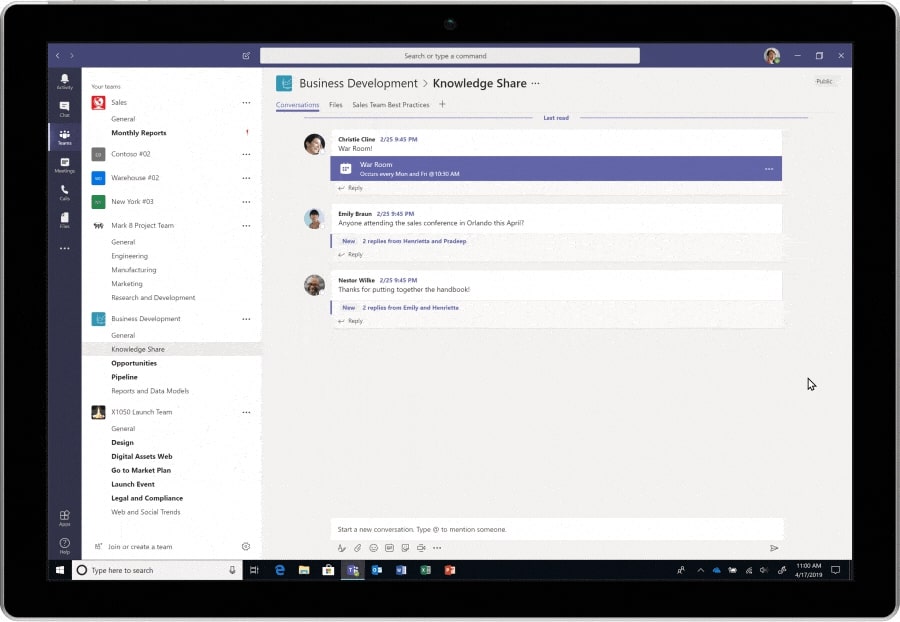
When chatting in a Channel or the dedicated place for a project, department, or topic, click on ‘Teams’ on the navigation bar on the left. And all the Teams you're a part of will appear with Channels listed underneath it.
From there, you can search previous chats to refer to previous discussions. You can also send polls also known as Polly to get your team to do a quick vote.
Notification Management for Improved Focus
Notifications are essential but can sometimes be overwhelming. Discover Microsoft Teams Advanced Features and strategies to manage notifications effectively, ensuring you stay informed without distraction.
You can achieve a balance that keeps you in the loop while maintaining focus on your tasks. Information worker studies found that returning to your original task takes 23 minutes on average after an interruption. To help reduce these, when you are trying to get deep, meaningful work done, Microsoft Teams will automatically switch to “Do Not Disturb” during focus time.
With Microsoft Teams and Viva Insights, you can create a focus plan by blocking focus time in your calendar and turning off all Microsoft Teams notifications.
Simply go to Viva Insights on Microsoft Teams and click on the 'Wellbeing' tab. In the 'Take action to improve your wellbeing section,' click on the Set daily focus plan button to start your plan. You can then click on the Change Settings option to change the details.
Choose how much focus time you would like to schedule every day: 1 hour per day, the recommended 2 hours a day, or half a day. And choose whether you prefer this in the Morning or the Afternoon. From there, you can Mute or Allow notifications, save your settings, and adjust as you go.
You can also check out the new MyAnalytics personal dashboard and the weekly email digests. These help better understand your current work patterns and provide actionable insights on the times you need to focus, disconnect, and recharge or the times you need to improve on team collaboration.
MyAnalytics is now part of Viva Insights and can be found on the productivity and Teamwork tabs.
Optimising Meetings and Collaboration
Advanced Techniques for Scheduling and Managing Meetings
Meetings are a cornerstone of collaboration, and in this section, we unveil Microsoft Teams Advanced Features and techniques for scheduling and managing them efficiently. From leveraging AI to find the perfect meeting time to utilising breakout rooms for more focused discussions, these tips will elevate your meeting game.
Your calendar in Teams is synced with your Exchange calendar. When you schedule a meeting in Outlook, you will see it in Teams, and vice versa. Every meeting scheduled in Teams is, by default, an online session. So, you need to specify otherwise if it will be face-to-face.
You can include a dial-in number and conference ID so participants can call into the Teams meeting. If you schedule the appointment from Outlook, meeting attendees will automatically see the dial-in number and conference ID in the scheduled meeting invite. You can also colour-code your calendar with categories.
This helps to get an overview of your day at a glance. Is it a day of internal meetings, a Vendor Day, or a day full of client calls? As in Outlook, you can assign one or more categories to each session in your calendar.
Collaboration Tips, Including File Sharing and Co-authoring
Collaboration extends beyond meetings, and this segment explores file sharing and co-authoring. Uncover the intricacies of sharing files seamlessly within Teams and discover how co-authoring can streamline collaborative document editing, enhancing real-time collaboration.
In your 1:1 chat or channel conversation, you can select Attach under the box where you type your message. From there, you can select where you'll pull the file: Recent, Browse Teams and Channels, OneDrive or Upload from my computer.
Efficiency Boosters
Essential Keyboard Shortcuts and Navigation Hacks
Efficiency is the hallmark of a power user. This section showcases a collection of essential keyboard shortcuts and navigation hacks to expedite your tasks within Teams. From quick message formatting to easy navigating between channels, these shortcuts will become second nature.
Some keyboard shortcuts for Microsoft Teams on Windows include:
- Show Hotkeys: Ctrl + .
- Show Commands: Ctrl + /
- Search: Ctrl + E
- Goto: Ctrl + G (On the web: Ctrl + Shift + G)
- Start New Chat: Ctrl + N (On the web: Left Alt + N)
- Open Settings: Ctrl + ,
- Open Help: F1 (On the web: Ctrl + F1)
- Zoom In: Ctrl + =
- Zoom Out: Ctrl + -
Find the keyboard shortcuts list within Microsoft Teams. Type Ctrl + E on the desktop, or Ctrl + Alt + E in the web app, to go to the Search field. Then type /keys and then press Enter.
Integrating Third-Party Apps and Tools for Enhanced Productivity
Teams is not an isolated ecosystem, and integrating third-party apps can amplify its capabilities. Learn how to seamlessly integrate external tools, transforming Teams into a centralised hub for all your work-related activities. Boost productivity by bringing your favourite apps directly into the Teams interface.
On the left-hand side of Teams, go to Apps and see an overview of everything available for you to add. Some apps you can add are Monday.com for project management, Canva, Desk reservations, PowerBI, Tasks by Planner and To-Do, Forms, OneNote, and more.
Customisation and Personalisation
Tailoring Microsoft Teams to Fit Individual Preferences
One size does not fit all, and Teams understands that. This section guides you on personalising Teams to suit your unique preferences. From adjusting notification settings to choosing to make Teams an extension of your work style with a theme that resonates with you.
Apart from using keyboard shortcuts, you can personalise your Microsoft Teams experience by:
- Changing the app’s theme: Switch between a light (system default) and dark theme. To do this, select … (ellipsis) > Settings > General. Then, choose your preferred theme and close the settings window.
- Customising your notifications: Choose which notifications you want to receive and how you wish to receive them. To do this, select … (ellipsis) > Settings > Notifications. Then, choose your preferred notification settings.
Custom Backgrounds, Emojis, and Status Settings
Add a personal touch to your virtual workspace with custom backgrounds, emojis, and status settings. Create an online environment that helps you express yourself, fostering a more enjoyable and personalised Teams experience.
Here's how you can do it:
Custom Backgrounds:
- During a Teams meeting, click on the three dots (ellipsis) in the meeting controls.
- Select "Show background effects."
- Choose from the available background options or click on "+ Add New" to upload your custom background image.
- Once added, your selected background will appear during meetings.
Emojis:
- In a Teams chat or channel conversation, open the chat where you want to use emojis.
- Click on the smiley face icon in the chatbox to access the emoji menu.
- Browse and select the emoji you want to use. You can also use the search bar to find specific emojis.
- Click on the chosen emoji to insert it into your message.
Status Settings:
- Click on your profile picture in the top-right corner of Teams.
- From the drop-down menu, select your current status (Available, Busy, Do Not Disturb, etc.).
- You can also add a status message to provide more context to your status.
- To set a custom status, choose "Custom" from the status options and enter your custom status message.
- You can also schedule your status to change automatically at a specific time.
Remember that these features might be updated over time, so the steps might evolve. If you don't see these options, make sure your Teams app is updated to the latest version.
Security and Privacy
Advanced Security Settings for Teams and Channels
Note: The following options are not available to users. They are only available to global administrators.
As collaboration grows, so does the need for robust security measures. In this section, we highlight advanced security settings for teams and channels, ensuring that your sensitive information stays protected.
For global administrators, you can take control of your digital workspace and create a secure environment for collaboration.
For example, you can ensure the security and privacy of your data by configuring the right access settings for guests invited to Meetings and Chats. Through the Teams admin center, you can easily tailor your guest access rules to suit your needs. Go to Microsoft Teams admin center> Users> Guest Access.
And you can minimise the attacks and restrict unwanted content sharing in Teams meetings. To do so, navigate to Microsoft Teams admin center> Meetings> Meeting Policies> Global Policy.
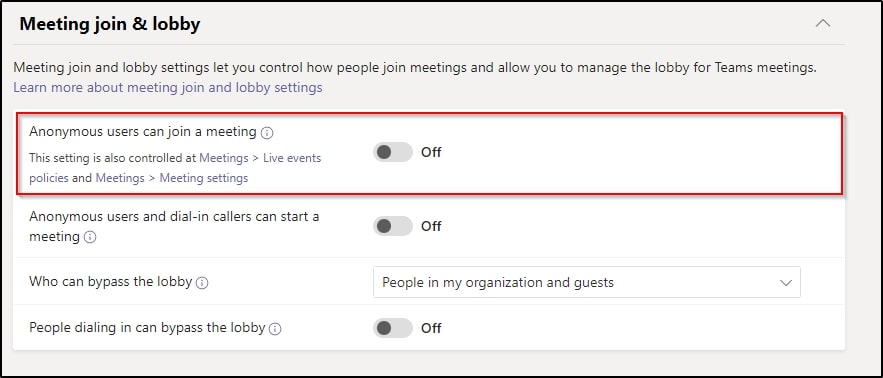
In the Meeting join & lobby tab, turn off ‘Anonymous users can join a meeting’ and ‘People dialing in can bypass the lobby’ options. And in Meeting engagement, allow Meeting chat option for Everyone but anonymous users.
You should also turn off the ‘External participants can give or request control’ setting in Content Sharing. And restrict the ‘who can present’ option to 'People in my organisations and guests' to avoid sharing inappropriate or unwanted content.
Protecting Sensitive Information and Managing Access
Security goes beyond settings, and this segment offers practical tips on protecting sensitive information and managing access. Safeguard your data and ensure that only authorised individuals have the right level of access to maintain a secure collaborative environment.
MS Teams at its Fullest
These advanced tips and tricks are the key to unlocking the full potential of Microsoft Teams. Whether streamlining communication, optimising meetings, boosting efficiency, customising your experience, or ensuring security and privacy, implementing these strategies will elevate you to a Teams power user status.
Embrace these insights, integrate them into your workflow, and witness your productivity and collaboration transformation. Microsoft Teams is not just a tool; it's a dynamic platform that adapts to your needs when wielded with mastery. Become a Teams power user with Microsoft Teams advanced training and lead efficient, seamless collaboration.
For further Microsoft Teams training, consider exploring our Microsoft Teams Courses and start with the Teams Essentials course.
































