
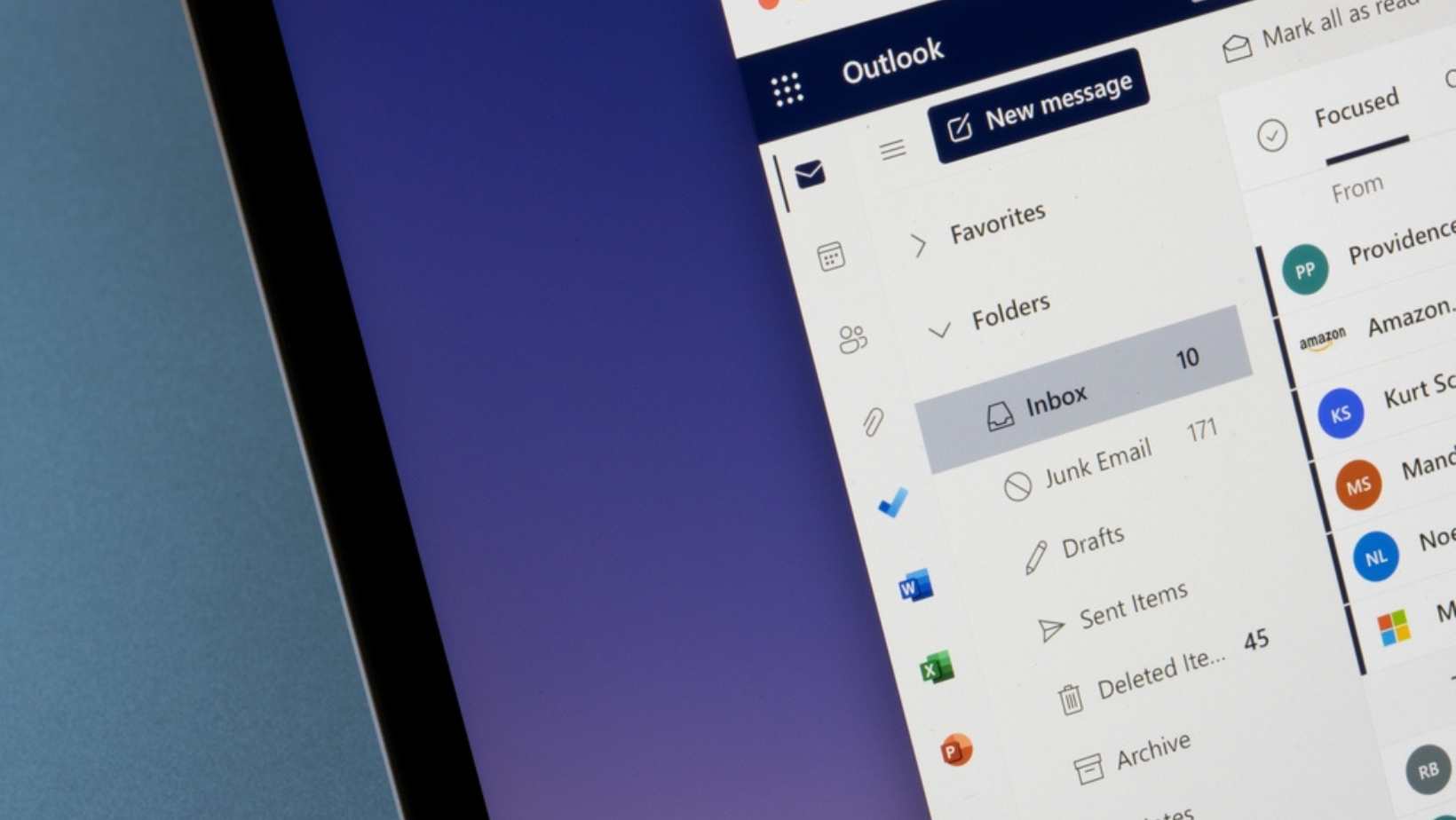
Microsoft Outlook is more than just an email client; it's a powerful tool for collaboration and productivity. Whether you're working with a team, managing projects, or simply trying to streamline your workflow, Outlook offers a plethora of features to help you stay organised and work seamlessly with others.
In this comprehensive guide, we'll explore advanced tips and tricks for collaborative work in Outlook, covering everything from shared calendars and email delegation to managing tasks and collaborating on documents.
Shared Calendars: Keeping Everyone in Sync
Effective teamwork often hinges on everyone being on the same page, and shared calendars in Outlook are a game-changer for achieving this.
- Setting Up Shared Calendars
Learn how to create and share calendars with your team, and control who can view and edit them. This is especially useful for managing meetings, appointments, and project timelines.
To share your Outlook calendar, open your calendar in Outlook. Right-click on the calendar you want to share (usually found in the left sidebar) and select "Share" from the context menu. Follow the prompts to enter the email addresses of your colleagues, set permissions, and send sharing invitations. They will receive an email with a link to access your shared calendar.
This process may vary slightly in different versions of Outlook such as Outlook for Mac or Outlook on the Web.
- Overlapping Schedules
Overlay multiple calendars to quickly identify scheduling conflicts and find the best meeting times for everyone involved.
- Categorisation
Use colour-coding to differentiate between personal, team, and project-related events, making it easier to visualise your schedule at a glance.
Email Delegation: Sharing the Load
When you work in a team, delegating email responsibilities is commonplace. Outlook provides useful tools for this purpose:
- Setting Up Email Delegation
Email delegation in Outlook allows you to grant someone else access to your email account. To delegate your email, go to "File" > "Account Settings" > "Delegate Access." Click "Add" to select the person you want to delegate to and set their permissions. They will then be able to access your email, send messages on your behalf, and manage your calendar.
Grant others access to your email account, allowing them to send and receive messages on your behalf. This is invaluable for executives, assistants, or team leaders.
- Managing Delegated Accounts
Manage delegated accounts effectively, ensuring that sensitive information remains secure and well-organised.
- Customising Delegation Permissions
Tailor delegation permissions to suit your needs, granting specific access levels for different users. You can control who can send emails, read messages, and more.
Collaborating on Documents: Seamless Integration
Outlook seamlessly integrates with other Microsoft Office applications like Word, Excel, and PowerPoint.
- Sharing Attachments
Attach and send documents directly from OneDrive or SharePoint, making it easier for your team to collaborate on files in real-time.
- Co-Authoring Documents
Co-author documents within Outlook, allowing multiple team members to edit files simultaneously without the need for constant back-and-forth email exchanges.
- Version History
Access and restore previous versions of shared documents, ensuring that no important changes are lost.

Task Management: Staying Organised Together
Tasks are at the heart of any collaborative project. Outlook offers robust task management features to help you stay organised:
- Creating and Assigning Tasks
Create tasks, assign them to team members, and set due dates. This is especially useful for managing project milestones and deadlines.
- Tracking Progress
Monitor the progress of tasks and receive notifications when they are completed, ensuring that everyone stays accountable.
- Integrating with To-Do Lists
Sync your Outlook tasks with Microsoft To-Do, providing a unified platform for managing both personal and team-related tasks.
Shared Mailboxes: Streamlining Communication
When several team members need access to the same set of emails, shared mailboxes can simplify communication:
- Setting Up Shared Mailboxes
Create shared mailboxes for departments, teams, or specific projects, ensuring that everyone has access to the relevant emails.
- Managing Permissions
Configure permissions for shared mailboxes, allowing certain team members to send, receive, and organise emails effectively.
- Automating Rules
Explore the use of rules and filters to automate the sorting and organisation of emails within shared mailboxes, making it easier for your team to stay organised.
Groups and Teams Integration: Enhancing Collaboration
Microsoft 365 Groups and Microsoft Teams can enhance your collaboration experience when integrated with Outlook:
- Creating Groups
Create Microsoft 365 Groups within Outlook, providing a hub for email communication, shared calendars, files, and conversations.
- Microsoft Teams Integration
Seamlessly integrate Microsoft Teams with Outlook to facilitate instant communication and collaboration with your team.
- Managing Group Settings
Explore group management options to control who can join, post, and access the resources within your Microsoft 365 Groups.
Advanced Email Management: Mastering Your Inbox
Outlook offers numerous advanced email management features to help you stay organised and efficient:
- Rules and Filters
Create rules and filters to automate email processing, helping you prioritise and categorise your messages effectively.
- Focused Inbox
Use the Focused Inbox feature, which automatically separates important emails from less critical ones, helping you stay focused on what matters.
- Quick Steps
Use Quick Steps, a feature that lets you perform multiple actions on emails with a single click, saving you time and effort.
Outlook Mobile App: Collaborating on the Go
In today's fast-paced work environment, staying connected while on the move is essential. The Outlook mobile app allows you to do just that:
- Mobile Calendar Management
Manage your calendars, schedule meetings, and view shared calendars from your mobile device.
- Real-time Document Collaboration
Collaborate on documents using the mobile app, making it easy to review and edit files with your team from anywhere.
- Push Notifications and Alerts
Set up push notifications and alerts to stay informed about important emails and updates, ensuring that you never miss a beat.
Security and Privacy: Protecting Your Collaborative Work
Security is paramount when working collaboratively in Outlook. Here are some advanced tips to enhance your email security:
- Two-Factor Authentication (2FA)
Enable 2FA for your Outlook account, adding an extra layer of security to your collaborative work environment.
- Encrypted Emails
Discover how to send and receive encrypted emails in Outlook, ensuring that sensitive information remains confidential.
- Secure File Sharing
Learn about secure methods for sharing files and documents within Outlook, safeguarding your collaborative work from potential threats.
Troubleshooting Common Issues: Smooth Collaboration
- Syncing Problems
Resolve issues related to email synchronisation, ensuring that your team stays up to date.
- Calendar Conflicts
Discover how to address and prevent calendar conflicts, minimising disruptions to your collaborative work.
- Performance Optimisation
Optimise Outlook's performance when handling a large volume of emails and collaborative tasks.
FAQs
Can I collaborate on documents in Outlook, and if so, how?
You can collaborate on documents within Outlook by attaching files from OneDrive or SharePoint to your emails. When composing an email, click on the "Attach File" option, select "Browse Web Locations," and choose the file from your OneDrive or SharePoint. This allows multiple users to co-author and edit the document in real-time.
What are the best practices for managing tasks in Outlook for collaborative projects?
When managing tasks in Outlook for collaborative projects, create tasks for specific project milestones, assign them to team members, and set due dates. Use categories and labels to differentiate tasks for various projects, and regularly update task statuses. Consider integrating Outlook tasks with Microsoft To-Do for a unified task management experience.
What is the difference between shared mailboxes and regular mailboxes in Outlook?
Shared mailboxes in Outlook are typically used for departments, teams, or specific projects. They allow multiple users to access and manage emails sent to a shared email address. Regular mailboxes are individual email accounts. Shared mailboxes don't have login credentials, while regular mailboxes do. Shared mailboxes are ideal for collaborative email communication.
How do I integrate Microsoft 365 Groups and Teams with Outlook for better collaboration?
To integrate Microsoft 365 Groups and Teams with Outlook, create a Microsoft 365 Group for your project or team. Once created, you can access its shared resources, including email, calendar, files, and conversations, directly within Outlook. Additionally, you can add the Microsoft Teams app to Outlook for seamless real-time communication and collaboration.
What are some advanced email management features in Outlook, and how can they improve collaboration?
Advanced email management features in Outlook include rules, filters, Focused Inbox, and Quick Steps. Rules and filters automate email processing, Focused Inbox separates important emails, and Quick Steps simplifies common email actions. These features enhance collaboration by keeping your inbox organised and ensuring important messages are prioritised.
Are there any mobile apps for Outlook, and how can I use them for collaborative work on the go?
Yes, there are mobile apps for Outlook available for iOS and Android. These apps allow you to access emails, calendars, and documents while on the go. You can schedule meetings, collaborate on documents, and receive push notifications for important emails, enabling seamless mobile collaboration with your team.
What security measures should I take when collaborating in Outlook to protect sensitive information?
To enhance security when collaborating in Outlook, enable two-factor authentication (2FA) for your account. Use encrypted emails when sharing sensitive information, and consider secure file sharing via OneDrive or SharePoint. Regularly update passwords, be cautious with email attachments, and educate your team on email security best practices to safeguard collaborative work.
MS Outlook for Enhanced Collaboration at Work
By mastering these advanced tips for collaborative work in Outlook, you can unlock the full potential of this powerful tool, streamline your teamwork, and boost your productivity. Whether you're working with a small team or managing complex projects, Outlook's extensive features and functionalities will help you achieve seamless collaboration and efficient communication.
To learn more about MS Outlook's invaluable features and tools featured in this blog, enrol in our Microsoft Outlook courses today, starting with Beginner. Don’t miss out on the enhancements and updates of your favourite email client.
































