Recent Searches
Category

Microsoft Power BI

Category

Microsoft Copilot Courses

Category

AI for Business

Category

Microsoft Windows 11 Courses

Category

Microsoft 365

Category

Microsoft Excel

Category

Excel Specialist

Category

Microsoft Project

Category

R Programming

Category

Python

Category

Power Apps

Category

SQL

Category

SharePoint

Category

Microsoft Teams

Category

Power Automate

Category

Microsoft Visio

Category

Microsoft PowerPoint

Category

Microsoft Word

Category

Microsoft Outlook

Category

Adobe InDesign Courses

Category

Adobe Photoshop Courses

Category

Adobe Illustrator Courses

Category

Adobe Premiere Pro Training

Category

Adobe After Effects Training

Category

Adobe Acrobat Courses

Category

Adobe Captivate Training

Category

Adobe Animate Training

Category

Canva Courses

Category

HTML Courses

Category

WordPress

Category

Professional Development

Category

Microsoft Access

Category

Webinars

Course

Power BI Beginner

Course

Copilot for M365

Course

Windows 11 End User Course

Course

Excel Beginner

Course

Financial Modelling

Course

Project Beginner

Course

R Programming Beginner

Course

Python Beginner

Course

Power Apps Beginner

Course

SQL Beginner

Course

SharePoint Beginner

Course

Teams Essentials

Course

Visio Essentials

Course

PowerPoint Level 1

Course

Word Intermediate

Course

Word Beginner

Course

Word Advanced

Course

Microsoft Outlook Beginner to Intermediate

Course

InDesign Lite

Course

Photoshop Lite

Course

Illustrator Training Intro

Course

Premiere Training Intro

Course

After Effects Training Intro

Course

Acrobat Essentials

Course

Captivate Training

Course

Animate Training Intro

Course

Canva AI

Course

HTML Training Intro

Course

Achieving Leadership & Success

Course

Microsoft Access Essentials

Course

Copilot for M365 On Demand

Course

Power BI Intermediate

Course

Copilot for Word

Course

ChatGPT Beginner

Course

Microsoft 365 Beginner

Course

Excel Intermediate

Course

Analysis and Dashboards

Course

Project Intermediate

Course

R Programming Intermediate

Course

Python Intermediate

Course

Power Apps Intermediate

Course

SQL Intermediate

Course

SharePoint Intermediate

Course

PowerPoint Level 2

Course

InDesign Training Intro

Course

Photoshop Training Intro

Course

Acrobat Forms

Course

Anger Management & Negotiation Skills

Course

Copilot for M365 Live Online

Course

Power BI Advanced

Course

Copilot for Excel

Course

AI Prompting Fundamentals

Course

Microsoft 365 Intermediate

Course

Excel Advanced

Course

Excel VBA

Course

Project Advanced

Course

R Programming Advanced

Course

Python Advanced

Course

Power Apps Intermediate | Power Automate + Power BI Integration

Course

SharePoint Advanced (Site Owner)

Course

InDesign Training Advanced

Course

Assertiveness & Confidence

Course

Microsoft Access Advanced

Course

Power BI DAX

Course

Copilot for PowerPoint

Course

Excel Expert

Course

Machine Learning in R

Course

Power Apps Advanced

Course

SharePoint Advanced (Document Governance)

Course

Building Resilience

Course

Copilot for Outlook and Teams

Course

Coaching and Mentoring

Course

Illustrator Training Advanced

Course

Premiere Basics Training

Course

Advanced After Effects Training

Course

Canva Beginners

Course

WordPress Essentials

Course

Communications

Course

AI for Business Leaders and Managers

Course

Photoshop Training Advanced

Course

Advanced Premiere Training

Course

Canva Intermediate

Course

Communications & Quality Client Service Training

Course

InDesign Interactivity Training

Course

Canva Advanced

Course

Critical Thinking and Problem Solving

Course

InDesign Accessibility Training

Course

Cultural Diversity in the Workplace

Course

Microsoft Outlook Advanced

Course

Embracing Change

Course

SQL Advanced

Course

Growing Emotional Intelligence

Course

Planner Premium

Course

Minute Taking

Course

Excel Tables and Pivot Tables

Course

Power Automate Beginner

Course

Performance Management

Course

Data Transformation with Power Query

Course

Excel Macro Mastery

Course

Power Automate Intermediate

Course

Persuasion and Negotiation Skills

Course

Power BI Desktop Advanced Reporting

Course

Presentation Skills and Public Speaking

Course

Data Visualisation with Power BI Desktop

Course

Practical Project Management

Course

Respect, Equity and Diversity (RED)

Course

Resumé Writing and Interview Skills

Course

Stress Management

Course

Team Leadership, Management and Development

Course

Time Management Intensive

Course

Train the Trainer

Course

Write Effective Business Documents

Course

Dealing with Difficult People

Course

Managing Difficult Conversations

Course

Managing the Virtual Workplace

Course

Customer Service Training

Course

Technical Writing

An Easy Way to AutoFill Cells of Sequenced Data in Excel

Kristine Castillo | Apr 12, 2023

Excel has always been one of the favourite Microsoft 356 programs due to its functionality and features. It has always been an indispensable tool in any industry for dealing with a massive amount of figures and data that requires sorting, organizing, and analyzing. 

It's important to note that the Autofill feature in Excel is an excellent time saver when dealing with lots of data at once. This feature can automatically number rows and columns without having to type in data manually. Excel's auto-numbering system comes in handy no matter the size of the data you're dealing with. 

Read more to learn how to fill multiple cells in Excel.


How to Autofill Columns and Rows Effortlessly

It's safe to say that auto-filling cells in Excel is a relaxing walk in the park. You only need to follow three simple steps to accomplish this. 


Step 1: Select a Cell

First things first, select a cell you want to fill for the range. You must also type the first value you'd want as the starting point. or the first formula that you want to be copied to adjacent appropriate rows or columns.

When a cell is selected, a small green square will appear in the bottom right-hand corner. This is the fill handle. When you hover over this, a black cross appears. 
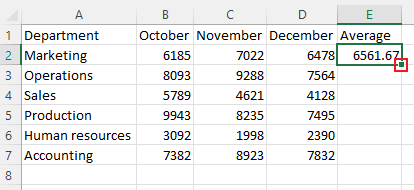
fill handle excel


Step 2: Drag the Fill Handle

When clicked and dragged across cells in your spreadsheet, the formula in the original box will be replicated in the boxes next to it. If there is no formula, the value in the cell will be replicated instead.

Excel will show a preview of the value upon dragging the fill handle. You can choose a different pattern by holding down the right-click and choosing from a selection of patterns.

Note: You can fill the cells in increasing order by dragging the fill handle to the right or down. For the decreasing order, you may drag it to the left or up. 
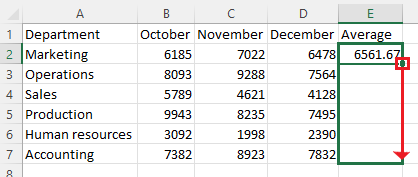

excel autofill

autofill excel


Step 3: Double-Click the Fill Handle

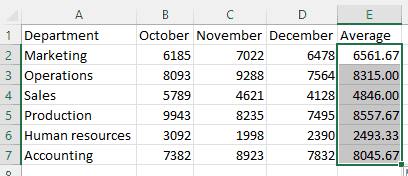
Double-clicking the fill handle will autofill down to the last row of data on the left of the current column. The result will be a complete list with all the data.

Remember that when you move, remove, or add rows, the auto-filled numbers are not automatically updated. 

What you can do is update the sequential numbering manually by choosing two numbers in the sequence and dragging them to the end of your preferred range.


Make the Most of Excel with Adequate Training and Practice

Most Excel features are straightforward and convenient to use with the right training. Excel training requires hands-on practice and application to achieve the highest proficiency. You can count on trainers to help you achieve expertise in one of the most useful tools in the professional world.  

Nexacu is a leader in training Excel. Our Microsoft Excel training courses will help you take your skills to another level. Our training courses will equip you with the skillset you need to ace all kinds of tasks - whether for personal use, for your business, or in the workplace.

Skyrocket your career with our Beginner, Intermediate, Advanced, and Expert-level MS Excel courses and let us help you gain the practical skills and knowledge you need (at your own pace).  

Trusted Nationwide by Leading Organisations

at Nexacu, we're proud to be the trusted training partner for hundreds of leading organisations accross Australia and New Zealand. From government departments to top corporates, we help teams upskill and succeed everyday

  • 400+ companies rely on Nexacu for team training
  • Trusted by federal, state, and local government agencies
  • Delivering training across 9 countries

Why Nexacu?

Books Icon

Step by Step Courseware

Custom workbook included with a step by step exercises

Facility Image 2
Facility Image 3
Facility Image 1

Refresh Icon

Free Refresher

Resit your course for free within 6 Months

More than 1,300 Business trust Nexacu

Trusted by Business

Procured by Government

Procured by Goverment

Reviews Not Found

Valued by Individuals