
Recent Searches
Category

Microsoft Power BI

Category

Microsoft Copilot Courses

Category

AI for Business

Category

Microsoft Windows 11 Courses

Category

Microsoft 365

Category

Microsoft Excel

Category

Excel Specialist

Category

Microsoft Project

Category

R Programming

Category

Python

Category

Power Apps

Category

SQL

Category

SharePoint

Category

Microsoft Teams

Category

Power Automate

Category

Microsoft Visio

Category

Microsoft PowerPoint

Category

Microsoft Word

Category

Microsoft Outlook

Category

Adobe InDesign Courses

Category

Adobe Photoshop Courses

Category

Adobe Illustrator Courses

Category

Adobe Premiere Pro Training

Category

Adobe After Effects Training

Category

Adobe Acrobat Courses

Category

Adobe Captivate Training

Category

Adobe Animate Training

Category

Canva Courses

Category

HTML Courses

Category

WordPress

Category

Professional Development

Category

Microsoft Access

Category

Webinars

Course

Power BI Beginner

Course

Copilot for M365

Course

Windows 11 End User Course

Course

Excel Beginner

Course

Financial Modelling

Course

Project Beginner

Course

R Programming Beginner

Course

Python Beginner

Course

Power Apps Beginner

Course

SQL Beginner

Course

SharePoint Beginner

Course

Teams Essentials

Course

Visio Essentials

Course

PowerPoint Level 1

Course

Word Intermediate

Course

Word Beginner

Course

Word Advanced

Course

Microsoft Outlook Beginner to Intermediate

Course

InDesign Lite

Course

Photoshop Lite

Course

Illustrator Training Intro

Course

Premiere Training Intro

Course

After Effects Training Intro

Course

Acrobat Essentials

Course

Captivate Training

Course

Animate Training Intro

Course

Canva AI

Course

HTML Training Intro

Course

Achieving Leadership & Success

Course

Microsoft Access Essentials

Course

Copilot for M365 On Demand

Course

Power BI Intermediate

Course

Copilot for Word

Course

ChatGPT Beginner

Course

Microsoft 365 Beginner

Course

Excel Intermediate

Course

Analysis and Dashboards

Course

Project Intermediate

Course

R Programming Intermediate

Course

Python Intermediate

Course

Power Apps Intermediate

Course

SQL Intermediate

Course

SharePoint Intermediate

Course

PowerPoint Level 2

Course

InDesign Training Intro

Course

Photoshop Training Intro

Course

Acrobat Forms

Course

Anger Management & Negotiation Skills

Course

Copilot for M365 Live Online

Course

Power BI Advanced

Course

Copilot for Excel

Course

AI Prompting Fundamentals

Course

Microsoft 365 Intermediate

Course

Excel Advanced

Course

Excel VBA

Course

Project Advanced

Course

R Programming Advanced

Course

Python Advanced

Course

Power Apps Intermediate | Power Automate + Power BI Integration

Course

SharePoint Advanced (Site Owner)

Course

InDesign Training Advanced

Course

Assertiveness & Confidence

Course

Microsoft Access Advanced

Course

Power BI DAX

Course

Copilot for PowerPoint

Course

Excel Expert

Course

Machine Learning in R

Course

Power Apps Advanced

Course

SharePoint Advanced (Document Governance)

Course

Building Resilience

Course

Copilot for Outlook and Teams

Course

Coaching and Mentoring

Course

Illustrator Training Advanced

Course

Premiere Basics Training

Course

Advanced After Effects Training

Course

Canva Beginners

Course

WordPress Essentials

Course

Communications

Course

AI for Business Leaders and Managers

Course

Photoshop Training Advanced

Course

Advanced Premiere Training

Course

Canva Intermediate

Course

Communications & Quality Client Service Training

Course

InDesign Interactivity Training

Course

Canva Advanced

Course

Critical Thinking and Problem Solving

Course

InDesign Accessibility Training

Course

Cultural Diversity in the Workplace

Course

Microsoft Outlook Advanced

Course

Embracing Change

Course

SQL Advanced

Course

Growing Emotional Intelligence

Course

Planner Premium

Course

Minute Taking

Course

Excel Tables and Pivot Tables

Course

Power Automate Beginner

Course

Performance Management

Course

Data Transformation with Power Query

Course

Excel Macro Mastery

Course

Power Automate Intermediate

Course

Persuasion and Negotiation Skills

Course

Power BI Desktop Advanced Reporting

Course

Presentation Skills and Public Speaking

Course

Data Visualisation with Power BI Desktop

Course

Practical Project Management

Course

Respect, Equity and Diversity (RED)

Course

Resumé Writing and Interview Skills

Course

Stress Management

Course

Team Leadership, Management and Development

Course

Time Management Intensive

Course

Train the Trainer

Course

Write Effective Business Documents

Course

Dealing with Difficult People

Course

Managing Difficult Conversations

Course

Managing the Virtual Workplace

Course

Customer Service Training

Course

Technical Writing

Basic Uses of Power Automate

| Sep 19, 2022

What is Power Automate?

Power Automate is a simple automation tool that lets you automate frequent tasks, and chain tasks to create a workflow and automate your business processes. 

You can create workflows that interact with your chosen applications and services; and automate tasks such as synchronising files, piping data between applications, sending emails, as well as start-to-end processes among other possibilities. Power Automate is a rich UI-based, no-code, universal automation tool, simple enough for users with basic IT skills and powerful enough to be used by experienced programmers.  

Not only does power automate work inside the SharePoint suite of applications, it can also connect all kinds of applications outside SharePoint by utilising custom and standard connectors. 

It can also connect to more than 500 data sources or any publicly available API, perform simple ETL tasks and set up reminders. 

This powerful tool has previously been known as Power Flow or Microsoft Flow. 


What are some Uses of Power Automate? 

Daily, we have repetitive tasks that would save us valuable time and energy if they could be automated, so we can shift our focus to more important tasks. 

For example, you could automate your periodic data flows, clerical tasks, event-based email/invoice/receipt sending, generate mundane reports and get alerts. 

In this post, we will look at how to define a Flow in Power Automate, and the different types of flow types provided by default. 


What are the Basic Components of Power Automate? 

The basic components (flows) or triggers provided by Power Automate function as a fulcrum on which you can automate your processes. They are simple to understand and implement. 
power automate nexacu

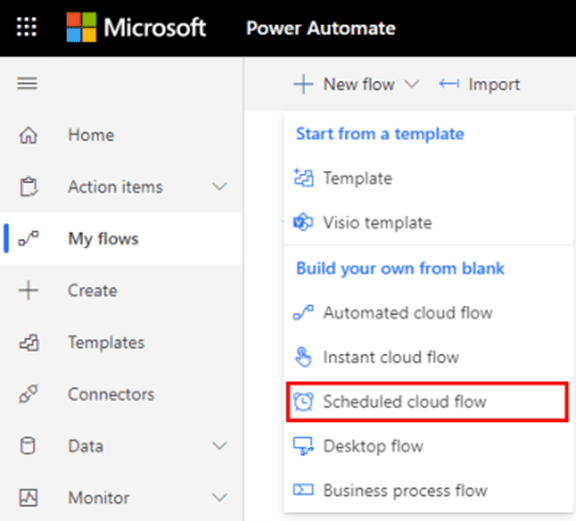
Schedule Flow

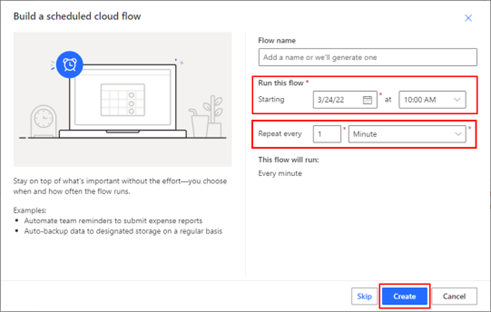
If you want something to happen on a specific date and time, you can use the Schedule Flow function, e.g. If you want to purge all deleted emails at 5 AM on Monday morning, and repeat it daily/monthly/weekly/hourly, you could configure a Schedule Flow. 
power automate nexacu

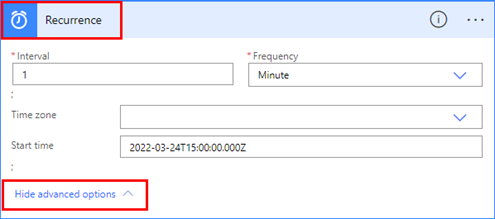
Specify the date and time when you want your flow to start and specify the recurrence in the “Repeat every” section. You can also use the Advanced section to specify further details like time zones, granularity in microseconds etc. 
power automate nexacu


Once you fill in all the details, power automate will show you a summary before it asks you to finally save the new flow. 


power automate nexacu


In the above example, the flow starts on March 24 at 3 PM and repeats every two weeks on Tuesdays at 5:30 PM. 


Automated Flow

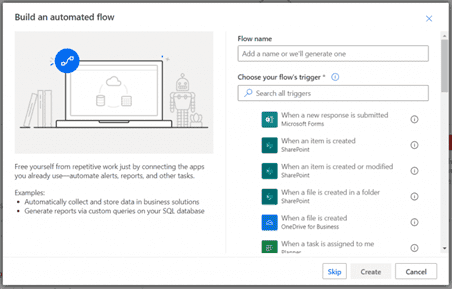
Sometimes you want something to happen when an event occurs, but don't know its time and date in advance. Here, you can use the Automated Flow. 
power automate nexacu

You can specify the event trigger and the action that should be taken as soon as the specified event occurs. 

It supports many triggers like receiving an email, the creation of a file or the submission of a response. 


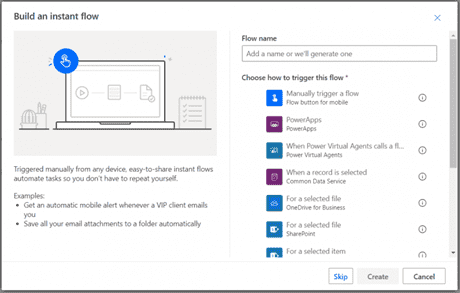
Instant flow

This flow can be used to automate repetitive tasks that entail a series of actions to be taken in a particular sequence. 

You can specify the stage within your business process when this flow should start. 
power automate nexacu

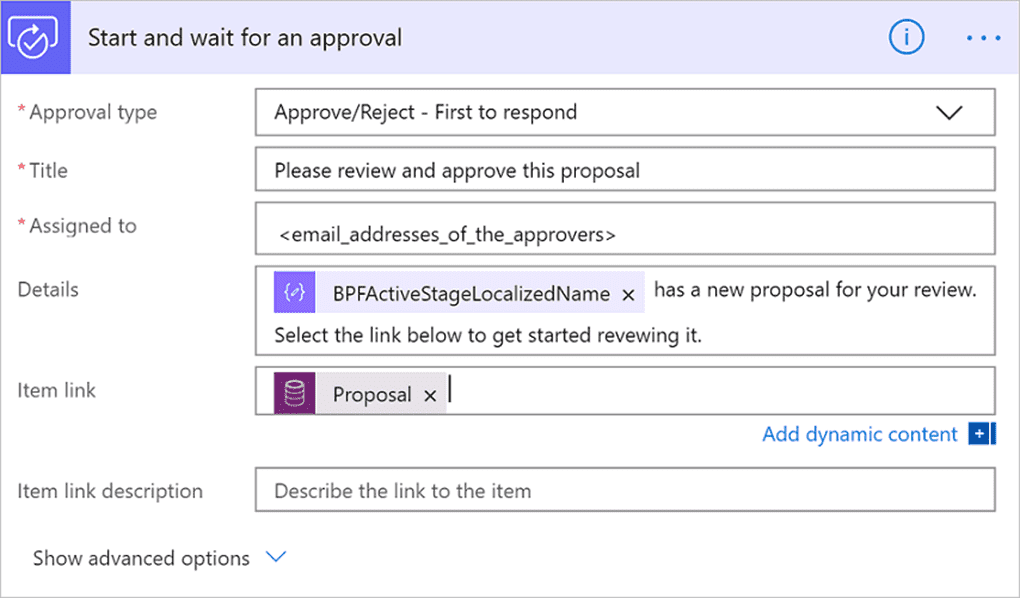
In the example below, you can see an automated flow, where a team leader needs to approve the proposals put together by his sales reps before they are sent to the customer.
power automate nexacu

UI Flow

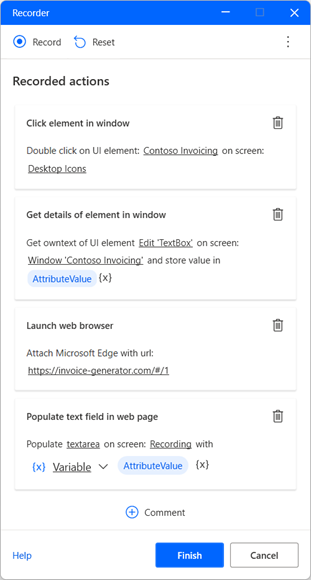
The UI Flow attempts to mimic Robotic Process Automation (RPA), i.e. you first record a series of actions/steps taken by you, and then ask the UI flow to repeat them at the desired time. 

e.g. You want to open up your Outlook email, filter all emails that show that an order has been placed the previous night, and then calculate the totals. 

To get this done every morning, create a Desktop app UI Flow and record your actions (opening Outlook, Filtering emails, start Calculator, calculate totals) and replay it after saving it. 
power automate nexacu

If you want something to happen at the click of a button or on keyboard inputs, use the UI Flow.  


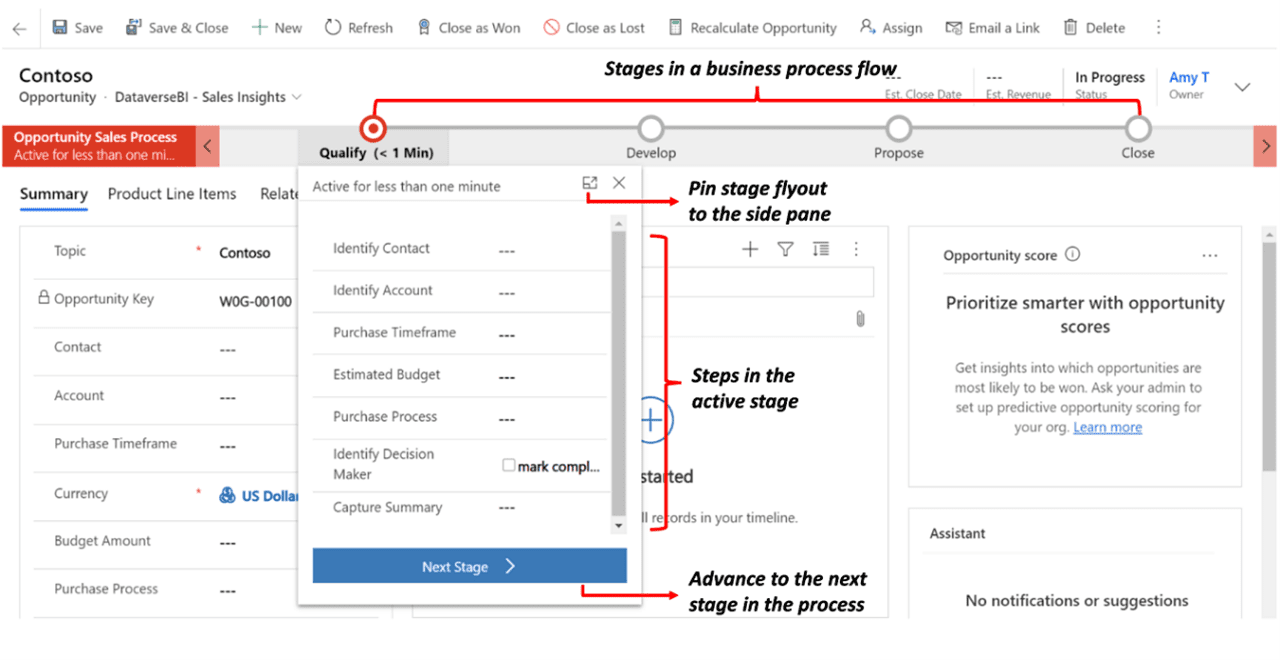
Business process Flow

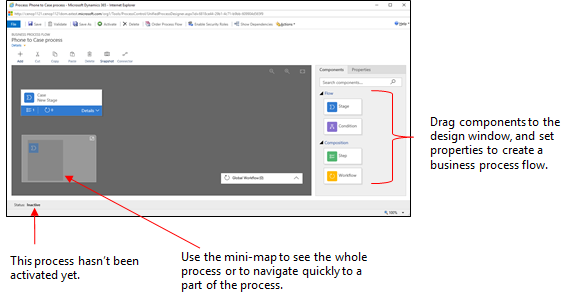
As the name suggests this is to automate a business process and apply certain rules/practices to a process. 

E.g. If you want that your procurement department should first get an invoice approved before placing an order, you can use the business process flow to mandate certain conditions before the next step is taken.
power automate nexacu

A typical sequence of steps would be to create and name a new business flow, add stages to it, and then add steps to a stage, optionally you can add branch (conditions) to the steps, 

Add a workflow and set its properties. 
power automate nexacu

Power Automate will now ensure that all your sequential stages are executed in the correct order of their steps while fulfilling the conditions specified.  

Conclusion

Power Automate is a powerful tool that can automate a variety of tasks and save you time and effort. We hope this blog has provided you with a solid foundation of the basic uses of Power Automate. However, if you want to unlock the full potential of this tool, we encourage you to check out our beginner to advanced courses. With our courses, you'll learn how to create complex workflows, connect to various apps and services, and automate even more tasks.


FAQ’s

Can others edit/delete my flows? 

After you create a flow, you can control who can edit, delete, or view it. 

Can a business process flow be created anywhere in on the Windows platform? 

As of Sept 2022, you can create business flows only inside the solution explorer, power apps and dataverse table views, not outside of the solution explorer. 

Trusted Nationwide by Leading Organisations

at Nexacu, we're proud to be the trusted training partner for hundreds of leading organisations accross Australia and New Zealand. From government departments to top corporates, we help teams upskill and succeed everyday

  • 400+ companies rely on Nexacu for team training
  • Trusted by federal, state, and local government agencies
  • Delivering training across 9 countries

Why Nexacu?

Books Icon

Step by Step Courseware

Custom workbook included with a step by step exercises

Facility Image 2
Facility Image 3
Facility Image 1

Refresh Icon

Free Refresher

Resit your course for free within 6 Months

More than 1,300 Business trust Nexacu

Trusted by Business

Procured by Government

Procured by Goverment

Reviews Not Found

Valued by Individuals
















