Recent Searches
Category

Microsoft Power BI

Category

Microsoft Copilot Courses

Category

AI for Business

Category

Microsoft Windows 11 Courses

Category

Microsoft 365

Category

Microsoft Excel

Category

Excel Specialist

Category

Microsoft Project

Category

R Programming

Category

Python

Category

Power Apps

Category

SQL

Category

SharePoint

Category

Microsoft Teams

Category

Power Automate

Category

Microsoft Visio

Category

Microsoft PowerPoint

Category

Microsoft Word

Category

Microsoft Outlook

Category

Adobe InDesign Courses

Category

Adobe Photoshop Courses

Category

Adobe Illustrator Courses

Category

Adobe Premiere Pro Training

Category

Adobe After Effects Training

Category

Adobe Acrobat Courses

Category

Adobe Captivate Training

Category

Adobe Animate Training

Category

Canva Courses

Category

HTML Courses

Category

WordPress

Category

Professional Development

Category

Microsoft Access

Category

Webinars

Course

Power BI Beginner

Course

Copilot for M365

Course

Windows 11 End User Course

Course

Excel Beginner

Course

Financial Modelling

Course

Project Beginner

Course

R Programming Beginner

Course

Python Beginner

Course

Power Apps Beginner

Course

SQL Beginner

Course

SharePoint Beginner

Course

Teams Essentials

Course

Visio Essentials

Course

PowerPoint Level 1

Course

Word Intermediate

Course

Word Beginner

Course

Word Advanced

Course

Microsoft Outlook Beginner to Intermediate

Course

InDesign Lite

Course

Photoshop Lite

Course

Illustrator Training Intro

Course

Premiere Training Intro

Course

After Effects Training Intro

Course

Acrobat Essentials

Course

Captivate Training

Course

Animate Training Intro

Course

Canva AI

Course

HTML Training Intro

Course

Achieving Leadership & Success

Course

Microsoft Access Essentials

Course

Copilot for M365 On Demand

Course

Power BI Intermediate

Course

Copilot for Word

Course

ChatGPT Beginner

Course

Microsoft 365 Beginner

Course

Excel Intermediate

Course

Analysis and Dashboards

Course

Project Intermediate

Course

R Programming Intermediate

Course

Python Intermediate

Course

Power Apps Intermediate

Course

SQL Intermediate

Course

SharePoint Intermediate

Course

PowerPoint Level 2

Course

InDesign Training Intro

Course

Photoshop Training Intro

Course

Acrobat Forms

Course

Anger Management & Negotiation Skills

Course

Copilot for M365 Live Online

Course

Power BI Advanced

Course

Copilot for Excel

Course

AI Prompting Fundamentals

Course

Microsoft 365 Intermediate

Course

Excel Advanced

Course

Excel VBA

Course

Project Advanced

Course

R Programming Advanced

Course

Python Advanced

Course

Power Apps Intermediate | Power Automate + Power BI Integration

Course

SharePoint Advanced (Site Owner)

Course

InDesign Training Advanced

Course

Assertiveness & Confidence

Course

Microsoft Access Advanced

Course

Power BI DAX

Course

Copilot for PowerPoint

Course

Excel Expert

Course

Machine Learning in R

Course

Power Apps Advanced

Course

SharePoint Advanced (Document Governance)

Course

Building Resilience

Course

Copilot for Outlook and Teams

Course

Coaching and Mentoring

Course

Illustrator Training Advanced

Course

Premiere Basics Training

Course

Advanced After Effects Training

Course

Canva Beginners

Course

WordPress Essentials

Course

Communications

Course

AI for Business Leaders and Managers

Course

Photoshop Training Advanced

Course

Advanced Premiere Training

Course

Canva Intermediate

Course

Communications & Quality Client Service Training

Course

InDesign Interactivity Training

Course

Canva Advanced

Course

Critical Thinking and Problem Solving

Course

InDesign Accessibility Training

Course

Cultural Diversity in the Workplace

Course

Microsoft Outlook Advanced

Course

Embracing Change

Course

SQL Advanced

Course

Growing Emotional Intelligence

Course

Planner Premium

Course

Minute Taking

Course

Excel Tables and Pivot Tables

Course

Power Automate Beginner

Course

Performance Management

Course

Data Transformation with Power Query

Course

Excel Macro Mastery

Course

Power Automate Intermediate

Course

Persuasion and Negotiation Skills

Course

Power BI Desktop Advanced Reporting

Course

Presentation Skills and Public Speaking

Course

Data Visualisation with Power BI Desktop

Course

Practical Project Management

Course

Respect, Equity and Diversity (RED)

Course

Resumé Writing and Interview Skills

Course

Stress Management

Course

Team Leadership, Management and Development

Course

Time Management Intensive

Course

Train the Trainer

Course

Write Effective Business Documents

Course

Dealing with Difficult People

Course

Managing Difficult Conversations

Course

Managing the Virtual Workplace

Course

Customer Service Training

Course

Technical Writing

Creating Infographics in Power BI

Steven Knight | Nov 26, 2018
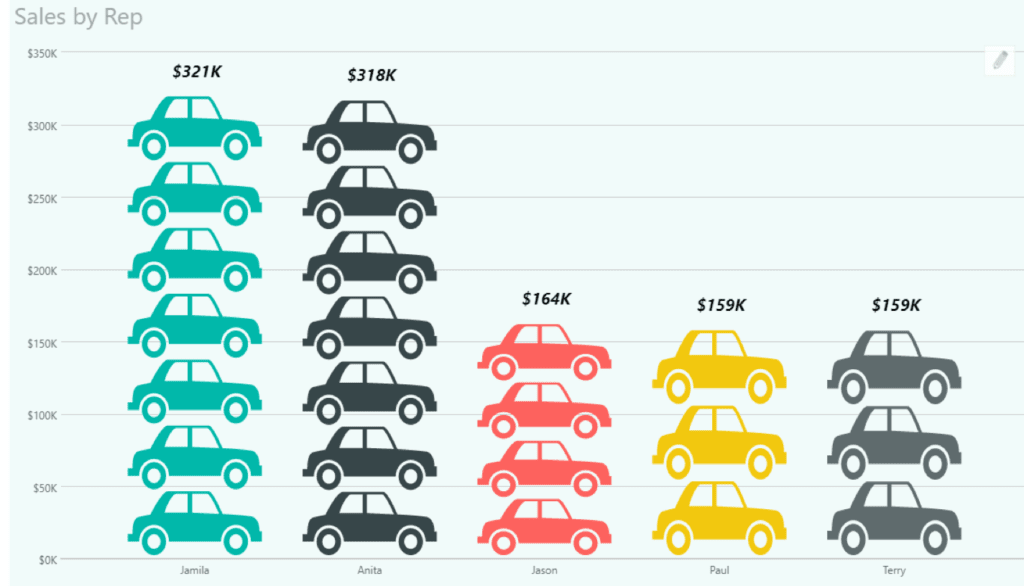
Infographic visualisation

One of the best ways to communicate your data effectively is to create a story with your data. You can tailor the visualisations for a specified topic to make it more relevant and therefore increase engagement. You can create a number of effective visualisations for your data by using infographics in Microsoft Power BI. Make it fun, get your readers attention!

Try using the Custom visualisations in the marketplace. In this article we will be utilising the Infographic Designer visualisation developed by Microsoft.

The sample data is fictional car sales data. Any resemblance of the sales reps to actual people is purely coincidental. In this example, I will use the standard graphics that come with the visualisation, but you can upload your own graphics to use, for example, brand logos.


To get started make sure you have the following set up:

  • Power BI Desktop with data already imported
  • Internet access
  • Report view in Power BI


The Process

To begin, firstly in Power BI Desktop go to the Visualisations pane and look for the Ellipsis (the three dots) after the last visualisations tool. From the menu, choose import from Marketplace. Choose the infographics category and look for “Infographic designer” and choose Add to import the graphic.
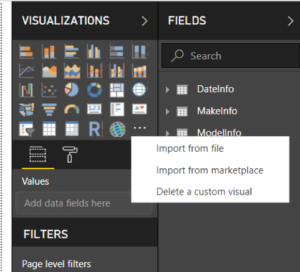
Import from marketplace


When you have loaded the visualisation, it will appear as an Acorn….
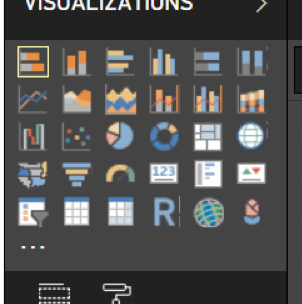
Infographic Designer Acorn

To start, select the Infographic designer tool. In this example we will drag “Make” from fields into Category in the Fields properties. This will typically be a text field. Then we drag “Sale Price” into Measure, this should be a numerical or currency field.
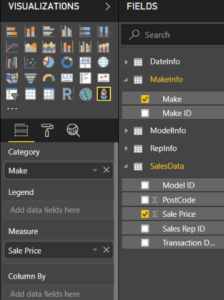
 

Visualisations


The Initial graph is a plain column type. This can be changed to bar or line via the Format section of the Visualisations pane. To give yourself more room to work in, go into focus mode.
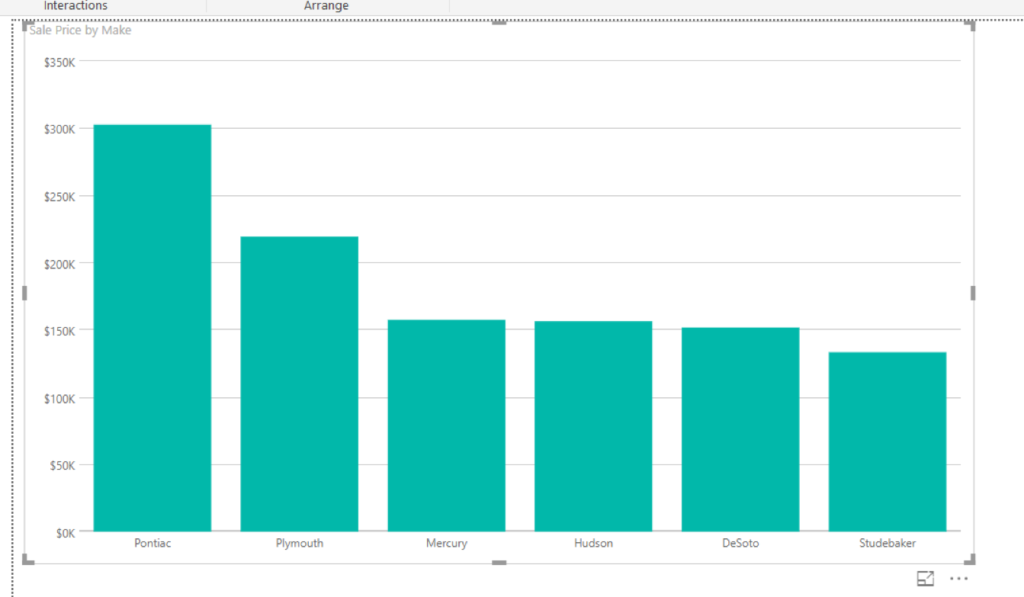
 

Visualisations Pane


To access the settings unique to Infographic Designer, click on the pencil found to the top right of the visualisation. Click on the Shape tool to change the graphic or upload your own graphic. You can choose multiple units with most images. This setting will give you multiple stacked graphics rather than one large stretched graphic.

If you want to use a different image for each category e.g. different brand logos, click the link to the right of the shape tool. This gives you access to assigning a different image based on relevant field e.g. Make.  You can do a similar thing with The Value Colour setting to assign different colours to different categories, e.g. if you need to match a corporate style guide in your visualisations.

Text labels can be added to display key information e.g. totals and can be formatted to display clear of the data.
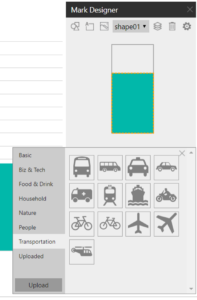
Mark Designer

If you want to use your infographic visualisations outside of Power BI, e.g. an infographic you are assembling in another tool, then you can either use a screen shot tool or save to PowerPoint. To learn more about creating infographics in Power BI book a seat on one of our courses.

Trusted Nationwide by Leading Organisations

at Nexacu, we're proud to be the trusted training partner for hundreds of leading organisations accross Australia and New Zealand. From government departments to top corporates, we help teams upskill and succeed everyday

  • 400+ companies rely on Nexacu for team training
  • Trusted by federal, state, and local government agencies
  • Delivering training across 9 countries

Why Nexacu?

Books Icon

Step by Step Courseware

Custom workbook included with a step by step exercises

Facility Image 2
Facility Image 3
Facility Image 1

Refresh Icon

Free Refresher

Resit your course for free within 6 Months

More than 1,300 Business trust Nexacu

Trusted by Business

Procured by Government

Procured by Goverment

Reviews Not Found

Valued by Individuals
















