Recent Searches
Category

Microsoft Power BI

Category

Microsoft Copilot Courses

Category

AI for Business

Category

Microsoft Windows 11 Courses

Category

Microsoft 365

Category

Microsoft Excel

Category

Excel Specialist

Category

Microsoft Project

Category

R Programming

Category

Python

Category

Power Apps

Category

SQL

Category

SharePoint

Category

Microsoft Teams

Category

Power Automate

Category

Microsoft Visio

Category

Microsoft PowerPoint

Category

Microsoft Word

Category

Microsoft Outlook

Category

Adobe InDesign Courses

Category

Adobe Photoshop Courses

Category

Adobe Illustrator Courses

Category

Adobe Premiere Pro Training

Category

Adobe After Effects Training

Category

Adobe Acrobat Courses

Category

Adobe Captivate Training

Category

Adobe Animate Training

Category

Canva Courses

Category

HTML Courses

Category

WordPress

Category

Professional Development

Category

Microsoft Access

Category

Webinars

Course

Power BI Beginner

Course

Copilot for M365

Course

Windows 11 End User Course

Course

Excel Beginner

Course

Financial Modelling

Course

Project Beginner

Course

R Programming Beginner

Course

Python Beginner

Course

Power Apps Beginner

Course

SQL Beginner

Course

SharePoint Beginner

Course

Teams Essentials

Course

Visio Essentials

Course

PowerPoint Level 1

Course

Word Intermediate

Course

Word Beginner

Course

Word Advanced

Course

Microsoft Outlook Beginner to Intermediate

Course

InDesign Lite

Course

Photoshop Lite

Course

Illustrator Training Intro

Course

Premiere Training Intro

Course

After Effects Training Intro

Course

Acrobat Essentials

Course

Captivate Training

Course

Animate Training Intro

Course

Canva AI

Course

HTML Training Intro

Course

Achieving Leadership & Success

Course

Microsoft Access Essentials

Course

Copilot for M365 On Demand

Course

Power BI Intermediate

Course

Copilot for Word

Course

ChatGPT Beginner

Course

Microsoft 365 Beginner

Course

Excel Intermediate

Course

Analysis and Dashboards

Course

Project Intermediate

Course

R Programming Intermediate

Course

Python Intermediate

Course

Power Apps Intermediate

Course

SQL Intermediate

Course

SharePoint Intermediate

Course

PowerPoint Level 2

Course

InDesign Training Intro

Course

Photoshop Training Intro

Course

Acrobat Forms

Course

Anger Management & Negotiation Skills

Course

Copilot for M365 Live Online

Course

Power BI Advanced

Course

Copilot for Excel

Course

AI Prompting Fundamentals

Course

Microsoft 365 Intermediate

Course

Excel Advanced

Course

Excel VBA

Course

Project Advanced

Course

R Programming Advanced

Course

Python Advanced

Course

Power Apps Intermediate | Power Automate + Power BI Integration

Course

SharePoint Advanced (Site Owner)

Course

InDesign Training Advanced

Course

Assertiveness & Confidence

Course

Microsoft Access Advanced

Course

Power BI DAX

Course

Copilot for PowerPoint

Course

Excel Expert

Course

Machine Learning in R

Course

Power Apps Advanced

Course

SharePoint Advanced (Document Governance)

Course

Building Resilience

Course

Copilot for Outlook and Teams

Course

Coaching and Mentoring

Course

Illustrator Training Advanced

Course

Premiere Basics Training

Course

Advanced After Effects Training

Course

Canva Beginners

Course

WordPress Essentials

Course

Communications

Course

AI for Business Leaders and Managers

Course

Photoshop Training Advanced

Course

Advanced Premiere Training

Course

Canva Intermediate

Course

Communications & Quality Client Service Training

Course

InDesign Interactivity Training

Course

Canva Advanced

Course

Critical Thinking and Problem Solving

Course

InDesign Accessibility Training

Course

Cultural Diversity in the Workplace

Course

Microsoft Outlook Advanced

Course

Embracing Change

Course

SQL Advanced

Course

Growing Emotional Intelligence

Course

Planner Premium

Course

Minute Taking

Course

Excel Tables and Pivot Tables

Course

Power Automate Beginner

Course

Performance Management

Course

Data Transformation with Power Query

Course

Excel Macro Mastery

Course

Power Automate Intermediate

Course

Persuasion and Negotiation Skills

Course

Power BI Desktop Advanced Reporting

Course

Presentation Skills and Public Speaking

Course

Data Visualisation with Power BI Desktop

Course

Practical Project Management

Course

Respect, Equity and Diversity (RED)

Course

Resumé Writing and Interview Skills

Course

Stress Management

Course

Team Leadership, Management and Development

Course

Time Management Intensive

Course

Train the Trainer

Course

Write Effective Business Documents

Course

Dealing with Difficult People

Course

Managing Difficult Conversations

Course

Managing the Virtual Workplace

Course

Customer Service Training

Course

Technical Writing

Data Refresh in Power BI

| Apr 09, 2019
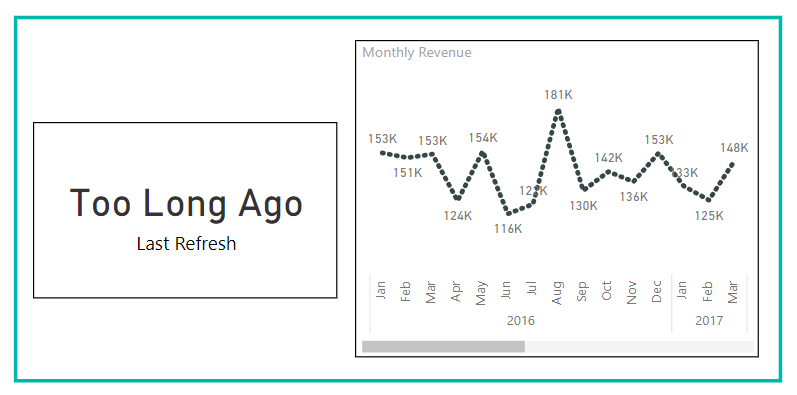
Refresh visual

Power BI has fast become a leading Business Intelligence ecosystem

Power BI brings the art of data visualisation back under the control of data owners and business users.

You can easily connect to your data, perform cleansing and modelling, and develop meaningful visuals. However a challenging concept is that of refreshing the data.

So how do you keep your dashboards current?

The creation of more complex data models and reports usually begins with Power BI Desktop.

Each PBIX file contains the: - Report (which can have many pages/tabs) - Definition of the data model (tables, relationships, data types), and - Data itself.

Refreshing is performed manually via the Refresh button on the ribbon bar or when applying changes after a query is modified in (Power) Query Editor.

Power BI Data Refresh Button

When publishing to the Power BI Service, the Desktop will update the Workspace with the report and all of the data model. This includes the data as it was last refreshed in Desktop.

The data refresh concept is different in the Power BI Service. Data can be refreshed either manually or by configuring a refresh schedule.

PowerBI Setting up Data Refresh

How the data is refreshed depends on the data source. A limited number of data sources can be refreshed directly in the Power BI Service, without any additional help.

For the majority of data sources,  a bit of help is needed. This is achieved by using the Data Gateway application that can be downloaded from the Power BI Service website.

Data Gateway

The Data Gateway enables Power BI to connect with sources, that it cannot connect with directly. This is particularly important for on-premises and many cloud-based data sources.

The same Data Gateway is also used by Microsoft PowerApps, Flow and Azure Logic Apps. It can be run on a local PC (called Personal Mode) but is best installed in a server environment where is can be active 24 x 7.


All data source configuration and Data Gateway settings are managed in the Power BI Service portal. Each gateway (you can run several) can have several administrators and each data source configured on the gateway can have many users.

Don't forget to update your credentials

When publishing from Power BI Desktop the data source settings are loaded into the Power BI Service although the credentials are not. The first step you should do after publishing is check and configure dataset credentials.

Data Refresh Credentials

These need to be entered in the dataset settings. The gateway does not need or store any credentials, so everything is managed in the Power BI Service.

Summing it Up!

Data Refresh in Power BI


Some other conveniences offered by Power BI.

Each of these come with their own benefits and limitations:

  • Data sources on OneDrive or SharePoint can be refreshed on an hourly basis.
  • DirectQuery, supported by several data source types, allows connection to the data source as and when needed rather than loading data into Power BI periodically.
  • Having a Premium license enables more frequent refreshes (up to 48 per day!) and even incremental refresh (as the usual behaviour is the entire dataset is refreshed - every table, every row).
  • Instead of manually publishing a PBIX to the Service you can save it to OneDrive or SharePoint.  Then use Get Data -> Files to load the report and dataset into Power BI. This makes use of the hourly refresh for any data model or report changes to the PBIX file!

For more articles like this follow us on LinkedIn or Facebook.

 To further your knowledge of Power BI, we recommend attending one of our Power BI courses

Further Reading

The following articles provide more detail and instructions on the data refresh process and using the Data Gateway. https://docs.microsoft.com/en-us/power-bi/refresh-data https://docs.microsoft.com/en-us/power-bi/service-gateway-onprem https://docs.microsoft.com/en-us/power-bi/refresh-scheduled-refresh

Trusted Nationwide by Leading Organisations

at Nexacu, we're proud to be the trusted training partner for hundreds of leading organisations accross Australia and New Zealand. From government departments to top corporates, we help teams upskill and succeed everyday

  • 400+ companies rely on Nexacu for team training
  • Trusted by federal, state, and local government agencies
  • Delivering training across 9 countries

Why Nexacu?

Books Icon

Step by Step Courseware

Custom workbook included with a step by step exercises

Facility Image 2
Facility Image 3
Facility Image 1

Refresh Icon

Free Refresher

Resit your course for free within 6 Months

More than 1,300 Business trust Nexacu

Trusted by Business

Procured by Government

Procured by Goverment

Reviews Not Found

Valued by Individuals















