
Design Smarter: How to Use Canva AI Today
Unlock the Power of AI-Driven Design with Nexacu
The landscape of design is transforming rapidly. Artificial intelligence has moved from the domain of science fiction to the heart of everyday creativity, and nowhere is this more accessible than with Canva, a platform already trusted for its intuitive drag-and-drop features.
Whether you run a small business, work in marketing, create social content, teach, or simply want to enhance your personal projects, Canva’s AI tools now offer the power to create content faster, smarter, and with greater impact.
In this in-depth guide, you will learn what Canva AI can do, how to use its key features right now, and practical strategies to integrate AI-generated text, images, video, and data into your day-to-day creative work. By the end, you will not just be aware of Canva AI’s capabilities, you’ll be ready to design like a professional - no coding or complex design tools required.
What Is Canva AI?
Canva AI refers to a collection of artificial intelligence-powered tools available throughout the Canva platform. These tools allow you to generate content including text, images, videos, interactive code and data visualisations - all by providing intelligent prompts rather than painstaking manual effort.
Here are some of the key elements of Canva AI:
- • Magic Write - AI-powered text creation for blogs, captions, emails and more
- • Magic Media - Generate professional images and video with text prompts
- • Magic Studio - Central hub for all AI tools and editing
- • Canva Sheets - Smart spreadsheets with content automation and chart generation
- • Interactive Code - Build quizzes, widgets, and calculators without coding knowledge
Why Use Canva AI? The Smart Design Advantage
Today’s professionals are under pressure to deliver consistent, high-quality work with limited time and resources. Canva AI simplifies design by making your workflow more efficient and scalable.
- • Save time by automating repetitive tasks like social media posts or presentations
- • Stay on-brand with design controls for colours, fonts, and templates
- • Boost creativity with fresh text, images and video generated in seconds
- • Make collaboration easier for teams of all experience levels
- • Eliminate technical barriers - no design or coding skills required
Getting Started: What You Need
You only need a few things to get started:
- • A Canva account. Pro is recommended for full access
- • A desktop, laptop or capable tablet with internet access
- • A willingness to experiment with AI-powered prompts
New to Canva? Complete the Canva Beginners course to build confidence with the interface before diving into AI tools.
Mastering Prompts: Your Ticket to Quality AI Results
Prompts are the instructions you give the AI to generate content. The clearer and more specific your prompt, the better the result.
Tips for Effective Prompts
- • Be specific - e.g., "A misty eucalyptus forest at sunrise with soft golden light"
- • Set a tone - e.g., "Casual, friendly caption for a Sydney café reopening"
- • Provide context - e.g., "Simple bar chart of monthly sales for a business deck"
- • Test and improve - try a prompt, adjust, and repeat for better results
Prompt engineering is a learnable skill. The more you use Canva AI, the faster you'll find your go-to strategies.
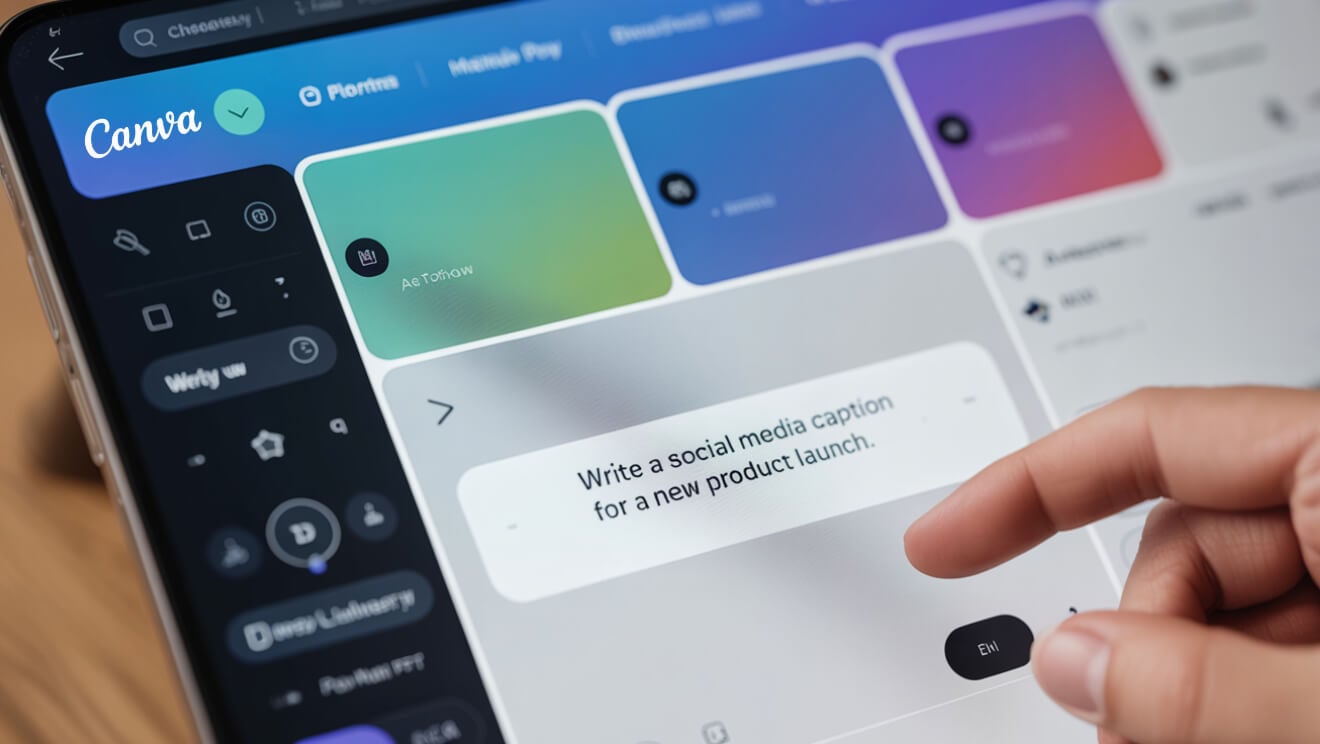
Magic Write: Quick, Flexible Text Generation
Need to draft a blog post, brainstorm captions, or generate email copy? Magic Write is your go-to tool.
How to Use Magic Write
- • Open a Canva document and click the Magic Write button
- • Type your prompt, e.g., "Write a polite event invitation email"
- • Review the results, refine the wording and reuse
Real Use Cases
- • Generate a full month of Instagram captions in one go
- • Create unique product descriptions that stand out
- • Draft teaching materials for different grade levels
Magic Media: AI Image and Video Creation
You don’t need a camera or design skills. Just describe what you want and let Canva do the rest.
Image Generation
- • Insert an image block and choose the AI image option
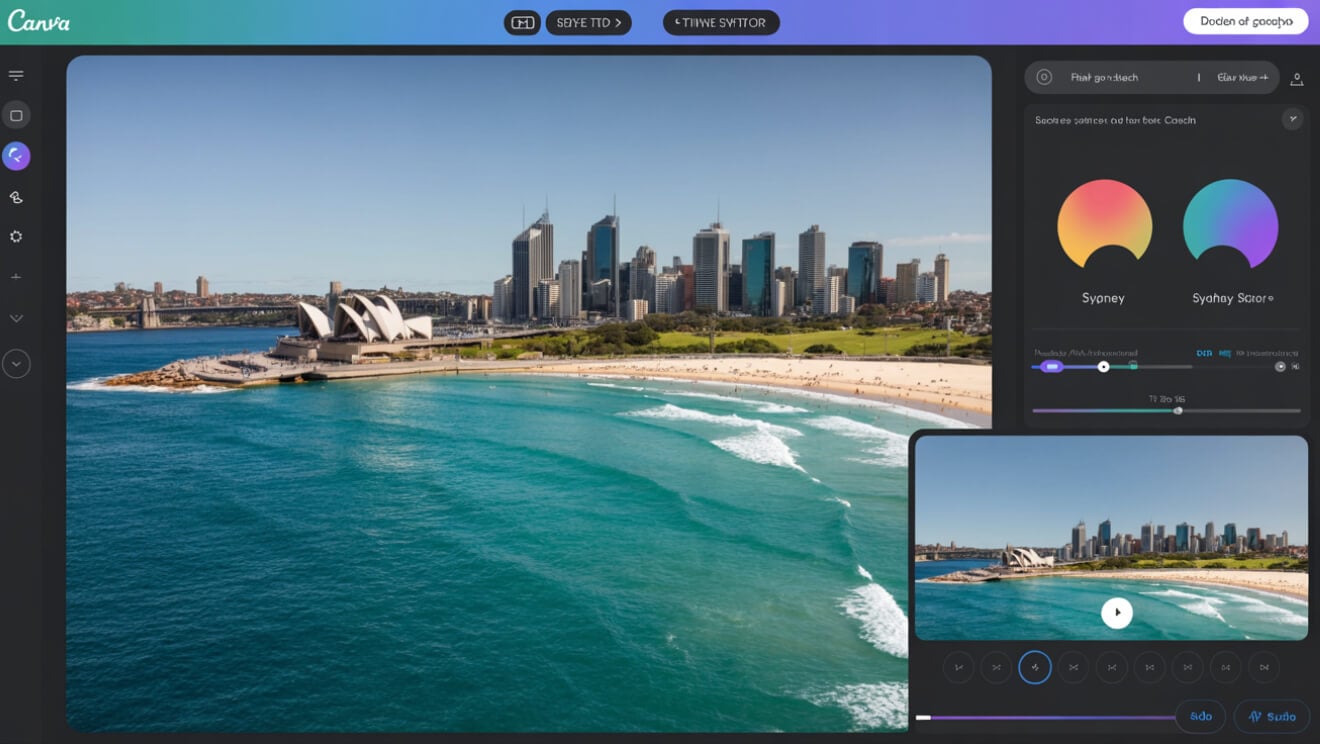
- • Write a prompt like "Aerial photo of Bondi Beach, pastel tones"
- • Refine the image using style match or background remover
Video Generation
- • Start a new video project
- • Select the AI video feature from the menu
- • Prompt example: "Promo video with Sydney skyline, upbeat music, animated text"
You can reuse video prompts, extract audio, and edit elements for efficiency and brand consistency.
Canva Sheets: Data-Driven Design and Automation
Canva Sheets makes it easy to turn data into branded visual content.
- • Generate charts with a prompt like "Pie chart showing online vs in-store sales, blue and coral"
- • Use your spreadsheet to automate hundreds of visual posts
- • Use Magic Formulae and Insights to explore trends and summaries
Batch Content Creation
Upload a spreadsheet of events or product details. Canva AI can automatically generate matching posts, infographics or slides - saving hours of manual work.
AI-Powered Interactivity: Code Generation
With Canva’s interactive code features, you can create web widgets, quizzes or calculators without any programming experience.
- • Describe your idea: "ROI calculator for a marketing dashboard"
- • Canva generates the widget and guides you through embedding
- • Edit the code manually if needed, or reuse it in future designs
These features are ideal for educators, consultants or marketers who want to make content interactive without extra tools.
Automate Your Social Media
For marketers and content creators, Canva AI can streamline your workflow from planning to publishing.
- • Generate captions with Magic Write, customised by tone or brand
- • Organise your campaign calendar with Canva Sheets
- • Use your templates, brand colours and fonts for all visuals
You could create and schedule a month’s worth of social posts in just one afternoon.
Canva AI in Practice: Case Studies
Marketing Agency (Sydney)
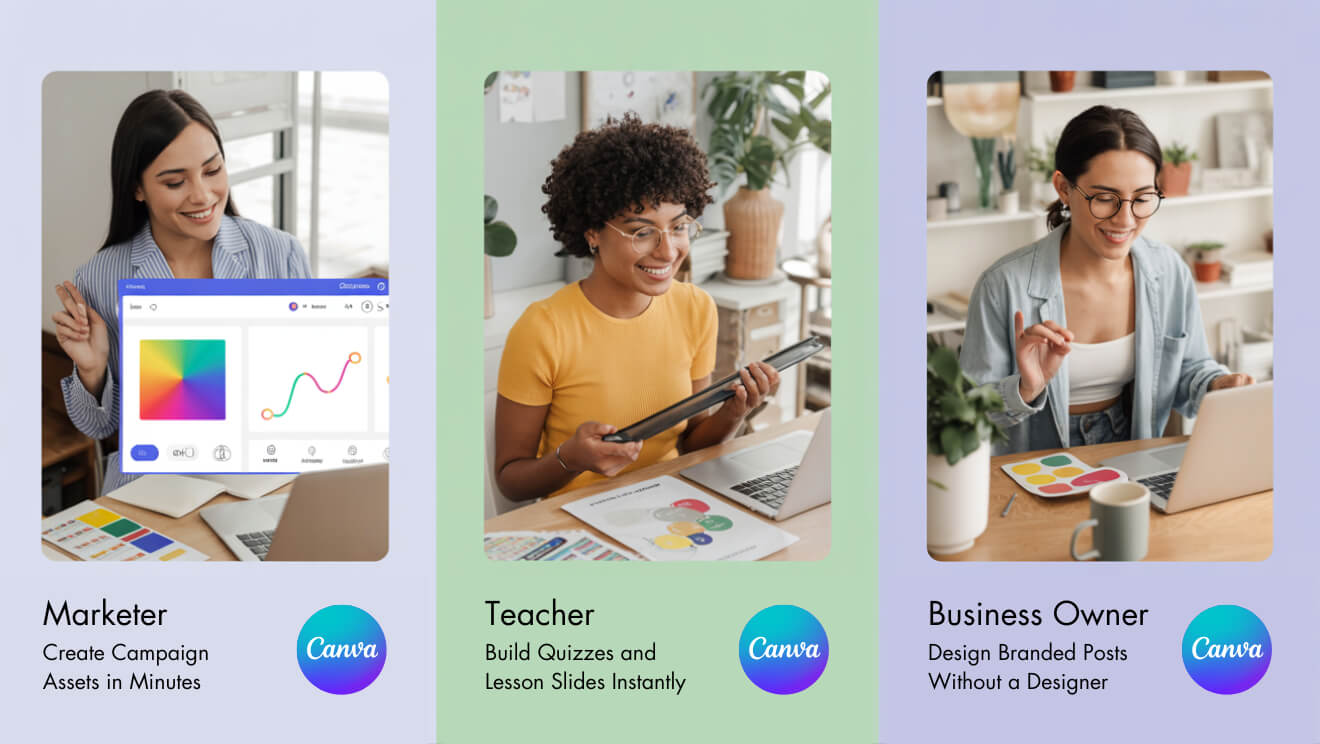
A creative agency uses Magic Media and Canva Sheets to produce campaign assets across multiple client brands. Their team saves hours weekly while increasing creative output.
Small Business (Melbourne)
A retail owner uses Canva AI to automate Instagram posts and create product visuals in batches, staying consistent without hiring a designer.
Educators (Australia-wide)
Teachers use Magic Write to create classroom materials and quizzes. With AI code generation, they build custom activities and interactive content in minutes.
How to Add Canva AI to Your Workflow
- • Start with one task, e.g., a flyer, caption or report visual
- • Save your best prompts to reuse or refine later
- • Combine Canva templates with AI output for fast, polished designs
- • Let AI do the repetitive work so you can focus on creative decisions
- • Invite colleagues or students to co-create, edit or give feedback
Responsible, Creative Use of Canva AI
As with any AI-powered tool, it’s important to apply judgment and follow guidelines.
- • Check AI-generated images and text for accuracy and copyright concerns
- • Follow your organisation’s privacy and content approval policies
- • Always edit and align content to match your tone and brand
Keeping Up With AI Changes
Canva AI is evolving quickly. To stay ahead:
- • Subscribe to Canva updates for new features
- • Try the Nexacu Canva AI Course to build skills
- • Explore and test new tools as they’re released. Pro users often get early access
Frequently Asked Questions
Do I have to know how to code?
No. Canva AI is designed for non-technical users and walks you through everything.
What’s the difference between Canva AI and Magic Write?
Canva AI includes all AI tools. Magic Write is the specific tool for generating text.
Can I automate my social media?
Yes. You can generate visuals, text and captions and schedule them in batches using Canva AI tools.
Is a Pro account required?
Some tools are available free, but automation and advanced features require a Pro plan.
Ready to Design Smarter?
Canva AI gives everyone, from marketers to educators, the power to work faster and design better. If you're ready to explore AI prompts, generate standout visuals, or streamline your content calendar, the time to start is now.
Learn how to master Canva AI in a single day with hands-on training.
View the Canva AI Course at Nexacu
































