

Struggling to make your text pop in After Effects? This article delivers the know-how to transform simple text into eye-catching 3D spinning text After Effects wonders. Dive in as we explore the simple yet impactful techniques to get your text rotating with depth and excitement, without any prior 3D expertise.
Creating 3D Spinning Text in After Effects
Creating 3D spinning text in After Effects starts with setting up a new composition. Thanks to the Cinema 4D renderer and its capabilities, you don’t have to be a 3D artist to create stunning 3D text in After Effects. With a few tweaks in the composition settings, you can start shaping your vision into reality. And don’t worry, there are plenty of free AE project files available online to help you get started.
After creating your composition, the next step is to add a text layer. This is where your message will be displayed. You can personalise this layer and apply a variety of animation effects to bring it to life.
That’s not all. To achieve the spinning effect, you’ll need to add and position a camera. This technique can be applied to various After Effects projects, transforming them into captivating experiences for your audience.
Setting Up Your Composition
Setting up your composition is essential before the actual work begins. The first step is to create a new project and choose the right settings. When working with 3D text, adjusting the bevel depth can significantly enhance the appearance of the text.
To incorporate a text layer into your composition, multiple options are available. You can navigate to Layer > New > Text in the top menu or use the keyboard shortcut to activate the text tool. Once the text layer has been added, you can start personalising the text to match your requirements.
And the most exciting part? You can select the Cinema 4D renderer to activate 3D functionality in your composition. This allows you to create 3D extruded text, giving depth and dimension to your text layer.
Extruding and Customising the Text Layer

Once your text layer is in place, extruding and customising it is the next step. Extruding the text layer allows you to add depth and customisation to the text. By adjusting settings like bevel depth and bevel style, you can create an immersive 3D appearance that leaps off the screen. But remember, the key to stunning 3D text is striking the right balance between depth and style.
Customising the text materials in After Effects is like painting a canvas. You can:
-
Set Time Units and Drop Frame
-
Use 3D renderers
-
Create a spinning effect by animating the text to rotate around its axis
-
Adjust the extrusion depth to achieve the desired 3D effect
These techniques not only boost the visual appeal of your text but also pave the way for a more engaging viewer experience.
Adding and Positioning the Camera
Adding a camera to your composition illuminates your subject and allows for rotation and movement around the 3D text, creating a spinning effect. There are multiple options to add a camera in After Effects, and the secret lies in finding the one that works best for you.
After Effects offers a range of camera types that replicate real-life camera actions. These cameras allow you to control pan, tilt, zoom, and focus distance, which can be altered to impact the 3D effect of your text. However, be mindful of common errors such as unintentional object movement during camera motion, excessively swift camera movements, and inadequate adjustment of the camera’s position and focal point, which can lead to subpar outcomes.
Enhancing the 3D Effect with Lighting and Shadows
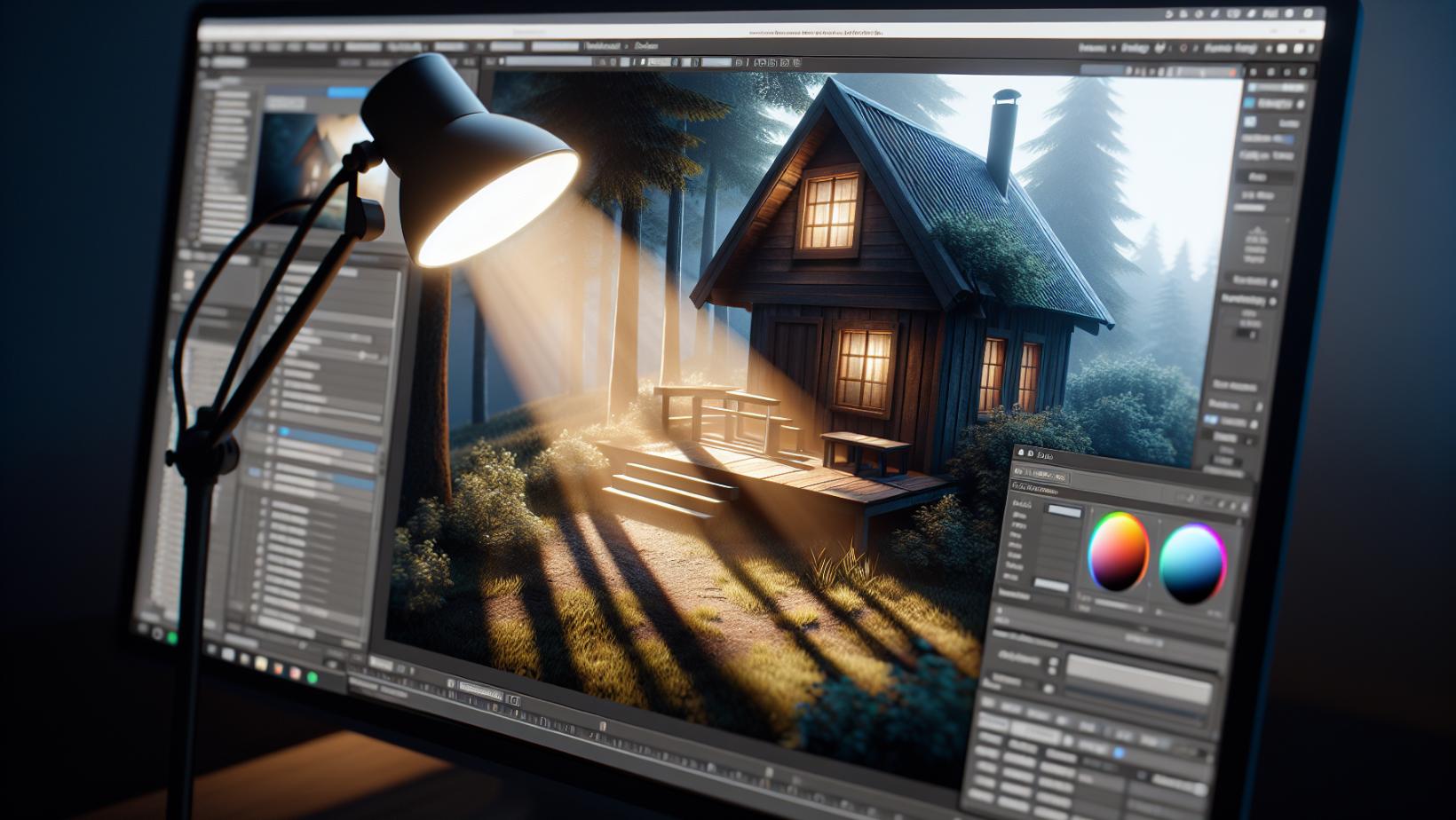
Once your 3D spinning text is in place, you can further enhance its appearance by adding lighting and shadows. By incorporating ambient light and spotlights, you can create a sense of depth and realism.
Also, by using cast shadows, you can make your 3D text appear more grounded in the scene, thereby offering a more immersive experience to your audience.
Ambient Light and Spotlights
Ambient light in After Effects enhances the overall brightness without a distinct source or casting shadows. To incorporate ambient light, you can create a new light layer and select the ambient light type. This will enhance the overall brightness of your scene without casting a distinct shadow.
On the other hand, spotlights can be used to highlight specific areas of your 3D text. You can use the arrow keys to move them to the desired location. Their properties such as direction, intensity, and colour can be adjusted to control the illumination of the 3D text and enable shadow casting for a more impactful visual effect. Additionally, exploring geometry options can enhance the overall appearance of your 3D text.
By balancing ambient light and spotlights, you can create a realistic 3D scene that complements the 3D spinning text.
Casting Shadows
Casting shadows adds depth and realism to your 3D spinning text, much like how a tree casts a shadow on the ground. It not only provides depth and dimension to your text but also improves the overall visual perception of the scene.
Casting shadows on 3D text involves the following steps:
-
Create a new composition and incorporate a text layer.
-
Utilise the Drop Shadow effect from the Effects & Presets panel.
-
Replicate the text layer, darken and blur it, and modify the scale to imitate a shadow.
-
Manipulate the shadow direction to create a more grounded and three-dimensional appearance for your text.
Advanced 3D Spinning Text Techniques
Now that we’ve covered the basics, let’s delve into some advanced techniques. By utilising text animators and incorporating reflections and environment maps, you can elevate your 3D spinning text to a professional level.
Using Text Animators
Text animators in After Effects allow you to control and animate characters in numerous ways. They let you animate character position, rotation, and size-related properties in relation to an anchor point. This not only enhances the 3D spinning text effect but also raises its level of professionalism.
Applying text animators is like adding spices to a dish. By navigating to Animation > Animate Text and then selecting the specific property to animate, you can bring individual characters to life in three dimensions. Text animators can be used to achieve a range of effects, including:
-
Simple text preset animation
-
Custom moving text
-
Blurry fade-on
-
Animating from below
-
Tracking and opacity changes
-
Type-on effects
-
Per-character 3D animations
Incorporating Reflections and Environment Maps
Reflections and environment maps add realism and depth to your 3D spinning text. Reflections can be incorporated into the floor area to capture the text’s reflection, and highlights can be introduced around the text edges to replicate the effect of light reflecting off.
Environment maps, on the other hand, are spherical images that function as the backdrop for a 3D scene. They generate lifelike reflections and lighting effects, enhancing the visual appeal of your text. By customising the environment map with a specific image, you can create enhanced lighting effects and an overall dynamic and integrated appearance of the text within the scene.
Free AE Project Files and Resources
Practising and experimenting with After Effects is crucial for mastering 3D spinning text. And what better way to do so than with free AE project files and resources? These resources not only provide you with templates and examples to learn from but also allow you to:
-
Adapt and customise them for your own projects
-
Explore different techniques and effects
-
Save time and effort in creating your own animations
-
Gain inspiration from other designers and animators
By utilising these free resources, you can enhance your skills and create stunning 3D spinning text animations.
Free AE Project Files
A free AE project file is packed with templates and examples that you can learn from and adapt for your own projects. Free Adobe AE project files offer a practical way to follow tutorials and courses, encompassing compositions and references to source files.
But be mindful of potential risks or downsides such as legal consequences, security risks, and subpar quality while progressing at your own pace.
Tutorials and Online Learning Resources
Tutorials and online learning resources are like guides on a journey, offering step-by-step instructions to help you navigate the world of After Effects. From beginner courses to advanced tutorials, these resources provide valuable insights and tips to help you master 3D spinning text effects in After Effects.
Learn With Nexacu
We've paved the path from the foundational steps of creating your composition, to the more nuanced techniques of lighting and shadow play, and delved into the advanced concept of text animators and environmental reflections.
Now, it's your turn to take the wheel and steer your learning towards new horizons with Nexacu. With a team of expert trainers at your side, you can delve deeper into After Effects, refining your skills and bringing your creative visions to life.
Your next step? Click through, connect with Nexacu’s trainers, and transform your potential into prowess.
Frequently Asked Questions
How do you make 3D text in After Effects?
To create 3D text in After Effects, you'll need a plugin called Element 3D. Once you have the plugin, follow the provided tutorial to achieve the 3D effect.
How do you make a 3D spiral in After Effects?
To make a 3D spiral in After Effects, use the expression "Z = (index - 1) * 200" in the position property. This will create a spiral effect.
Where can I find free AE project files and resources?
You can find free AE project files on websites like Motion Array and Gumroad. For tutorials and learning resources, check out Creative Bloq, Motion Array, Pond5, and Greyscalegorilla.
Can I animate individual letters in After Effects?
Yes, you can animate individual letters in After Effects by using text animators and selectors to target specific characters and apply different animation properties.
































