

Introduction
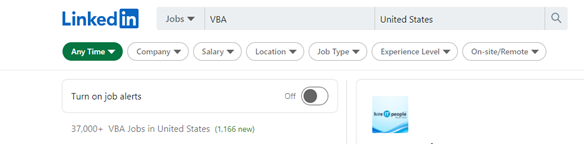
As far as Excel automation is concerned, Visual Basic for Applications (VBA) has been the first choice since 1993. Its relevance can be validated by a quick search on LinkedIn. In the US alone, 37,000+ jobs are related to VBA.
Get the best Excel VBA course training offered by Nexacu
This article will explore different aspects of Excel VBA, ranging from an introduction to frequently asked questions (FAQs). It’ll also include a great recommendation for Excel VBA course training in the end. So, let's get the ball rolling.
What is Excel VBA?
Visual Basic for Applications (VBA) is a sophisticated programming language in Excel that helps you write commands or codes in Excel.
Excel indeed offers different tools to help users achieve several tasks. Yet, you cannot perform everything you want to accomplish in your day-to-day tasks. Tasks include automating tasks, writing custom functions, and performing repetitive instructions.
Excel VBA helps you create customised functions or commands to achieve your tasks. But the question arises, how long does it take to learn VBA? Generally speaking, if you are going to spend an hour each day, you will learn Excel VBA in seven days.
Anyways, you can perform lots of things with Excel VBA. Here we see a few of them:
- Excel VBA allows you to write custom commands in Excel
- Helps you automate frequently performed tasks
- It can help you create UDFs (user-defined functions)
- Allows you to repeat a set of instructions several times
- It lets you add an add-in in Excel
- Hides worksheets and can protect workbooks
- Helps reduce the burden of formulas utilised in Excel reports
Nexacu has formulated the best Excel VBA online course for people like you
Common FAQs from Excel VBA Course Training
Now let us see some frequently asked questions regarding Excel VBA.
1. How to Assign the Excel Macro VBA to a Button?
Here we see the step-by-step process of assigning a macro to a button.
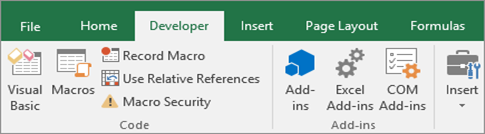
- May need to display the Developer tab as it does not show by default
- Then, you need to select the developer tab from the excel ribbon menu.
- Now, you need to click Insert. Then, you click the Button icon (First icon) under Form Controls.
- Next, click and drag the worksheet location, in which you need to see your button appear.
- If the Assign Macro dialogue does not show, right-click on the button.
- Click the macro name you need to assign to the button and click OK.
- You can specify control properties to format the control.
- It is time to test it by clicking on the button. If everything is okay, your macro should run.
2. Can I Protect the Macros in Excel to Prevent People from Altering them?
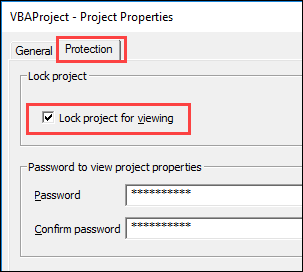
You need to click the Tools menu and click VBAProject properties in the Visual Basic Editor. Now, place your cursor to the box to select the checkmark for Lock the project for viewing. Afterward, you need to enter and confirm your password and click OK.
3. How to Protect the Sheet using VBA Code?
- First and foremost, we need to pick the sheet we need to protect via the password. With the help of the VBA worksheet object, we can invoke the sheet by its name. Let's suppose we want to protect the Master Sheet worksheet. You’ll need to mention the worksheet name like the below.
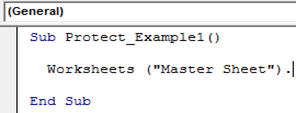
- Next, you need to place a dot once you mention the worksheet name. However, the job seems complicated as we do not see the way out to work with any IntelliSense list. Therefore, we need to define the variable as a worksheet to access the IntelliSense list.
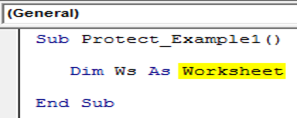
- It is time to set the worksheet reference to the variable as Worksheets("Master Sheet"). The reference of the Master Sheet worksheet is assigned to the variable Ws. Accessing the IntelliSense list is possible by using this variable now.
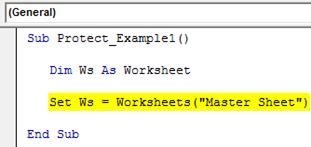
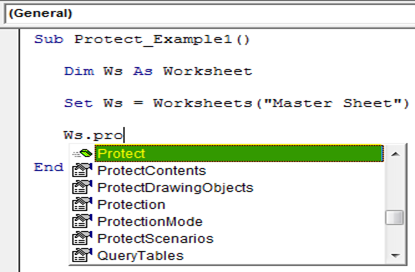
- From the IntelliSense list, choose the Protect method.
- Define the password in double-quotes.
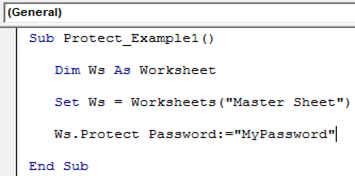
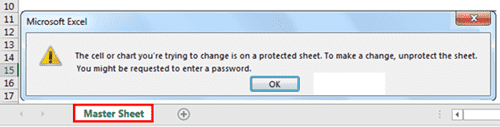
- You can now protect the Master Sheet worksheet by running the code. You can run the code either manually or with the F5 key. You will see the given error in the case of making any modification.
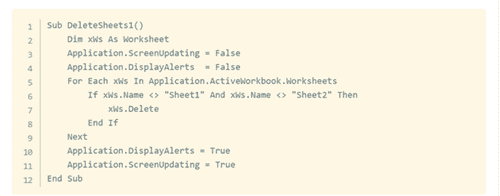
4. How to Delete all Sheets except one using VBA Code?
After opening the Microsoft Visual Basic Application window, click Insert > Module, and subsequently, type or enter the below-given VBA code into the Module window.
5. How to Format or Change Cell Colour with Excel VBA and Macros?
If you want to change a cell's background colour with the help of VBA, you should use the interior.colorindex property. Let us consider an example of changing the colour of cell A1.
Range("A1").Interior.ColorIndex = [Enter the number that equals the required colour]
Or
Cells(1, 1).Interior.ColorIndex = [Enter the number that equals the required colour]
6. How to Use Excel VBA Keypress?
You can execute a procedure upon the press of a single or a combination of keys, as Excel has an in-built mechanism to monitor what you type. Here we see how you can reassign the PgDn and PgUp keys.
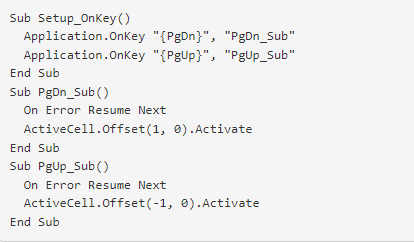
Excel will move you up one row upon pressing PgUp, and it will move you down upon pressing PgDn. Note that we have used braces to enclose codes instead of parentheses.
To ignore the possibility of errors, we have used the statement called On Error Resume Next. It is a way for error handling in VBA. For instance, it will ignore the error when you move up one row while the active cell is currently selected in the first row. Similarly, no cell is active when a chart sheet is active.
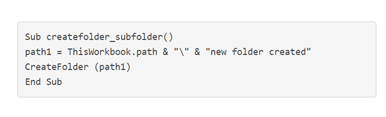
7. How does Excel VBA create Folders and Subfolders from List?
Here we see how we can create a new folder with the help of the VBA code. Remember that you will see an error in the case of the already existence of a folder.
Excel VBA Training Course Takes your Productivity to the Next Level!
Organisations that use Excel spreadsheets count heavily on professionals proficient at VBA. They can assist a wide range of companies in automating their tedious manual processes in Excel. When it comes to job options, professionals carrying expertise in VBA can get full-time and part-time work. To your surprise, it is also easier to learn when compared to other programming languages. Are you looking for Excel VBA training? The Excel VBA online course offered by Nexacu can help you go a long way. It doesn't matter where you are - whether you live in Australia or anywhere in the world, you can benefit from VBA training, or other Excel specialist training.
































