Recent Searches
Category

Microsoft Power BI

Category

Microsoft Copilot Courses

Category

AI for Business

Category

Microsoft Windows 11 Courses

Category

Microsoft 365

Category

Microsoft Excel

Category

Excel Specialist

Category

Microsoft Project

Category

R Programming

Category

Python

Category

Power Apps

Category

SQL

Category

SharePoint

Category

Microsoft Teams

Category

Power Automate

Category

Microsoft Visio

Category

Microsoft PowerPoint

Category

Microsoft Word

Category

Microsoft Outlook

Category

Adobe InDesign Courses

Category

Adobe Photoshop Courses

Category

Adobe Illustrator Courses

Category

Adobe Premiere Pro Training

Category

Adobe After Effects Training

Category

Adobe Acrobat Courses

Category

Adobe Captivate Training

Category

Adobe Animate Training

Category

Canva Courses

Category

HTML Courses

Category

WordPress

Category

Professional Development

Category

Microsoft Access

Category

Webinars

Course

Power BI Beginner

Course

Copilot for M365

Course

Windows 11 End User Course

Course

Excel Beginner

Course

Financial Modelling

Course

Project Beginner

Course

R Programming Beginner

Course

Python Beginner

Course

Power Apps Beginner

Course

SQL Beginner

Course

SharePoint Beginner

Course

Teams Essentials

Course

Visio Essentials

Course

PowerPoint Level 1

Course

Word Intermediate

Course

Word Beginner

Course

Word Advanced

Course

Microsoft Outlook Beginner to Intermediate

Course

InDesign Lite

Course

Photoshop Lite

Course

Illustrator Training Intro

Course

Premiere Training Intro

Course

After Effects Training Intro

Course

Acrobat Essentials

Course

Captivate Training

Course

Animate Training Intro

Course

Canva AI

Course

HTML Training Intro

Course

Achieving Leadership & Success

Course

Microsoft Access Essentials

Course

Copilot for M365 On Demand

Course

Power BI Intermediate

Course

Copilot for Word

Course

ChatGPT Beginner

Course

Microsoft 365 Beginner

Course

Excel Intermediate

Course

Analysis and Dashboards

Course

Project Intermediate

Course

R Programming Intermediate

Course

Python Intermediate

Course

Power Apps Intermediate

Course

SQL Intermediate

Course

SharePoint Intermediate

Course

PowerPoint Level 2

Course

InDesign Training Intro

Course

Photoshop Training Intro

Course

Acrobat Forms

Course

Anger Management & Negotiation Skills

Course

Copilot for M365 Live Online

Course

Power BI Advanced

Course

Copilot for Excel

Course

AI Prompting Fundamentals

Course

Microsoft 365 Intermediate

Course

Excel Advanced

Course

Excel VBA

Course

Project Advanced

Course

R Programming Advanced

Course

Python Advanced

Course

Power Apps Intermediate | Power Automate + Power BI Integration

Course

SharePoint Advanced (Site Owner)

Course

InDesign Training Advanced

Course

Assertiveness & Confidence

Course

Microsoft Access Advanced

Course

Power BI DAX

Course

Copilot for PowerPoint

Course

Excel Expert

Course

Machine Learning in R

Course

Power Apps Advanced

Course

SharePoint Advanced (Document Governance)

Course

Building Resilience

Course

Copilot for Outlook and Teams

Course

Coaching and Mentoring

Course

Illustrator Training Advanced

Course

Premiere Basics Training

Course

Advanced After Effects Training

Course

Canva Beginners

Course

WordPress Essentials

Course

Communications

Course

AI for Business Leaders and Managers

Course

Photoshop Training Advanced

Course

Advanced Premiere Training

Course

Canva Intermediate

Course

Communications & Quality Client Service Training

Course

InDesign Interactivity Training

Course

Canva Advanced

Course

Critical Thinking and Problem Solving

Course

InDesign Accessibility Training

Course

Cultural Diversity in the Workplace

Course

Microsoft Outlook Advanced

Course

Embracing Change

Course

SQL Advanced

Course

Growing Emotional Intelligence

Course

Planner Premium

Course

Minute Taking

Course

Excel Tables and Pivot Tables

Course

Power Automate Beginner

Course

Performance Management

Course

Data Transformation with Power Query

Course

Excel Macro Mastery

Course

Power Automate Intermediate

Course

Persuasion and Negotiation Skills

Course

Power BI Desktop Advanced Reporting

Course

Presentation Skills and Public Speaking

Course

Data Visualisation with Power BI Desktop

Course

Practical Project Management

Course

Respect, Equity and Diversity (RED)

Course

Resumé Writing and Interview Skills

Course

Stress Management

Course

Team Leadership, Management and Development

Course

Time Management Intensive

Course

Train the Trainer

Course

Write Effective Business Documents

Course

Dealing with Difficult People

Course

Managing Difficult Conversations

Course

Managing the Virtual Workplace

Course

Customer Service Training

Course

Technical Writing

How to create Pivot Tables in Excel

Eleanor Isdale | Feb 05, 2019
Excel spreadsheet

Your guide to Pivot Tables

Pivot Tables are one of the most powerful tools in Excel. A Pivot Table is a table of statistics that summarises data from a more extensive table. They can be used to calculate, summarise and analyse data so you can interpret, report on and keep an eye on trends in your data.

Here’s a quick overview of how to create your own Pivot Table.

Step 1 - Enter your data in Excel

To create your Pivot Table, first you need to gather all your data in an Excel sheet so you can organise it.

Enter all your values, ensuring you assign categories to your data in the topmost row or column, e.g. Date, Department, Expense Type and Amount.

This set of data shows types of expenses incurred from different departments in 2018.
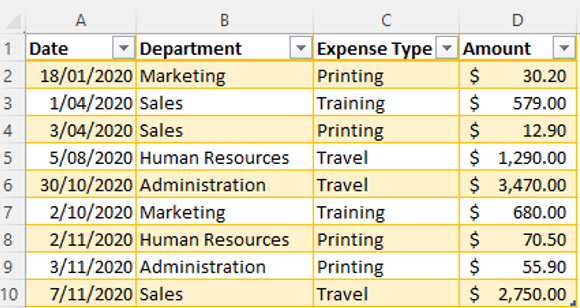
table for pivot table


To make it easier to interpret this dataset, we’d like to see how much each department spent in 2018 and on what type of expense.

Step 2 - Select your data

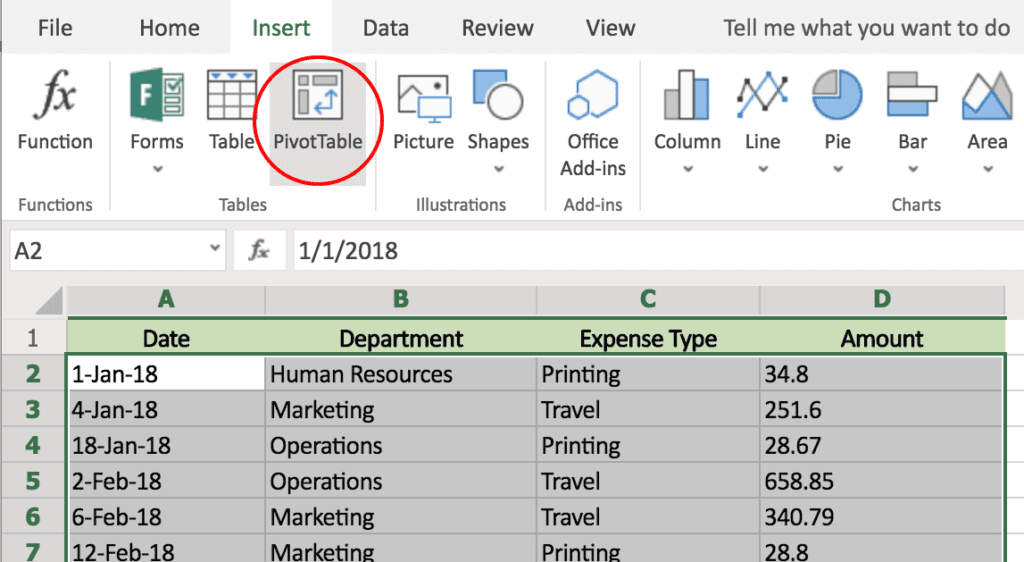
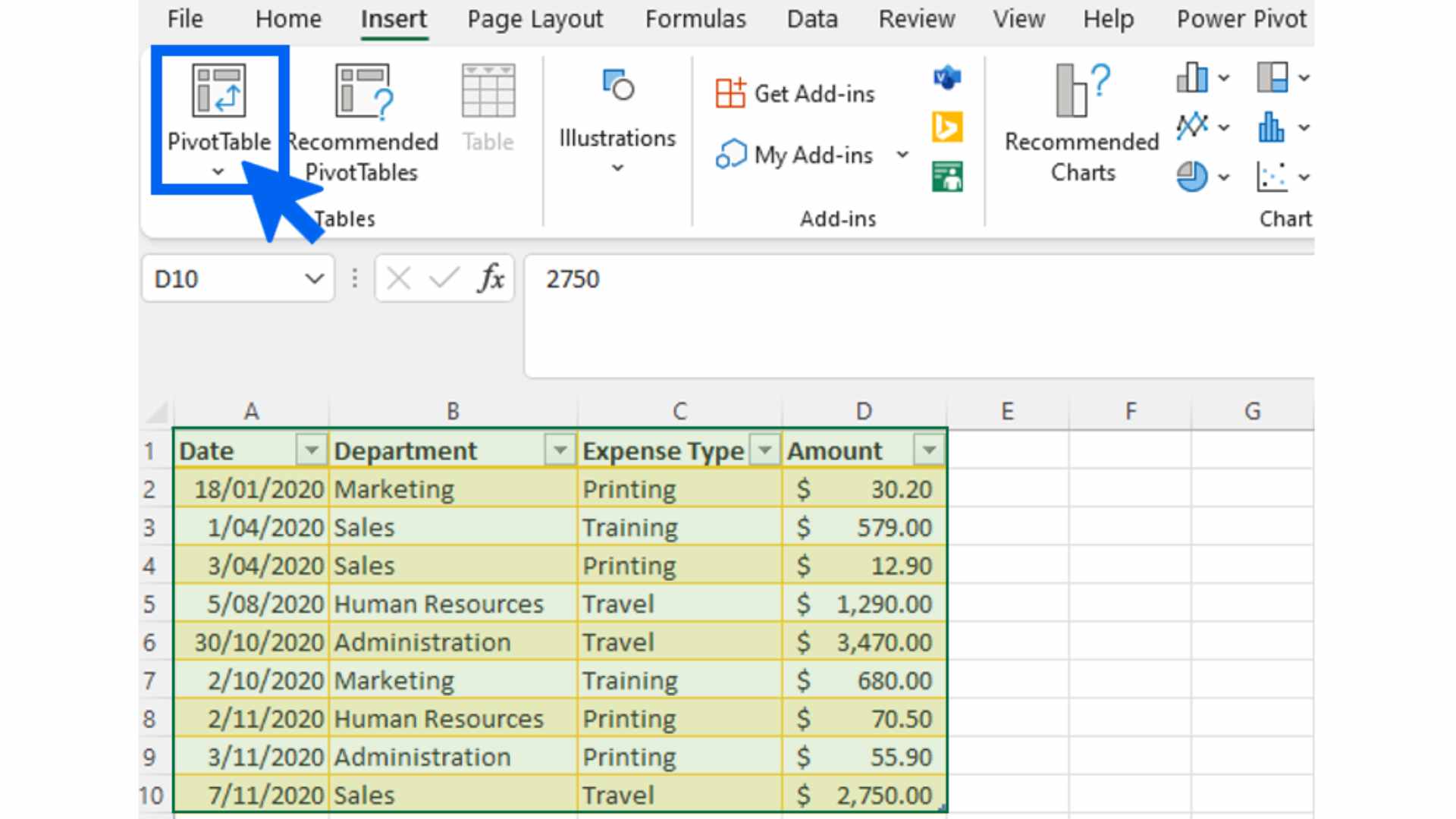
To do this, select your data and then click Pivot Table under the Insert tab.
pivot table how to

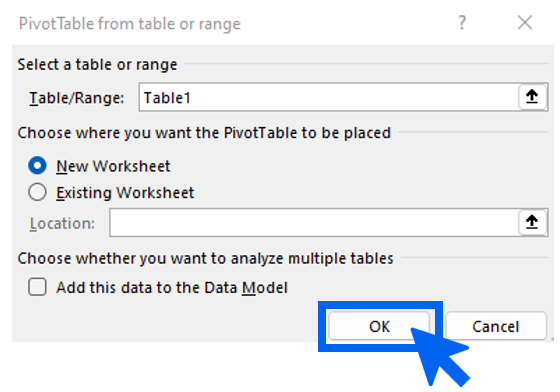
A pop-up dialogue will display. This allows you to choose where you want to place your new Pivot Table. We recommend selecting the "New Worksheet" option.  Now click OK.

pivot table instructions

pivot table instructions

Step 3 - Customise your Pivot Table

A blank Pivot Table will be created. You can now customise how your data is summarised. This is easily done by dragging and dropping components to determine what identifier you’d like to organise your data by.

Let’s organise our set of data by department and expense, so we can see what the total of expenses were from each department.

To do this, simply drag the Department field to the Rows box, then drag the Expense Type field to the Columns box, and finally drag the Amount field to the Values box.
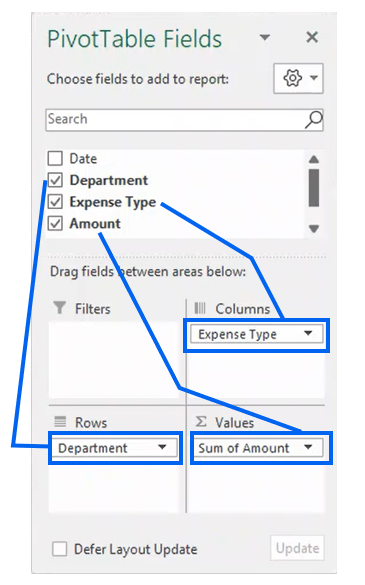
pivotTable fields


And voila! You have created your first Pivot Table.  We can now see at a glance, how much each Department spent and how they compare.
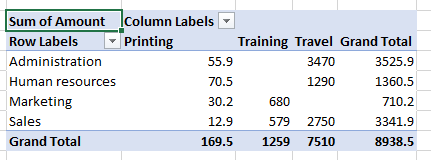
pivot table how to

The Values column automatically calculates the Sum of Amounts as Grand Totals listed in your data. However, you can modify this Value column by clicking where it says "Sum of Amount". Then select Value Field Settings, and then select average, count or whatever field you need to apply to your data. The Pivot Table will update automatically.

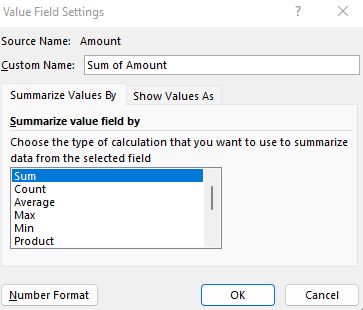
value field settings


To learn more about what you can achieve with data representation in Excel, check out our Excel training courses.

Take the Excel Skills Test

Trusted Nationwide by Leading Organisations

at Nexacu, we're proud to be the trusted training partner for hundreds of leading organisations accross Australia and New Zealand. From government departments to top corporates, we help teams upskill and succeed everyday

  • 400+ companies rely on Nexacu for team training
  • Trusted by federal, state, and local government agencies
  • Delivering training across 9 countries

Why Nexacu?

Books Icon

Step by Step Courseware

Custom workbook included with a step by step exercises

Facility Image 2
Facility Image 3
Facility Image 1

Refresh Icon

Free Refresher

Resit your course for free within 6 Months

More than 1,300 Business trust Nexacu

Trusted by Business

Procured by Government

Procured by Goverment

Reviews Not Found

Valued by Individuals