Recent Searches
Category

Microsoft Power BI

Category

Microsoft Copilot Courses

Category

AI for Business

Category

Microsoft Windows 11 Courses

Category

Microsoft 365

Category

Microsoft Excel

Category

Excel Specialist

Category

Microsoft Project

Category

R Programming

Category

Python

Category

Power Apps

Category

SQL

Category

SharePoint

Category

Microsoft Teams

Category

Power Automate

Category

Microsoft Visio

Category

Microsoft PowerPoint

Category

Microsoft Word

Category

Microsoft Outlook

Category

Adobe InDesign Courses

Category

Adobe Photoshop Courses

Category

Adobe Illustrator Courses

Category

Adobe Premiere Pro Training

Category

Adobe After Effects Training

Category

Adobe Acrobat Courses

Category

Adobe Captivate Training

Category

Adobe Animate Training

Category

Canva Courses

Category

HTML Courses

Category

WordPress

Category

Professional Development

Category

Microsoft Access

Category

Webinars

Course

Power BI Beginner

Course

Copilot for M365

Course

Windows 11 End User Course

Course

Excel Beginner

Course

Financial Modelling

Course

Project Beginner

Course

R Programming Beginner

Course

Python Beginner

Course

Power Apps Beginner

Course

SQL Beginner

Course

SharePoint Beginner

Course

Teams Essentials

Course

Visio Essentials

Course

PowerPoint Level 1

Course

Word Intermediate

Course

Word Beginner

Course

Word Advanced

Course

Microsoft Outlook Beginner to Intermediate

Course

InDesign Lite

Course

Photoshop Lite

Course

Illustrator Training Intro

Course

Premiere Training Intro

Course

After Effects Training Intro

Course

Acrobat Essentials

Course

Captivate Training

Course

Animate Training Intro

Course

Canva AI

Course

HTML Training Intro

Course

Achieving Leadership & Success

Course

Microsoft Access Essentials

Course

Copilot for M365 On Demand

Course

Power BI Intermediate

Course

Copilot for Word

Course

ChatGPT Beginner

Course

Microsoft 365 Beginner

Course

Excel Intermediate

Course

Analysis and Dashboards

Course

Project Intermediate

Course

R Programming Intermediate

Course

Python Intermediate

Course

Power Apps Intermediate

Course

SQL Intermediate

Course

SharePoint Intermediate

Course

PowerPoint Level 2

Course

InDesign Training Intro

Course

Photoshop Training Intro

Course

Acrobat Forms

Course

Anger Management & Negotiation Skills

Course

Copilot for M365 Live Online

Course

Power BI Advanced

Course

Copilot for Excel

Course

AI Prompting Fundamentals

Course

Microsoft 365 Intermediate

Course

Excel Advanced

Course

Excel VBA

Course

Project Advanced

Course

R Programming Advanced

Course

Python Advanced

Course

Power Apps Intermediate | Power Automate + Power BI Integration

Course

SharePoint Advanced (Site Owner)

Course

InDesign Training Advanced

Course

Assertiveness & Confidence

Course

Microsoft Access Advanced

Course

Power BI DAX

Course

Copilot for PowerPoint

Course

Excel Expert

Course

Machine Learning in R

Course

Power Apps Advanced

Course

SharePoint Advanced (Document Governance)

Course

Building Resilience

Course

Copilot for Outlook and Teams

Course

Coaching and Mentoring

Course

Illustrator Training Advanced

Course

Premiere Basics Training

Course

Advanced After Effects Training

Course

Canva Beginners

Course

WordPress Essentials

Course

Communications

Course

AI for Business Leaders and Managers

Course

Photoshop Training Advanced

Course

Advanced Premiere Training

Course

Canva Intermediate

Course

Communications & Quality Client Service Training

Course

InDesign Interactivity Training

Course

Canva Advanced

Course

Critical Thinking and Problem Solving

Course

InDesign Accessibility Training

Course

Cultural Diversity in the Workplace

Course

Microsoft Outlook Advanced

Course

Embracing Change

Course

SQL Advanced

Course

Growing Emotional Intelligence

Course

Planner Premium

Course

Minute Taking

Course

Excel Tables and Pivot Tables

Course

Power Automate Beginner

Course

Performance Management

Course

Data Transformation with Power Query

Course

Excel Macro Mastery

Course

Power Automate Intermediate

Course

Persuasion and Negotiation Skills

Course

Power BI Desktop Advanced Reporting

Course

Presentation Skills and Public Speaking

Course

Data Visualisation with Power BI Desktop

Course

Practical Project Management

Course

Respect, Equity and Diversity (RED)

Course

Resumé Writing and Interview Skills

Course

Stress Management

Course

Team Leadership, Management and Development

Course

Time Management Intensive

Course

Train the Trainer

Course

Write Effective Business Documents

Course

Dealing with Difficult People

Course

Managing Difficult Conversations

Course

Managing the Virtual Workplace

Course

Customer Service Training

Course

Technical Writing

Mapping data with 3D Power Maps

Brianna Higgins | May 02, 2022

Table of Contents

  • Introduction
  • What are Excel 3D Power Maps?
  • How to Use Excel 3D Power Maps
  • How to make a Power Map
  • FAQ

Introduction

Do you know you can impress your audience or boss in a visually stunning way when you present and graphically represent appealing data across different regions?

Excel comes with more functions you may not be aware of; you can use it to create 3D maps and plot a whole lot of data.

In this article, we'll explore how you can map your data with 3D power or how to make a 3D map in excel.

In the meantime, take a look at what we'll cover in this piece:

Power maps offer impressive uses. You can get a table of data using geographic information and make some stunning 3D maps.

Before answering the "how to make a 3D Map in Excel" question, you may need to understand the meaning and usage of Excel 3D Power Maps.

What is Power Map for Excel?

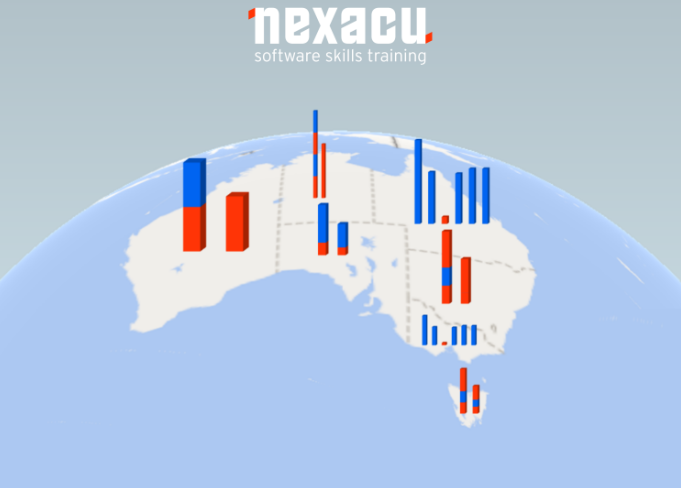
Excel 3D Power Maps are 3-dimensional data visualisation tools that allow you to view the information in new and stunning ways.

They allow you to discover insights you may not view in conventional two-dimensional (2-D) charts and tables.

Meanwhile, take a look at what you can use Excel Power Maps to do:

  • Mapping of data

You can use an Excel power map or Excel power view map to plot over a million rows of data that are visually on Bing Maps in the 3D form via an Excel Data Model or table.

  • Find insights

You'll have new understandings by seeing your data through geographic space while viewing time-stamped data change across time.

  • Sharing stories

With Excel power map or power mapping Excel, you can share memorable stories.

You can capture some screenshots and create guided and cinematic video tours to uniquely share with audiences. Also, you can create and export tours to video and disseminate them like that.


How to Use Excel 3D Power Maps

For a start, have Excel data with geographic properties in a Data Model or table formats like columns and rows with names of states, cities, zip codes, countries, or latitudes and longitudes.

Here’s how to make a 3D Map in Excel:

  1. Open a workbook in Excel with table or Data Model data you wish to explore in the Power Map.
  2. Choose a data table that has a geographical information
  3. Press on any cell on the table.
  4. Press on Insert > Map. Pressing on the Map will automatically enable Power Map. In a few seconds, the globe would appear close to the Layer Pane first screen.
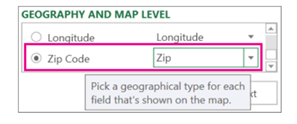
  5. Under the Layer Pane, you'll verify that the fields are appropriately mapped. You can click on the drop-down arrow for any inappropriate mapped fields to put them to the correct geographic properties. For instance, ensure that Zip Code is seen as Zip under the drop-down box.power map excel
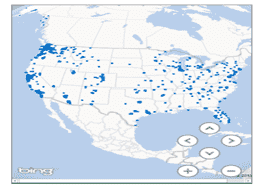
  6. When the 3D Maps plots the data, the dots will show on the globe.power map excel
  7. Press on Next to begin aggregating and visualising the data on the map.

How Do I Do a Power Map in Excel?

For "how do you make a Power Map," here are the steps to start using Power Map:

  • Choose the data table with geographic information.
  • On the Insert menu, press on 3D Map. You'll be directed to the Power Map window.
  • In the Layer Pane location section, add several location fields you can to help you narrow down the data.
  • Based on your table data headers utilised to populate the Field List, ‘Map’ the data with the drop-down list close to the field name.
  • To know the bar height on the map, add the data you want to map to the Layer Window height area.
  • The map will begin to populate.

Now, zoom in on the data geographically, make scenes, take some screenshots, and create your videos.
 

3d Power Maps

FAQs

1. What's power map for Excel

Excel Power Map is a 3-dimensional 3D data visualisation tool that allows you to view the information in new ways while discovering insights you may not view in conventional means.

2. How to use 3D maps in Excel?

You can use Excel 3D Maps to track data variables such as sales or performance across diverse geographic regions. Follow the above steps to easily use them.

3. How to enable 3D maps in Excel

Press on any cell on the table. And click on Insert > 3D Map. Pressing on the Map would automatically enable Power Map.

4. How to share a 3D Map in Excel

To share a 3D Map in Excel, take the map screenshot. And share the Excel file with the 3D Map. If you input a 3D Map in the file, Excel will add a text box to inform the user that there's a 3D Map in his file.

For more Excel tips and tricks, check out our Excel Training, available remotely.

Trusted Nationwide by Leading Organisations

at Nexacu, we're proud to be the trusted training partner for hundreds of leading organisations accross Australia and New Zealand. From government departments to top corporates, we help teams upskill and succeed everyday

  • 400+ companies rely on Nexacu for team training
  • Trusted by federal, state, and local government agencies
  • Delivering training across 9 countries

Why Nexacu?

Books Icon

Step by Step Courseware

Custom workbook included with a step by step exercises

Facility Image 2
Facility Image 3
Facility Image 1

Refresh Icon

Free Refresher

Resit your course for free within 6 Months

More than 1,300 Business trust Nexacu

Trusted by Business

Procured by Government

Procured by Goverment

Reviews Not Found

Valued by Individuals