
Are you looking for better job opportunities? Do you want to build a network with people who share the same professional goals as you? Are you a recruiter who wants better access to potential employees?
Look no further, as you can use LinkedIn to boost your profile and get in touch with recruiters, clients, and colleagues. It also allows you to demonstrate your skills and knowledge. With about 875 million users worldwide, LinkedIn can help you gain exposure to hiring managers, and you can research organisations that you want to work for and directly link with people in your professional circles.
The opportunities are endless with this networking site. And in this article, we’ll tell you all about how to best use LinkedIn. Let’s get started.
How to Use LinkedIn
Create a Profile
First, you need to have a profile on LinkedIn to make the most of it. It’s effortless to sign up — you must enter your full name and email address and create a password.
As soon as you’ve set up a profile, you can add additional information.
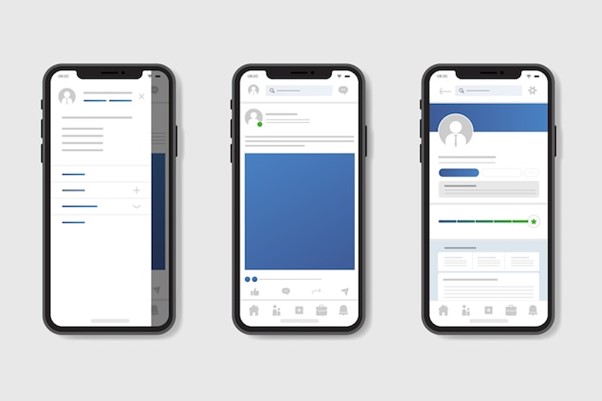
Here’s how to use LinkedIn effectively:
-
Profile Picture
Now, you want to make an excellent first impression on people who visit your profile. The first thing they’ll notice is your picture. So, you must choose something that’s professional-looking.
Make sure you pick a picture with proper clothing, background, etc.
-
Banner Image
Your banner image will be just above your profile picture. Add something relevant to your interests and industry. Make sure it’s unique and makes your profile stand out.
-
Headline
Your headline will be just below your profile picture. It should be short and memorable. Use it to highlight your unique traits and skills.
You can also briefly mention your industry and location in your headline.
-
Summary
This should give an overview of your skills and abilities. Keep it focused on you. List your strengths and what you add to the team.
Make it clear and concise. A good summary makes all the difference.
-
Current Position and Past Roles
Add your current position. Make sure it’s specific and gives relevant examples.
Also, add your past roles and highlight your areas of expertise.
-
Education History
If you’re a fresh graduate, your education history is possibly the first thing any recruiter will look at.
Make sure it has all the correct details. Add all relevant modules and extracurricular activities. Highlight any honours and awards you’ve earned.
-
Skills and Expertise
You get more profile views if you’ve displayed your skills on LinkedIn.
If you’re searching for jobs, it’s more likely that employers will contact you if you have the skills necessary for the role. And your profile will appear in search when recruiters are looking for specific skills and expertise.
Pro tip: Add at least five skills to your profile.
-
Recommendations and Endorsements
Your connections can write you recommendations. These can highlight your achievements and be a testimonial of your abilities. Ask them to make it as detailed and specific to you as possible.
Your contacts can also endorse your skills. This shows that people agree with what you’ve said, and it helps you stand out.
-
Certifications
Certifications are a great means to demonstrate your knowledge and professional achievements. It shows employers that you’re determined, and it can be what separates you from others.
A LinkedIn badge gives others a quick and easy way to access your profile from your social media accounts or resumes.
Here’s how you can get yours:
- Log in to your LinkedIn account.
- Click on Edit Public Profile and URL.
- Scroll down to the Public Profile badge.
- Click on the link to create your badge.
- Copy and paste the HTML code anywhere on the page you want your badge on.
- Select the graphic option you want and copy the code.
- Paste the code on your website, blog, or account where you want to display your LinkedIn badge.
Connect with Others
Once you’ve set up your account, you’re ready to build your network!
Send invitations to people you want to connect with. These can be professional or educational contacts. You can also make connections with people who share the same interests as you.
Etiquette
Start talking to your connections!
- Keep your tone appropriate to who you’re talking to.
- Stay positive.
- Respond to messages promptly.
For example, don’t talk with a potential employer casually — keep it professional, be honest, and stay on point.
How to Use LinkedIn to Explore Job Opportunities
You can search and apply for jobs on LinkedIn directly.
Use the advanced search option to find exactly what you’re looking for. You can filter it by location, industry, number of employees, etc., to get a more concise result.
LinkedIn Groups
You can set up or join groups on LinkedIn to discuss ideas and share relevant news. Use the search bar to look for groups to join.
Once you’re a member, you can join group discourse, ask questions, and send messages to other members.
LinkedIn groups are a great way to expand your professional network. These provide members with valuable information and ideas, and you can build a support network for yourself.
How to Post on LinkedIn
- Post simple updates, images, or videos.
- Share posts from other users.
- Engage and interact with your connections.
Make sure your content is specific to LinkedIn. It should be relevant and informative to your connections. Be consistent.
Pro tip: Stay active — it attracts attention.
How to Use Hashtags (#) on LinkedIn
LinkedIn allows users to add hashtags to posts to increase visibility.
Hashtags help people find your profile and help improve your reach.
Use hashtags related to your post, keep it industry or interest-specific, and don’t overdo them.
Pro tip: you can search a hashtag, see how many people follow it and what kind of content interests them, and use that in your posts.
FAQs
How do I use LinkedIn as a student?
Make sure your profile is complete and up to date. Use professional pictures. Use keywords. Highlight your strengths and list all your accomplishments.
Employers like to see complete profiles with all the necessary information.
How do I use LinkedIn Learning?
You can access LinkedIn Learning through your organisation.
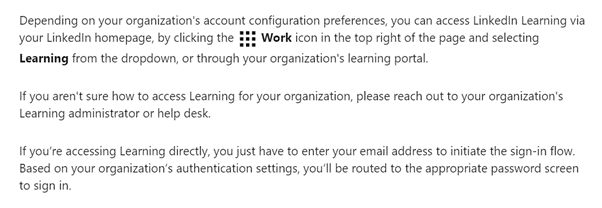
Alternatively, you can use it through your individual subscription.

How Important Are Certifications for LinkedIn Employers?
Some employers require certain certifications and training to be considered for specific roles. You can jumpstart your journey to professional advancement with the right training and certifications necessary for the industry you're in. Did you know that Fortune 500 companies use LinkedIn as the top platform to look for future employees? So don't hesitate to learn new things and expand your knowledge, and you'll be surprised at the influx of employers wanting to hire you for your desired roles on LinkedIn.
You can start by honing your spreadsheet skills through our Microsoft Excel courses, starting with the Beginner stage. Level up this essential skill and be surprised at the influx of employers reaching out to you.
































