Recent Searches
Category

Microsoft Power BI

Category

Microsoft Copilot Courses

Category

AI for Business

Category

Microsoft Windows 11 Courses

Category

Microsoft 365

Category

Microsoft Excel

Category

Excel Specialist

Category

Microsoft Project

Category

R Programming

Category

Python

Category

Power Apps

Category

SQL

Category

SharePoint

Category

Microsoft Teams

Category

Power Automate

Category

Microsoft Visio

Category

Microsoft PowerPoint

Category

Microsoft Word

Category

Microsoft Outlook

Category

Adobe InDesign Courses

Category

Adobe Photoshop Courses

Category

Adobe Illustrator Courses

Category

Adobe Premiere Pro Training

Category

Adobe After Effects Training

Category

Adobe Acrobat Courses

Category

Adobe Captivate Training

Category

Adobe Animate Training

Category

Canva Courses

Category

HTML Courses

Category

WordPress

Category

Professional Development

Category

Microsoft Access

Category

Webinars

Course

Power BI Beginner

Course

Copilot for M365

Course

Windows 11 End User Course

Course

Excel Beginner

Course

Financial Modelling

Course

Project Beginner

Course

R Programming Beginner

Course

Python Beginner

Course

Power Apps Beginner

Course

SQL Beginner

Course

SharePoint Beginner

Course

Teams Essentials

Course

Visio Essentials

Course

PowerPoint Level 1

Course

Word Intermediate

Course

Word Beginner

Course

Word Advanced

Course

Microsoft Outlook Beginner to Intermediate

Course

InDesign Lite

Course

Photoshop Lite

Course

Illustrator Training Intro

Course

Premiere Training Intro

Course

After Effects Training Intro

Course

Acrobat Essentials

Course

Captivate Training

Course

Animate Training Intro

Course

Canva AI

Course

HTML Training Intro

Course

Achieving Leadership & Success

Course

Microsoft Access Essentials

Course

Copilot for M365 On Demand

Course

Power BI Intermediate

Course

Copilot for Word

Course

ChatGPT Beginner

Course

Microsoft 365 Beginner

Course

Excel Intermediate

Course

Analysis and Dashboards

Course

Project Intermediate

Course

R Programming Intermediate

Course

Python Intermediate

Course

Power Apps Intermediate

Course

SQL Intermediate

Course

SharePoint Intermediate

Course

PowerPoint Level 2

Course

InDesign Training Intro

Course

Photoshop Training Intro

Course

Acrobat Forms

Course

Anger Management & Negotiation Skills

Course

Copilot for M365 Live Online

Course

Power BI Advanced

Course

Copilot for Excel

Course

AI Prompting Fundamentals

Course

Microsoft 365 Intermediate

Course

Excel Advanced

Course

Excel VBA

Course

Project Advanced

Course

R Programming Advanced

Course

Python Advanced

Course

Power Apps Intermediate | Power Automate + Power BI Integration

Course

SharePoint Advanced (Site Owner)

Course

InDesign Training Advanced

Course

Assertiveness & Confidence

Course

Microsoft Access Advanced

Course

Power BI DAX

Course

Copilot for PowerPoint

Course

Excel Expert

Course

Machine Learning in R

Course

Power Apps Advanced

Course

SharePoint Advanced (Document Governance)

Course

Building Resilience

Course

Copilot for Outlook and Teams

Course

Coaching and Mentoring

Course

Illustrator Training Advanced

Course

Premiere Basics Training

Course

Advanced After Effects Training

Course

Canva Beginners

Course

WordPress Essentials

Course

Communications

Course

AI for Business Leaders and Managers

Course

Photoshop Training Advanced

Course

Advanced Premiere Training

Course

Canva Intermediate

Course

Communications & Quality Client Service Training

Course

InDesign Interactivity Training

Course

Canva Advanced

Course

Critical Thinking and Problem Solving

Course

InDesign Accessibility Training

Course

Cultural Diversity in the Workplace

Course

Microsoft Outlook Advanced

Course

Embracing Change

Course

SQL Advanced

Course

Growing Emotional Intelligence

Course

Planner Premium

Course

Minute Taking

Course

Excel Tables and Pivot Tables

Course

Power Automate Beginner

Course

Performance Management

Course

Data Transformation with Power Query

Course

Excel Macro Mastery

Course

Power Automate Intermediate

Course

Persuasion and Negotiation Skills

Course

Power BI Desktop Advanced Reporting

Course

Presentation Skills and Public Speaking

Course

Data Visualisation with Power BI Desktop

Course

Practical Project Management

Course

Respect, Equity and Diversity (RED)

Course

Resumé Writing and Interview Skills

Course

Stress Management

Course

Team Leadership, Management and Development

Course

Time Management Intensive

Course

Train the Trainer

Course

Write Effective Business Documents

Course

Dealing with Difficult People

Course

Managing Difficult Conversations

Course

Managing the Virtual Workplace

Course

Customer Service Training

Course

Technical Writing

How to use Power Automate in Power BI

Brianna Higgins | Nov 03, 2022

Introduction

Power BI is the world’s leading, business intelligence-based data visualisation tool, developed by Microsoft. Power BI is part of the power platform that includes very useful tools for app development, API integrations, business intelligence, and robotic process automation. Power BI does allow you to directly share reports with other users, but these reports can be limited in their scope and freshness of data. 

You will need to create a PDF or Excel export of your current report and email it to your users. Obviously, this report will have data only until the point when the export was done. Moreover, if you wish to share reports with different relevant subsets of data to different users, it starts becoming tedious in Power BI. Power Automate can be used to automate Power BI workflows. Power Automate can add versatility and enhanced functionality to your Power BI reports; especially by triggering reports on events and sending custom reports to other users. With Power Automate, you can create automated workflows to get notifications, synchronise files, collect data, and more. 

How to Create an Automated Report

The steps to create such an automated report are as follows:

  • Step 1 

From the Visualisations pane, Select the Power Automate icon.
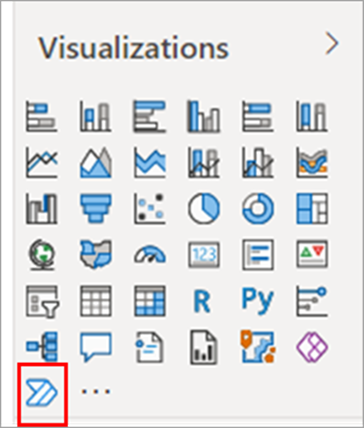
visualisations pane
@Source:https://learn.microsoft.com

  • Step 2

Next, you can define a button that would initiate your Power Automate flow, inside Power BI
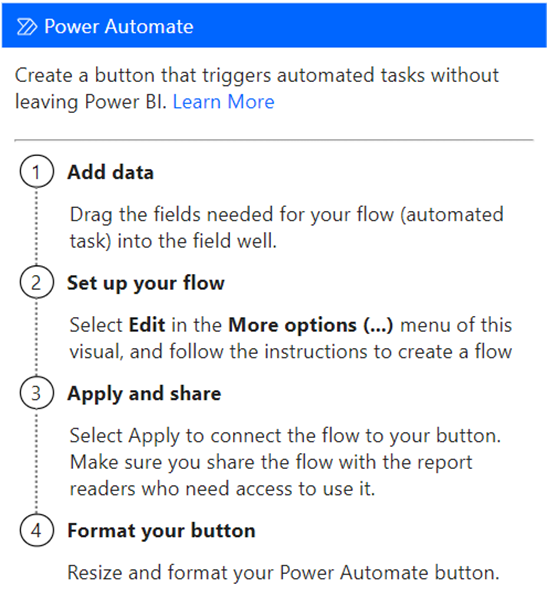
define button
@Source:https://learn.microsoft.com


After giving the button its definitions, place it in an appropriate place in your report. 

  • Step 3 

Now let's add some action to the button. Click Edit on the top right, i.e. More options (...) > Edit to configure the button.
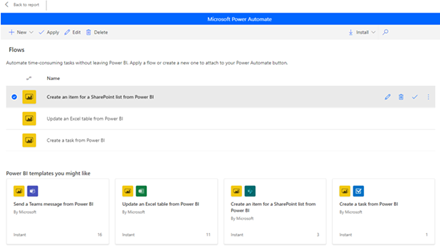
action button@Source:https://learn.microsoft.com


Once in Edit mode, you can create a new flow or assign an existing flow to your button. 

Click New, and then > Instant cloud flow > New step 
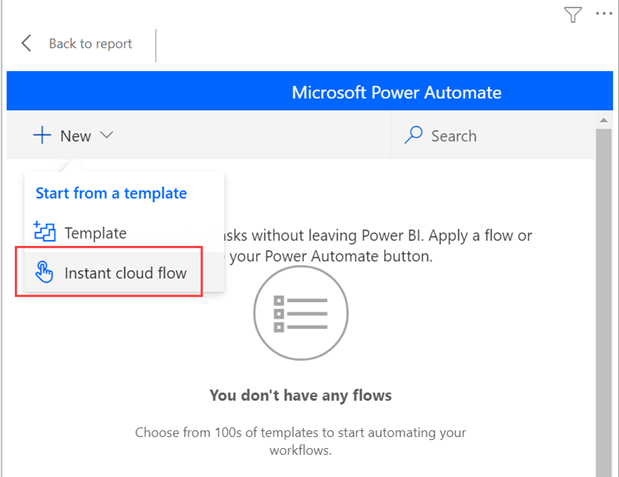
instant cloud flow

Now Power Automate will give you many actions to choose from.
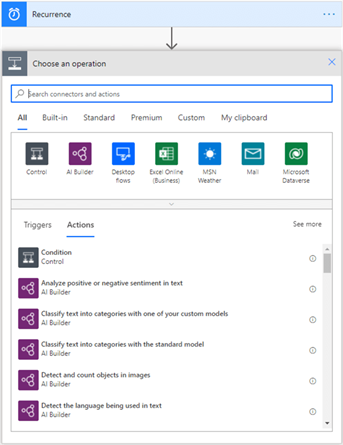
power automate options
@Source:https://learn.microsoft.com

In the search box you can type in a keyword, like "data services" or "email" or "conditional flows", and all related available actions will appear. 

Let's choose to create an item in a SharePoint list using the Region data field.
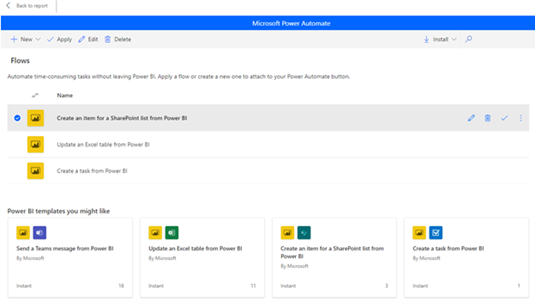
items in sharepoint list

@Source:https://learn.microsoft.com 


Name your flow and click "Save"

Your details page could look something like below
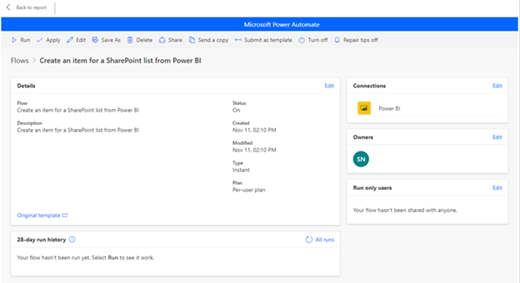
details page

@Source:https://learn.microsoft.com


  • Step 4


    You can further format the flow, specify alignment, fonts, fills, etc.

  • Step 5 

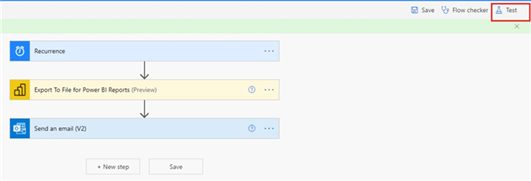
Now, we can test our flow

test flow

@Source:https://learn.microsoft.com

Before we share the button embedded in our Power BI report with other users, we need to test it. 

select Back to report, press the Control button on your keyboard and select the newly created button. 

Your Power BI button will now display the text "Run Flow". 

Click it to start the trial run of your flow. 


  • Step 6  

To check the results of the test run, select the More commands (...) menu > Details 
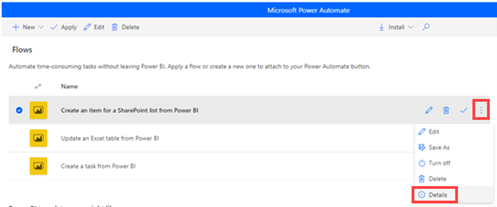
test run results

@Source:https://learn.microsoft.com

The test details screen will open up.
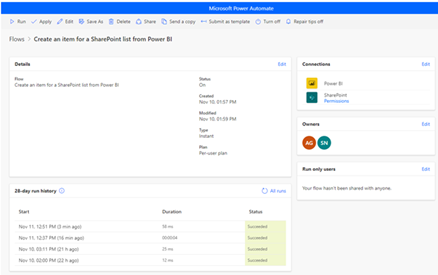
test details screen

@Source:https://learn.microsoft.com

It shows your connections, i.e., the applications Power Automate used/connected to, in order to execute your flow. The run duration and run history, along with details of the current run. 

It will also show the owners (editors) of this button, and you can add/edit the owners list from here. 


  • Step 7

Now we're all set to share this button with intended users. 

Select Edit in the Run only user’s section.
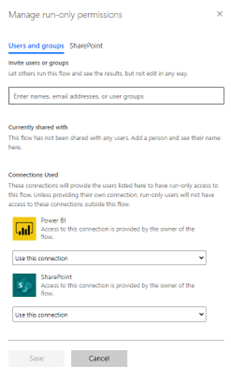
run only user section

@Source:https://learn.microsoft.com

The above screen appears, and you can select users or groups you want to give run access to your button.
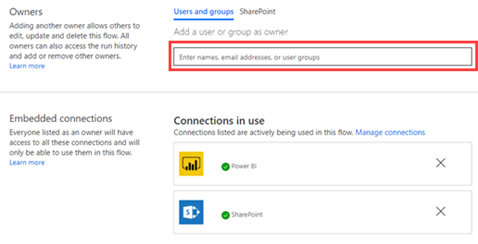
access to button

@Source:https://learn.microsoft.com 

You can also give edit access to certain users if you want them to further sophisticate the button/flow.  

Considerations and Limitations

  1. An Office 365 subscription which will allow you to use the standard connectors in Power Automate. 
  2. You need to have at least one workspace in your Power BI tenant backed by a reserved capacity, this reserved capacity will be used to run these automations. 
  3. The visual isn't supported for embedded analytics, neither is it supported in sovereign clouds. 
  4. You can only schedule a flow to run 8x per day when using the actions Refresh a dataset and refresh a dataflow. If you try to refresh your dataset/data flow more than 8x a day 

your flow will only run 8x, after that you will get an error and the flow won't run anymore.

  1. Flows that have the actions Export to file for Power BI reports and Export to file for paginated reports won't run if the report is not stored in a premium capacity.

Conclusion

We've discussed how to automate Power BI workflows and Power BI processes with the help of Power Automate. 

We have successfully created a Power Automate visual for Power BI, edited, and tested the flow.
Also, we have demonstrated how to enhance and add functionality to Power BI reports, by using Power Automate. 

Trusted Nationwide by Leading Organisations

at Nexacu, we're proud to be the trusted training partner for hundreds of leading organisations accross Australia and New Zealand. From government departments to top corporates, we help teams upskill and succeed everyday

  • 400+ companies rely on Nexacu for team training
  • Trusted by federal, state, and local government agencies
  • Delivering training across 9 countries

Why Nexacu?

Books Icon

Step by Step Courseware

Custom workbook included with a step by step exercises

Facility Image 2
Facility Image 3
Facility Image 1

Refresh Icon

Free Refresher

Resit your course for free within 6 Months

More than 1,300 Business trust Nexacu

Trusted by Business

Procured by Government

Procured by Goverment

Reviews Not Found

Valued by Individuals