
Recent Searches
Category

Microsoft Power BI

Category

Microsoft Copilot Courses

Category

AI for Business

Category

Microsoft Windows 11 Courses

Category

Microsoft 365

Category

Microsoft Excel

Category

Excel Specialist

Category

Microsoft Project

Category

R Programming

Category

Python

Category

Power Apps

Category

SQL

Category

SharePoint

Category

Microsoft Teams

Category

Power Automate

Category

Microsoft Visio

Category

Microsoft PowerPoint

Category

Microsoft Word

Category

Microsoft Outlook

Category

Adobe InDesign Courses

Category

Adobe Photoshop Courses

Category

Adobe Illustrator Courses

Category

Adobe Premiere Pro Training

Category

Adobe After Effects Training

Category

Adobe Acrobat Courses

Category

Adobe Captivate Training

Category

Adobe Animate Training

Category

Canva Courses

Category

HTML Courses

Category

WordPress

Category

Professional Development

Category

Microsoft Access

Category

Webinars

Course

Power BI Beginner

Course

Copilot for M365

Course

Windows 11 End User Course

Course

Excel Beginner

Course

Financial Modelling

Course

Project Beginner

Course

R Programming Beginner

Course

Python Beginner

Course

Power Apps Beginner

Course

SQL Beginner

Course

SharePoint Beginner

Course

Teams Essentials

Course

Visio Essentials

Course

PowerPoint Level 1

Course

Word Intermediate

Course

Word Beginner

Course

Word Advanced

Course

Microsoft Outlook Beginner to Intermediate

Course

InDesign Lite

Course

Photoshop Lite

Course

Illustrator Training Intro

Course

Premiere Training Intro

Course

After Effects Training Intro

Course

Acrobat Essentials

Course

Captivate Training

Course

Animate Training Intro

Course

Canva AI

Course

HTML Training Intro

Course

Achieving Leadership & Success

Course

Microsoft Access Essentials

Course

Copilot for M365 On Demand

Course

Power BI Intermediate

Course

Copilot for Word

Course

ChatGPT Beginner

Course

Microsoft 365 Beginner

Course

Excel Intermediate

Course

Analysis and Dashboards

Course

Project Intermediate

Course

R Programming Intermediate

Course

Python Intermediate

Course

Power Apps Intermediate

Course

SQL Intermediate

Course

SharePoint Intermediate

Course

PowerPoint Level 2

Course

InDesign Training Intro

Course

Photoshop Training Intro

Course

Acrobat Forms

Course

Anger Management & Negotiation Skills

Course

Copilot for M365 Live Online

Course

Power BI Advanced

Course

Copilot for Excel

Course

AI Prompting Fundamentals

Course

Microsoft 365 Intermediate

Course

Excel Advanced

Course

Excel VBA

Course

Project Advanced

Course

R Programming Advanced

Course

Python Advanced

Course

Power Apps Intermediate | Power Automate + Power BI Integration

Course

SharePoint Advanced (Site Owner)

Course

InDesign Training Advanced

Course

Assertiveness & Confidence

Course

Microsoft Access Advanced

Course

Power BI DAX

Course

Copilot for PowerPoint

Course

Excel Expert

Course

Machine Learning in R

Course

Power Apps Advanced

Course

SharePoint Advanced (Document Governance)

Course

Building Resilience

Course

Copilot for Outlook and Teams

Course

Coaching and Mentoring

Course

Illustrator Training Advanced

Course

Premiere Basics Training

Course

Advanced After Effects Training

Course

Canva Beginners

Course

WordPress Essentials

Course

Communications

Course

AI for Business Leaders and Managers

Course

Photoshop Training Advanced

Course

Advanced Premiere Training

Course

Canva Intermediate

Course

Communications & Quality Client Service Training

Course

InDesign Interactivity Training

Course

Canva Advanced

Course

Critical Thinking and Problem Solving

Course

InDesign Accessibility Training

Course

Cultural Diversity in the Workplace

Course

Microsoft Outlook Advanced

Course

Embracing Change

Course

SQL Advanced

Course

Growing Emotional Intelligence

Course

Planner Premium

Course

Minute Taking

Course

Excel Tables and Pivot Tables

Course

Power Automate Beginner

Course

Performance Management

Course

Data Transformation with Power Query

Course

Excel Macro Mastery

Course

Power Automate Intermediate

Course

Persuasion and Negotiation Skills

Course

Power BI Desktop Advanced Reporting

Course

Presentation Skills and Public Speaking

Course

Data Visualisation with Power BI Desktop

Course

Practical Project Management

Course

Respect, Equity and Diversity (RED)

Course

Resumé Writing and Interview Skills

Course

Stress Management

Course

Team Leadership, Management and Development

Course

Time Management Intensive

Course

Train the Trainer

Course

Write Effective Business Documents

Course

Dealing with Difficult People

Course

Managing Difficult Conversations

Course

Managing the Virtual Workplace

Course

Customer Service Training

Course

Technical Writing

How To Use Power Query to Merge Columns

Brianna Higgins | Jun 01, 2023
person typing on laptop

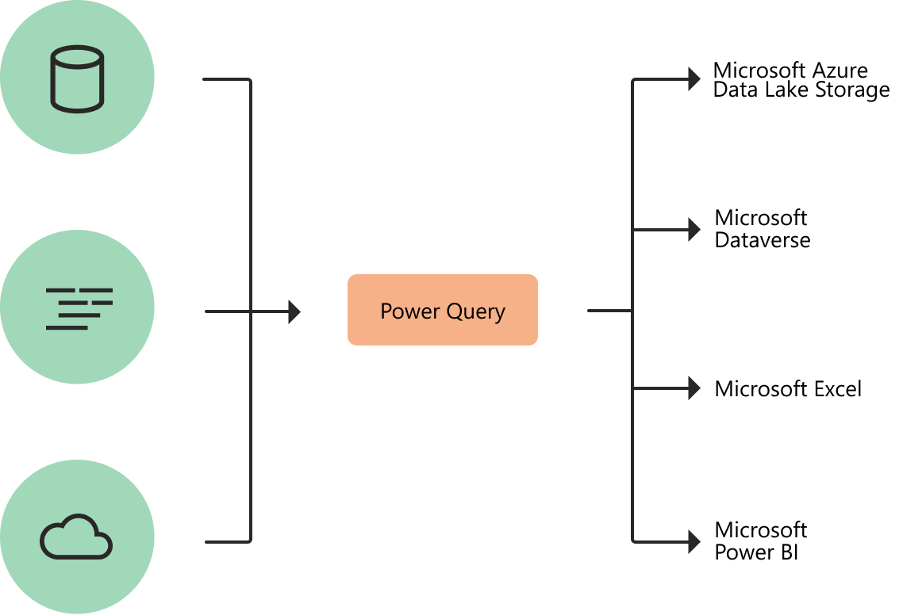
Power Query is a data preparation and transformation engine with a GUI. It can fetch data from various sources and has a powerful editing interface that enables the Extraction, Transformation, and Loading (ETL) processing of data.

Since the engine is available in many services and products, the data storage destination usually depends on where Power Query was used. Through this article, we will learn how to use Power Query to merge columns in Excel. 
what is power query

Source 


Merging Columns

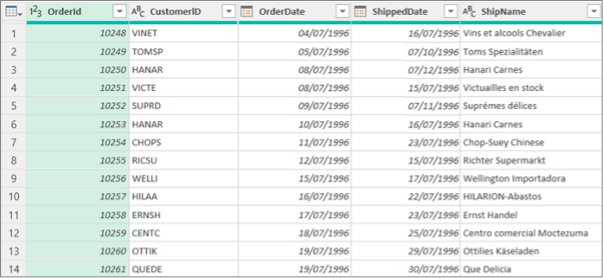
Power Query allows us to merge two or more columns of Text Data Type in our query. We can combine columns to replace them with one column or create a new one adjacent to our merged columns. It's ideal to make a new column and keep the original columns to avoid any possible errors.

Users commonly ask, "How do I combine columns in Power Query?." This will be covered further in this article. 
merging columns power query

Source


Merge Columns to Replace Existing Columns

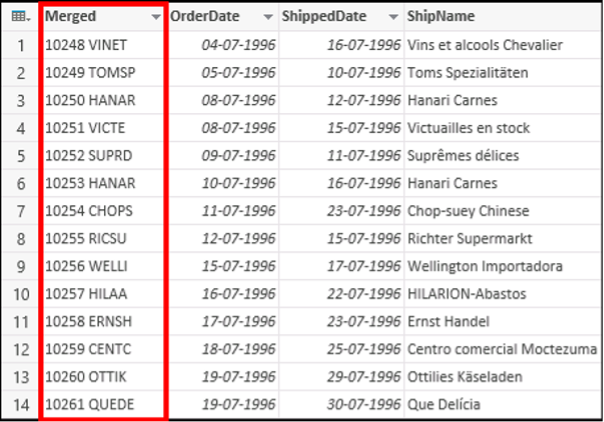
We will use the MS Excel Power Query Merge Columns feature in this example. After merging columns, the selected columns turn into a single column called Merged. You may consider duplicating the original columns if the unmerged data may be still required. The original columns will no longer be available. In the table below, for instance, we will merge OrderID and CustomerID.

  1. Locate a previously loaded query from Power Query Editor, select a cell in the data, and select Query > Edit. This link teaches how to create, load, or edit a query in Excel
  2. Columns must be Text data type. If not, then select the column, and then click Transform > Data Type > Text.
  3. Select the columns by pressing Shift+Click or CTRL+Click on each subsequent column that needs to merge. The order of selection will set the order of the merged values.
  4. Click Transform > Merge Columns.
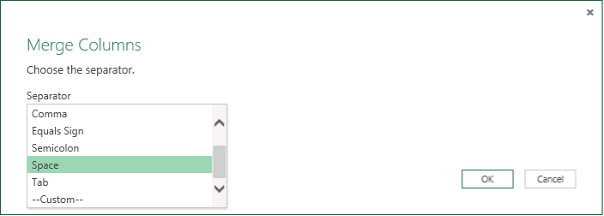
  5. Specify a separator to insert between each merged column in the Merge Columns dialog box. We can also select from available predefined separator values or specify custom separator values.
how to merge columns power query

Source

  1. Click OK. Click to learn how to Rename a column. The result is as shown below:
how to merge columns power query


Merge Columns to Create New Columns 

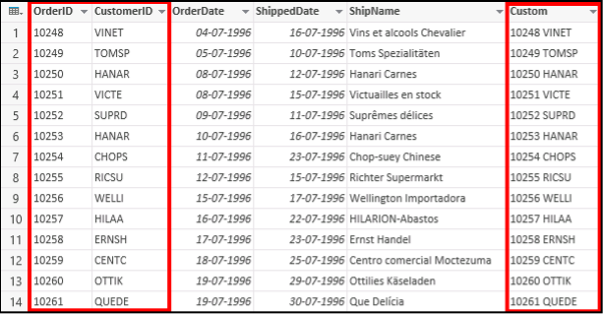
In this example, we will insert a custom column into the query table and use a custom column to concatenate text columns. The merged columns will still be available along with the new merged column in the query table.

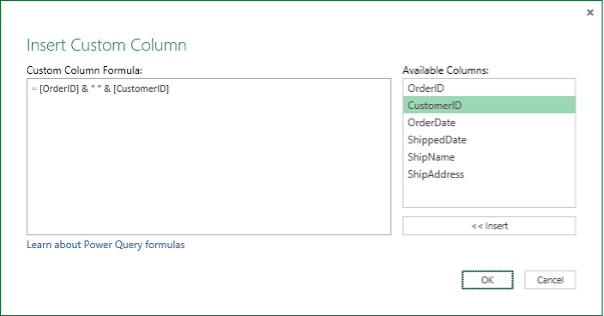
Let us see how we can merge OrderID and CustomerID, separated by a space character:

  1. Locate a previously loaded query from Power Query Editor, select a cell in the data, and select Query > Edit. Learn how to create, load, or edit a query in Excel on this link
  2. Columns must be Text data type. If not, select the column and click Transform > Data Type > Text.
  3. Click Add Column > Custom Column. The Custom Column dialog box will appear.
  4. Select the first column in the Available Columns list and click Insert. We can also double-click the first column. The column will be added to the Custom Column Formula box immediately after the equal sign (=). Press Ctrl + Space in the Custom Column Formula box to display columns and other elements of the formula.
  5. Enter an ampersand (&) in the Custom Column Formula box after the first inserted column. The ampersand (&) is the AND operator which combines values in Power Query in the same way as in Excel. Additional separators can also be specified, for example, using a space character by entering " " after the ampersand (&).
  6. Enter another ampersand (&) after the space character in the Custom Column Formula box.
  7. Select the second column in the Available Columns list and click Insert. We can also double-click the second column.
Merge Columns to Create New Columns power query

Source 

  1. Press OK. The result is as shown below:
Merge Columns to Create New Columns power query

Source


Transform Your Data with Power Query

Power Query (also known as Get & Transform data in Excel) allows us to import or connect to external data and shape it. For example, one can change a data type, remove a column, or merge data tables as per requirement. We can also load our query into Excel to create charts and reports and refresh the data periodically to keep it updated. Power Query is available in Excel for Windows, Mac, and online. 

Power Query is also part of Power BI and is used to perform the ETL Transformation and load data. Power Query is also called Query Editor. We can use the Power Query Editor to connect data sources, modify as per requirements, and shape and transform data. You can later load that model into Power BI Desktop (or web service). It provides the same Power Query merge rows based on column and Power Query merge Excel tables with different column features. 

If you want to delve deeper into Excel and its other equally useful features, check out our Microsoft Excel Courses, starting from Beginner to Expert, to learn more.

Trusted Nationwide by Leading Organisations

at Nexacu, we're proud to be the trusted training partner for hundreds of leading organisations accross Australia and New Zealand. From government departments to top corporates, we help teams upskill and succeed everyday

  • 400+ companies rely on Nexacu for team training
  • Trusted by federal, state, and local government agencies
  • Delivering training across 9 countries

Why Nexacu?

Books Icon

Step by Step Courseware

Custom workbook included with a step by step exercises

Facility Image 2
Facility Image 3
Facility Image 1

Refresh Icon

Free Refresher

Resit your course for free within 6 Months

More than 1,300 Business trust Nexacu

Trusted by Business

Procured by Government

Procured by Goverment

Reviews Not Found

Valued by Individuals
















