
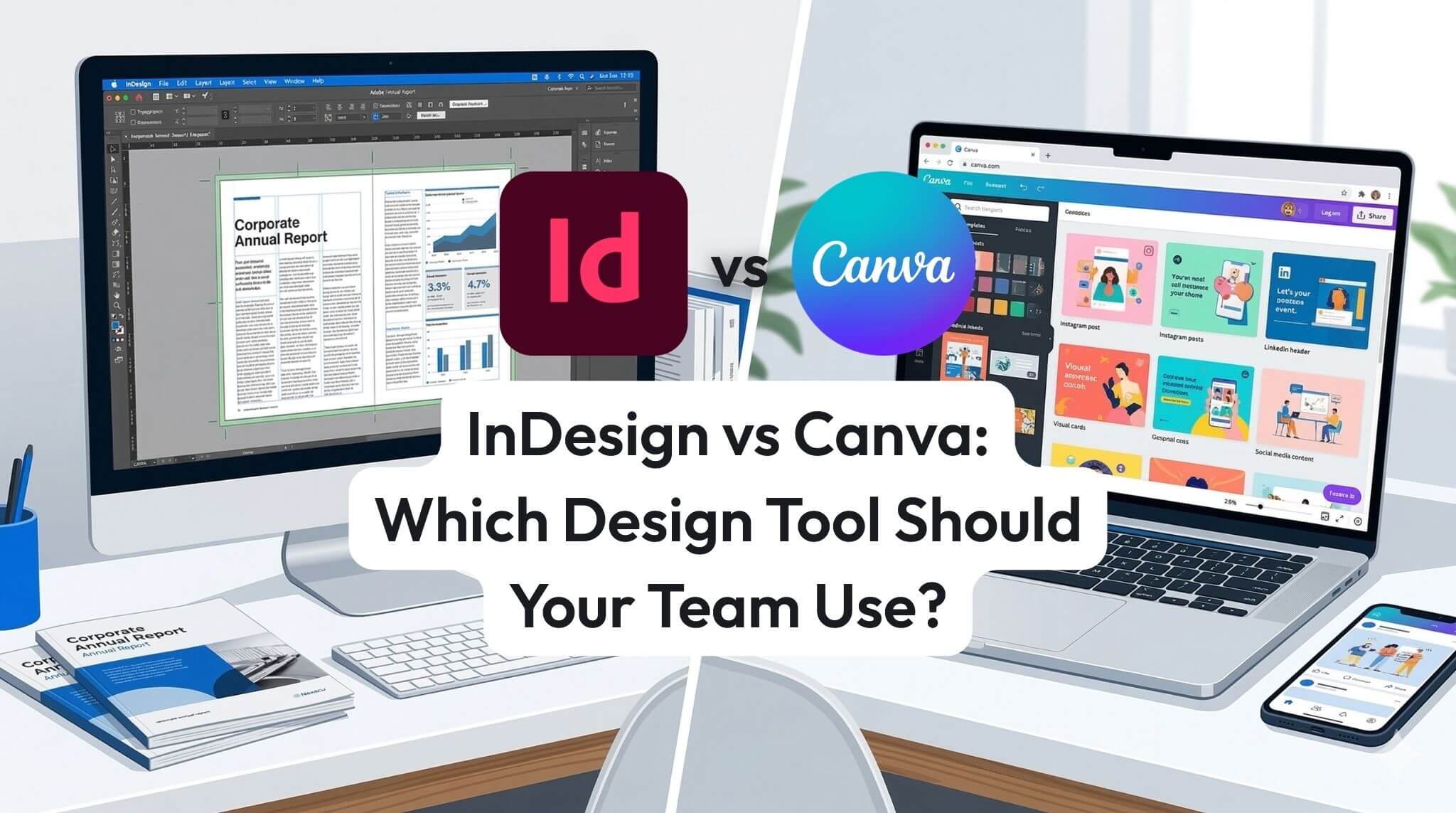
InDesign vs Canva: Which Design Tool Should Your Team Be Using?
Most teams do not need a grand philosophical argument about design software. They need a tool that matches the work, supports the people using it, and does not create a cloud of avoidable nonsense every time a deadline appears.
That is where the InDesign vs Canva comparison matters. Both tools are popular. Both can help teams create visually strong content. Both are used in business, education, marketing, internal communications, and training environments across Australia and New Zealand. But they are not built for the same kind of job, and forcing one tool to handle everything is usually where the trouble starts.
Adobe InDesign is a professional page layout application built for structured publishing. Canva is a browser-based design platform built for speed and accessibility. Those different foundations shape everything from file handling and brand consistency to training needs, governance, collaboration, and output quality. This article breaks down where each tool shines, where each one struggles, and how teams can make a sensible decision without getting trapped in a software popularity contest.
TL;DR: Canva is excellent for quick graphics, simple campaigns, and low-friction collaboration by non-designers. Adobe InDesign is the stronger tool for brochures, reports, manuals, workbooks, proposals, catalogues, and other professional documents that need layout precision, strong typography, and dependable print or PDF output.
If your team creates formal, reusable business documents, InDesign is usually the better long-term choice. If your team mainly produces short-form, fast-turn visuals, Canva often wins on convenience.
1) What each tool is for
Adobe InDesign is a professional desktop publishing and page layout application. It is designed for documents where structure, consistency, and output control matter. That includes brochures, annual reports, policy guides, white papers, magazines, catalogues, workbooks, handbooks, sales proposals, capability statements, and other branded documents that often run beyond one or two pages.
Canva is a browser-based design platform built for accessibility and speed. It is designed to help non-designers produce visual content quickly using templates, drag-and-drop editing, shared assets, and simple export workflows. That makes it especially useful for social media graphics, internal notices, event visuals, digital posters, lightweight one-pagers, and fast campaign support content.
That distinction sounds obvious once stated, but it matters because teams often blur the boundary. A quick poster can become a handbook. A social graphic can turn into a campaign pack. A one-page flyer can grow into a twelve-page customer guide. The moment content becomes structured, formal, or reusable, the gap between Canva and InDesign starts to widen very quickly.
Practical framing: InDesign is built for document architecture. Canva is built for rapid content assembly. One is strong at controlling a publication. The other is strong at helping people make something visually acceptable fast.
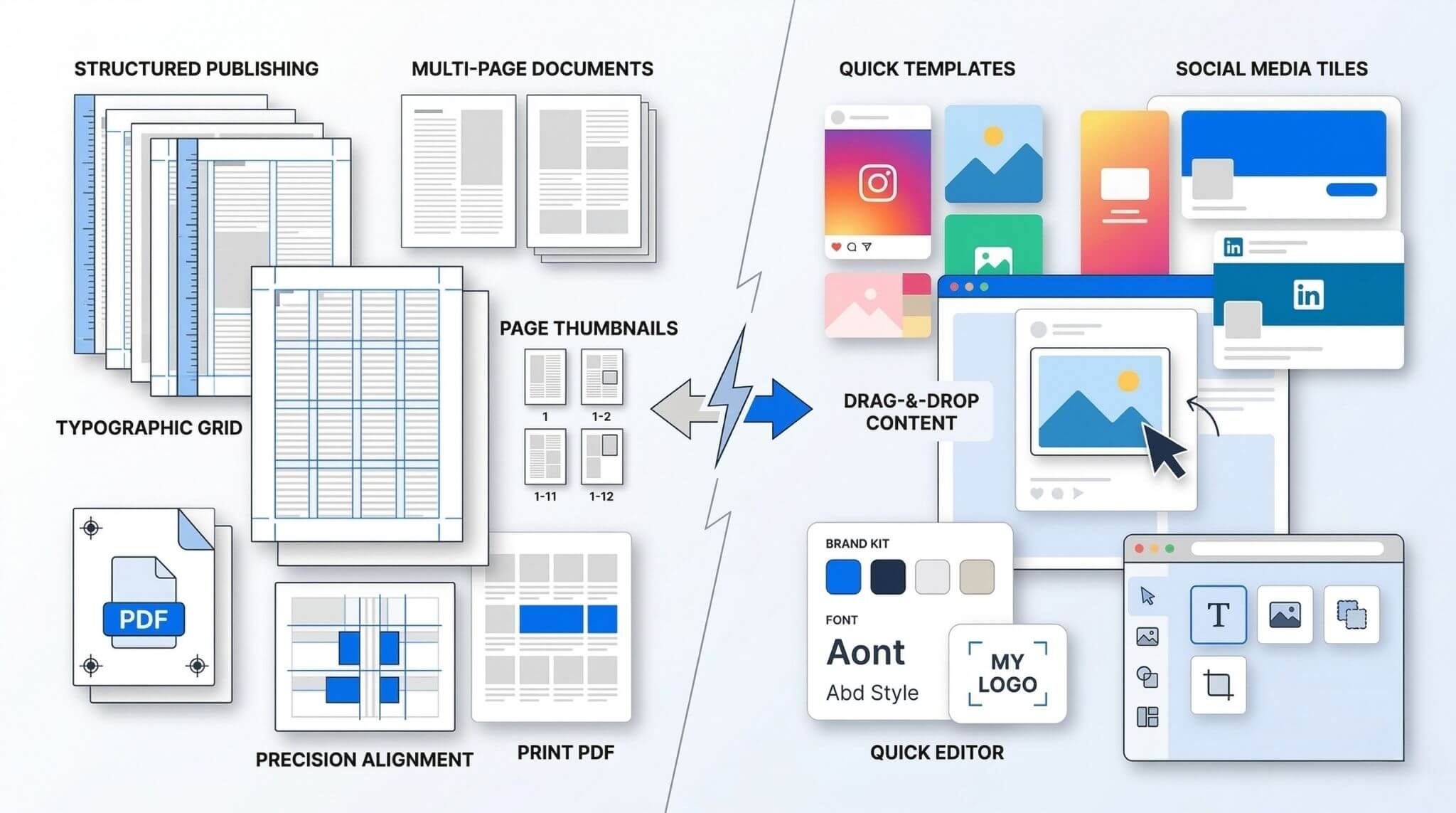
- Multi-page documents
- Professional print and PDF layouts
- Advanced typography and styles
- Reusable branded templates
- Formal business and publishing workflows
- Quick social graphics
- Simple promo and event visuals
- Internal comms content
- Fast edits by non-designers
- Template-led browser collaboration
2) Key differences (comparison)
The biggest mistake in this comparison is assuming that design quality comes down to which tool is more modern, more popular, or more fun to use. That is not really the question. The better question is whether the tool supports the kind of work your team actually needs to produce.
Canva lowers the barrier to creation. InDesign raises the ceiling of quality and control. That trade-off is the heart of the decision.
A useful rule of thumb is this: Canva is strong for disposable content. InDesign is strong for durable content. If the asset is likely to live for months, be reused by multiple people, represent the brand formally, or head to print, InDesign becomes a lot more attractive. If it will be used once and replaced quickly, Canva may be all you need.
3) Where InDesign wins
InDesign wins where layout discipline matters. That includes typography, page flow, master layouts, style consistency, image handling, export control, and the small details that make a document feel polished rather than merely assembled.
For business teams, that advantage shows up in all the places where the document itself carries credibility. A proposal, capability statement, training workbook, policy pack, stakeholder report, or product catalogue is not just content. It is a business asset. It signals professionalism, attention to detail, and brand maturity. That is exactly the territory where InDesign earns its keep.
The deeper benefit is not simply better visuals. It is better systems. Paragraph styles, object styles, linked assets, parent pages, controlled swatches, and consistent spacing rules reduce manual formatting and make repeat work far more efficient. Once a team builds proper templates, the same document framework can be reused again and again without everything slipping sideways the moment a heading gets longer or an image changes shape.
- Long documents stay more stable and manageable
- Typography and spacing look more polished
- Print-ready export is more dependable
- Templates can be built properly and reused with less rework
- Brand consistency is easier to maintain across departments
- High-stakes documents are easier to quality-check before release
This is why many organisations quietly settle into a dual-tool model. Canva handles the everyday campaign churn. InDesign handles the formal collateral. It is not a glamorous answer, but it is the one that tends to keep standards high without blocking speed.
For teams that want stronger layout skills, cleaner templates, and fewer painful last-minute fixes, structured training makes a real difference. Nexacu offers Adobe InDesign training, including InDesign Essentials for beginners and InDesign Lite for users creating or editing smaller documents.

4) Where Canva wins
Canva wins where speed, simplicity, and broad accessibility are the priority. That is a genuinely important strength. Most teams do not have a dedicated designer sitting nearby waiting to perfect every internal poster or LinkedIn tile. Canva helps bridge that reality.
For social media posts, internal communication graphics, event visuals, announcement banners, quick one-page documents, or campaign support assets, Canva is often the shortest route from idea to usable output. It is particularly helpful when many different people need to contribute content but do not have advanced design skills.
It also reduces tool fear. People are more likely to actually make something if the tool feels approachable. That matters in busy workplaces. A tool that is theoretically better but practically avoided can become its own kind of absurd little productivity tax.
Best use case for Canva: fast, lightweight, high-volume content where ease of editing matters more than page architecture. Canva is brilliant at helping non-designers create decent content quickly, and that is exactly why it is so widely adopted.
- Social media tiles
- Simple posters and event promos
- Internal comms visuals
- Lightweight one-pagers
- Fast campaign support content
- Long documents with many pages
- Strict print production needs
- Complex brand templates shared widely
- Precise typography and grid-based layouts
- Formal documents where consistency affects credibility
That does not mean Canva is weak. It means Canva is strongest when the content stays within the lane it was built for. Trouble starts when teams keep stretching it into jobs that really belong in a layout application. That is when a quick content tool starts behaving like a nervous octopus trying to assemble a proposal pack.

5) Which tool suits which team?
For most organisations, the right answer is not picking a single winner. It is setting rules for which content belongs in which tool. Once teams do that, a lot of pointless friction disappears.
Often need both. Canva supports social and fast-turn campaign visuals. InDesign supports brochures, downloadable guides, event collateral, and higher-value brand assets.
Usually benefit more from InDesign for capability statements, proposals, pitch documents, and polished customer-facing PDFs.
May use Canva for quick notices and campaigns, but InDesign is often better for handbooks, onboarding packs, internal guides, and learning material.
InDesign is generally the stronger choice for workbooks, course guides, participant materials, and structured learning resources over multiple pages.
Need to think about governance, permissions, version control, approved template ownership, and where final files live after design is done.
This broader workflow point matters. Design tools rarely sit alone. Teams often create assets in Canva or InDesign, review them in Teams, store them in SharePoint or OneDrive, and circulate final files through broader Microsoft 365 processes. That means design capability is only one part of the system.
For organisations looking at the wider content workflow, supporting skills in Microsoft 365, Microsoft Teams, and SharePoint can help teams improve approvals, collaboration, storage, and governance around design work rather than only the design application itself.
6) Security and privacy: what teams should know
Security and privacy absolutely belong in an InDesign vs Canva article, but the focus should stay on the tools themselves and the environments around them. The real question is not which tool has the nicer settings panel. It is how files, templates, brand assets, approvals, and shared workspaces are actually controlled in your organisation.
With Canva, security and privacy questions often centre on browser-based sharing, team workspaces, shared brand kits, template duplication, external collaboration, and how easily assets can spread beyond their intended audience. Canva is convenient, but convenience can create drift if nobody owns template governance or workspace permissions.
With InDesign, the questions are usually about where source files are stored, how linked assets are managed, whether fonts and images are controlled properly, who has access to the working files, and how teams handle versioning for approved master templates. InDesign itself is not the whole story. Your storage and collaboration layer matters just as much.
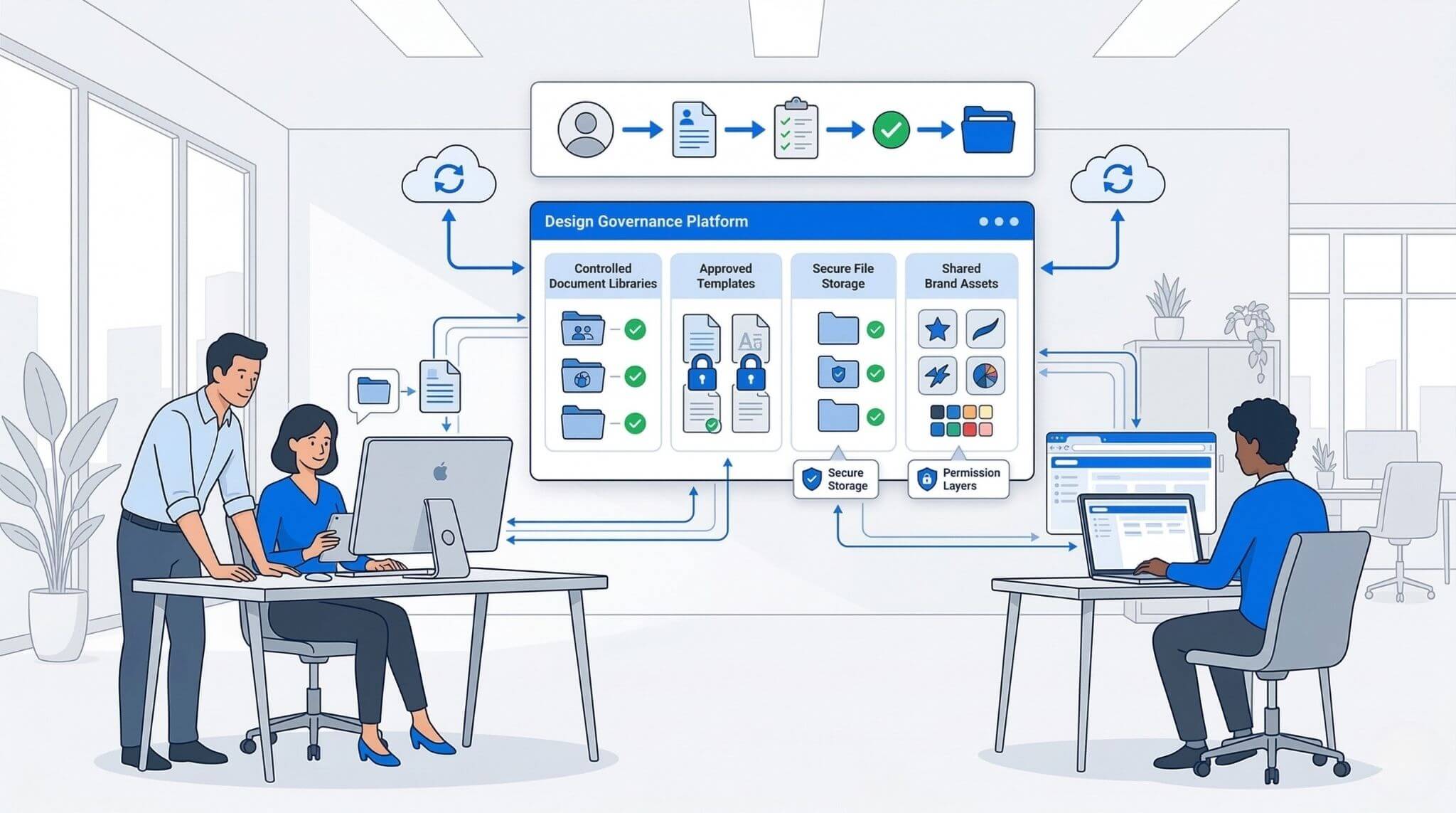
- Define which documents count as formal business outputs
- Control who can create or change master templates
- Use clear permissions for brand assets, logos, image libraries, and approved layouts
- Store final source files in controlled systems such as SharePoint or approved repositories
- Avoid duplicate template sprawl across teams and business units
- Create simple guidance on which tool should be used for which content type
- Avoid shared logins and informal asset sharing
- Use multi-factor authentication where available
- Keep final business files in a central, backed-up location
- Be careful about who can edit branded templates
- Use consistent file naming and version practices
- Do not assume the latest file is obvious just because everyone insists it is
Permissions, governance, and safe-use guidance
For IT decision makers and Microsoft 365 admins, the best approach is to classify content first. Which assets are quick marketing graphics? Which are formal controlled documents? Which need approvals? Which need version history? Which need restricted access because they include customer information, staff data, pricing, or commercially sensitive material?
Once those categories are clear, governance becomes much easier. Canva can be perfectly appropriate for fast-turn content inside a managed team environment. InDesign can be the right choice for formal documents whose source files, linked assets, and exported outputs need stronger control. The trick is not to let every team invent its own rules in isolation.
A simple policy often works best: Canva for lightweight content, InDesign for structured or formal publishing, SharePoint or another approved repository for controlled storage, and Teams or Microsoft 365 workflows for review and sign-off. Clear rules beat software chaos every time.
7) Quick fixes for common team problems
Many tool arguments are actually workflow problems wearing a fake moustache. Here are the common ones and the fastest practical fix.
Move formal templates into InDesign, define approved source files, and train users to work with styles instead of endless manual formatting.
Use Canva for fast social and promo content, but lock in brand kits and approved templates so speed does not turn into visual chaos.
Use InDesign for high-stakes documents and make one person accountable for export settings, linked assets, and final quality checks.
Set a simple rule set: Canva for fast graphics, InDesign for formal publications, and Microsoft 365 or another approved platform for storage, approvals, and versioning.
Decision shortcut: if the content is disposable, Canva is often enough. If the content is durable, client-facing, printable, regulated, reusable, or brand-sensitive, move it into InDesign.
8) FAQs (expand to read)
These are the questions teams usually ask when the comparison stops being theoretical and starts affecting real work.
Is Canva a replacement for InDesign?
Not really. Canva can replace some quick design tasks, especially simple graphics and short-form visual content. It does not fully replace InDesign for professional multi-page layouts, advanced typography, structured templates, or reliable print-ready production.
Which tool is easier for beginners?
Canva is easier to start with. InDesign has a steeper learning curve, but that extra depth is exactly why it performs better for formal documents and repeatable layout systems.
Which tool is better for brochures, reports, and workbooks?
InDesign is usually the better choice. It is built for structured documents, stronger typography, layout consistency, and more dependable export for professional publishing.
Should a business standardise on one tool?
Only if the use case is narrow. Many organisations do best with a two-tier model: Canva for quick graphics and InDesign for formal publications. The key is setting clear rules for which content belongs where.
Is training worth it for InDesign?
Usually, yes. The main payoff comes from learning how to build reusable templates, manage styles properly, reduce layout errors, and work faster with fewer manual fixes. That is where training saves time and sanity.
9) The bottom line
Canva is a very good tool. It has earned its place in modern workplaces because it helps people create useful content quickly without needing specialist design knowledge.
But for professional business documents, Adobe InDesign remains the stronger choice. It offers the precision, consistency, layout control, and output reliability that formal publishing requires. If the document needs to represent your organisation properly, hold together over multiple pages, and survive real scrutiny from clients, executives, procurement teams, or print suppliers, InDesign is usually the safer and more scalable option.
The most sensible decision for many teams is not to crown a single winner. It is to use Canva where speed and simplicity matter, use InDesign where quality and structure matter, and wrap both inside clear governance. That approach tends to produce better content, fewer headaches, and far fewer tragic little layout disasters at 4:57 pm on a Friday.
Build stronger design skills with practical, instructor-led training
Whether your team needs polished multi-page documents in Adobe InDesign or faster day-to-day content creation in Canva, Nexacu offers hands-on training to help staff work more confidently and efficiently.
Note: Final tool selection should reflect your team’s content types, workflow maturity, governance requirements, and storage environment. For formal business documents, define who owns templates, where source files live, and how final approved versions are stored.
































