

For a web designer, mastering Photoshop is crucial for creating visually captivating websites. This resource is crafted to simplify your navigation through Photoshop, enhance your web design process, and help you create remarkable web content. Consider this a direct route to mastering what’s important in Photoshop for web designers.
Optimising Adobe Photoshop for Web Design Efficiency

Starting your journey in web design involves customising your work environment. Photoshop, a cornerstone in web design, provides an array of options to enhance productivity from the start. If you’re editing images for an online business or crafting several pages for a fundamental web presence, configuring your Photoshop workspace is the best way to establish a solid base for your digital creation.
Recognising the importance of an optimised workspace is crucial in the broader design and development process for web design projects, ensuring efficiency and organisation from the outset.
Choosing the Right Workspace for Web Design
When you select the Graphic and Web workspace, you're not merely choosing a layout of tools and panels; you're curating an environment tailored to the web designer's workflow.
This specialised workspace includes preselected toolbars and panels that are most relevant to web design, such as the Layers panel, History, Adjustments, and Styles. It's like setting up your digital easel with all the paints and brushes you'll need, within arm's reach, ready to bring your web design visions to life.
Moreover, the Graphic and Web workspace is customisable, allowing you to save your own presets. This means that once you've fine-tuned your workspace to perfectly fit your workflow, you can save it and ensure that your setup is consistent every time you open Photoshop.
Setting Preferred Measurement Units
Adjusting Photoshop’s measurement units to pixels or percentages ensures that each pixel aligns perfectly with your creative vision, providing you with a virtual ruler attuned intimately to the specific dimensions required by the digital realm.
Cache Settings for Complex Projects
When tackling large-scale web design projects, the proper configuration of Photoshop's cache settings becomes essential. Cache levels in Photoshop refer to the number of history states the program can hold, which directly impacts how fast it can process image information. By default, Photoshop sets a moderate level of cache, but for complex projects with numerous layers and high-resolution images, increasing the cache levels can significantly enhance performance.
Photoshop utilises image caching to redraw high-resolution images swiftly as you work on them. The cache stores low-resolution versions of your images so that when you zoom in or out, the program can quickly access these previews instead of redrawing the image from scratch.
By adjusting the cache tile size, you can dictate how Photoshop segments the image into tiles for caching. Larger tiles can reduce the time Photoshop takes to process large images but may consume more RAM.
It's also important to consider the cache's scratch disk settings. Photoshop uses your hard drive as a virtual memory extension when it runs out of RAM. Ensuring that you have a dedicated, fast-performing SSD as your primary scratch disk can greatly reduce the time it takes for Photoshop to save and access temporary project files, thus accelerating the overall workflow.
Mastering Layer Management
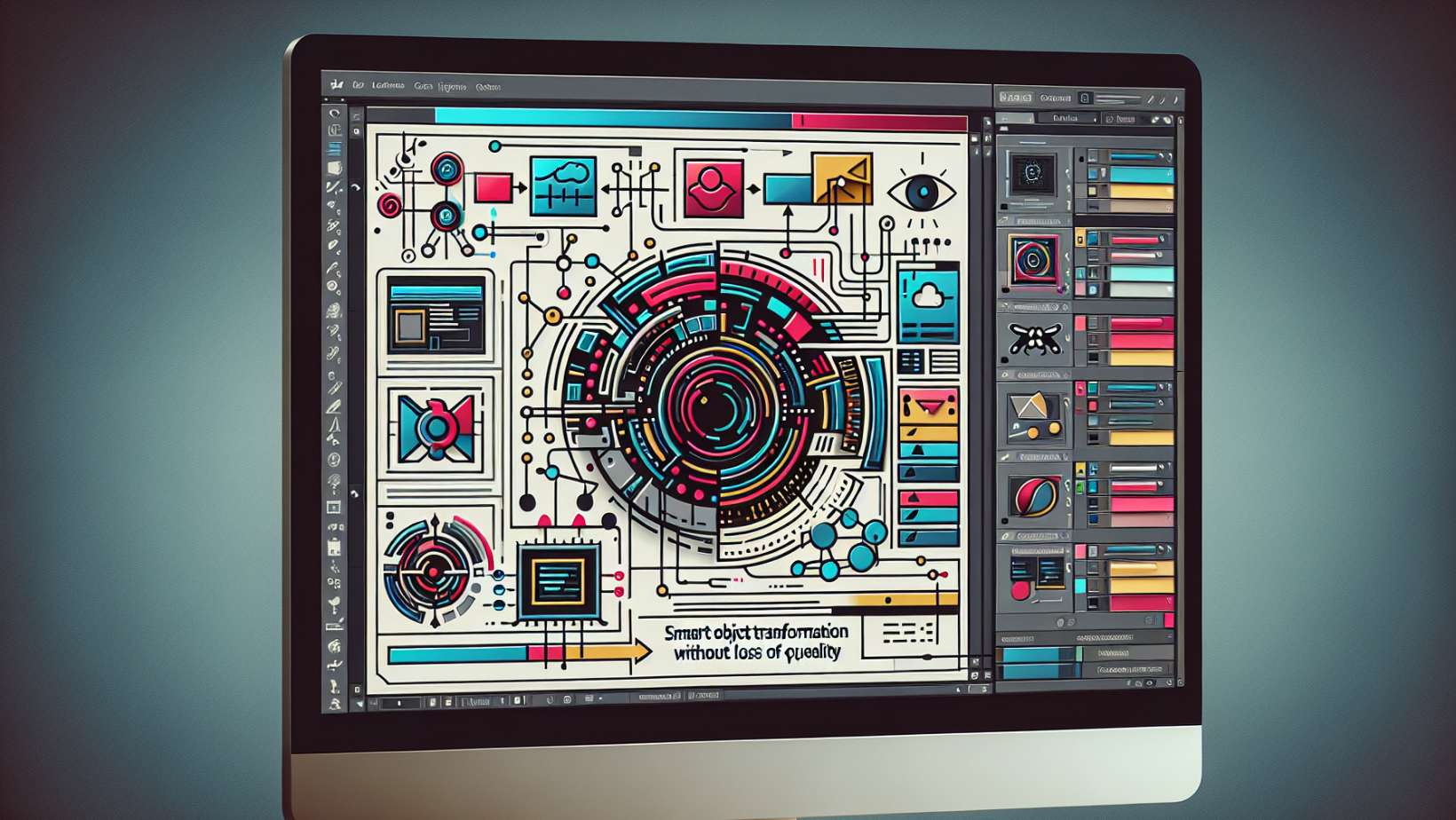
Web designers frequently navigate through a dense thicket of layers, searching for that singular elusive element. By focusing on managing layer visibility efficiently, including displaying only the layers that are needed, take heart as gaining proficiency in layer management serves as your guide to transparency.
By implementing strategies such as grouping, applying colour codes, and utilising Smart Objects, what was once a convoluted mess transforms into an orderly arranged layers panel with every element positioned precisely where it should be.
Grouping and Color Coding Layers
Grouping layers in Photoshop is a fundamental organisational technique that simplifies the management of related elements within a project. By grouping, you can move, transform, and apply adjustments to multiple layers simultaneously, maintaining a clean and efficient workflow. Assigning colour labels to these groups further enhances organisation, allowing for quick visual identification and sorting.
Leveraging Smart Objects
Smart Objects are powerful features in Photoshop that preserve an image's source content with all its original characteristics, enabling non-destructive editing. They allow for:
-
Scalability without loss of quality, as transformations don't affect the original data, much like how a brush tip shape retains its form no matter the scale.
-
The application of filters and adjustments that remain editable at any stage seamlessly integrates with the workflow as smoothly as selecting the right brush tip shape for a task.
-
The ability to update multiple instances of a Smart Object across different Photoshop documents, ensuring consistency, just as a hit brush tip shape can be a go-to tool for consistent application.
-
Linking to external files, so updates to the source file are reflected in the Smart Object, much like how a brush tip shape can be shared and reused across different projects.
Smart Objects are essential for a flexible, non-destructive web design workflow, particularly when dealing with repeated elements or shared assets across multiple design files, and integrating them is as seamless as choosing the perfect brush tip shape for your creative needs.
Creating and Using Grids for Consistent Layouts

In web design, grid systems are essential for creating structured and harmonious layouts. They provide a foundation that ensures elements align consistently across different breakpoints. Utilising horizontal and vertical guides in Photoshop is a key technique for creating precise grid systems, allowing for accurate alignment of elements, maintaining consistency in designs, and achieving a visually pleasing and professional-looking design.
Building Custom Grids
Custom grids allow for precise control over layout structure. Designers can define exact column widths, gutter sizes, and margins to create a tailored framework that meets the specific needs of their project.
Using Photoshop's New Guide Layout, designers can establish a custom grid by setting the number of columns, rows, and gutters, along with their respective sizes. This tool provides a visual representation of the grid, aiding in the precise placement of elements.
Responsive Design and Grids
Responsive design requires a grid system that adapts to various screen sizes. In Photoshop, designers can use artboards to simulate different device widths and ensure that their grid layouts are flexible. Smart objects within these artboards can be scaled and positioned to demonstrate how elements will reflow on different devices.
Advanced Selection Techniques for Web Elements

Web designers require precision when selecting elements for their designs. Advanced selection techniques in Photoshop provide the accuracy needed for isolating elements, ensuring crisp and clean selections that integrate seamlessly into web layouts.
Techniques for Accurate Selections
Photoshop's selection tools, including the Magic Wand, Lasso, and Quick Selection tools, are critical for web designers. Each tool offers unique capabilities that can be fine-tuned using options like tolerance levels and edge detection, enabling designers to create precise selections even in complex scenarios.
The Magic Wand tool, for example, selects pixels based on tone and colour. By adjusting the tolerance setting, designers can control the range of colour or tone that the tool selects, allowing for more accurate selections with minimal effort.
Edge Refinement for Professional Results
Photoshop's Refine Edge command is a vital feature for web designers, allowing them to fine-tune the edges of selections for a professional finish. This tool provides options to smooth, feather, and contrast edges, as well as to shift the edge boundary inward or outward. Utilising this command, designers can eliminate rough or jagged edges, ensuring that the selected elements blend perfectly with the rest of the design.
Using Channels for Complex Selections
For intricate selections, particularly when dealing with complex backgrounds or fine details like hair, Photoshop's Channels panel can be invaluable. By isolating different colour channels and adjusting their contrast, designers can create alpha channels that serve as masks, offering a high degree of control for creating detailed selections.
Through these advanced techniques, web designers can achieve the precision required for their projects, resulting in polished and professional web designs.
Streamlining Color Workflows in Photoshop

Mastering colour management in Photoshop is crucial for web designers. Understanding how to import colour swatches and use the Eyedropper tool with precision is essential for maintaining colour consistency across digital assets.
Importing and Applying Color Swatches
Importing colour swatches is a vital step toward ensuring colour consistency in web design. By using predefined colour swatches, designers can apply exact colour values across various elements, maintaining a cohesive look and feel. The Swatches panel in Photoshop allows for the organisation and quick application of these colours, streamlining the design process.
Sampling Colors with the Eyedropper Tool
The Eyedropper tool is indispensable for matching colours with pixel-perfect accuracy. It allows designers to sample colours from any on-screen element, ensuring that the colour scheme of the design is consistent with other assets, such as logos or branding materials.
Brush Techniques for Web Graphics
Photoshop’s brush tool is fundamental for creating custom graphics and textures. Mastery over brush settings is necessary for achieving the desired effect on web elements. Utilising the Brush Presets palette is essential for selecting and adjusting brushes to achieve specific effects, such as creating a dotted line or custom texture patterns.
Customising Brush Presets
Custom brushes allow designers to create unique textures and effects that can be consistently applied across web graphics. The Brush Settings panel provides control over dynamics such as size, hardness, spacing, angle, and roundness, enabling the creation of custom brush tips for various design needs.
Drawing Straight Lines and Patterns
The ability to draw straight lines and patterns is essential for creating geometrically precise elements in web graphics. Holding the Shift key while drawing with the brush tool constrains the brush stroke to a straight line, useful for borders, separators, and pattern creation.
Text Management in Web Design
Effective text handling is critical for readability and user experience in web design. Photoshop provides tools for adjusting text to fit within responsive layouts and for selecting fonts that enhance the design's message.
Wrapping Text for Dynamic Layouts
Text wrapping in Photoshop allows designers to flow text around shapes or to confine text within design elements, crucial for responsive layouts. This feature enables text to adapt to various screen sizes and devices without compromising design integrity.
Setting Up Preferred Font Families
Choosing the right fonts is key for web design. Photoshop lets designers establish a set of preferred font families, which can be quickly applied to text elements, ensuring typographic consistency and brand alignment.
Photoshop Actions and Automation for Efficiency
Photoshop actions and automation are time-saving tools that automate repetitive tasks, increasing productivity for web designers.
Creating Custom Actions
Custom actions record a sequence of steps that can be replayed to perform routine tasks automatically, such as resizing images, applying filters, or batch editing photos, which is particularly useful for web designers dealing with multiple assets.
Automating Image Exports
Automation tools in Photoshop streamline the process of exporting images for the web, ensuring that all files adhere to specific format, quality, and size requirements. Batch processing and the 'Export As' feature allow for efficient handling of multiple files at once.
Image Optimisation for the Web
Image optimisation is a key step in preparing visuals for online use, balancing quality with load times to enhance user experience. Utilising Smart Objects in Photoshop is essential for preserving image resolution, ensuring that images retain their full quality and clarity even after resizing. Additionally, when filters are added to a Smart Object, they become smart filters, allowing for non-destructive adjustments that can be edited, deleted, or rearranged at any time, maintaining the sharpness and clarity of the image.
Non-Destructive Editing with Adjustment Layers
Adjustment layers in Photoshop enable non-destructive editing, allowing designers to tweak brightness, contrast, saturation, and more without altering the original image data. This flexibility is important for iterative web design processes.
Balancing Image Quality and File Size
The 'Save for Web' feature in Photoshop is designed to optimise images for online use, allowing designers to adjust quality settings to reduce file size while maintaining visual fidelity, essential for fast-loading web pages.
Precise Alignment and Distribution of Elements
Finalising a web design involves precise alignment and distribution of elements to ensure a balanced and visually appealing layout.
Using Guides for Accurate Placement
Photoshop guides assist in accurately placing and aligning design elements. Designers can create custom guide layouts that reflect the grid systems used in web design, aiding in the creation of responsive layouts.
Snapping to Align Elements
The snapping feature in Photoshop helps designers to align elements quickly and accurately with guides, grids, or other elements, facilitating a more efficient design process and ensuring pixel-perfect alignment.
Web Design at its Finest
We have delved into the array of instruments and techniques that transform a blank canvas into an exceptional work of digital art. Now, it is your opportunity to sculpt the virtual world. Let your designs stand out with confidence, may you experience seamless workflow efficiency, and let there be no limits to where your creative imagination can take you.
To further elevate your skills, consider enrolling in Nexacu's courses, which are meticulously tailored to empower web designers with cutting-edge Photoshop techniques and best practices. With Nexacu, you can ensure that your journey in web design is not just about mastering the tools, but also about innovating and staying ahead in the digital landscape.
Frequently Asked Questions
How long does it take to learn Photoshop for web design?
A novice will need around two to three months to acquire the skills necessary to proficiently use Photoshop for web design purposes. During this period, they can expect to become adept at managing the interface and performing edits as well as crafting graphics on their own.
What is Photoshop used for in web development?
Primarily utilised for web development tasks, Photoshop excels in producing visuals for websites, manipulating images, and crafting intricate illustrations. It stands out as an exceptional instrument for such endeavours.
Can I use Photoshop to design a website?
Photoshop is suitable for crafting website designs and enhancing images. It isn’t the ideal application for constructing a full-fledged website. For a smoother workflow in web design, you might want to turn to specialised tools such as Figma or Sketch instead.
Do Web designers need to know Photoshop?
No, it isn’t necessary for web designers to have knowledge of Photoshop in their field. While Photoshop is predominantly employed for offline design and adjusting images, its application does extend to crafting mock-ups intended for marketing use.
How can I ensure my Photoshop workspace is optimised for web design?
To optimise your Photoshop workspace for tasks related to web design, choose the ‘Graphic and Web’ workspace preset. Fine-tune your measurement units by setting them to pixels or percentages in order to achieve exact precision. Enhance performance by configuring cache settings appropriately.
By customising these aspects of the interface toward web-oriented functions, you not only streamline the user experience but also boost overall efficiency during use.
































