

Need to conquer WP Admin for seamless site management? Discover how to access your dashboard, utilise its features, and solve common issues immediately. This guide unpacks the essentials of WP Admin, empowering you to effectively handle your WordPress site with confidence.
Understanding WP Admin: What It Is and Why It Matters

Ever wondered what makes your WordPress site click? It’s the all-powerful WP Admin, the behind-the-scenes control centre, that offers an array of features to manage and customise your site. It’s your personal cockpit, steering your site’s:
-
Content
-
Settings
-
Themes
-
Plugins
But why is it so crucial? Well, as an admin, WP Admin grants you the highest level of access and control over your website, enabling you to shape your site just the way you want.
In essence, WP Admin simplifies the management of your WordPress website, making it more efficient, and responsive, with quicker navigation and better accessibility. But, what does this control centre offer? Let’s dive deeper into the key features of WP Admin.
Key Features of WP Admin
Imagine having a control centre that lets you:
-
Create, edit, or even delete content at will
-
Keep an eye on existing content
-
Manage comments
-
Control the plugins and themes that affect the appearance of your content
That’s what WP Admin offers when it comes to handling posts and pages on the WordPress admin page.
But it doesn’t stop there! WP Admin lets you play around with themes and plugins, allowing you to customise the look and feel of your site and add extra functionalities. Plus, managing user settings is a breeze. You can view and edit user accounts, change user roles, or even create custom roles with specific capabilities.
The Difference Between WP Admin and WordPress.com Dashboard
So, you might wonder: what’s the difference between WP Admin and the WordPress.com Dashboard? WP Admin is your control centre for a self-hosted WordPress website, while the WordPress.com Dashboard is a simplified version for WordPress.com users, each with its own unique features and look.
The WordPress.com Dashboard is user-friendly and intuitive for beginners or those unfamiliar with website management. However, they don’t offer the same capabilities. Each is tailored to its platform, serving different user needs. So, if you’re managing a self-hosted WordPress site, WP Admin is your go-to control centre, while the WordPress.com Dashboard is tailor-made for WordPress.com site management. It’s all about what fits your needs and preferences!
Accessing Your WP Admin Dashboard
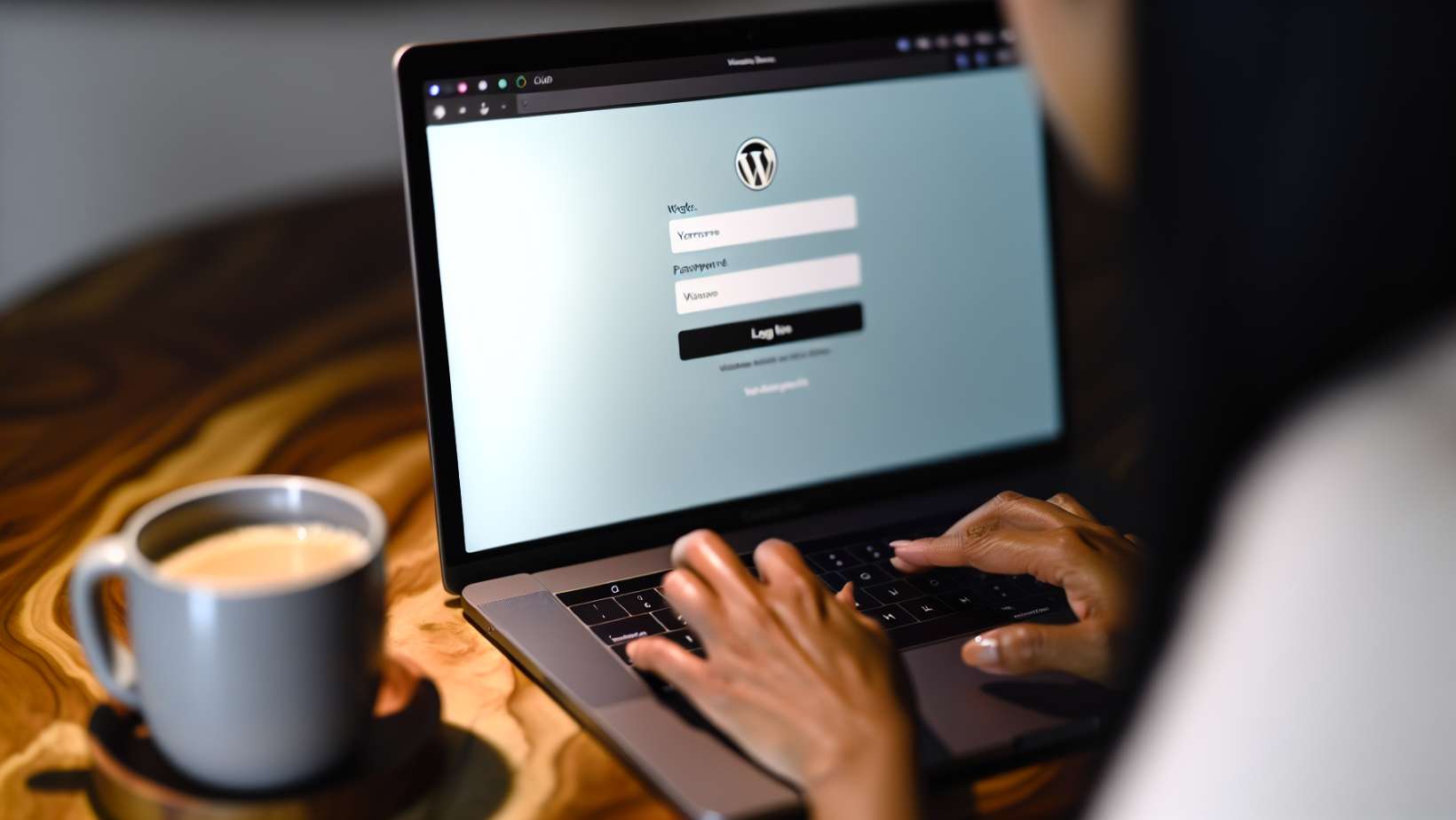
Now that you know what WP Admin is and what it offers, let’s discuss where you can navigate it.
The key to accessing the WP Admin dashboard lies in your WordPress admin login URL. And once you’re in, it’s all about using the correct keys, your username, and password, to unlock the door to your WP Admin.
Let’s explore how to find your WordPress login URL and how to log in using your WordPress login form with your username and password.
Finding Your WordPress Login URL
Lost your WordPress login URL? Usually, you can find your WP Admin by adding /login/, /admin/, or /wp-login.php at the end of your site’s URL.
But what if you’re still having trouble finding the login URL? Access your Bluehost dashboard and navigate to the ‘Websites’ tab. This will allow you to proceed with the next steps.
Logging In with Your Username and Password
Accessing your WP Admin is as simple as using your username and password. Just follow these steps:
-
Visit the WordPress.com homepage.
-
Click ‘Log In’.
-
Enter your account’s email address or username.
-
Alternatively, you can go directly to your login URL.
-
Enter your WordPress username and password.
-
Click ‘Log In’.
But what if you’ve forgotten your username or password? Don’t fret; there are other ways to gain access. You can use the ‘Email me a login link’ option or even set a custom login URL. And if you’ve misplaced your username or password, there are ways to recover them too.
Customising and Securing Your WP Admin Area
Once you’re inside WP Admin, it’s time to add a personal touch and beef up security.
Changing the default WordPress login URL and personalising your WordPress admin login page are two effective ways to enhance security and customisation in your WP Admin dashboard. To do this, you can modify your WordPress login page URL.
Changing the Default WordPress Login URL
Your default WordPress login URL is the first line of defence against intruders. By changing the default WordPress login URL, you add an extra layer of security, keeping unauthorised users at bay.
You can change the default WordPress login URL using a plugin like ‘WPS Hide Login’ or by editing the .htaccess file.
Personalising Your WP Admin Dashboard
Customising your WordPress admin dashboard, also known as the WP Admin dashboard or simply the WordPress dashboard, not only enhances user experience but also improves work efficiency. It’s like arranging your workspace to fit your work style.
You can hide unused elements, change colour schemes, or use plugins for advanced customisation. You can also add custom widgets to the dashboard for quick and easy access to various functions.
Managing Your WordPress Site via WP Admin
Now that you’re comfortable with your WP Admin dashboard, let’s learn how to manage your WordPress site.
Whether it’s creating and editing content, managing themes, plugins, and widgets, WP Admin is your control centre. Let’s delve deeper into how you can create and edit posts and pages, and manage themes, plugins, and widgets via WP Admin.
Creating and Editing Posts and Pages
With WP Admin, creating a new post or page on your website only requires clicking a few buttons.
But what if you want to edit an existing post or page? WP Admin has got you covered. You can easily update your posts or pages, ensuring your content is always fresh and relevant.
Managing Themes, Plugins, and Widgets
Themes, plugins, and widgets are the building blocks of your WordPress site. They dictate how your site looks and functions, with WordPress plugins playing a crucial role in enhancing its capabilities.
With WordPress Admin, managing these elements is a breeze. Whether you want to install a new theme, activate a plugin, or customise a widget, the WordPress Admin Panel makes it easy and efficient through WP Admin.
Troubleshooting Common WP Admin Issues

Even with a well-managed WordPress site, issues can arise. With the right tools and knowledge, you can easily overcome these obstacles.
Let’s explore some common WP Admin issues like recovering lost credentials and resolving login errors and access issues, and learn how to troubleshoot them.
Recovering a Lost Username or Password
Losing your login credentials, such as your username or password, can be frustrating, but it’s not the end of the road. By using the “Lost your password?” link on the WordPress login page or checking your contact page, you can easily recover your lost username or password.
Resolving Login Errors and Access Issues
When faced with login errors and access issues in WP Admin, there are a variety of strategies you can employ to resolve these problems. Here's a list of troubleshooting steps:
-
Clear your browser cookies and cache: Sometimes, outdated or corrupted cookies and cache can prevent you from logging in.
-
Disable plugins: A problematic plugin can cause login issues. Access your site via FTP and rename the plugins folder to deactivate all plugins.
-
Revert to a default theme: If your theme is causing conflicts, switch to a default theme by renaming your current theme's folder via FTP.
-
Check the .htaccess file: Incorrect settings in the .htaccess file can cause access issues. Rename the file to disable it and see if that resolves the problem.
-
Update the URL settings: Ensure your site URL is correct in the wp-config.php file.
-
Reset your password: Use the "Lost your password?" link or phpMyAdmin to reset your password.
-
Contact your hosting provider: If all else fails, your hosting provider can offer support and potentially identify server-side issues.
Ready to Elevate Your WordPress Skills?
Don't just learn about WP Admin—master it! Check our offerings today and enrol in our tailored training sessions. Harness the power of WP Admin to enhance your site’s functionality and security. With our trainers' guidance, you're not just navigating the WP Admin; you're steering your WordPress site towards success.
Join the ranks of WordPress professionals who have elevated their skills with Nexacu. Click through your desired course and take the first step on your journey to mastering WP Admin and elevating your WordPress site.
Frequently Asked Questions
How do I access admin on WordPress?
To access the admin on WordPress, simply add /login/ or /admin/ to the end of your site's URL. This will take you to the login page where you can enter your username and password, giving you direct access to the admin area or dashboard.
Is WP admin different to WordPress?
Yes, WP admin is different from WordPress. WP-admin is the backend or administration area of WordPress where website owners can manage and control their website, while WordPress refers to the overall platform or website-building software.
How can I change the default WordPress login URL?
You can change the default WordPress login URL using a plugin like 'WPS Hide Login' or by editing the .htaccess file. It's a simple process that doesn't require much technical knowledge.
How can I recover a lost username or password?
You can recover a lost username or password by using the "Lost your password?" link on the login page or checking your contact page.
How can I resolve login errors and access issues?
Try clearing your cookies, disabling any plugins, or reaching out to your hosting provider for help with resolving login errors and access issues.
































