
Recent Searches
Category

Microsoft Power BI

Category

Microsoft Copilot Courses

Category

AI for Business

Category

Microsoft Windows 11 Courses

Category

Microsoft 365

Category

Microsoft Excel

Category

Excel Specialist

Category

Microsoft Project

Category

R Programming

Category

Python

Category

Power Apps

Category

SQL

Category

SharePoint

Category

Microsoft Teams

Category

Power Automate

Category

Microsoft Visio

Category

Microsoft PowerPoint

Category

Microsoft Word

Category

Microsoft Outlook

Category

Adobe InDesign Courses

Category

Adobe Photoshop Courses

Category

Adobe Illustrator Courses

Category

Adobe Premiere Pro Training

Category

Adobe After Effects Training

Category

Adobe Acrobat Courses

Category

Adobe Captivate Training

Category

Adobe Animate Training

Category

Canva Courses

Category

HTML Courses

Category

WordPress

Category

Professional Development

Category

Microsoft Access

Category

Webinars

Course

Power BI Beginner

Course

Copilot for M365

Course

Windows 11 End User Course

Course

Excel Beginner

Course

Financial Modelling

Course

Project Beginner

Course

R Programming Beginner

Course

Python Beginner

Course

Power Apps Beginner

Course

SQL Beginner

Course

SharePoint Beginner

Course

Teams Essentials

Course

Visio Essentials

Course

PowerPoint Level 1

Course

Word Intermediate

Course

Word Beginner

Course

Word Advanced

Course

Microsoft Outlook Beginner to Intermediate

Course

InDesign Lite

Course

Photoshop Lite

Course

Illustrator Training Intro

Course

Premiere Training Intro

Course

After Effects Training Intro

Course

Acrobat Essentials

Course

Captivate Training

Course

Animate Training Intro

Course

Canva AI

Course

HTML Training Intro

Course

Achieving Leadership & Success

Course

Microsoft Access Essentials

Course

Copilot for M365 On Demand

Course

Power BI Intermediate

Course

Copilot for Word

Course

ChatGPT Beginner

Course

Microsoft 365 Beginner

Course

Excel Intermediate

Course

Analysis and Dashboards

Course

Project Intermediate

Course

R Programming Intermediate

Course

Python Intermediate

Course

Power Apps Intermediate

Course

SQL Intermediate

Course

SharePoint Intermediate

Course

PowerPoint Level 2

Course

InDesign Training Intro

Course

Photoshop Training Intro

Course

Acrobat Forms

Course

Anger Management & Negotiation Skills

Course

Copilot for M365 Live Online

Course

Power BI Advanced

Course

Copilot for Excel

Course

AI Prompting Fundamentals

Course

Microsoft 365 Intermediate

Course

Excel Advanced

Course

Excel VBA

Course

Project Advanced

Course

R Programming Advanced

Course

Python Advanced

Course

Power Apps Intermediate | Power Automate + Power BI Integration

Course

SharePoint Advanced (Site Owner)

Course

InDesign Training Advanced

Course

Assertiveness & Confidence

Course

Microsoft Access Advanced

Course

Power BI DAX

Course

Copilot for PowerPoint

Course

Excel Expert

Course

Machine Learning in R

Course

Power Apps Advanced

Course

SharePoint Advanced (Document Governance)

Course

Building Resilience

Course

Copilot for Outlook and Teams

Course

Coaching and Mentoring

Course

Illustrator Training Advanced

Course

Premiere Basics Training

Course

Advanced After Effects Training

Course

Canva Beginners

Course

WordPress Essentials

Course

Communications

Course

AI for Business Leaders and Managers

Course

Photoshop Training Advanced

Course

Advanced Premiere Training

Course

Canva Intermediate

Course

Communications & Quality Client Service Training

Course

InDesign Interactivity Training

Course

Canva Advanced

Course

Critical Thinking and Problem Solving

Course

InDesign Accessibility Training

Course

Cultural Diversity in the Workplace

Course

Microsoft Outlook Advanced

Course

Embracing Change

Course

SQL Advanced

Course

Growing Emotional Intelligence

Course

Planner Premium

Course

Minute Taking

Course

Excel Tables and Pivot Tables

Course

Power Automate Beginner

Course

Performance Management

Course

Data Transformation with Power Query

Course

Excel Macro Mastery

Course

Power Automate Intermediate

Course

Persuasion and Negotiation Skills

Course

Power BI Desktop Advanced Reporting

Course

Presentation Skills and Public Speaking

Course

Data Visualisation with Power BI Desktop

Course

Practical Project Management

Course

Respect, Equity and Diversity (RED)

Course

Resumé Writing and Interview Skills

Course

Stress Management

Course

Team Leadership, Management and Development

Course

Time Management Intensive

Course

Train the Trainer

Course

Write Effective Business Documents

Course

Dealing with Difficult People

Course

Managing Difficult Conversations

Course

Managing the Virtual Workplace

Course

Customer Service Training

Course

Technical Writing

Power BI Creation Series - Episode 1

Matt Burr | Aug 07, 2018
power bi courses nexacu

Your guide

Last week we created an interactive Power BI dashboard. As a result, we were able to use it to showcase our upcoming courses. Allowing anyone to filter the results based upon courses, locations and dates. We have received lots of questions about how we created the dashboard and this article will describe some key elements of the dashboard and how we created them.

The above dashboard is made up of several elements and below we will explain each one:

1.Images

The Excel Consulting logo and our helpful trainer holding a laptop

At this stage, images can only be placed into a report using Power BI desktop. Once published to the Power BI Service, you can edit the layout and size of the image or pin it to a Dashboard.


Tip: Images can be added to a Dashboard in the service – but this needs to point to a URL image.

To insert an image in Power BI Desktop, click on the Home tab, and in the Insert Group click on Image. This will open the file explorer, there you can browse to a location on your local computer. Or a synced SharePoint or OneDrive folder.

toolbar

2. Shape and Text box

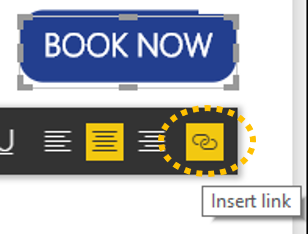
The text “Book Now” is a hyperlink to the Excel Consulting booking website

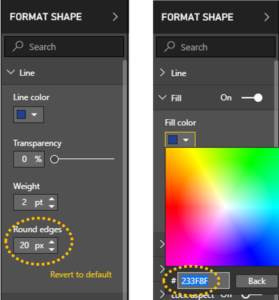
To create the look of a button, a shape was first inserted (click on the Home tab, and in the Insert Group, click on Shapes and select a shape, a Rectangle in this case).

To give the look of a button the edges were rounded. In order to do this firstly, select the shape and in the Format pane under Line. Increase the Round edges value. A custom colour was also used to match the button to our Excel Consulting logo, under Fill click the dropdown box for Fill color and then click Custom Color. You can then select a colour or enter a HEX colour code.


Tip: Use MS Paint to get the RGB colour code, for instance rgb(35, 63, 143), then google the whole code to get the HEX colour code.


A text box was then inserted on top of the shape. If required, select the text box and click on the Visual Tools: Format tab. In the Arrange Group click on Bring forward or Bring to front.

To insert a hyperlink (this can be to any URL – a website or another Power BI report). Select the text you would like to convert to a link. After that, click on Insert link. This located on the text formatting toolbar.
3. Custom Visualisation

Chiclet slicer using images

Power BI comes with all the standard charts and visuals. But if you want to add something different you can import a custom visualisation (you can even create your own!).

For this report we imported a Chiclet Slicer. It displays an image and acts as a slicer, filtering our data on the page. Images for the Chiclet Slicer have to be in a URL format and therefore accessible to your audience. For our images we used ones straight from our public website!

To use a custom visual, in the Visualisation pane click on the three dots (also known as the Ellipsis). Then you can either import from file (a custom visual you have already downloaded or created), import from marketplace (a new window will take you to the Microsoft store) or you can delete a custom visual you have previously loaded.
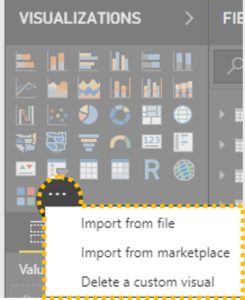


There are many custom visuals to choose from, many are free with some premium subscription-based offerings also entering the marketplace. Be aware that custom visualisations can have data security implications. If the data is processed by a third-party before the visual is rendered. Check with your IT support team if you are unsure.

 
Learning more about how to use Power BI will not only boost your employability but also your efficiency and understanding of data. Enrol in one of our popular Power BI courses to begin your learning journey.

Trusted Nationwide by Leading Organisations

at Nexacu, we're proud to be the trusted training partner for hundreds of leading organisations accross Australia and New Zealand. From government departments to top corporates, we help teams upskill and succeed everyday

  • 400+ companies rely on Nexacu for team training
  • Trusted by federal, state, and local government agencies
  • Delivering training across 9 countries

Why Nexacu?

Books Icon

Step by Step Courseware

Custom workbook included with a step by step exercises

Facility Image 2
Facility Image 3
Facility Image 1

Refresh Icon

Free Refresher

Resit your course for free within 6 Months

More than 1,300 Business trust Nexacu

Trusted by Business

Procured by Government

Procured by Goverment

Reviews Not Found

Valued by Individuals
















