Recent Searches
Category

Microsoft Power BI

Category

Microsoft Copilot Courses

Category

AI for Business

Category

Microsoft Windows 11 Courses

Category

Microsoft 365

Category

Microsoft Excel

Category

Excel Specialist

Category

Microsoft Project

Category

R Programming

Category

Python

Category

Power Apps

Category

SQL

Category

SharePoint

Category

Microsoft Teams

Category

Power Automate

Category

Microsoft Visio

Category

Microsoft PowerPoint

Category

Microsoft Word

Category

Microsoft Outlook

Category

Adobe InDesign Courses

Category

Adobe Photoshop Courses

Category

Adobe Illustrator Courses

Category

Adobe Premiere Pro Training

Category

Adobe After Effects Training

Category

Adobe Acrobat Courses

Category

Adobe Captivate Training

Category

Adobe Animate Training

Category

Canva Courses

Category

HTML Courses

Category

WordPress

Category

Professional Development

Category

Microsoft Access

Category

Webinars

Course

Power BI Beginner

Course

Copilot for M365

Course

Windows 11 End User Course

Course

Excel Beginner

Course

Financial Modelling

Course

Project Beginner

Course

R Programming Beginner

Course

Python Beginner

Course

Power Apps Beginner

Course

SQL Beginner

Course

SharePoint Beginner

Course

Teams Essentials

Course

Visio Essentials

Course

PowerPoint Level 1

Course

Word Intermediate

Course

Word Beginner

Course

Word Advanced

Course

Microsoft Outlook Beginner to Intermediate

Course

InDesign Lite

Course

Photoshop Lite

Course

Illustrator Training Intro

Course

Premiere Training Intro

Course

After Effects Training Intro

Course

Acrobat Essentials

Course

Captivate Training

Course

Animate Training Intro

Course

Canva AI

Course

HTML Training Intro

Course

Achieving Leadership & Success

Course

Microsoft Access Essentials

Course

Copilot for M365 On Demand

Course

Power BI Intermediate

Course

Copilot for Word

Course

ChatGPT Beginner

Course

Microsoft 365 Beginner

Course

Excel Intermediate

Course

Analysis and Dashboards

Course

Project Intermediate

Course

R Programming Intermediate

Course

Python Intermediate

Course

Power Apps Intermediate

Course

SQL Intermediate

Course

SharePoint Intermediate

Course

PowerPoint Level 2

Course

InDesign Training Intro

Course

Photoshop Training Intro

Course

Acrobat Forms

Course

Anger Management & Negotiation Skills

Course

Copilot for M365 Live Online

Course

Power BI Advanced

Course

Copilot for Excel

Course

AI Prompting Fundamentals

Course

Microsoft 365 Intermediate

Course

Excel Advanced

Course

Excel VBA

Course

Project Advanced

Course

R Programming Advanced

Course

Python Advanced

Course

Power Apps Intermediate | Power Automate + Power BI Integration

Course

SharePoint Advanced (Site Owner)

Course

InDesign Training Advanced

Course

Assertiveness & Confidence

Course

Microsoft Access Advanced

Course

Power BI DAX

Course

Copilot for PowerPoint

Course

Excel Expert

Course

Machine Learning in R

Course

Power Apps Advanced

Course

SharePoint Advanced (Document Governance)

Course

Building Resilience

Course

Copilot for Outlook and Teams

Course

Coaching and Mentoring

Course

Illustrator Training Advanced

Course

Premiere Basics Training

Course

Advanced After Effects Training

Course

Canva Beginners

Course

WordPress Essentials

Course

Communications

Course

AI for Business Leaders and Managers

Course

Photoshop Training Advanced

Course

Advanced Premiere Training

Course

Canva Intermediate

Course

Communications & Quality Client Service Training

Course

InDesign Interactivity Training

Course

Canva Advanced

Course

Critical Thinking and Problem Solving

Course

InDesign Accessibility Training

Course

Cultural Diversity in the Workplace

Course

Microsoft Outlook Advanced

Course

Embracing Change

Course

SQL Advanced

Course

Growing Emotional Intelligence

Course

Planner Premium

Course

Minute Taking

Course

Excel Tables and Pivot Tables

Course

Power Automate Beginner

Course

Performance Management

Course

Data Transformation with Power Query

Course

Excel Macro Mastery

Course

Power Automate Intermediate

Course

Persuasion and Negotiation Skills

Course

Power BI Desktop Advanced Reporting

Course

Presentation Skills and Public Speaking

Course

Data Visualisation with Power BI Desktop

Course

Practical Project Management

Course

Respect, Equity and Diversity (RED)

Course

Resumé Writing and Interview Skills

Course

Stress Management

Course

Team Leadership, Management and Development

Course

Time Management Intensive

Course

Train the Trainer

Course

Write Effective Business Documents

Course

Dealing with Difficult People

Course

Managing Difficult Conversations

Course

Managing the Virtual Workplace

Course

Customer Service Training

Course

Technical Writing

Power BI Integration with Office 365 Part II

Matt Burr | Aug 16, 2018
Power BI Integration with Office 365 Part II

If you read the first post in this Power BI Seamless Integration series written by our Trainer Matt Burr, you will no doubt be keen to learn more. In the first post we delved into Apps that provide information to Power BI, now we will be looking into Apps that integrate directly with Power BI and how to deal with Administration.

APPS that interact with Power BI

1. Power Apps

Create code-free apps in minutes and share across your organisation. You can embed your Power BI tiles inside your PowerApps App OR using the PowerApps custom visual you can embed your PowerApps App inside your Power BI dashboard.

For example, this means that you can display your data insights in the Dashboard. Allowing your viewers to take direct action using the App (Think of an inventory dashboard with an embedded ordering App). You can also pass data from Power BI to your Apps!

2. Flow

    Create work flows across your data, apps and files to automate tasks.
  • Create data-driven alerts for your Power BI dashboard gauges, KPIs and cards then build flows that act based on your alerts – send emails, trigger an alert in Teams, create a Task in Outlook.
  • The number of flows you can create to update you Power BI data sources is only limited by your imagination and the 200+ Flow connectors.

3. SharePoint Online Modern pages

Easily insert a Power BI web part to display a Power BI report. In the Power BI service click File > Embed in SharePoint Online. Copy the displayed URL and paste it into the settings for the SharePoint Online Power BI web part.

Your Power BI report is now embedded in SharePoint – Simple!

(Just remember that your SharePoint site viewers will only be able to view the Power BI report if they have the appropriate permissions in Power BI)

4. SharePoint

Easily connect Power BI desktop to SharePoint lists and folders or SharePoint Online Lists or store your data source files on SharePoint for easy access and refresh.


5. Excel

  • One of the simplest data connections is connecting to an Excel workbook, make it easy by first creating Excel tables.
  • Analyze in Excel (an Excel Add-in) allows users to connect to the Power BI datasets and (as the name suggests) use Excel to analyse the data. From your report in Power BI Service click on Analyze in Excel to launch Excel.
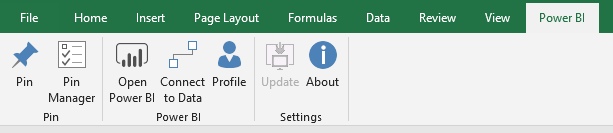
  • From within Excel (Using the Power BI Publisher add-in) you can pin a selected range of data and share it to your Power BI report.


6. PowerPoint

PowerPoint and Power BI?! Surely they don’t have anything in common?...they do!

Currently PowerPoint is the only way that we can export our visuals out of Power BI (and only from the Power BI Service). Open your report and click File > Export to PowerPoint (Preview)

This will create a PowerPoint file with a cover slide and each report page to a slide.

Microsoft have just announced that you’ll soon be able to export to PDF from Power BI Desktop


Administration

1. Teams and Groups

In addition, when you create a Microsoft Team or a Microsoft Group you are also provided with a Power BI workspace (and vice versa). This becomes a useful and convenient way to manage permissions for Power BI sharing.

For instance, we use a Group for our training accounts.  This means we can easily manage our SharePoint permissions. We have a shared Power BI workspace, outlook folder, Teams channel, etc.

If I create a Power BI report in a shared workspace and embed it on a SharePoint Online site where the Group also have permissions. They can all view both the SharePoint site and the embedded Power BI report.


2. Office 365 admin

Microsoft Office 365 usage analytics within Power BI provides admin users insights into how their organisation is adopting the various services within Office 365 to communicate and collaborate. In addition, there are a number of reports available such as adoption, product usage, storage used, activations, as well as reports on individuals. However, this reporting must be enabled first.


To learn more about Power BI please check out our course offerings. In addition, keep an eye out for our Office 365 beginner course. Learn about all of the new apps in the Office 365 range.

 

Trusted Nationwide by Leading Organisations

at Nexacu, we're proud to be the trusted training partner for hundreds of leading organisations accross Australia and New Zealand. From government departments to top corporates, we help teams upskill and succeed everyday

  • 400+ companies rely on Nexacu for team training
  • Trusted by federal, state, and local government agencies
  • Delivering training across 9 countries

Why Nexacu?

Books Icon

Step by Step Courseware

Custom workbook included with a step by step exercises

Facility Image 2
Facility Image 3
Facility Image 1

Refresh Icon

Free Refresher

Resit your course for free within 6 Months

More than 1,300 Business trust Nexacu

Trusted by Business

Procured by Government

Procured by Goverment

Reviews Not Found

Valued by Individuals
















