

PowerPoint Hacks: Present Like a Pro
PowerPoint Isn’t Boring – Your Slides Might Be
Presenting isn’t just about showing slides anymore. Whether you’re pitching to leadership, training your team, or running a webinar, how you deliver your message is just as important as the message itself. Microsoft PowerPoint has evolved into a powerful, modern presentation tool—but most professionals still only use the basics.
If you're still relying on outdated bullet points, tired clip art, and slide transitions from the early 2000s, it’s time for an upgrade. In this comprehensive guide, we’ll share practical PowerPoint hacks, expert-level features, and creative techniques that will transform your presentations from average to unforgettable.
- Use the Slide Master for branding consistency
- Apply visual hierarchy for design impact
- Avoid bullet overload with modern formatting
- Use animations with purpose—not gimmicks
- Leverage Presenter View, Zoom, and Copilot AI
- Embed interactive content like Power BI and Forms
- Boost delivery with rehearsal tools and screen recordings
- Export slides for offline sharing and accessibility
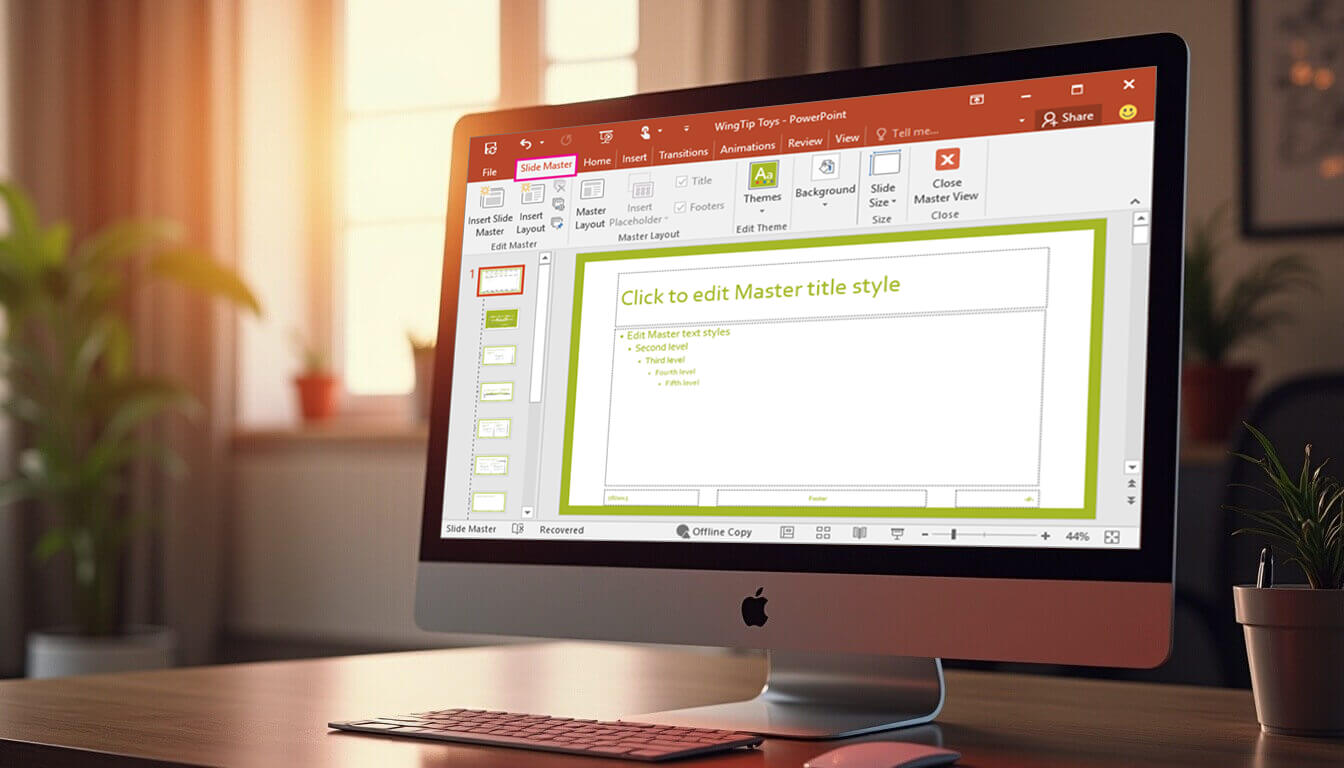
1. Master the Slide Master
What it is: A built-in layout tool to manage fonts, colours, and formatting across all slides.
Why it matters:
- Saves you hours by avoiding repetitive formatting
- Creates brand consistency across decks
- Keeps team presentations aligned and polished
How to use: Go to View > Slide Master. Adjust headers, footers, placeholders, colours, and fonts. Once set, close Master View and your design is applied to all slides automatically.
2. Design with Visual Hierarchy
Slides are not documents. Make them scannable. Use bold headings, larger fonts, and strategic spacing to guide the viewer’s eye. Highlight key points in colour or with icons. Stick to one idea per slide.
3. Say Goodbye to Bullet Overload
Boring bullet points are one of the top reasons slides feel dated. Break them up with:
- SmartArt graphics (Insert > SmartArt)
- Icons or illustrations instead of text
- Split content across several clean slides
4. Align Like a Designer
Misaligned content makes slides look messy. Enable Gridlines and Guides (View tab) to help you structure elements consistently. Use Align tools to perfectly centre objects and create uniform spacing.
5. Animate with Purpose
Animations should support your message—not distract from it. Stick to these polished effects:
- Appear: For introducing key points
- Fade: For smooth transitions
- Zoom: For subtle emphasis
Try the Morph transition for slick, professional flow between slides.
6. Use Slide Zoom for Interactivity
Want to break out of the linear format? Use Insert > Zoom > Summary Zoom to create a clickable menu of key slides. Perfect for dynamic presentations and navigating based on your audience’s interests.
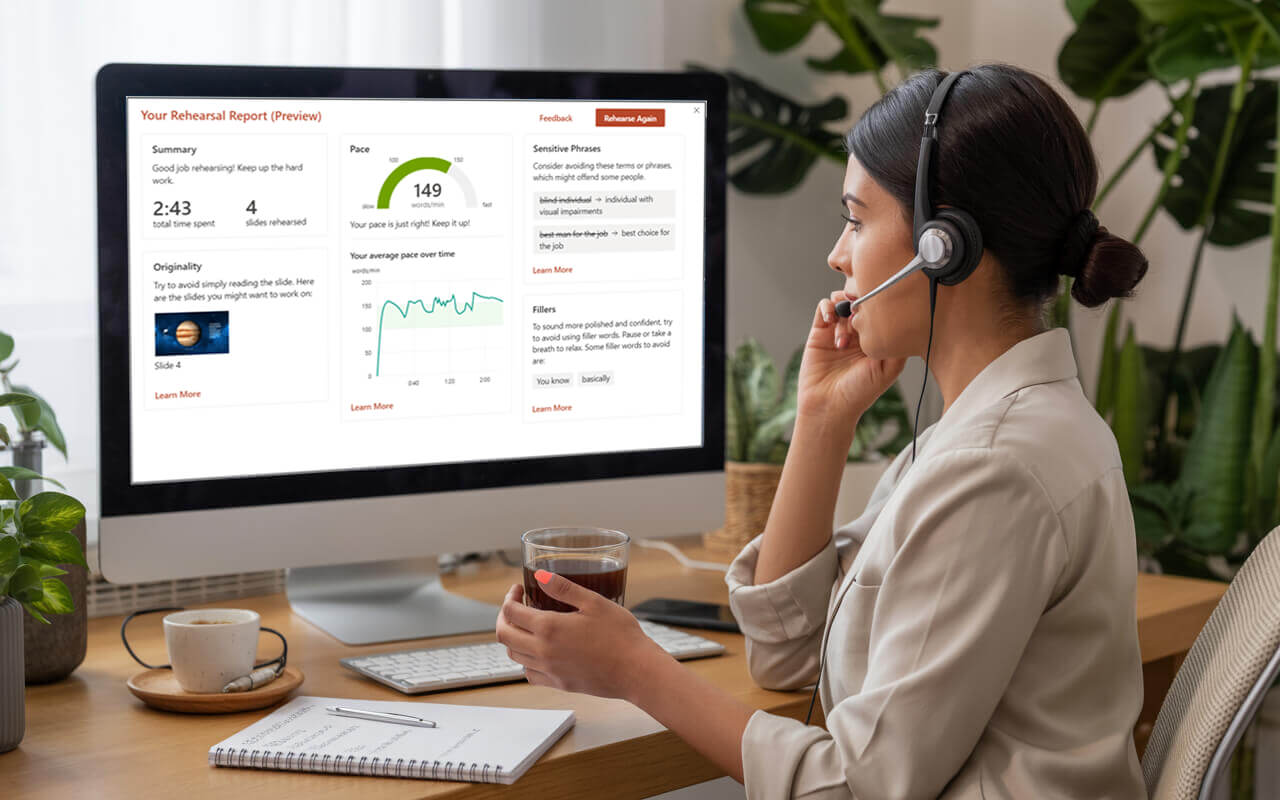
7. Rehearse with Speaker Coach
Practise your delivery using PowerPoint’s AI-powered Speaker Coach:
- Go to Slide Show > Rehearse with Coach
- Get feedback on pacing, filler words, and tone
- Use insights to improve before your big day
Learn more from Microsoft: Speaker Coach Overview
8. Leverage Icons, Shapes and Illustrations
Modern visuals are built-in. Head to Insert > Icons or Insert > Pictures > Stock Images to access thousands of customisable visuals. They’re great for replacing boring bullets and explaining ideas visually.
9. Embed Multimedia Like a Pro
Add short video intros, demo reels, or screen recordings directly to your slides to make them more dynamic. Go to Insert > Video or Audio and upload or record live.
10. Make Use of Presenter View
Presenter View lets you see your notes, upcoming slides, and a timer—all while your audience sees only the main slide. Enable this in Slide Show > Use Presenter View. It’s ideal for pacing and confidence.
11. Keep It Accessible and Inclusive
Accessibility matters. Make sure everyone can engage with your presentation by following W3C accessibility guidelines:
- Use alt text for all images
- Maintain high contrast between text and background
- Avoid using colour as the only indicator
- Use Review > Check Accessibility
12. Export to PDF or Video
Need to share slides offline or pre-record your session? Use File > Export to:
- Save as PDF for easy email or printing
- Create a video (MP4) to upload to Teams, YouTube, or intranet
13. Use Copilot to Supercharge Your Workflow
Microsoft Copilot, built into PowerPoint, uses AI to help you craft your slides:
- Draft outlines and summaries
- Rewrite or rephrase content
- Generate design suggestions and visual layouts
Simply describe what you want—e.g. "Create a pitch deck for a sustainability startup"—and Copilot will build a draft instantly.
Learn more about Microsoft 365 Copilot
14. Insert Power BI, Forms, and Objects
Power BI: Bring real-time dashboards into your presentation. Use Insert > Power BI to display live charts and visuals that respond to user interaction.
Microsoft Forms: Run live polls and capture audience feedback with Insert > Forms. Great for webinars and team meetings.
Objects: Embed documents and Excel data as objects to give your slides interactive depth without switching applications.
15. Create a Photo Album
Need to show off event photos or visual portfolios? Go to Insert > Photo Album to add and format a bulk set of images in one click. Clean, professional layouts—no manual formatting needed.
16. Record Your Screen or Voice
Demonstrate how something works by using Insert > Screen Recording. Perfect for software walkthroughs, process demos or training content. You can also record voiceovers for self-running slides.
17. Present in Microsoft Teams
If you’re delivering remotely, click Present in Teams directly from PowerPoint. This gives you better control, removes the need to share screens, and ensures smooth transitions without lag or glitch.
18. Know Your Audience
Not all audiences are the same. Tailor your content based on who’s watching:
- Executives: Show high-level takeaways, decisions, ROI
- Technical teams: Include charts, diagrams, and detail
- Clients: Focus on benefits, impact, and storytelling
19. Final Polish
- Proofread everything
- Replace placeholder text
- Test all embedded media and links
- Do one full run in Presenter View

PowerPoint is more than slides—it’s a storytelling tool. When used well, it becomes a platform to inspire, convince, and lead.
Ready to Become a PowerPoint Pro?
Choose a course below to start learning:
| Course | What You’ll Learn | Duration | Price |
|---|---|---|---|
| PowerPoint Level 1 | Layouts, formatting, working with visuals | 1 day | $365 |
| PowerPoint Level 2 | Slide Master, animations, advanced formatting, interactivity | 1 day | $365 |
| Copilot for PowerPoint | Use AI to draft, edit and design presentations | 1 day | $560 |
What Our Learners Are Saying
Emily R. – Sydney: “I went from dreading presentations to confidently presenting to leadership. The Nexacu PowerPoint course made all the difference.”
Leon M. – Melbourne: “Loved the advanced PowerPoint course. The trainer was excellent, and I now use Slide Master and Presenter View all the time.”
Rina D. – Brisbane: “Copilot for PowerPoint was a game-changer – I built an entire slide deck with prompts in minutes!”
































