Recent Searches
Category

Microsoft Power BI

Category

Microsoft Copilot Courses

Category

AI for Business

Category

Microsoft Windows 11 Courses

Category

Microsoft 365

Category

Microsoft Excel

Category

Excel Specialist

Category

Microsoft Project

Category

R Programming

Category

Python

Category

Power Apps

Category

SQL

Category

SharePoint

Category

Microsoft Teams

Category

Power Automate

Category

Microsoft Visio

Category

Microsoft PowerPoint

Category

Microsoft Word

Category

Microsoft Outlook

Category

Adobe InDesign Courses

Category

Adobe Photoshop Courses

Category

Adobe Illustrator Courses

Category

Adobe Premiere Pro Training

Category

Adobe After Effects Training

Category

Adobe Acrobat Courses

Category

Adobe Captivate Training

Category

Adobe Animate Training

Category

Canva Courses

Category

HTML Courses

Category

WordPress

Category

Professional Development

Category

Microsoft Access

Category

Webinars

Course

Power BI Beginner

Course

Copilot for M365

Course

Windows 11 End User Course

Course

Excel Beginner

Course

Financial Modelling

Course

Project Beginner

Course

R Programming Beginner

Course

Python Beginner

Course

Power Apps Beginner

Course

SQL Beginner

Course

SharePoint Beginner

Course

Teams Essentials

Course

Visio Essentials

Course

PowerPoint Level 1

Course

Word Intermediate

Course

Word Beginner

Course

Word Advanced

Course

Microsoft Outlook Beginner to Intermediate

Course

InDesign Lite

Course

Photoshop Lite

Course

Illustrator Training Intro

Course

Premiere Training Intro

Course

After Effects Training Intro

Course

Acrobat Essentials

Course

Captivate Training

Course

Animate Training Intro

Course

Canva AI

Course

HTML Training Intro

Course

Achieving Leadership & Success

Course

Microsoft Access Essentials

Course

Copilot for M365 On Demand

Course

Power BI Intermediate

Course

Copilot for Word

Course

ChatGPT Beginner

Course

Microsoft 365 Beginner

Course

Excel Intermediate

Course

Analysis and Dashboards

Course

Project Intermediate

Course

R Programming Intermediate

Course

Python Intermediate

Course

Power Apps Intermediate

Course

SQL Intermediate

Course

SharePoint Intermediate

Course

PowerPoint Level 2

Course

InDesign Training Intro

Course

Photoshop Training Intro

Course

Acrobat Forms

Course

Anger Management & Negotiation Skills

Course

Copilot for M365 Live Online

Course

Power BI Advanced

Course

Copilot for Excel

Course

AI Prompting Fundamentals

Course

Microsoft 365 Intermediate

Course

Excel Advanced

Course

Excel VBA

Course

Project Advanced

Course

R Programming Advanced

Course

Python Advanced

Course

Power Apps Intermediate | Power Automate + Power BI Integration

Course

SharePoint Advanced (Site Owner)

Course

InDesign Training Advanced

Course

Assertiveness & Confidence

Course

Microsoft Access Advanced

Course

Power BI DAX

Course

Copilot for PowerPoint

Course

Excel Expert

Course

Machine Learning in R

Course

Power Apps Advanced

Course

SharePoint Advanced (Document Governance)

Course

Building Resilience

Course

Copilot for Outlook and Teams

Course

Coaching and Mentoring

Course

Illustrator Training Advanced

Course

Premiere Basics Training

Course

Advanced After Effects Training

Course

Canva Beginners

Course

WordPress Essentials

Course

Communications

Course

AI for Business Leaders and Managers

Course

Photoshop Training Advanced

Course

Advanced Premiere Training

Course

Canva Intermediate

Course

Communications & Quality Client Service Training

Course

InDesign Interactivity Training

Course

Canva Advanced

Course

Critical Thinking and Problem Solving

Course

InDesign Accessibility Training

Course

Cultural Diversity in the Workplace

Course

Microsoft Outlook Advanced

Course

Embracing Change

Course

SQL Advanced

Course

Growing Emotional Intelligence

Course

Planner Premium

Course

Minute Taking

Course

Excel Tables and Pivot Tables

Course

Power Automate Beginner

Course

Performance Management

Course

Data Transformation with Power Query

Course

Excel Macro Mastery

Course

Power Automate Intermediate

Course

Persuasion and Negotiation Skills

Course

Power BI Desktop Advanced Reporting

Course

Presentation Skills and Public Speaking

Course

Data Visualisation with Power BI Desktop

Course

Practical Project Management

Course

Respect, Equity and Diversity (RED)

Course

Resumé Writing and Interview Skills

Course

Stress Management

Course

Team Leadership, Management and Development

Course

Time Management Intensive

Course

Train the Trainer

Course

Write Effective Business Documents

Course

Dealing with Difficult People

Course

Managing Difficult Conversations

Course

Managing the Virtual Workplace

Course

Customer Service Training

Course

Technical Writing

Presentation Perfection: PowerPoint Tips to Impress

Nexacu | Mar 07, 2025

Whether you give a corporate pitch, teach a class or speak at a conference, you use PowerPoint to show ideas. Yet making a presentation that stands out means more than placing words and pictures on slides.

This guide offers important PowerPoint hints to help you build clear, professional presentations. From layout rules to new presentation ideas, these hints help your slides appear neat and make your ideas come to life.

Why Great Presentations Matter

Powerpoint presentation tips

1. They Engage Your Audience

A well-designed presentation grabs attention and keeps people focused.

2. They Communicate Ideas Clearly

Simple visual tools help explain difficult points and mark the main ideas.

3. They Leave a Lasting Impression

A polished presentation shows skill and raises trust in your ideas.

PowerPoint Tips for Slide Design

Good design is the foundation of a great presentation. Follow these tips to create visually appealing and professional slides:

1. Start with a Template

Using a professional template ensures consistency in layout, colours, and fonts across your slides.

Pro Tip: Use a layout that is simple and fits with your brand or topic. Skip styles that distract from your content.

2. Stick to a Consistent Colour Scheme

A cohesive colour palette makes your presentation visually pleasing and professional.

Tips for Choosing Colours:

  • Use your brand colours for a consistent look.

  • Use 2 to 3 main colours for simplicity.

  • Make sure text shows well against its background.

Pro Tip: Use the Eyedropper tool in PowerPoint to match colours precisely.

3. Limit Text on Slides
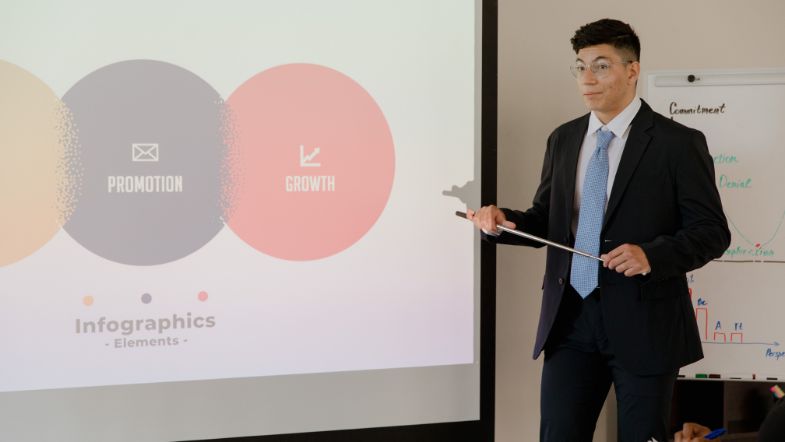
limit text on powerpoint slides
Slides are meant to support your message, not replace it. Avoid overcrowding slides with too much text.

Tips for Minimal Text:

  • Use bullet lists instead of blocks of text.

  • Focus on one idea per slide.

  • Keep about six words per line and no more than six lines per slide.

4. Use High-Quality Images and Icons

Pictures and icons can make slides more appealing.

Where to Find Quality Graphics:

  • Images: Use royalty-free sites like Unsplash or Pexels.

  • Icons: Download from PowerPoint’s built-in library or platforms like Flaticon.

Pro Tip: Ensure images are high resolution and relevant to your content.

5. Maintain Consistent Fonts

Fonts play a significant role in readability and design.

Tips for Using Fonts:

  • Try sans-serif fonts like Arial, Calibri or Roboto for a modern feel.

  • Limit yourself to 1 or 2 font types for one look.

  • Use large fonts for titles (around 32pt) and body text (around 24pt).

PowerPoint Tips for Content

Your content is the heart of your presentation. Here’s how to make it clear, concise, and impactful:

6. Use Data Visualisation for Complex Information

use data visualisation in powerpoint slides

Charts, graphs, and tables help present data in an easily digestible format.

Tips for Effective Data Visualisation:

  • Use bar charts for comparisons and pie charts for parts of a whole.

  • Label data clearly and remove extra details.

  • Mark key points with different colours or bold text.

7. Incorporate Storytelling Techniques

Stories resonate with audiences, making your presentation more memorable.

How to Use Storytelling:

  • Begin with a clear opening or personal note.

  • Work with a clear pattern: start, problem, fix, and end.

  • Match your story with your audience’s needs or problems.

8. Include Interactive Elements

Interactive slides can boost engagement and keep your audience involved.

Examples of Interactive Features:

  • Use live polls or Q&A tools like Mentimeter.

  • Include simple animations or transitions to direct focus.

  • Tip: Keep animations calm and with a clear goal; do not add too many.

Pro Tip: Keep animations subtle and purposeful—avoid excessive effects.

9. Add Speaker Notes for Reference

Speaker notes help you stay on track without cluttering your slides.

How to Use Speaker Notes:

  • Write brief prompts or reminders for each slide.

  • Do not write the whole speech; keep your words natural.

  • Practice with your notes to guide your talk smoothly.

Advanced PowerPoint Techniques

advanced powerpoint techniques

Once you’ve mastered the basics, try these advanced techniques to elevate your presentations further:

10. Use Slide Master for Consistency

The Slide Master feature ensures uniform design across all slides in your deck.

How to Use Slide Master:

  • Access it via View > Slide Master.

  • Set default fonts, colours, and placeholders.

  • Apply custom layouts to specific slides.

11. Design Custom Graphics with Shapes

PowerPoint’s Shape tool lets you create unique visuals directly within the platform.

Examples of Custom Shapes:

  • Combine rectangles and circles to create flowcharts.

  • Use the Merge Shapes option to make new icons.

  • Add color shades or borders for a neat look.

12. Use PowerPoint’s Presenter View

Presenter View gives you tools like a timer, speaker notes, and slide previews while presenting.

How to Enable Presenter View:

  • Connect to an external display and start the slideshow.

  • Select Use Presenter View under the Slide Show tab.

13. Export Your Presentation as a Video

Converting your slides into a video format is great for sharing or repurposing content.

How to Export:

  • Go to File > Export > Create a Video.

  • Choose a resolution and include recorded timings or narrations.

Common Presentation Mistakes to Avoid

  1. Too Many Slides: Keep your content short to help the audience keep focus.

  2. Small Text: Make sure your text is large enough to see.

  3. Too Many Animations: Use simple slide moves for a clean look.

Why PowerPoint Skills Matter

Proficiency in PowerPoint isn’t just a technical skill—it’s a communication skill. Great presentations can:

  • Boost your professional reputation.

  • Improve teamwork and idea exchange.

  • Support convincing pitches or proposals.

Learn PowerPoint with Nexacu

At Nexacu, we offer expert-led PowerPoint Training courses designed to help professionals:

  • Create visually stunning slides.

  • Structure presentations for maximum impact.

  • Master advanced features like animations and Slide Master.

Take Your PowerPoint Skills to the Next Level

Want to show presentations that work? Join our PowerPoint training to gain tools plus techniques for solid results! 

Explore PowerPoint Courses and Enrol Today

Trusted Nationwide by Leading Organisations

at Nexacu, we're proud to be the trusted training partner for hundreds of leading organisations accross Australia and New Zealand. From government departments to top corporates, we help teams upskill and succeed everyday

  • 400+ companies rely on Nexacu for team training
  • Trusted by federal, state, and local government agencies
  • Delivering training across 9 countries

Why Nexacu?

Books Icon

Step by Step Courseware

Custom workbook included with a step by step exercises

Facility Image 2
Facility Image 3
Facility Image 1

Refresh Icon

Free Refresher

Resit your course for free within 6 Months

More than 1,300 Business trust Nexacu

Trusted by Business

Procured by Government

Procured by Goverment

Reviews Not Found

Valued by Individuals
















