

Microsoft Teams has transformed the way teams work together by offering a comprehensive suite of communication, collaboration, and project management tools. As a centralised hub for chatting, meeting, calling, and working together, Teams empowers users to be productive regardless of their location.
And because of its seamless integration with Microsoft 365 applications and other programs, Teams eliminates the need to switch between multiple tools and platforms. This makes the platform an essential tool for businesses and organisations of all sizes.
If you’re someone who regularly uses Teams for work, you may already be familiar with some of its basic functionalities. Now, it's time to take your experience to the next level with advanced Microsoft Teams features for power users like you. In this blog, we will share some of the best practices for boosting productivity in Microsoft Teams and how you can leverage its advanced features to streamline your workflow, collaborate more effectively with your team members, and manage projects efficiently.
Microsoft Teams Power User Tips
Streamlining communication
One of the ways to make your messages more readable and engaging in Microsoft Teams is to use message formatting. Here’s how:
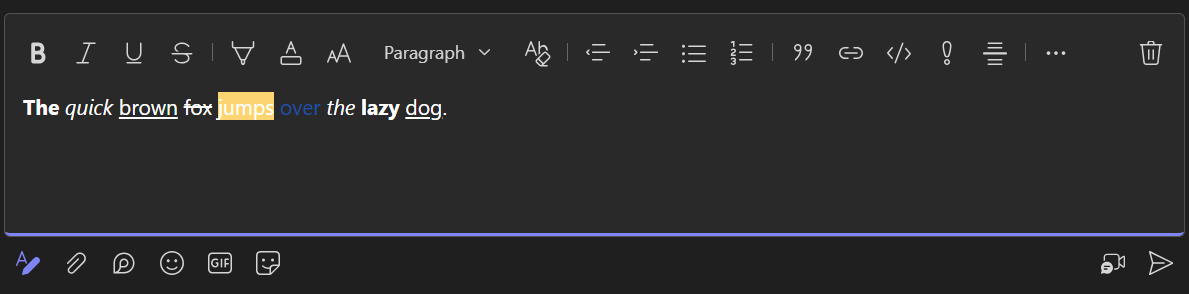
1. Click the Format button below the compose box. This will open Teams’ formatting options.
2. Select the text you want to format.
3. Select a formatting option like bold, italic, and underline. You can also highlight text, choose a font color and font size, insert code, links, and quotes, and increase or decrease text indent.
Reactions are also a great way to express yourself and engage with messages in Microsoft Teams. To send a reaction:
1. Hover over the message you want to react to.
2. Click the smiley face icon that appears to the right of the message sent to you.
3. Choose the reaction you want to use from the options provided (e.g., Like, Heart, Laugh, Surprised, or another emoji).
4. Your selected reaction will be added to the message, allowing others to see your response quickly.
Managing notifications effectively is crucial for maintaining focus and productivity in Microsoft Teams. To manage your notifications, here are some tips you can try:
1. Access Notification Settings: Click on your profile picture in the top right corner of Teams and select Settings from the dropdown menu. Then, navigate to the Notifications tab to customise your notification preferences.
2. Customise Notification Settings: In the Notifications tab, you can choose how and when you receive notifications. Options include receiving notifications for all activity, only mentions and direct messages, or no notifications at all. You can also specify notification preferences for different types of activities, such as messages, mentions, replies, and more.
3. Manage Specific Channel Notifications: In Teams, you can customise notification settings for each channel individually. Right-click on the channel name and select Channel notifications to adjust notification preferences specific to that channel. This allows you to stay informed about important updates in specific channels while minimising distractions from others.
4. Utilise Quiet Hours and Quiet Days: Teams offers the option to set quiet hours and quiet days during which notifications are muted to avoid interruptions during focused work or personal time. This feature can help you maintain a healthy work-life balance by preventing work-related notifications from disrupting your off-hours.
Optimising Meetings and Collaboration
Meetings are a fundamental part of collaboration in Microsoft Teams and optimising them can significantly improve team productivity. In fact, a study by Forrester found that a company could save between $8.8 million and $21.7 million on productivity costs just by using Microsoft Teams.
Here are some advanced meeting scheduling and management tips to help power users make the most of their Teams experience:
1. Customise Meeting Options: When scheduling a meeting, consider customising options such as meeting frequency, recurrence, and duration to fit the specific needs of your team. You can also choose whether to allow attendees to bypass the lobby or require them to wait for the organiser to admit them.
2. Share Meeting Notes: Take advantage of the built-in meeting notes feature in Teams to capture and share important meeting discussions, action items, and decisions in real-time. Meeting notes can be accessed and edited by all meeting participants, ensuring everyone is on the same page and accountable for follow-up tasks.
3. Explore Collaboration Features: In addition to standard meeting functionalities, Teams offers a range of collaboration features to enhance productivity during meetings:
4. File sharing: Simplify collaboration by sharing files directly within Teams. You can upload documents, spreadsheets, presentations, and more to facilitate real-time collaboration among team members.
5. Co-authoring: Enable simultaneous editing and collaboration on documents shared within Teams. Multiple team members can work on the same document simultaneously, allowing for efficient teamwork and faster completion of tasks.
6.Use Meeting Insights: After the meeting concludes, review meeting insights to gain valuable insights into participant engagement, attendance trends, and meeting duration. Use this data to optimise future meetings and ensure they are efficient and productive.
Efficiency Boosters
Mastering keyboard shortcuts and navigation hacks can significantly boost your Microsoft Teams productivity. Here's a list of essential Microsoft Teams keyboard shortcuts and productivity hacks to streamline your workflow:
Keyboard shortcuts:
- Go to search box: Ctrl + E
- Go to command box: Ctrl + G
- Mute or unmute yourself in a meeting or a call: Ctrl + Shift + M
- Turn your camera on or off in a meeting or a call: Ctrl + Shift + O
- Accept an incoming call: Ctrl + Shift + A
- Decline an incoming call: Ctrl + Shift + D
- Join a meeting from a chat or a channel: Ctrl + Shift + J
- Switch between chats, meetings, calls, and files: Ctrl + Shift + F6
- Update your status: Ctrl + Shift + U
- Close the current app window: Ctrl + F4
Navigation tips:
- Perform actions quickly using the command box at the top of the app. For example, you can start a chat, join a meeting, or open an app. You can also use slash commands, such as /call, /files, /help, and more. Type / in the command box to see all the commands.
- The command box also allows you to find messages, people, files, or apps. You can narrow down your search results by type, time, or unread status using filters.
- Use the bar on the left side of the app to access the main features of Teams, such as Chat, Teams, Calendar, Calls, and Files. You can even customise the app bar by pinning or unpinning your favorite apps. To do this, right-click on an app icon and select Pin or Unpin.
- Use the Activity feed to see all the notifications that you have received in Teams, such as mentions, replies, reactions, chat messages, meetings, calls, and more. You can filter the activity feed by type, time, or unread status. Alternatively, you can mark notifications as read or unread or delete them.
In addition to maximising the built-in functionalities of Teams, integrating third-party apps can further enhance your efficiency and streamline your workflow. With Microsoft Teams integrations, you can access and use a vast array of third-party apps within Teams, ranging from project management and productivity tools to communication platforms and AI solutions. Here's how to install and use third-party apps within Teams:
1. Go to the Apps tab on the left side of Microsoft Teams and browse or search for the app that you want to integrate. You can also filter the apps by category, such as project management, productivity, or communication.
2. Click on the icon of your desired app and select Add to add the app to your Teams app. You can also choose to add the app to a specific chat, channel, or team, depending on the app’s functionality and availability.
3. Access the app from the app bar, the chat, the channel, or the team where you added it. You can also pin the app to the app bar for quick access by right-clicking on the app icon and selecting Pin.
4. Use the app by interacting with the app’s interface, such as tabs, bots, connectors, or messaging extensions. For example, you can use tabs to view and edit app content within Teams, bots to chat with the app and get information or assistance, connectors to receive app notifications and updates in a channel, or messaging extensions to insert app content or commands in a chat or a channel.
Customisation and Personalisation
Teams allows you to change the appearance of the app, such as the theme, the background, and the emojis. You can also adjust your status settings to let others know your availability and mood. To customise Teams to your liking:
Change App Theme
1. Go to the Settings menu by clicking on the three dots button (…) beside your profile picture in the top right corner of the app.
2. Select Appearance and Accessibility and choose your preferred theme (e.g., light, dark, or system default)
Change Your Background in a Meeting
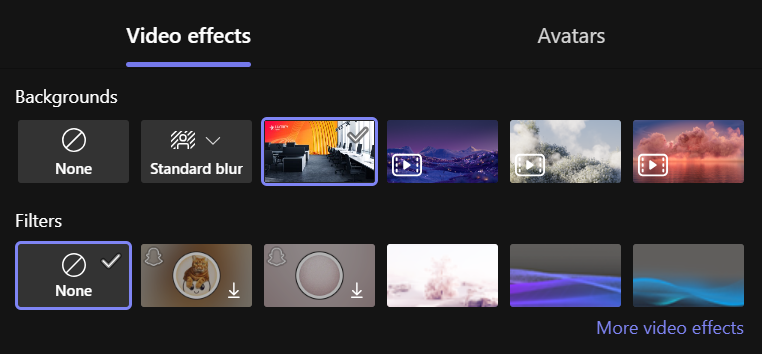
1. Before joining a meeting, turn on your camera and click on the Background filters button next to the camera button. You can also access this during a meeting by clicking on the three dots button (…) and selecting Video effects.
2. Select Blur to blur your background or choose from the available images to replace it. You can also upload your own image by clicking on Add new and selecting a file from your computer.
3. Click on Preview to see how your chosen background looks before you apply it, and then click on Apply to confirm it. You can also change your background during a meeting by following the same steps.
Change Your Status in Teams
1. Click on your profile picture on the upper right corner of the app.
2. Click on your current status (e.g., Available) and select what you want to update to:
- Available
- Busy
- Do not disturb
- Be right back
- Away
- Appear offline
- Reset status
10. To set your status message, repeat step 1 and then select Set status message. Type your status message. You can mention people by typing @ and writing their name, choose to show the status when people message you, and set the message to clear after a certain period.
Security and Privacy
Note: The following options are not available to users. They are only available to global administrators.
Microsoft Teams offers advanced security settings for teams and channels, as well as tips on protecting sensitive information and managing access.
One key feature is the ability to set up and manage guest access. By carefully controlling who has access to your team and its channels, you can easily protect confidential conversations and data. Within Teams, you can adjust permissions and guest access as needed, ensuring that external people only have access to the necessary information. You can customise your guest access settings in the Teams admin center. To do this, go to Microsoft Teams Admin Center > Users > Guest Access.
Another important aspect of Teams security is data encryption. Encryption refers to the act of transforming data into a code that only authorised people can read. Encryption helps protect your data from hackers and unauthorised access. Microsoft Teams employes strong encryption protocols to safeguard data both in transit and at rest. It’s important to familiarise yourself with such technologies to understand how your data is being protected.
Implement two-factor authentication (2FA) for added security as well. 2FA is a security solution that requires users to present one more authentication factor other than their username and password before they can gain access to Microsoft Teams. This could take the form of a one-time PIN, physical key, or a facial or fingerprint scan.
Finally, regularly review and update access permissions to ensure that only authorised individuals have access to sensitive information. Use sensitivity labels to classify and protect sensitive documents within Teams.
Master Microsoft Teams with Nexacu
If you’re looking to learn more about how you can make the most out of Microsoft Teams, enrol in Nexacu’s Microsoft Teams course. This program will teach you to send messages, create channels, schedule video calls, conduct and participate in virtual meetings, integrate apps, automate approvals, and store files, among others.
We currently offer remote classes, so you can learn from the comfort of your own home or office. Our experienced instructors will guide you through the course so you can gain practical skills that can help you in your work or personal projects. Enrol today and empower your team.
































