

Planning Can be Tough
While Microsoft Office is generally marketed at workplaces and businesses, it’s easy-to-navigate interface and broad uses mean it can become a useful tool in your personal life. There are almost always Microsoft solutions to logistical problems.
Take the co-ordination of end-of-year festivities. A member of our office was tasked with the organisation of a class breakup for 25 five-year-old’s. Once she had decided on a location, she needed to get food orders for each of the kids, as well as any dietary adjustments. A once difficult task involving either bits of paper lost at the bottom of school bags or tedious back and forth over email and messages became simple when Anita leveraged her knowledge of Microsoft 365 to come up with an innovative – but simple – solution. She created a Microsoft form that asked for the three pieces of information she needed; the child’s name, order, and any adjustments to the order.
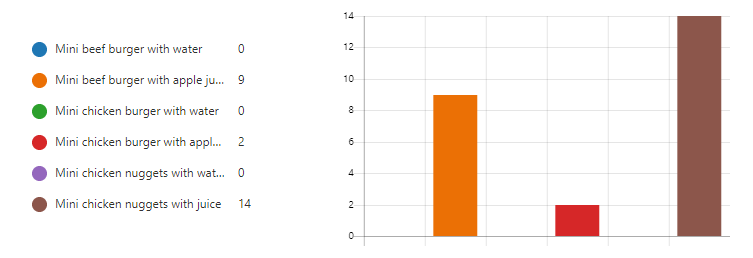
The Microsoft form was then sent out to the parents who answered on behalf of their kids, directly from their mobiles. Within 24 hours, the form provided all the information she needed to give to the restaurant. It was also possible to keep on top of who needed to be reminded to complete the form and receive the information in real time. Microsoft Forms will also present a summary of the responses to each question. Microsoft Forms even automatically creates visuals for your data and presents the results in a format that's easy to interpret. Even though this feature is probably more applicable to the business environment, the bar graph of which meal is most popular (spoiler: it’s mini chicken nuggets with juice) makes a mundane task fun.
Microsoft Forms is the application that you will probably get the most use out of personally (aside from the big three: Word, Excel, and PowerPoint). Collating information from many people can be a difficult task and creating a Microsoft Form can save time. Some other uses for Microsoft Forms could be:
- Getting opinions on where to go for a family holiday from extended family
- Survey your neighbours to find a good time to go on a group run
- Host a virtual trivia night
- Collect information for organising a fundraiser
How to use Forms
Open Forms through Microsoft 365. This will open your Forms home page. If you have recently looked at or completed any forms they will appear in the upper half of the screen. Any groups you are apart of through your Microsoft account will appear at the bottom along with the number of forms created and shared with the group.
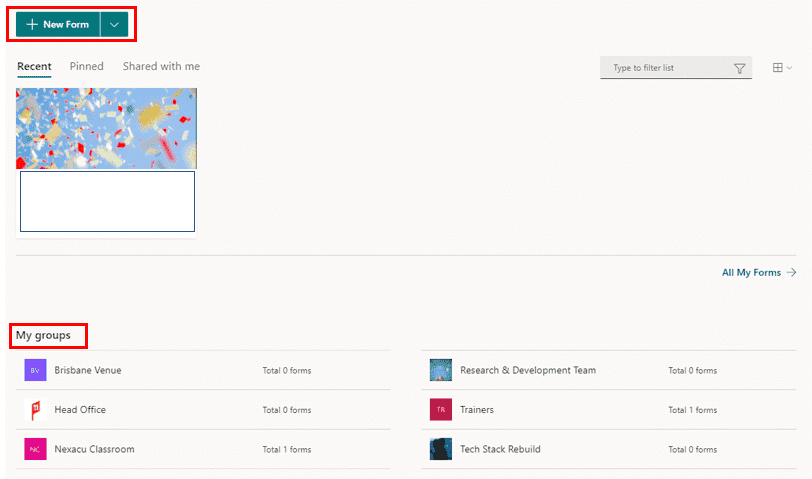
To create a new form, click ‘new form’ at the top of the screen. This will open an untitled form in a new tab. To give your form a name, click on the textbox and type in the new name. In the form I’ll be creating, I am looking to get my family’s opinion on what we should do for our next holiday.
To add questions, click the ‘add new’ button. This will give you an option of different question types. Any question can be made a required question. This will not allow the respondent to submit the form without completing it.
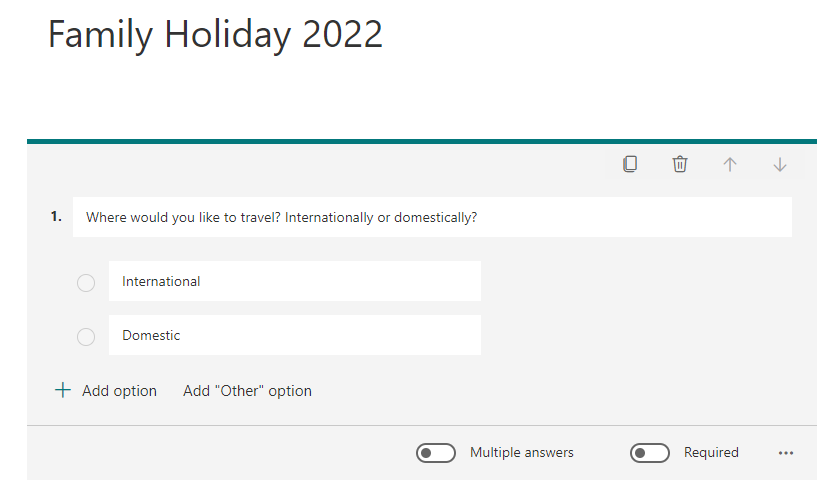
Choice: Gives the respondent several options that they must pick between. You can give the option for an open ended ‘other’ option and allow the respondent to choose multiple answers.
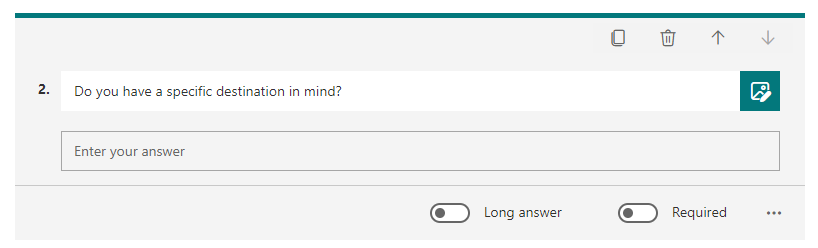
Text: Gives the respondent a place to type an answer to a generally open-ended question. You can make the question ‘long-answer’ which will give the respondent more room to type.
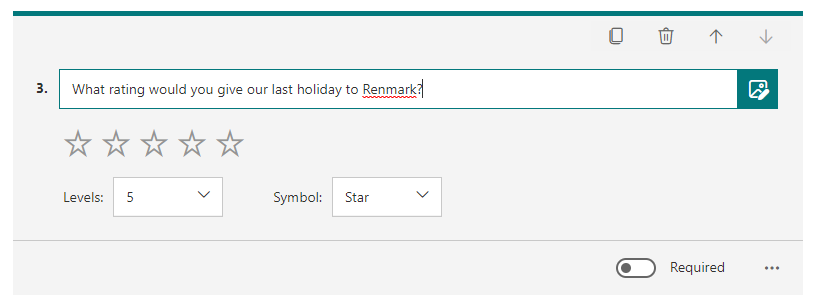
Rating: The respondent response will be a rating. It can be customized to be between 2-10 and be stars or just a number.
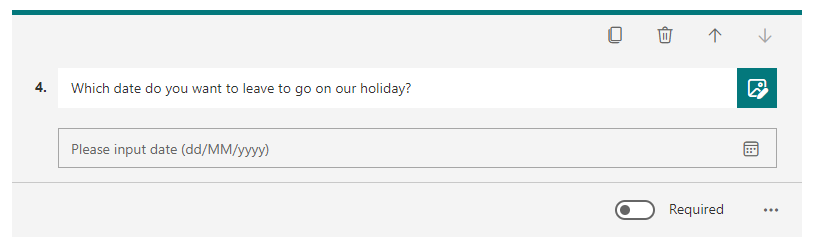
Date: The respondent will choose a date as a response.
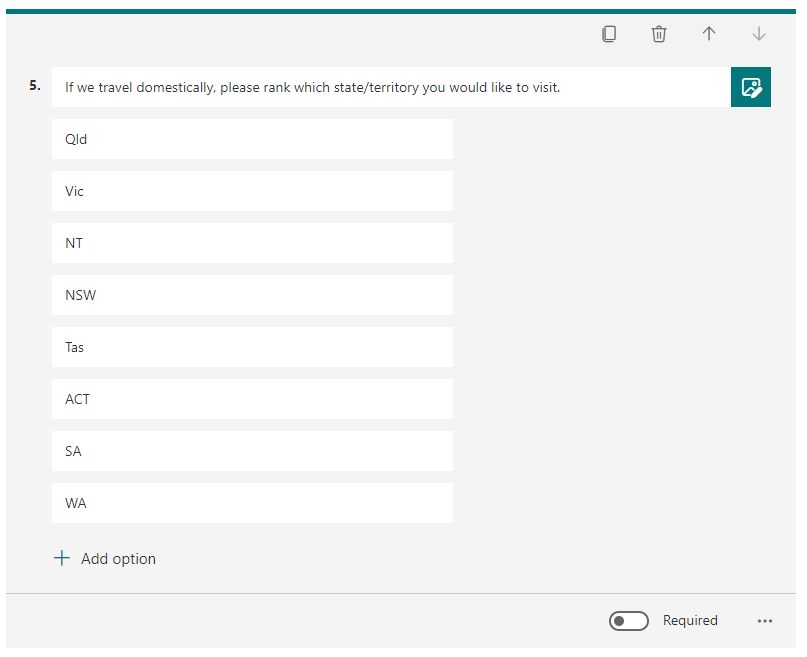
Ranking: This question requires the respondent to ranking several options.
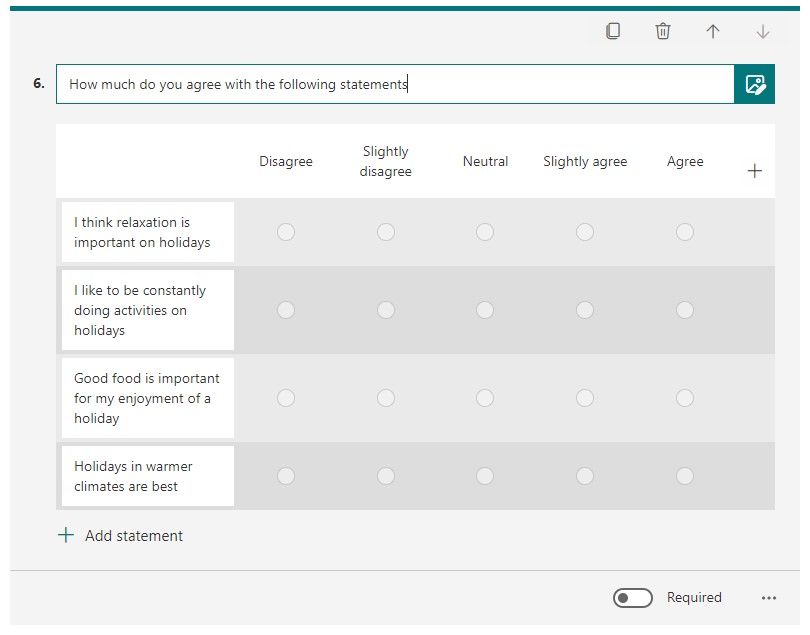
Likert: Requires the respondent to choose an option for each statement. This is generally used for questions about satisfaction or how much you agree with the statement.
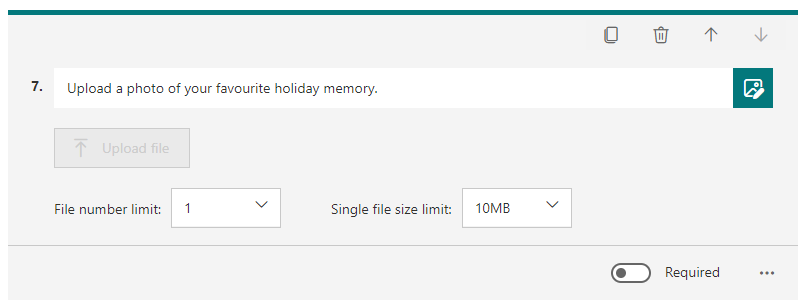
File upload: respondent s can upload a file as a response. This is not as applicable for personal use and is generally more for professional. Any files uploaded are captured in a folder on OneNote. You can set a file number and single file size limit.
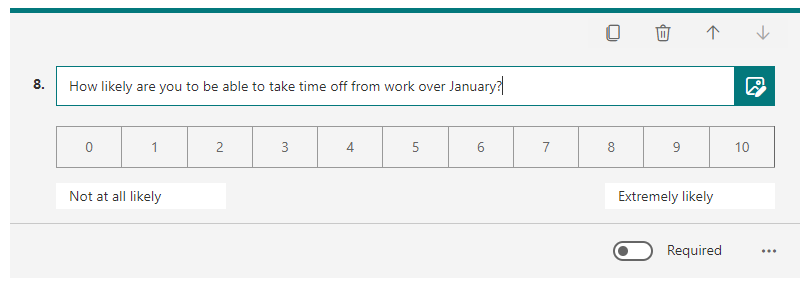
Net Promoter Score: Again, this question style is more applicable to the professional environment. This question asks the respondent to answer a question by rating how likely they are to do something.
Section: The section function allows you to split the questions into sections. This is more pertinent if your survey covers many topics at once.
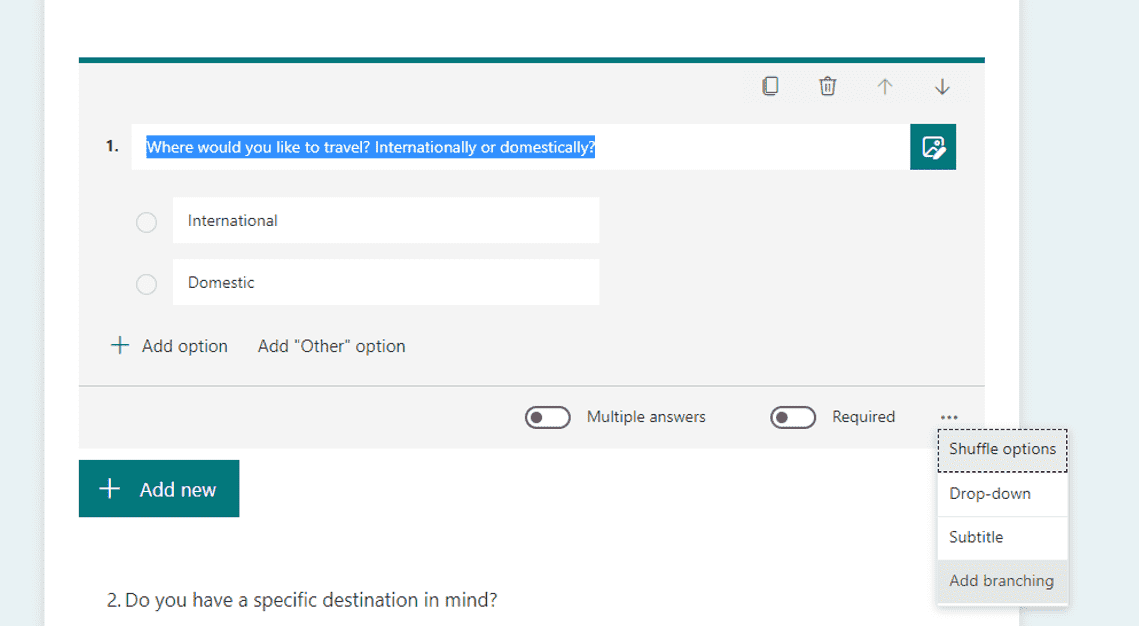
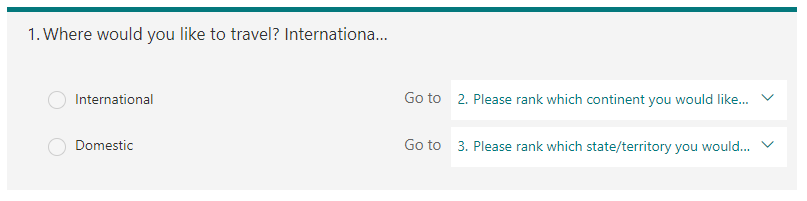
Forms also has the function to ‘branch’ questions. This essentially means that you can divert respondent s to specific questions based off their previous answer. For example, I might want to know more specifically where someone wants to visit once they have decided on international or domestic.
In the top right hand corner, you can alter the theme of the form: I went with the underwater one. You can also preview your form and make sure it operates how you want it to.
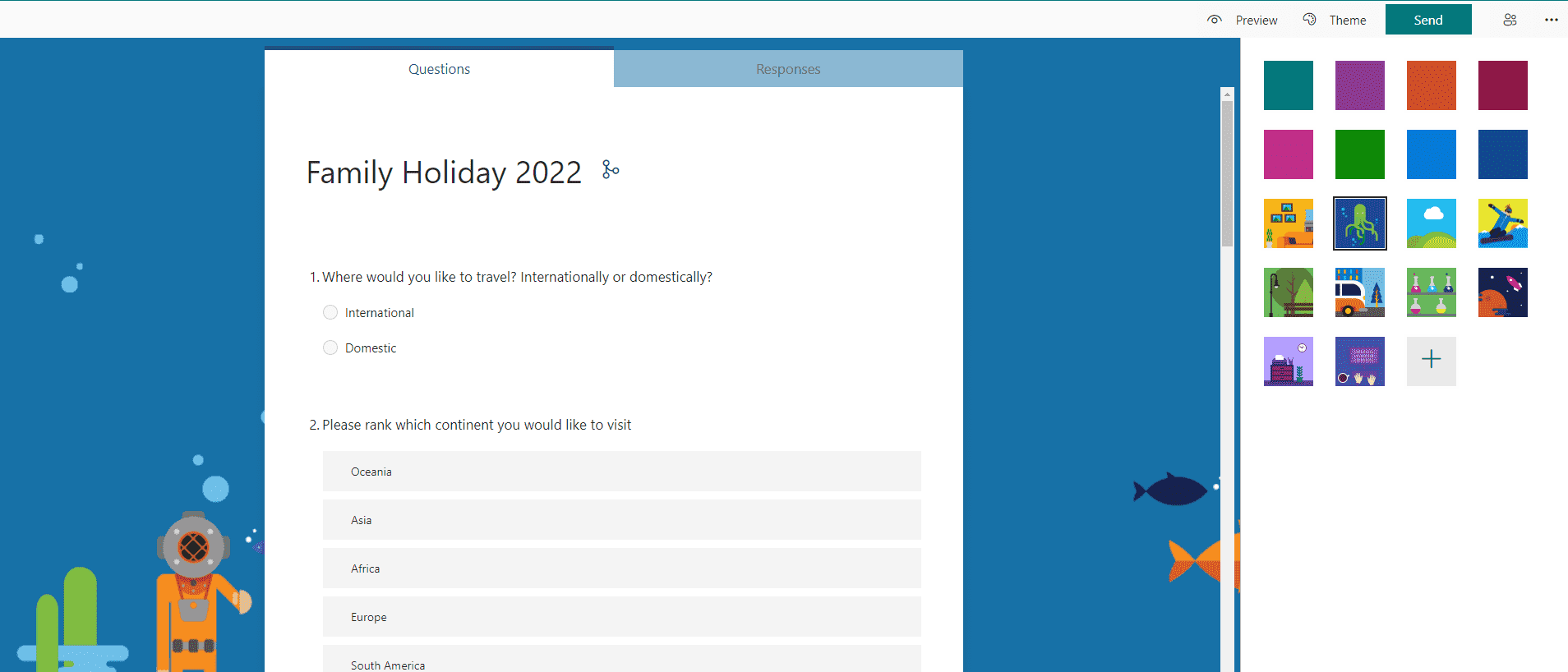
Once you are satisfied with your form, use the send button to distribute it. You can either copy the link, email it, download a QR code for someone else to scan, or embed the form in a webpage. You can also alter the permissions if your form is only for people in your organisation.
As soon as people start responding to the form, you will be able to see the graphics and responses for each question. You will also be told the average time it took to complete. There is an option to open the data in excel if you wish to use your excel skills to analyse the data. We cover data analysis in all of our excel courses, but for beginner skills we recommend our beginner course.
When creating a form it is important to make sure your questions are pointed so that you receive the best data possible. Consider what you actually want to use the data for and have your questions and question types serve that outcome.
Each respondent is assigned a number in the results. The results will be generally anonymous unless you include a question asking the respondents to identify themselves.
Other Microsoft apps can also prove useful. The chrome extension Microsoft editor can help your emails or assignments sound better. Create birthday cards using Publisher. Use outlook and planner to stay on top of your at-home tasks. The possibilities are endless. While Microsoft designed their Microsoft 365 product for business use, getting creative can help you in your personal life.
Join one of our Microsoft 365 training courses to learn more.
































